Initial Configuration
The operator through the HMI has the ability to log in and select:
- the workstation;
- the production order;
- the related operation;
- the operator team;
- the machine that will be used.
Note Some of these configurations may not be available, this depends on the configuration that is performed by system administrators.
To begin the configuration, you can use one of the functional buttons.
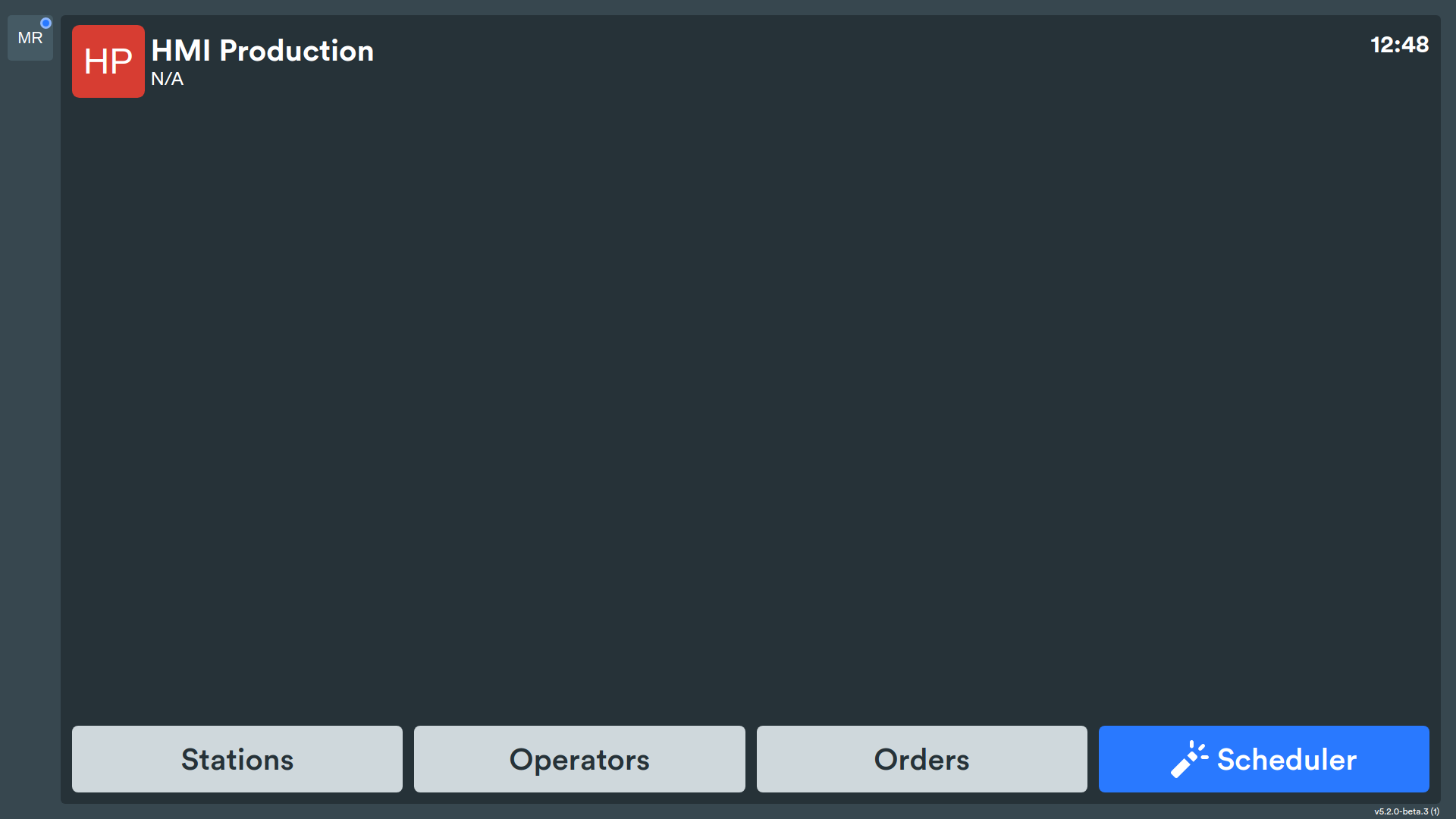
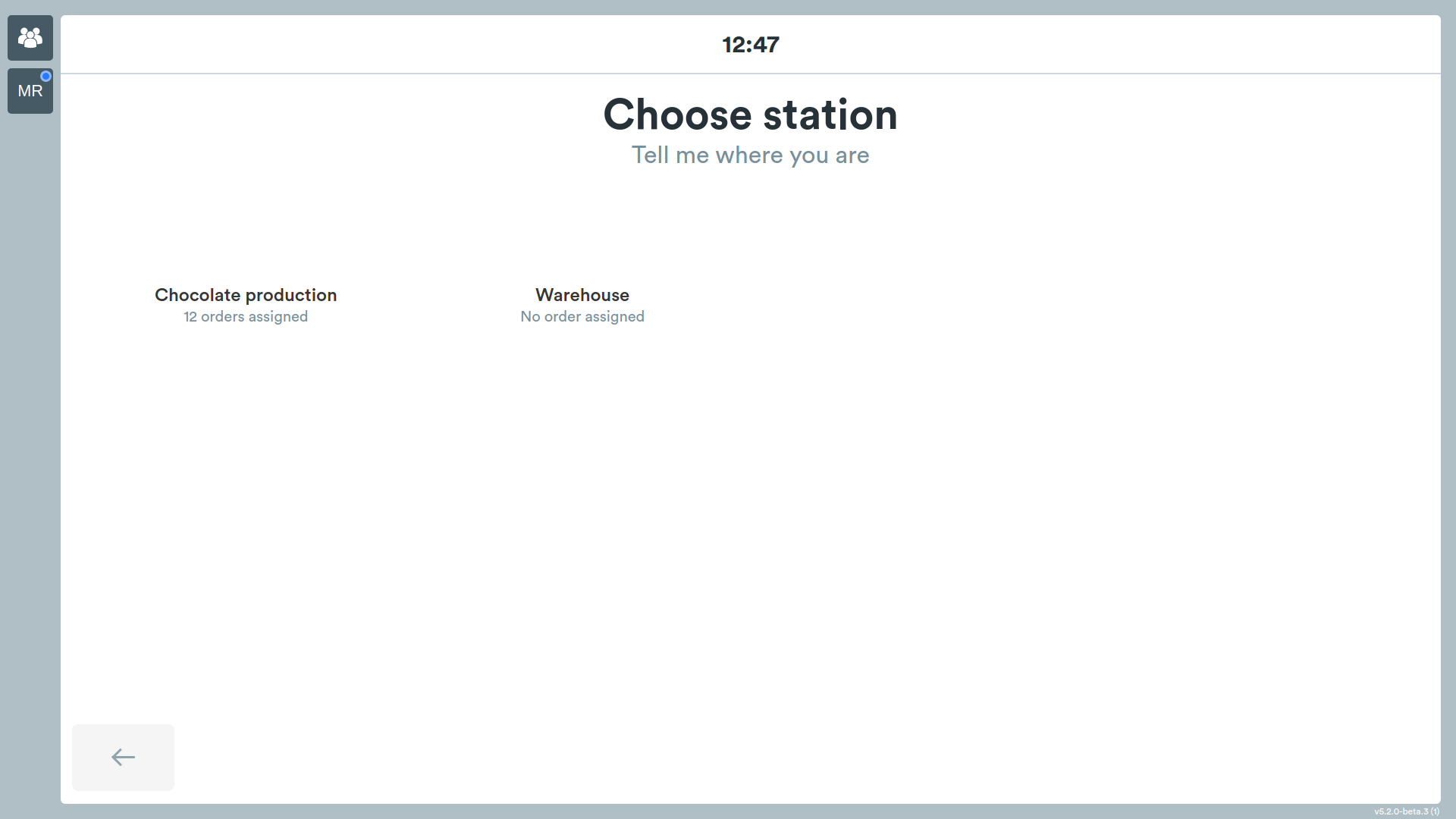
Workstation Selection
The operator will see a screen containing all the workstations to which the HMI is connected.
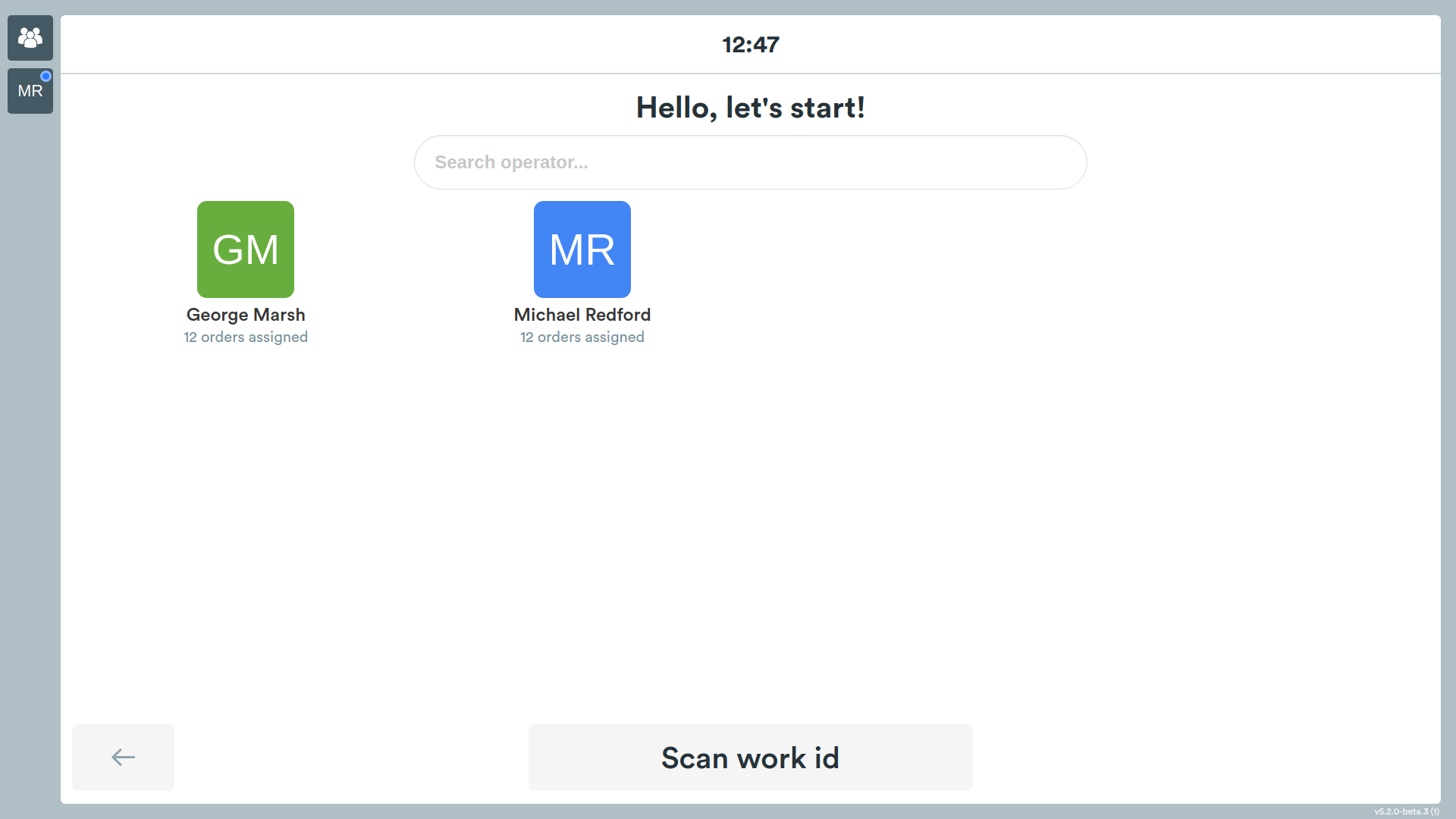
Operator Selection
In this screen you will see the names of all operators authorized to work at this station.
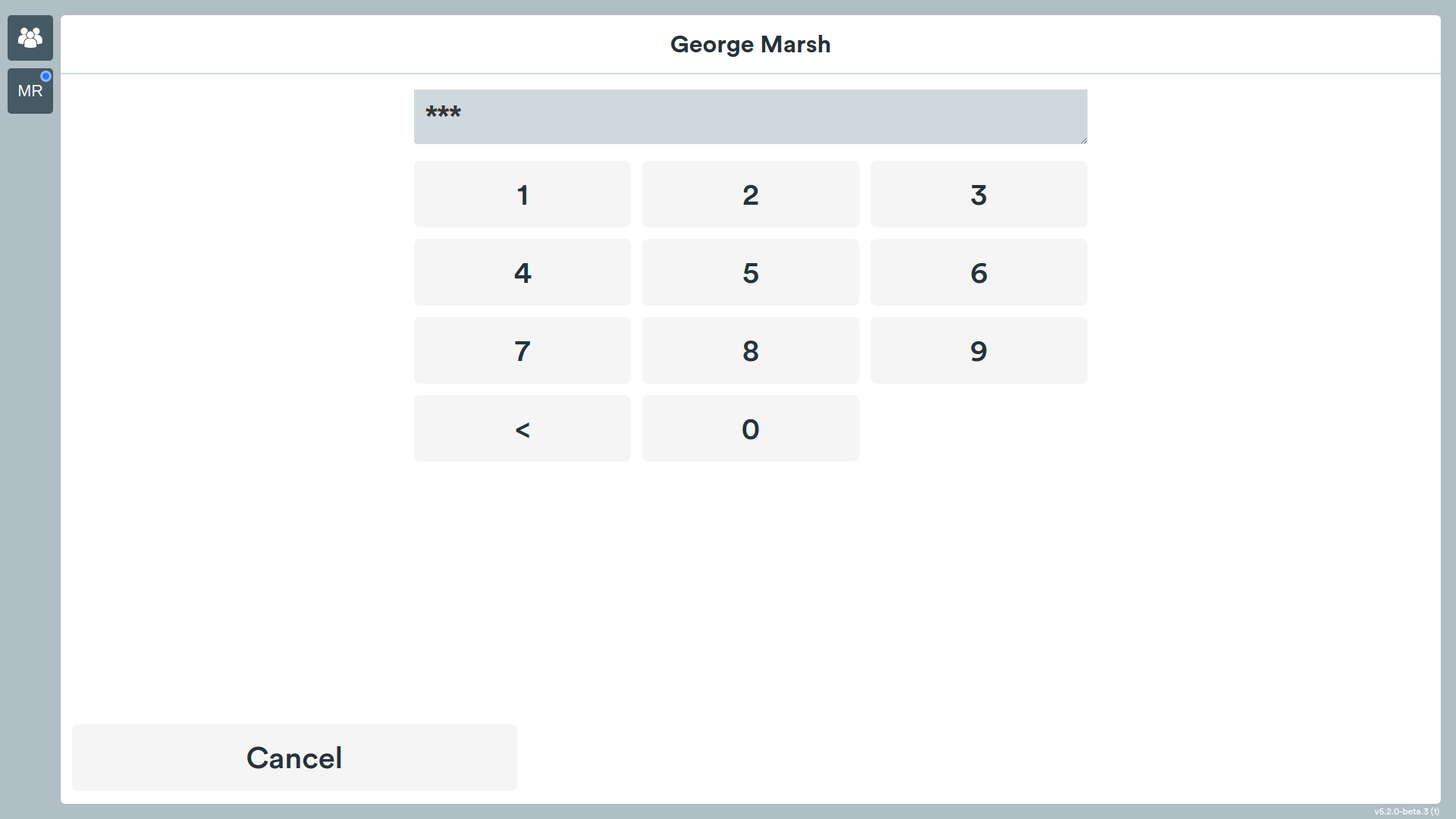
If a PIN has been assigned to the operator, it must be entered to proceed.
Production Order Selection
In this screen, available production orders will be presented.
For each of these, the following will be indicated:
- the name of the production order;
- the item to be produced;
- the customer;
- any agreed delivery date;
- the number of available operations;
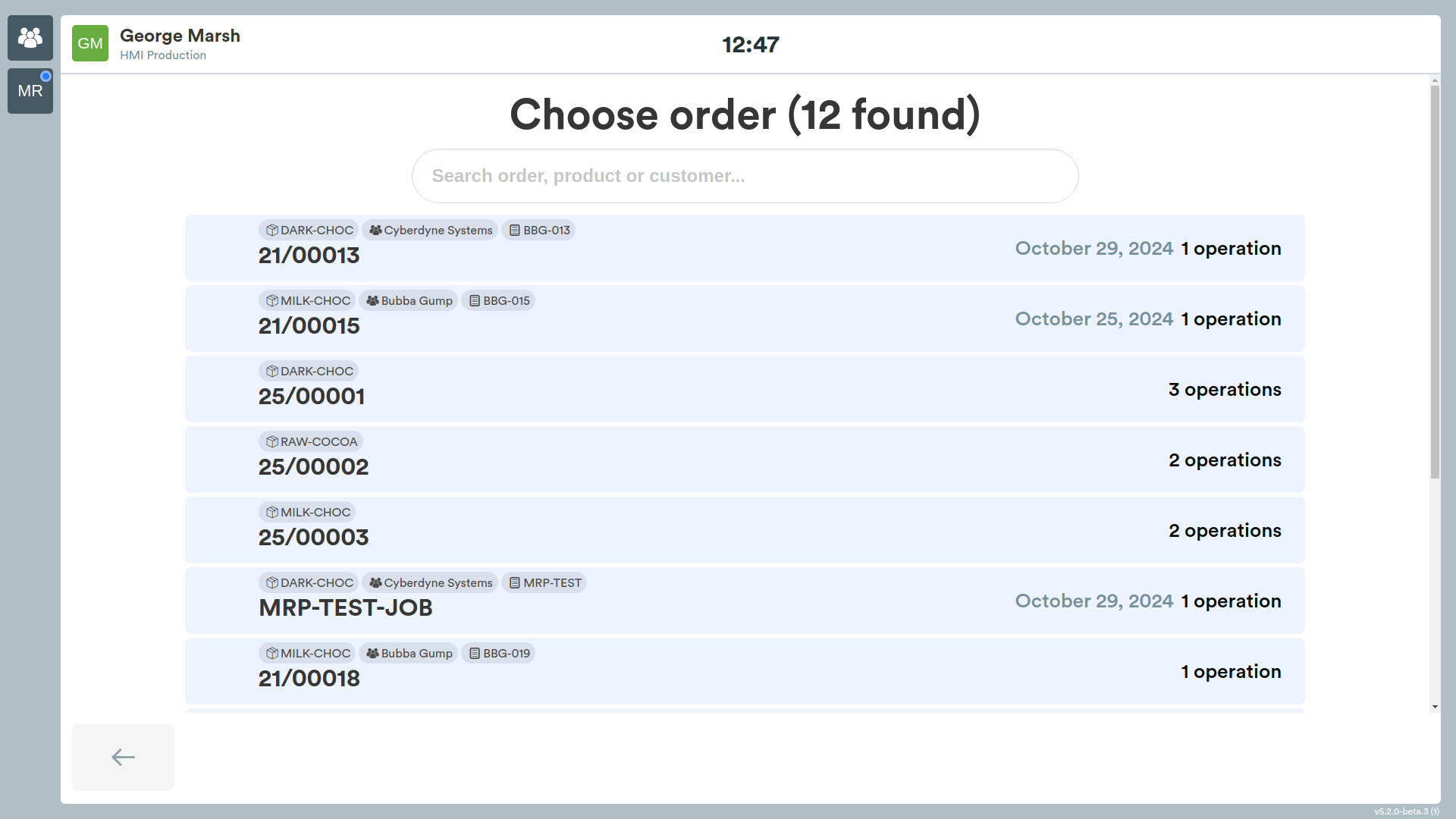
Press on the order to continue.
Operation Selection
In this screen, the available operations related to the previously selected order will be presented.
For each one, the following will be indicated:
- the name;
- the number of units produced compared to the total required.
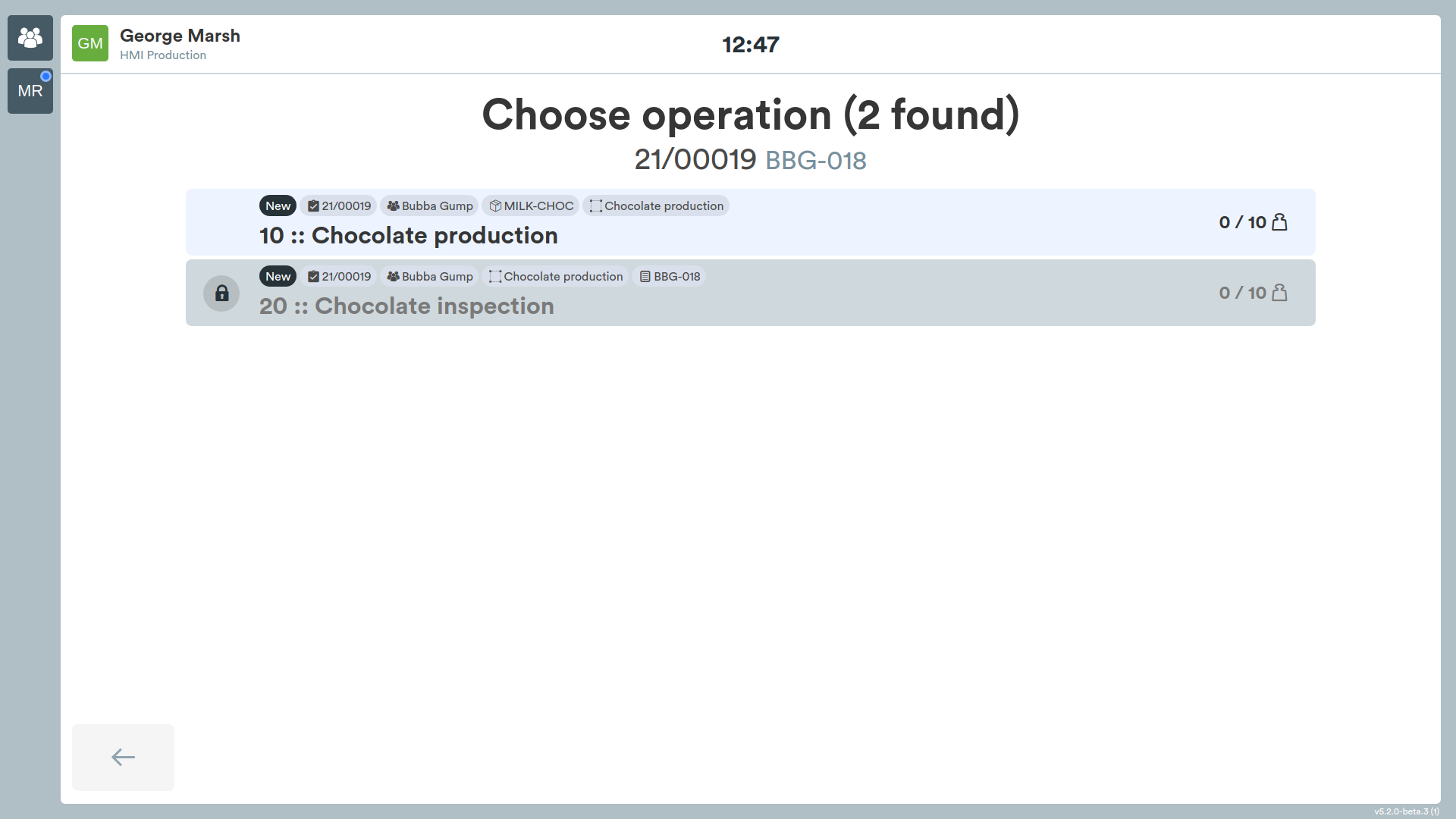
Press on the operation to continue.
Summary
In this screen, information about the selected operation will be shown.
These are the data displayed:
- the operator and the HMI;
- the type of processing;
- the production order;
- the quantities produced out of the total;
- documents and attachments;
- the item properties (e.g.
ALLERGENS: fish), shown between attachments and notes when the Show item properties (SHOW_USER_PROPS) option is enabled on the HMI; - technical notes.
If the HMI display templates contain the SALES_ORDERS(code) token (or SALES_ORDERS(name)), the sales orders linked to the production order are shown on one line, separated by commas: the first two are shown followed by +N for the remaining ones (the full list is visible on hover). The badge is hidden when no sales order is linked.
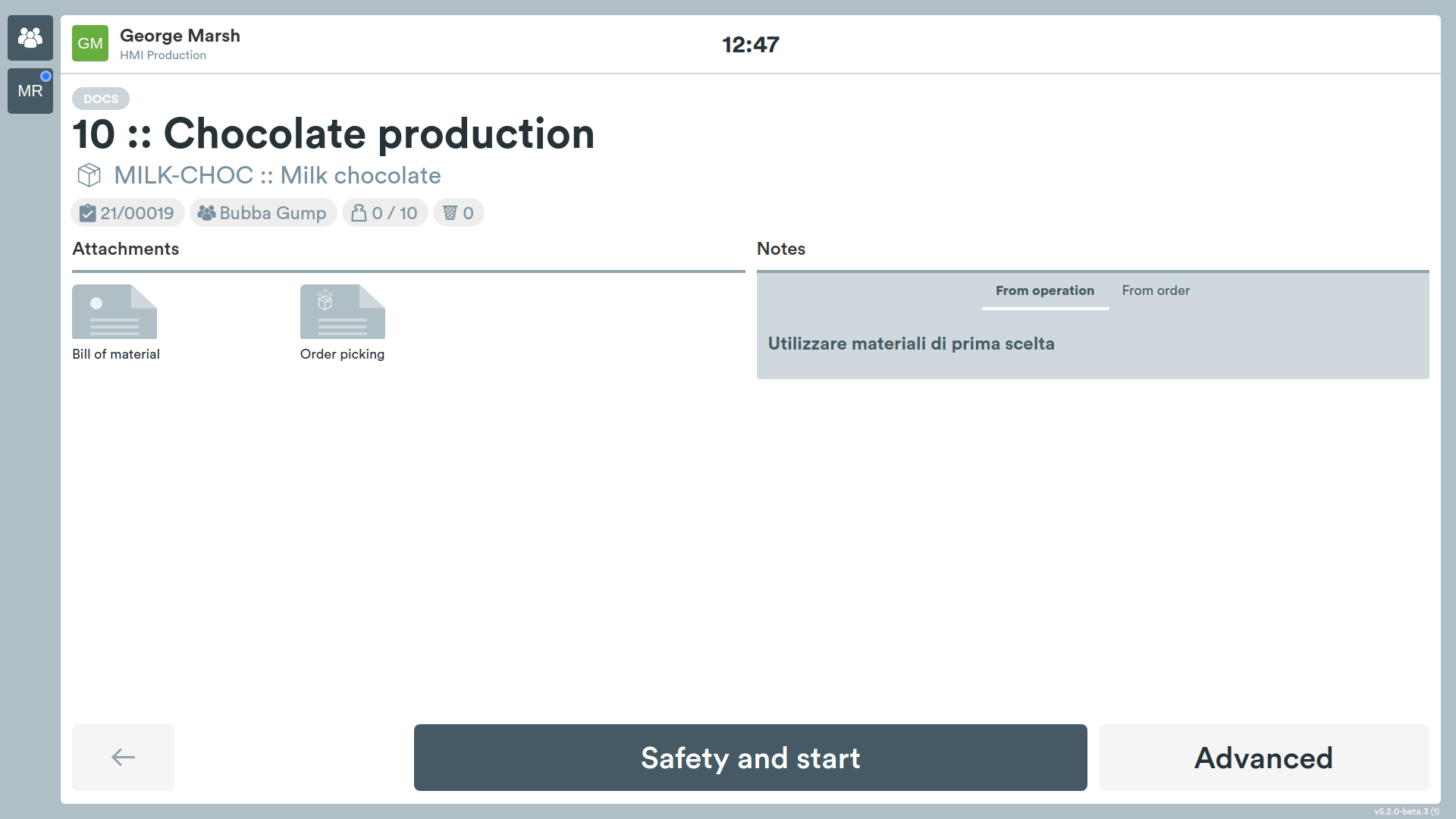
To select a machine or to compose a work team for the operation, press the Advanced button.
To start the work session instead, press the Start session/Safety and start button.
Advanced
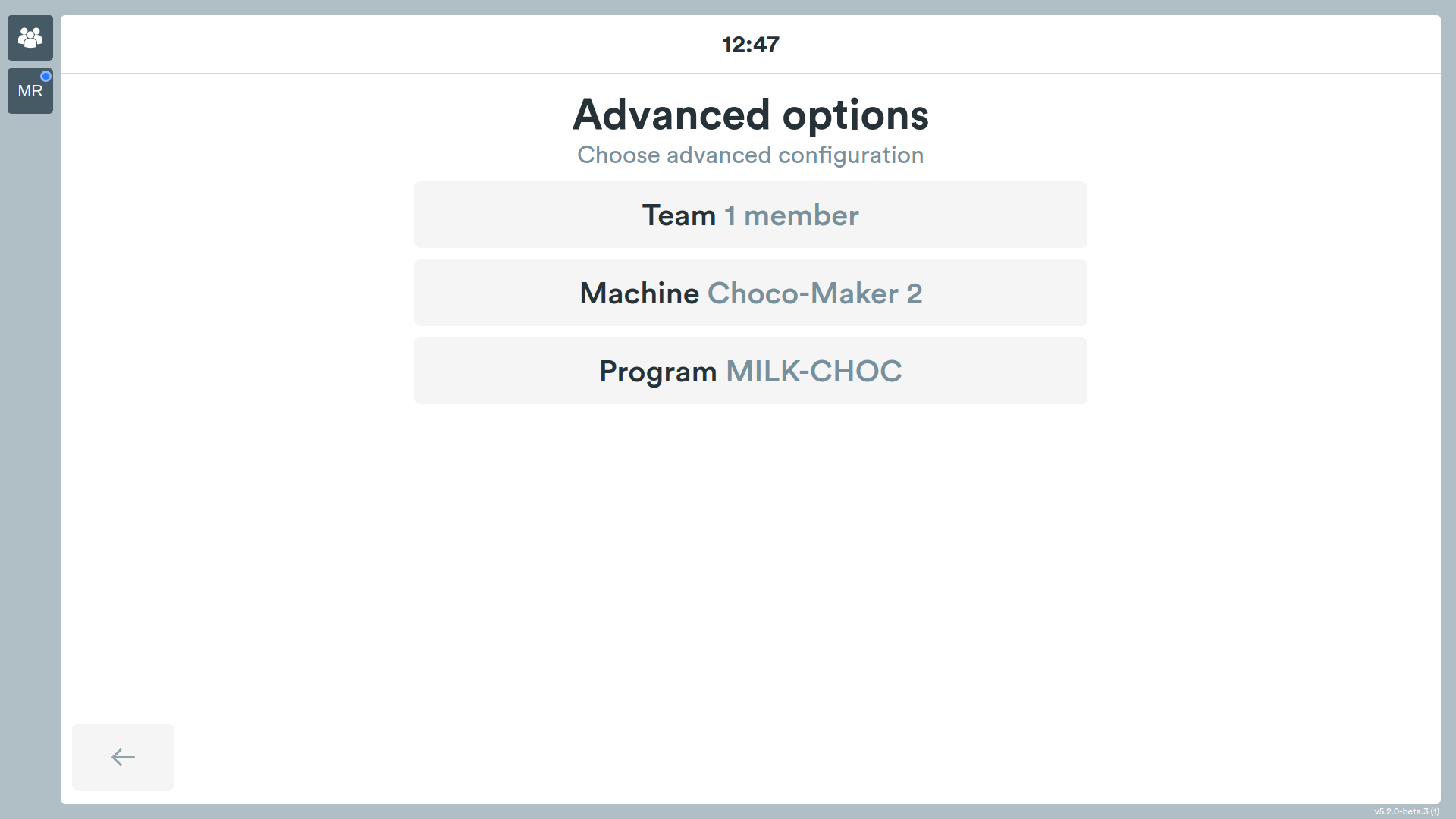
From the menu select Team, Machine or Program (the latter will be clickable only if the operator has decided to use a machine).
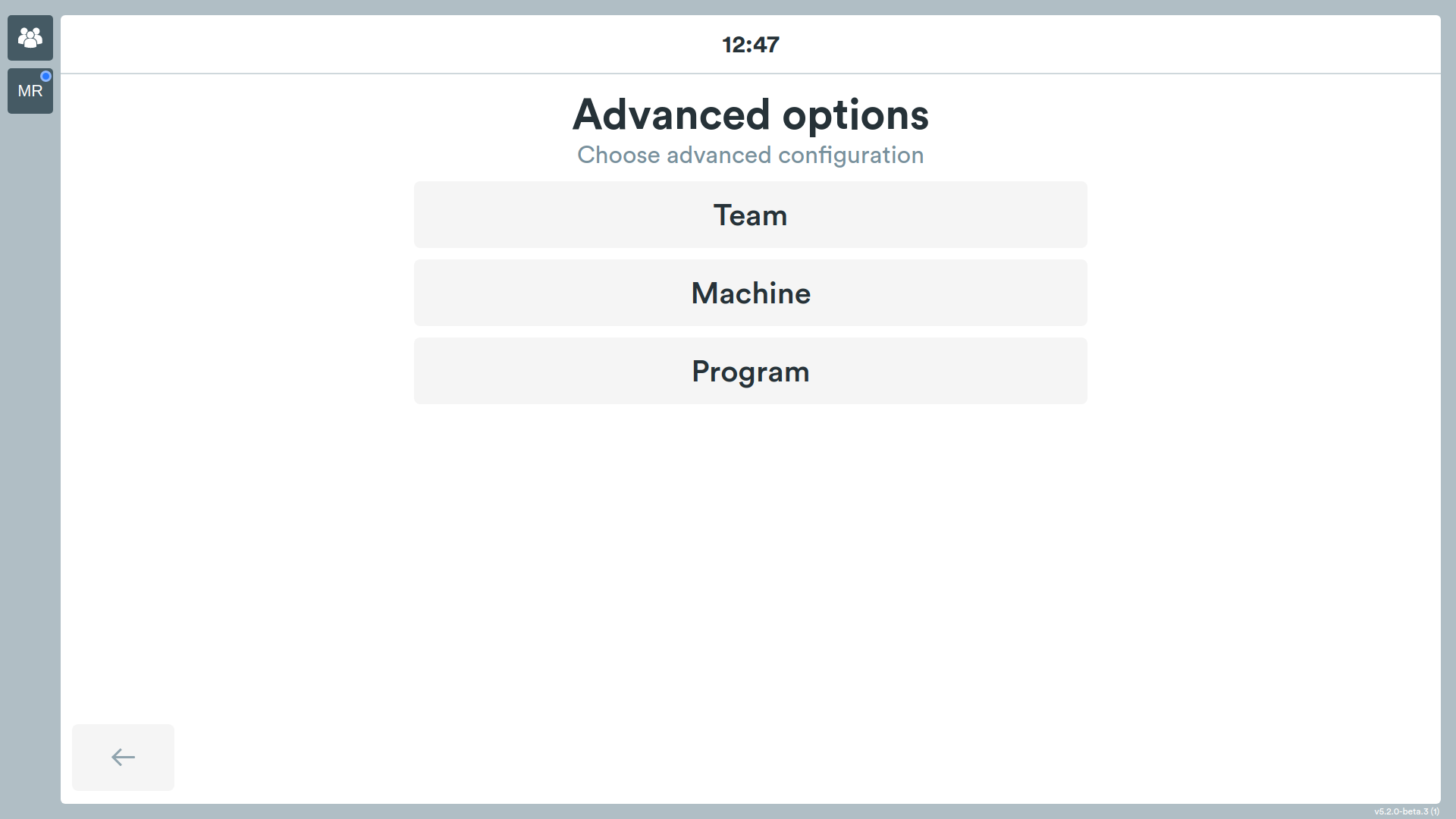
If something has been selected, the screen will appear as follows:
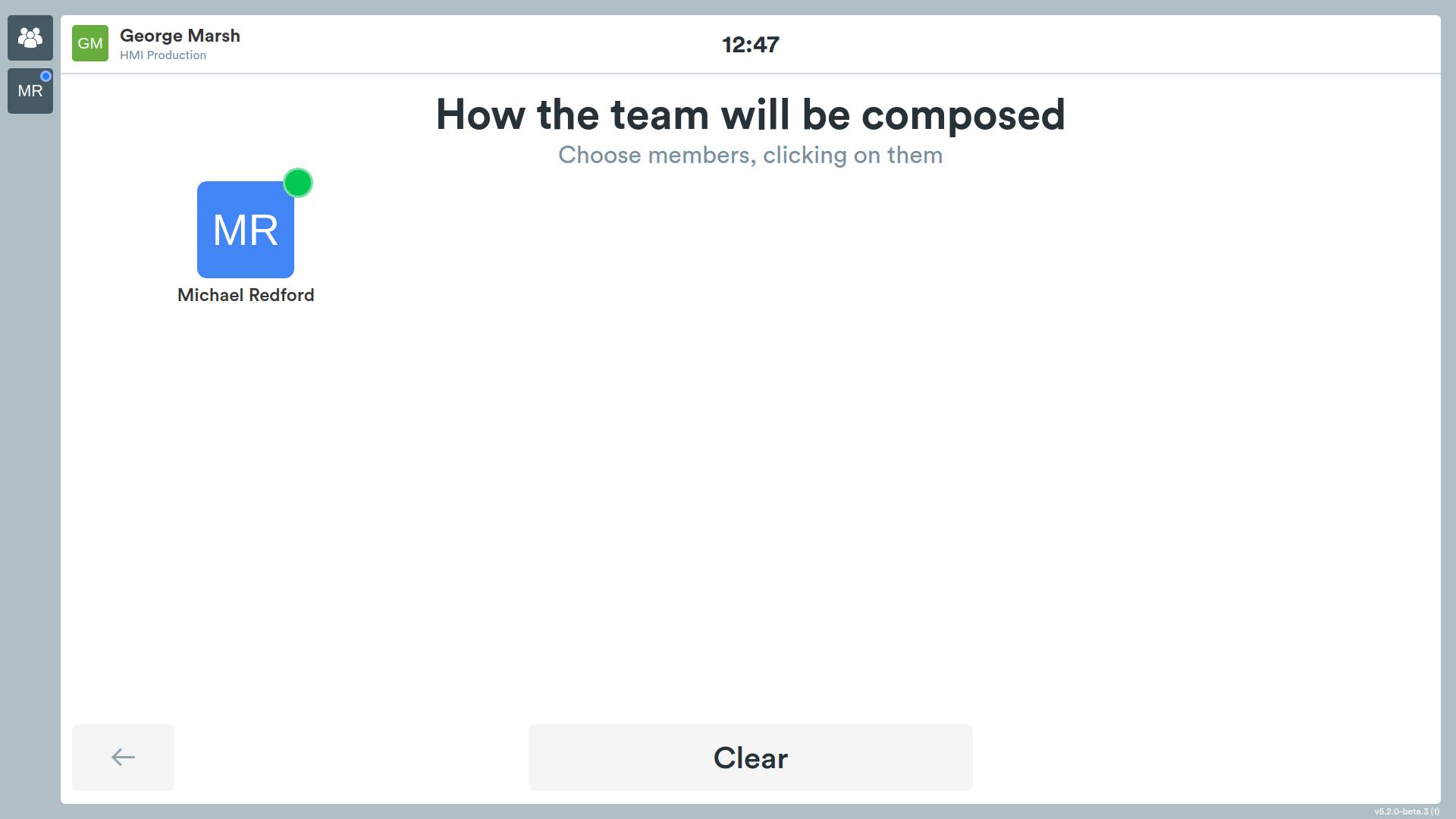
Team Composition
By pressing Team, the system will show the screen with the list of operators that can be added. To add or remove them from the team, simply press on the operator's icon.
Pressing the Clear button will remove all of them.
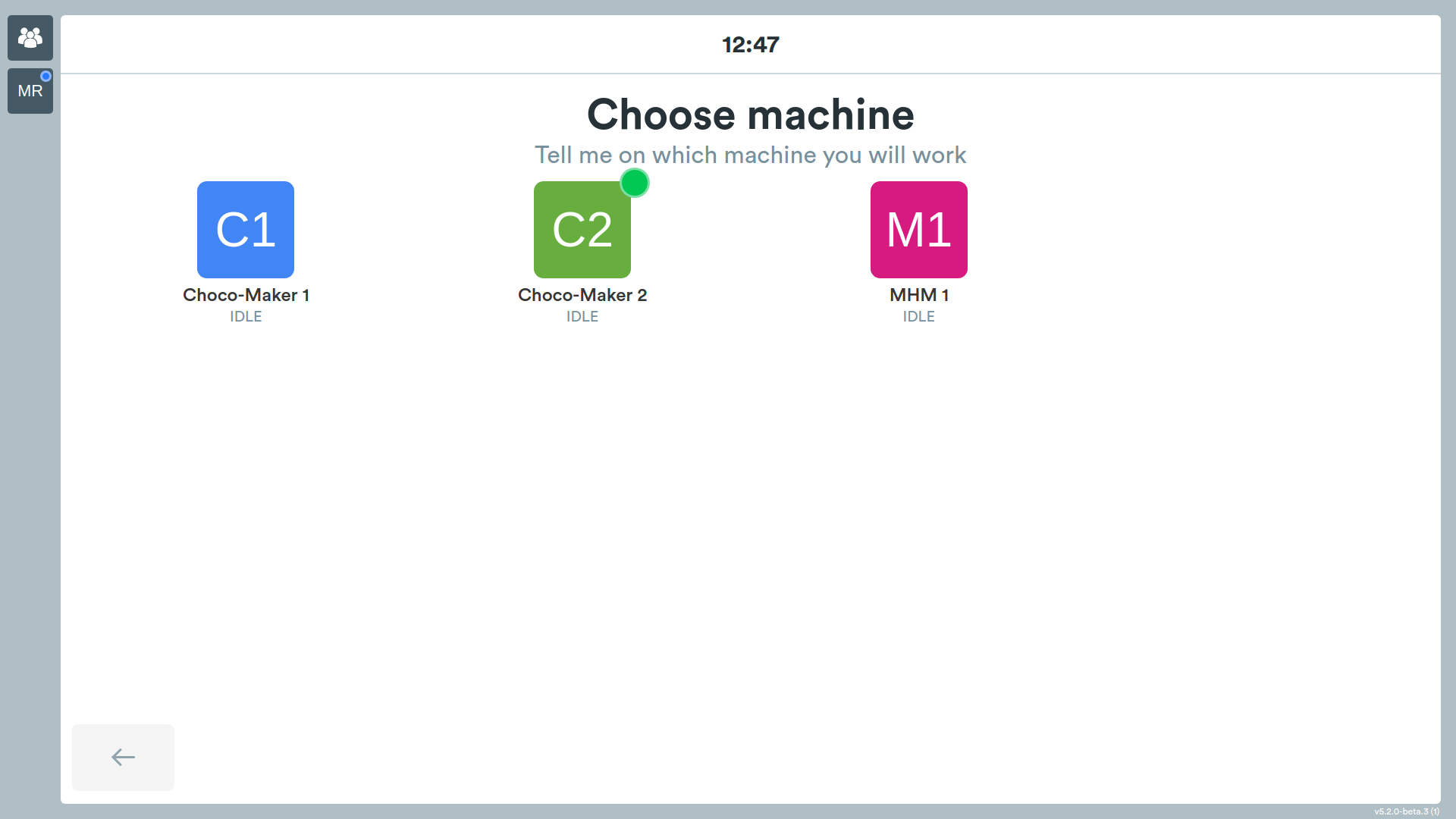
Machine Selection
If the selected station has available machines, a screen will appear that will allow you to select the one with which the operation will be carried out.
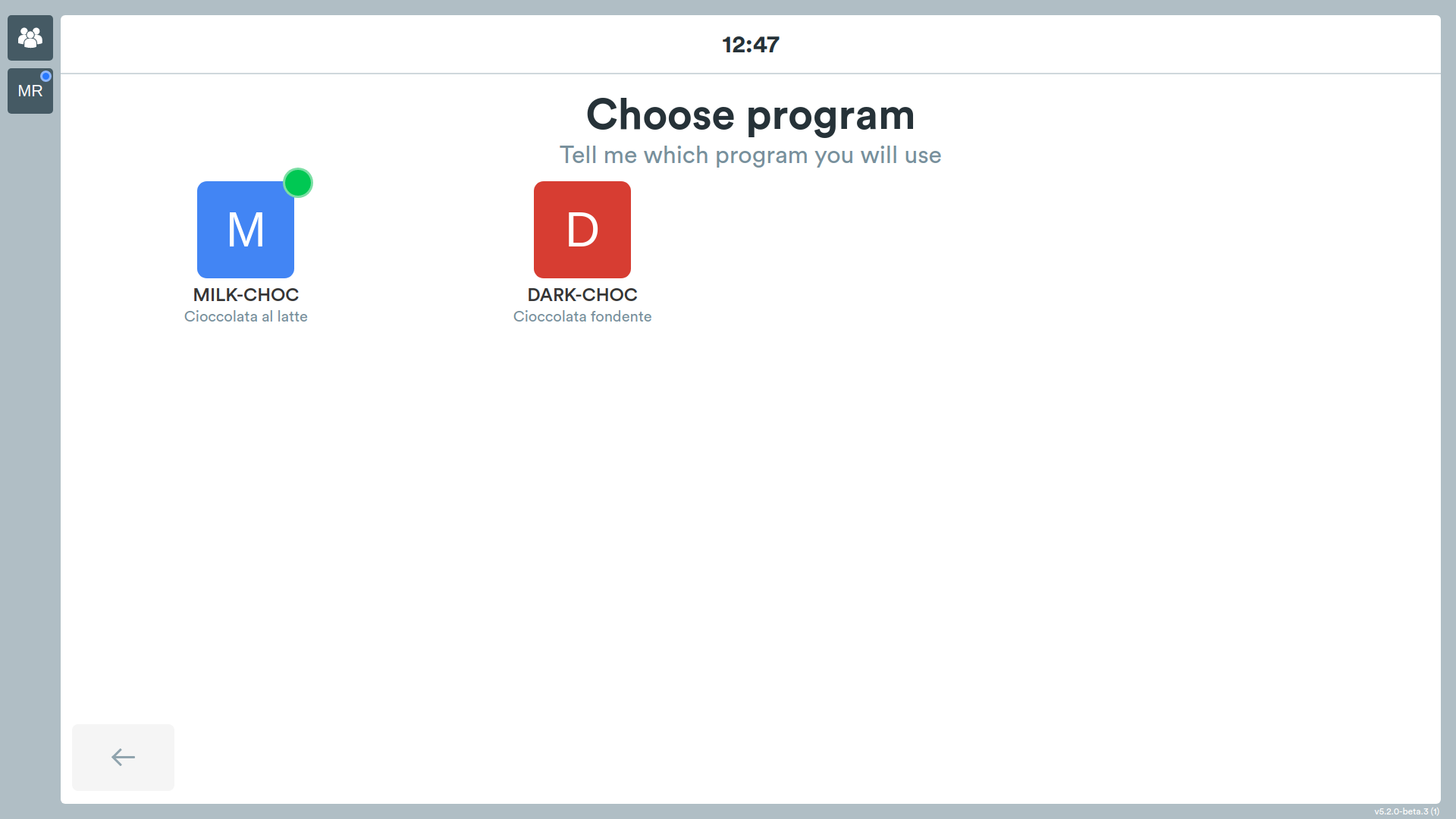
Program Selection
By pressing Program you will see a screen with the list of programs available for the selected machine.
For more details see the section Integration with Industrial Machines
Safety Data Sheets
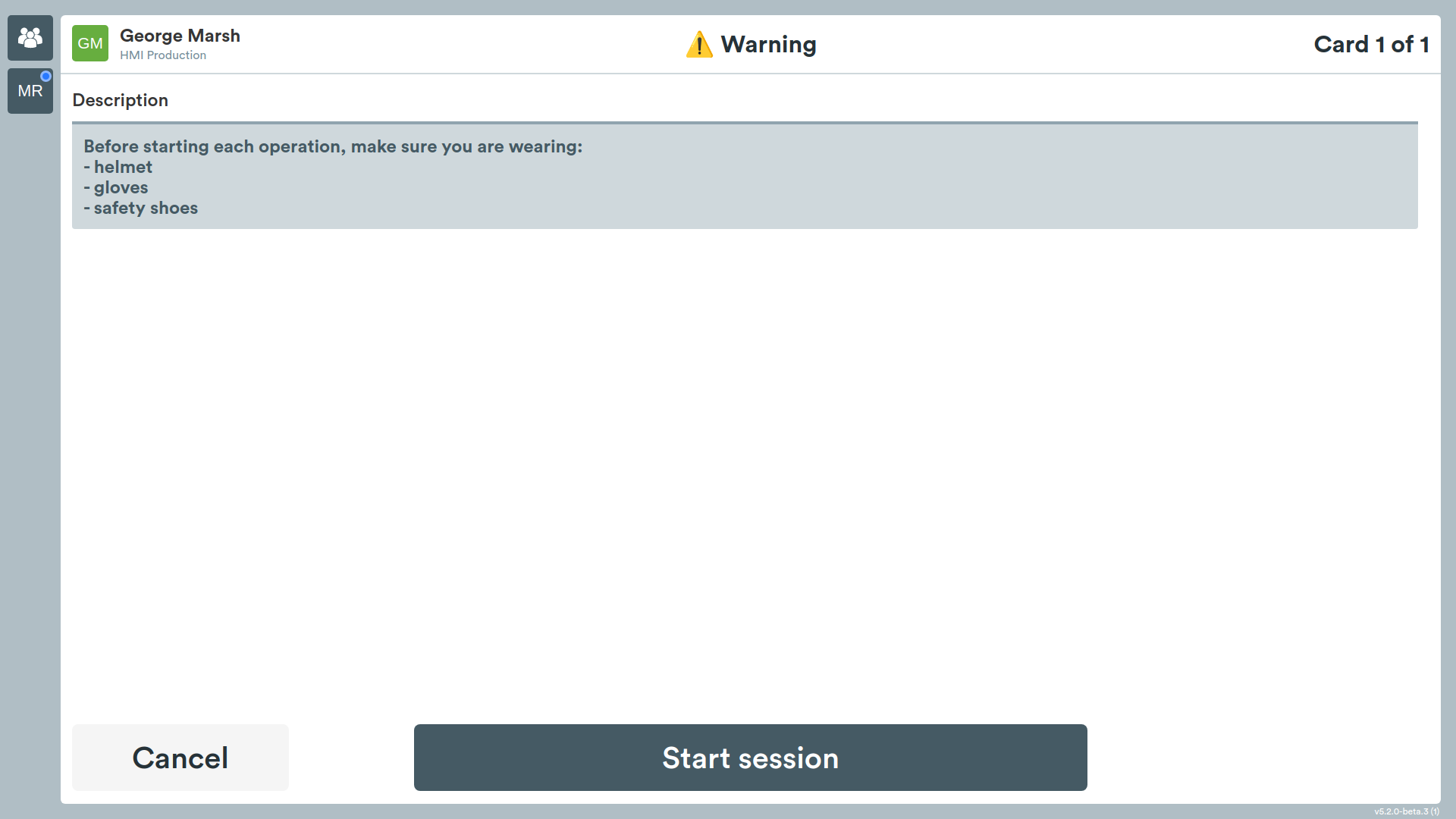
If a specific safety data sheet has been assigned to the station in use, the summary screen will present the Safety and start button instead of the Start session button.
The safety data sheets related to the station will then be shown and afterwards it will be possible to start the processing.
Integration with Industrial Machines
If Agile Factory is configured for communication with industrial machines, it will be possible to:
- set the program to be executed;
- set the processing order;
- set the number of missing pieces to be produced;
- see the production progress in real time (scrap and produced pieces).
The configuration will be sent to the machine during the creation of the work session.