Stock ✨
This module contains all the functionalities necessary for managing Stock of materials and products and can be combined with additional Batch Traceability🔥 functionality, to track materials used in production.
The module contains 5 sections:
- Stock: availability management
- Containers: location management
- In/Out: inbound and outbound management
- Movements: internal warehouse movement management
- Calendar✨: material requirement management for production (works only together with the dynamic scheduler)
Stock
By clicking on the Stock section, it will be possible to see data related to materials available in the warehouse.
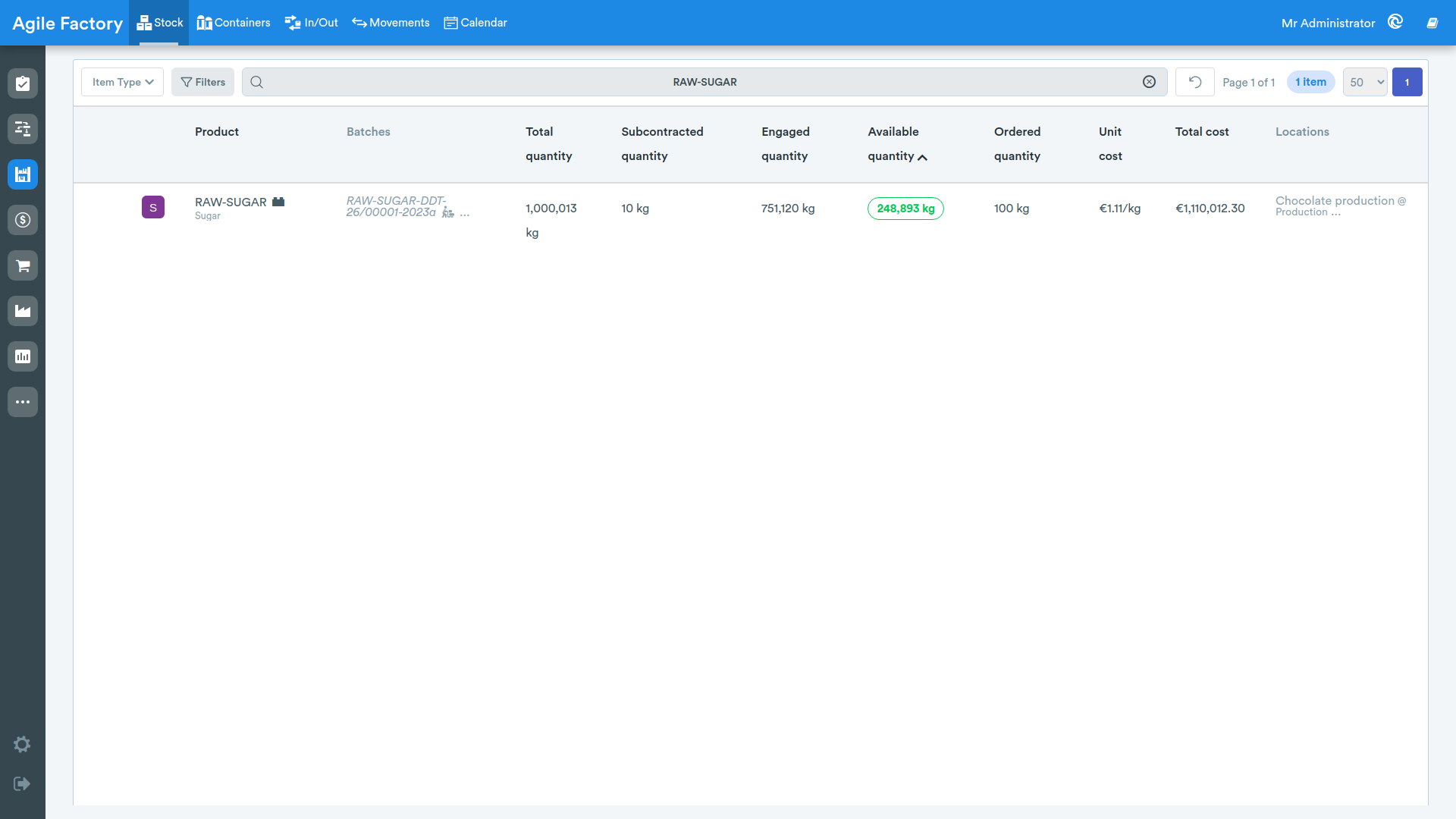
Above the tabular data, various filters are available that allow the user to find the necessary information (by department, by station, by location type, search bar).
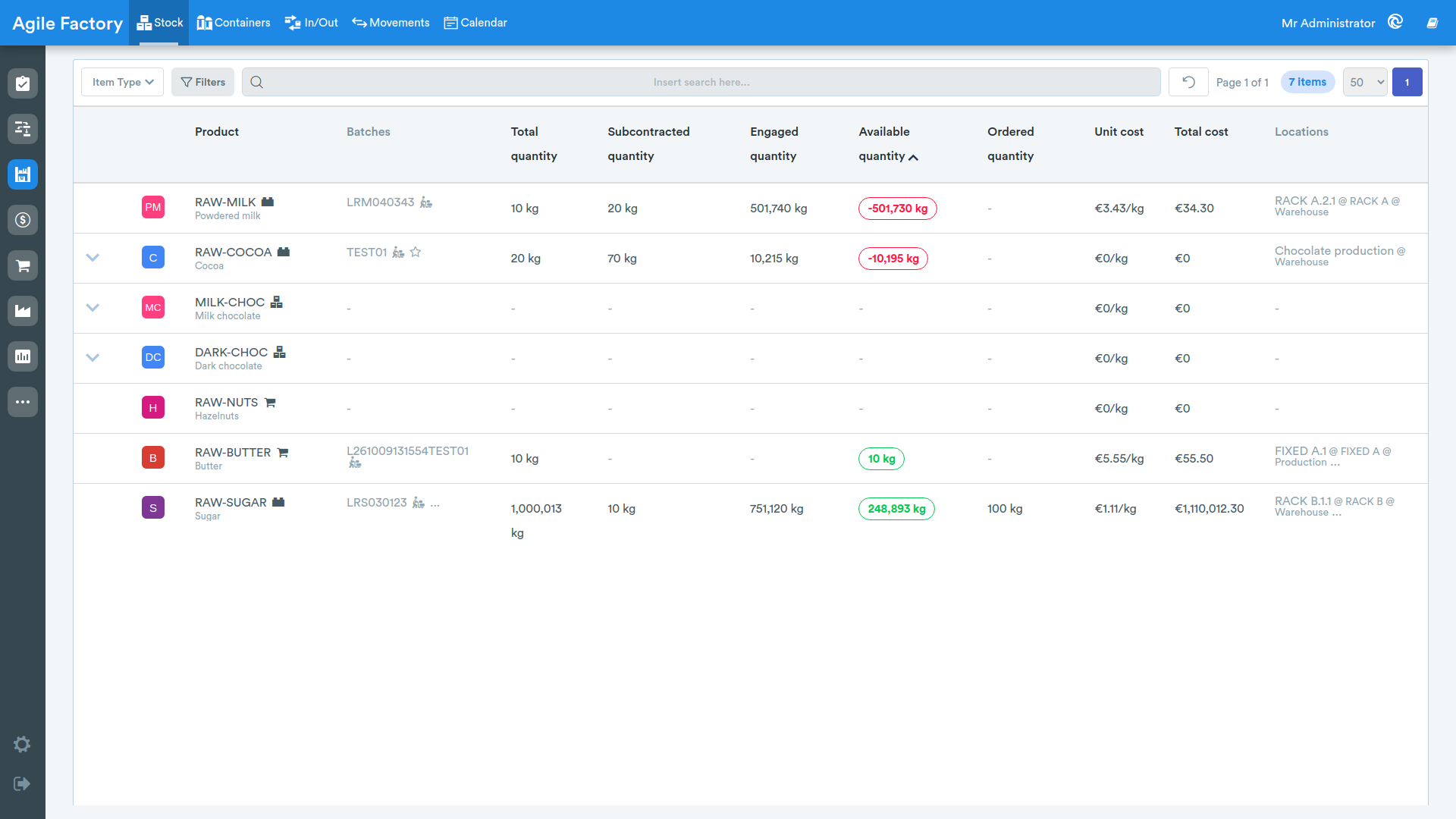
In the main part, tabular data is displayed with the following content:
- Item
- Batches
- Total quantity (recorded)
- Quantity In Order
- Committed quantity
- Available quantity
- Ordered quantity
- Unit cost
- Total cost
- Locations
By selecting a specific material from the list, it is possible to obtain detailed information on the use of the material in relation to production orders.
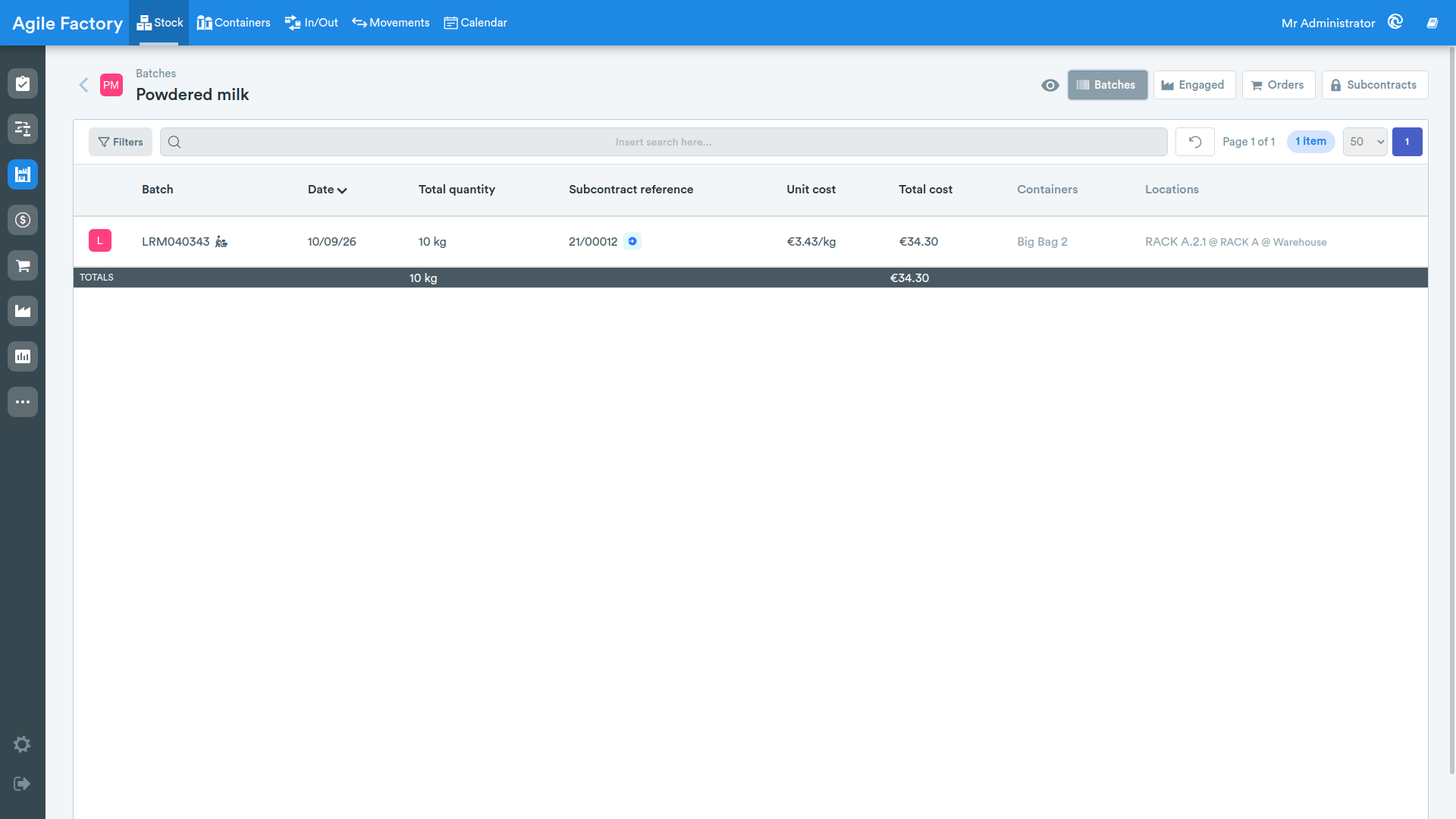
The set of filters from the previous menu is saved to allow quick access to the necessary data. In the main part of the screen, the following data is presented to the user:
- Batch (if the additional Batch Traceability🔥 functionality is activated)
- Date
- Total quantity
- Quantity In Order
- Unit cost
- Total cost
- Containers
- Locations
In the upper right of the screen is the Commitments button, which allows you to view material usage based on production orders (including orders in draft status) and operations (how much material is needed/missing for their completion).
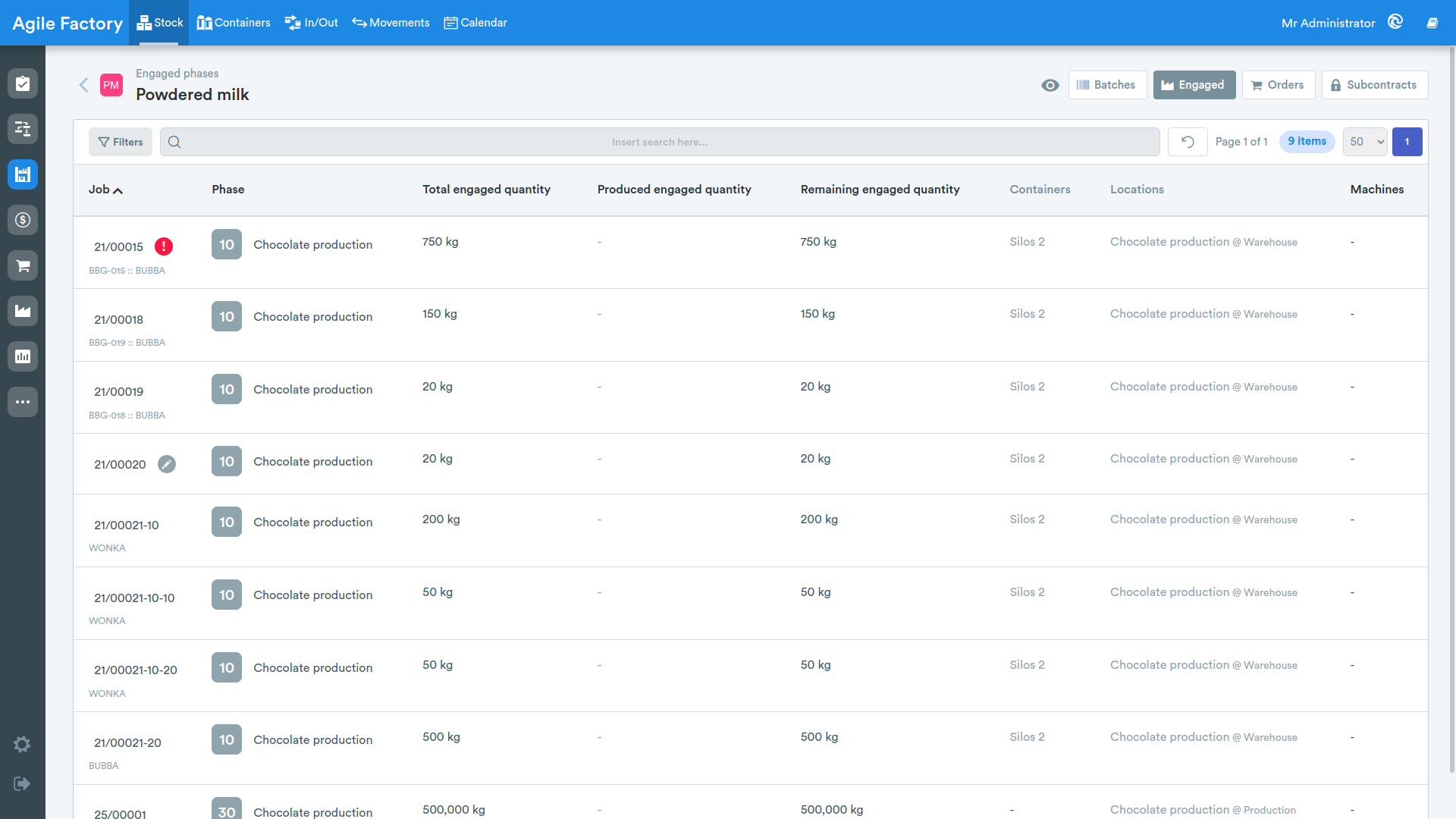
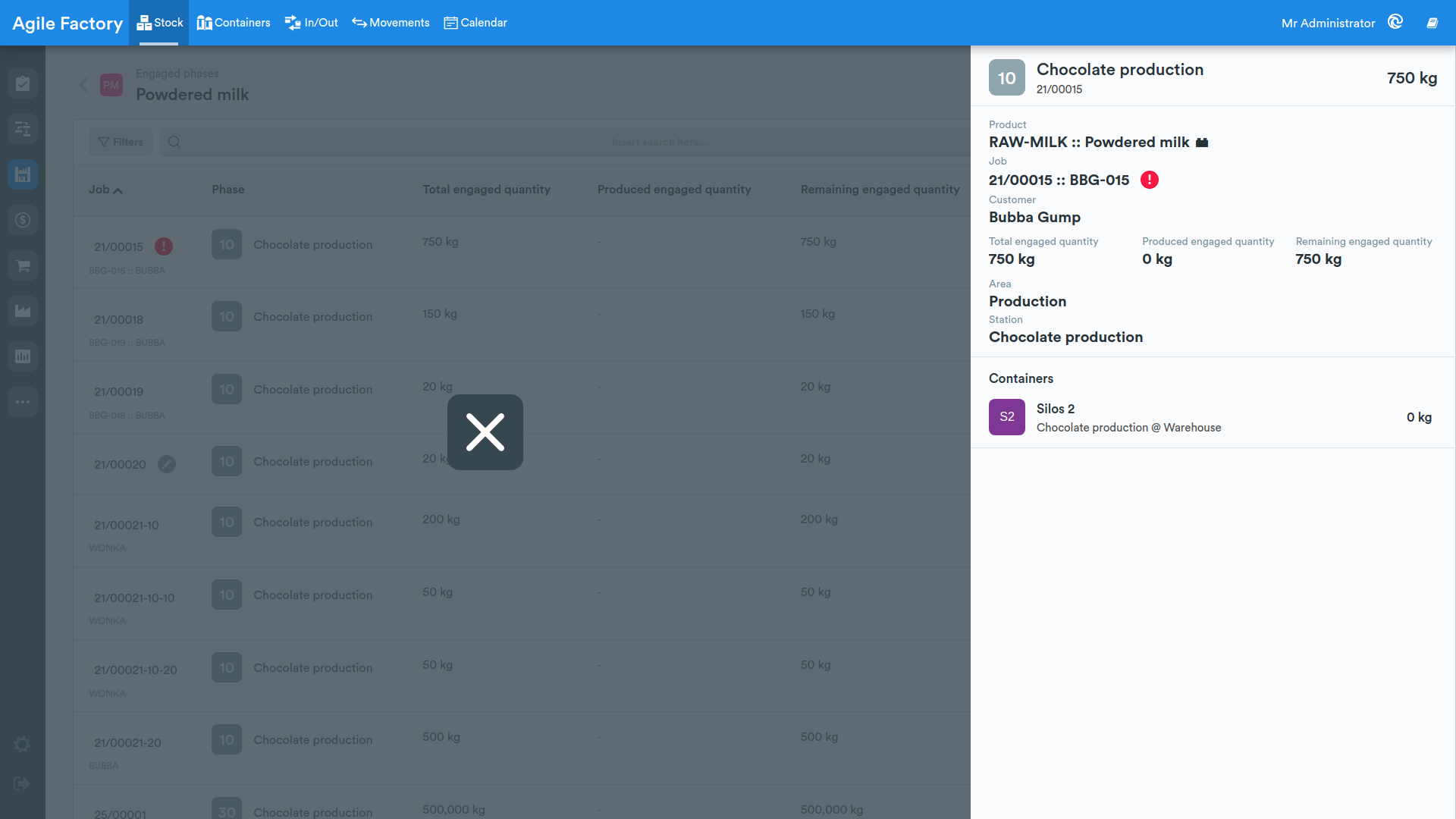
By selecting one of the items in the table, it is possible to view the details of each operation.
Orders
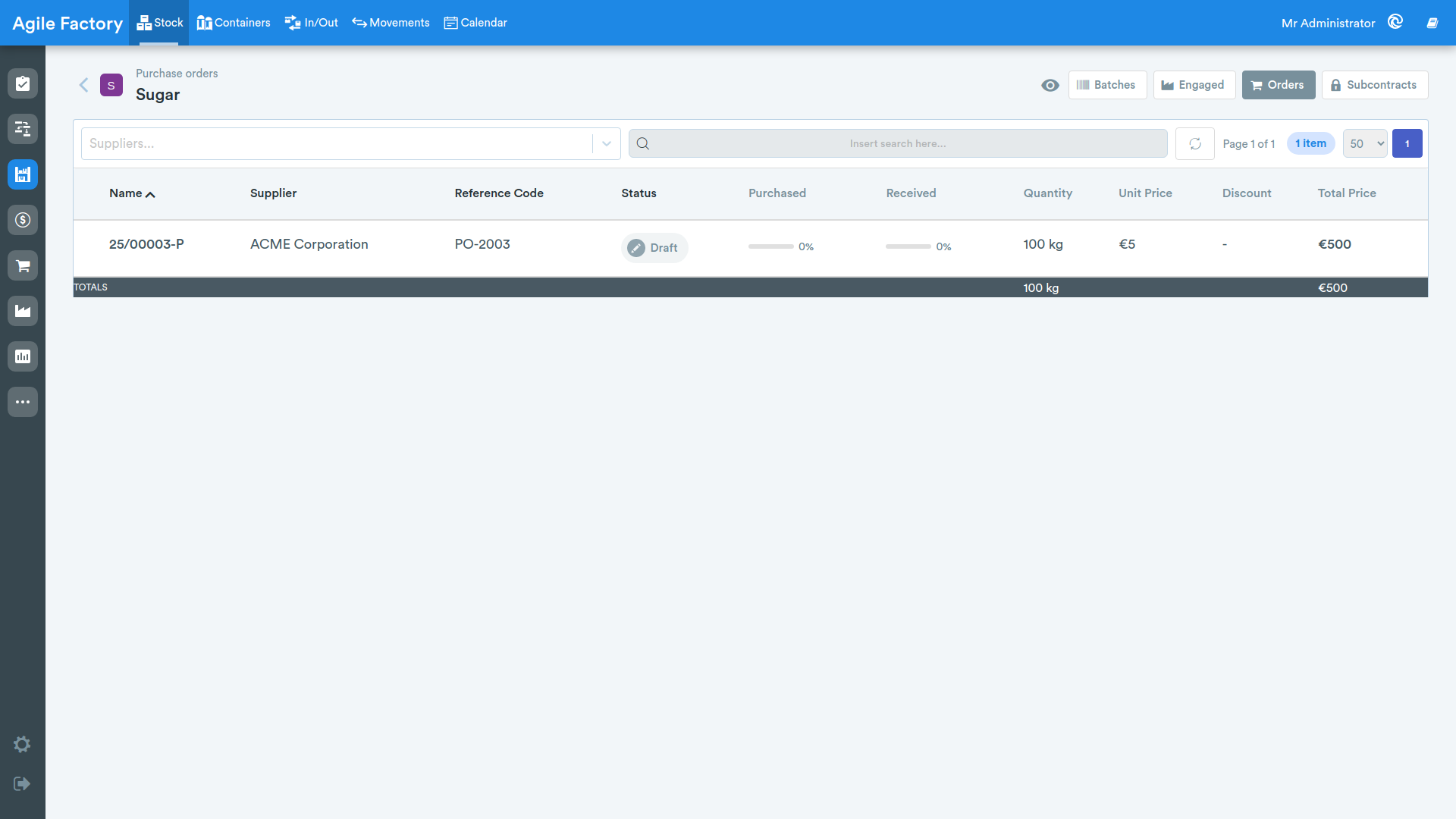
Still in the upper right of the screen, next to the Commitments button, the Orders button is available, which allows you to view the purchase orders linked to the selected item.
For each order the following data is shown: Name, Supplier, Reference Code, Status, Purchased, Received, Quantity, Unit Price, Discount and Total Price. The Purchased and Received columns are represented by a progress bar that indicates, as a percentage, how much of the ordered quantity of the item has been purchased and received respectively.
By selecting one of the orders in the table, it is possible to view the details of the order and its related lines.
Reserves
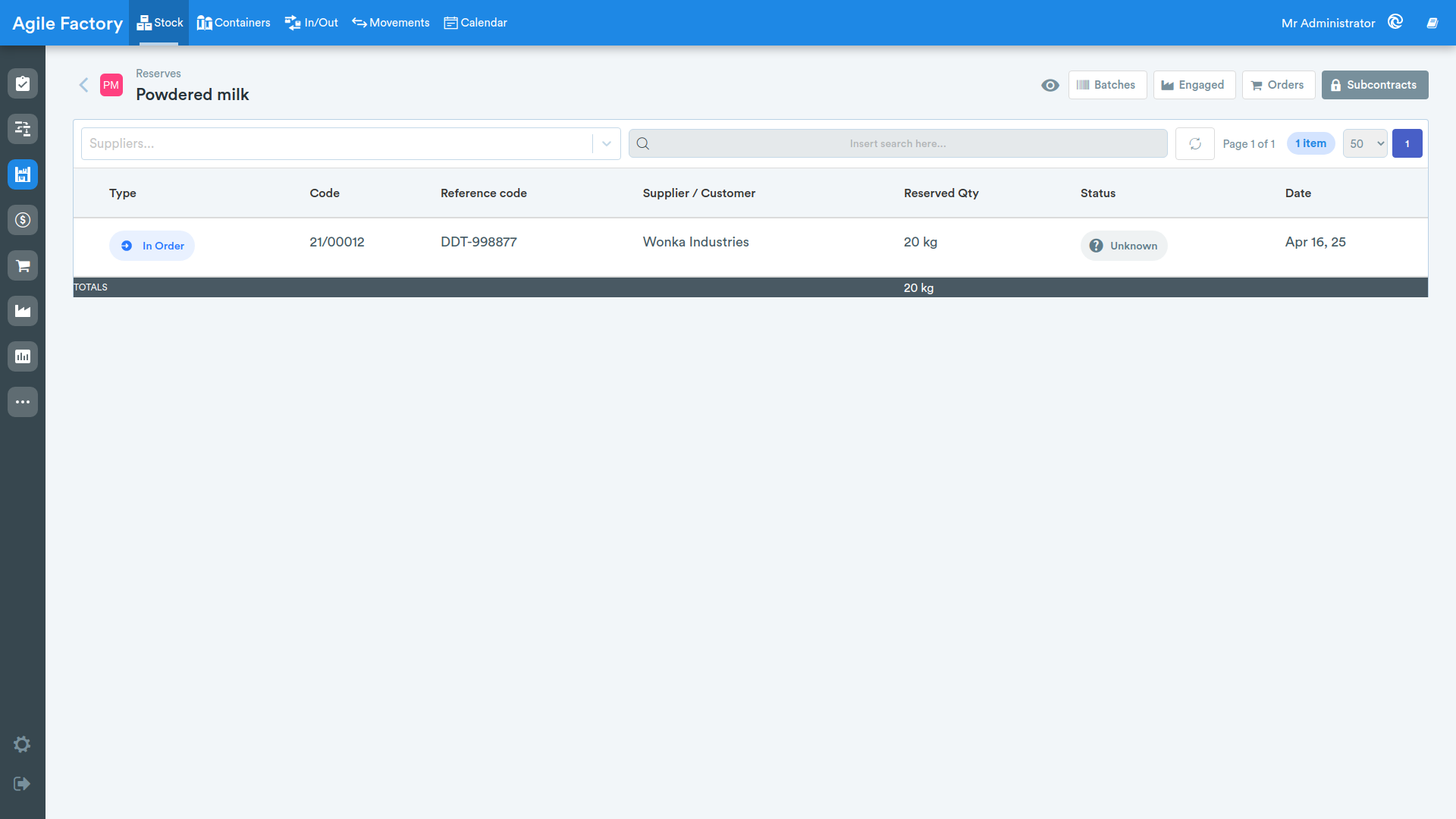
Next to the Orders button, the Reserves button is available, which allows you to view the reserves of the selected item. The table brings together in a single view, sorted by descending date, both the stock flows and the order lines that reserve the item.
For each reserve the following data is shown: Type, Code, Supplier / Customer, Reserved Qty, Status and Date.
Containers
In this section of the module, it is possible to manage the location of materials placed in so-called containers.
By pressing on one of the present containers, its details will be shown.
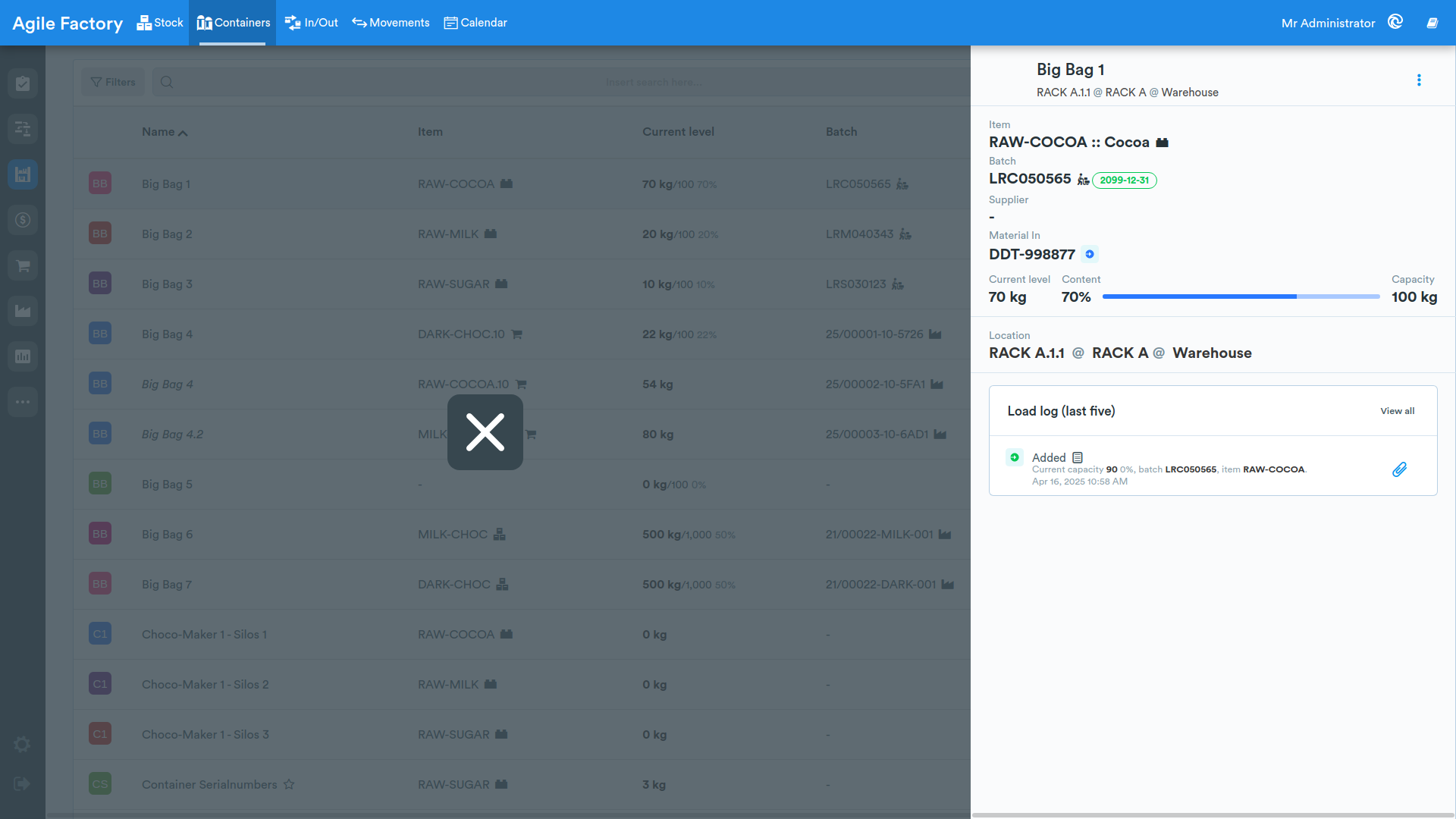
Actions with Containers
To access the menu of actions available for the container, press the menu button (three vertical dots).
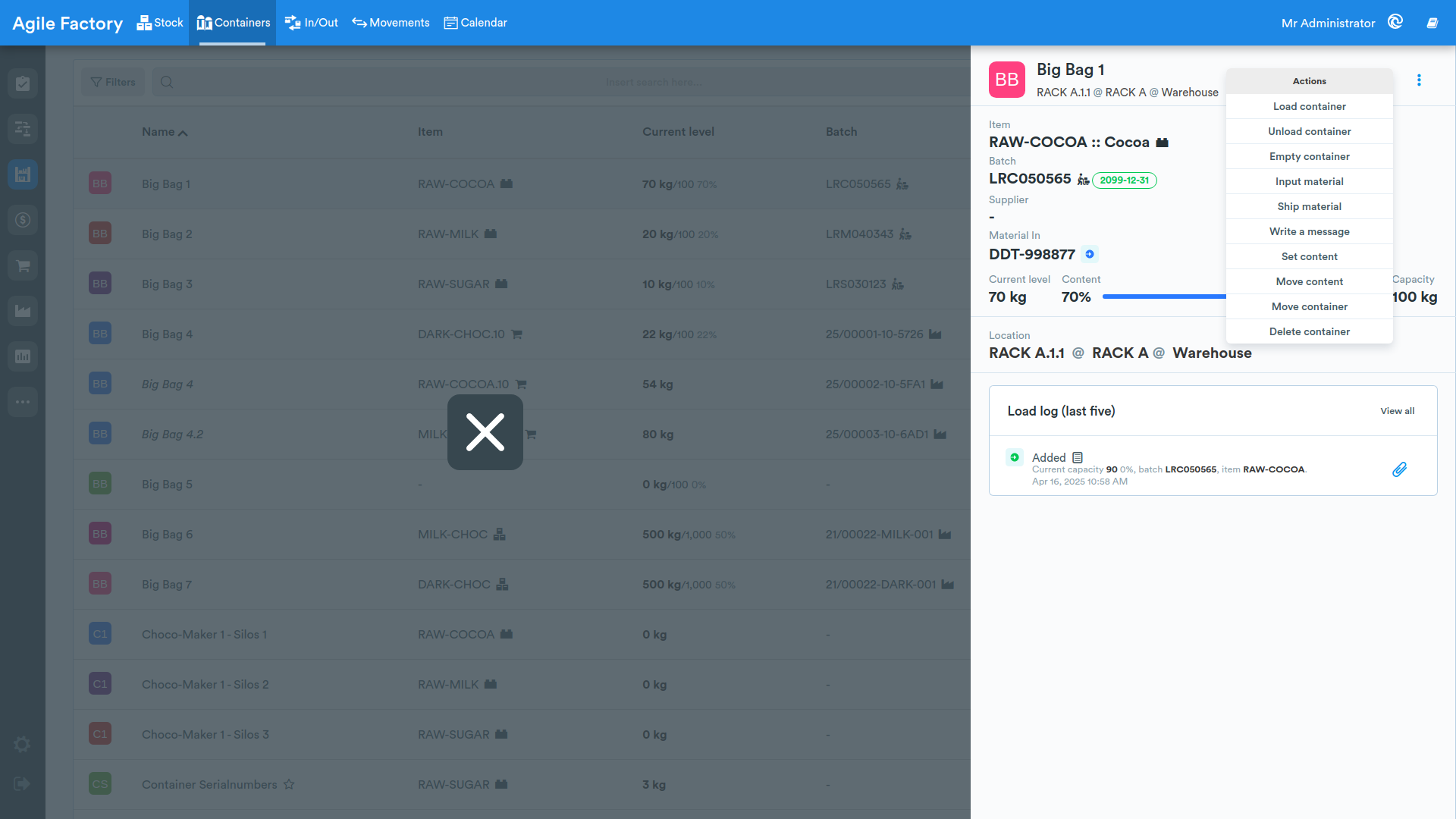
Load Container
Press Load container and follow the instructions.
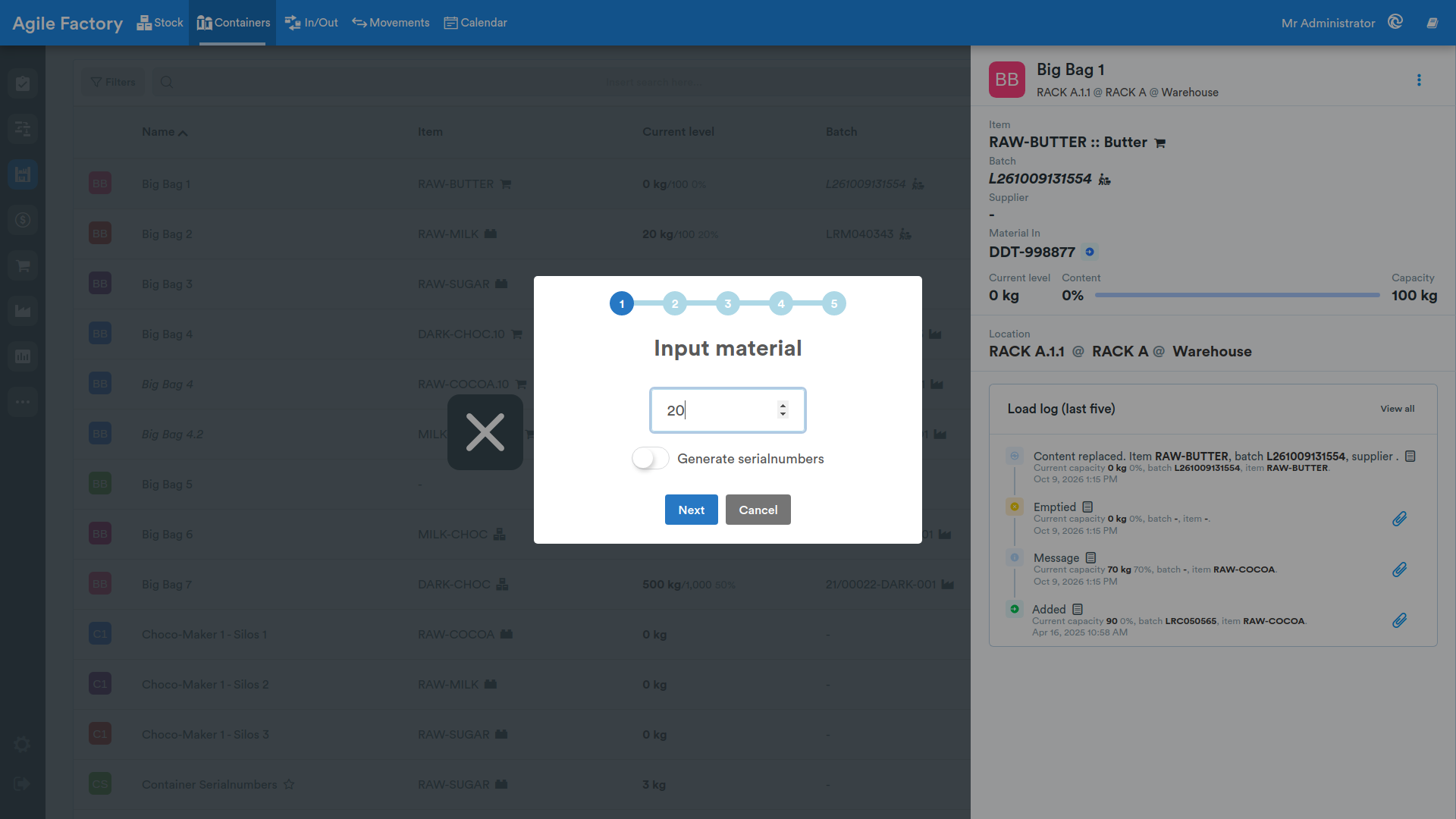
Unload Container
Press Unload container and follow the instructions.
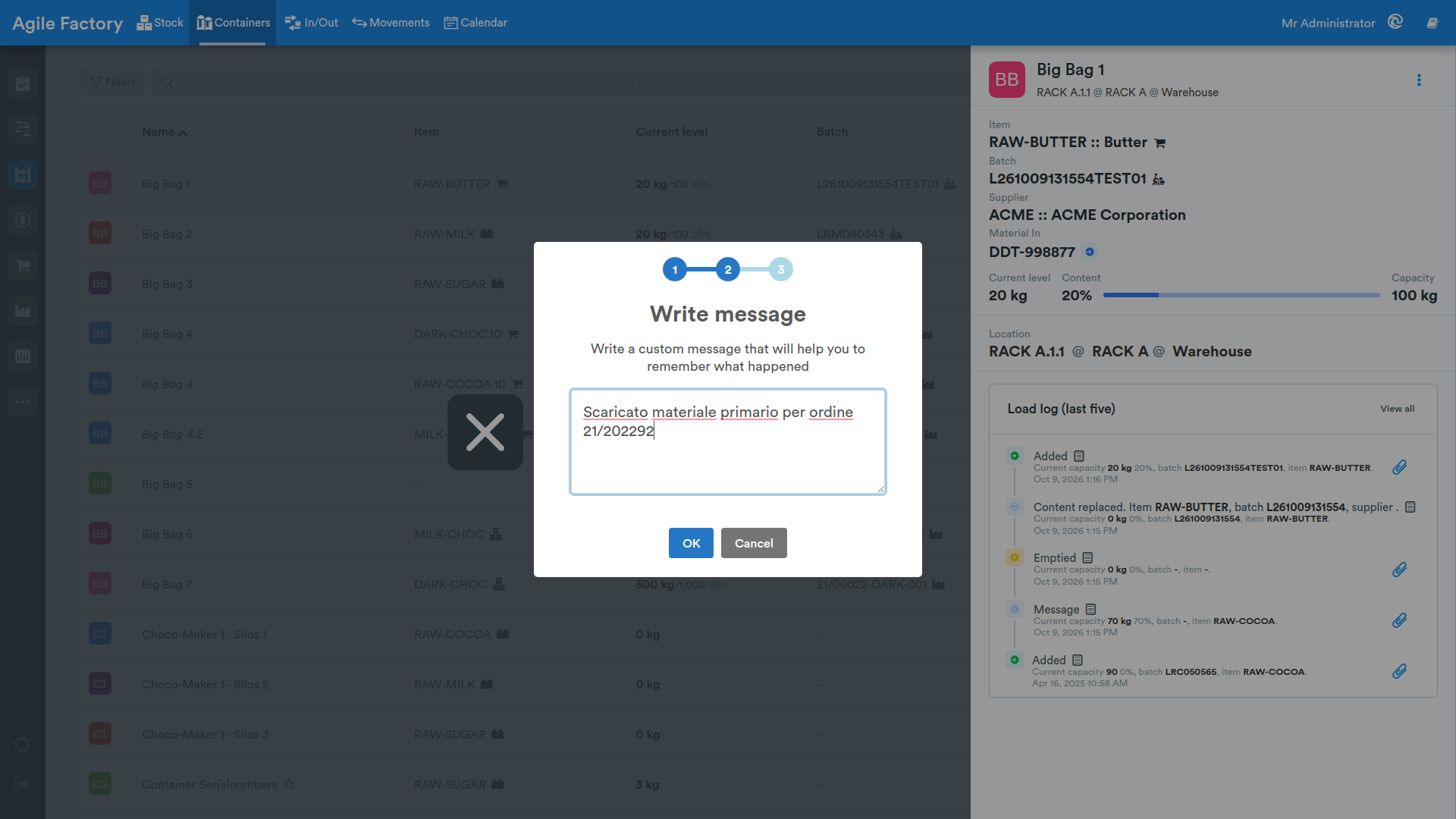
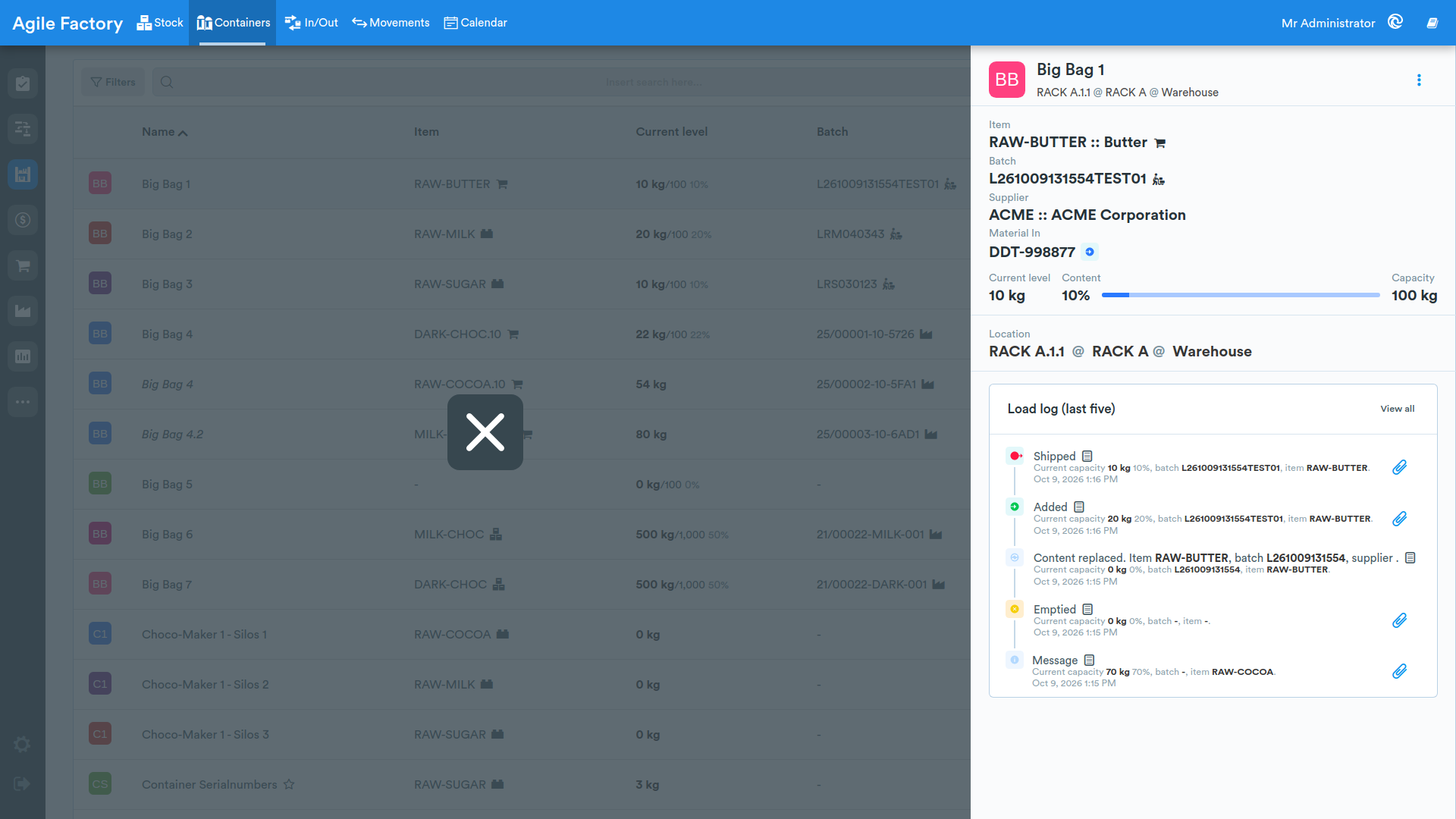
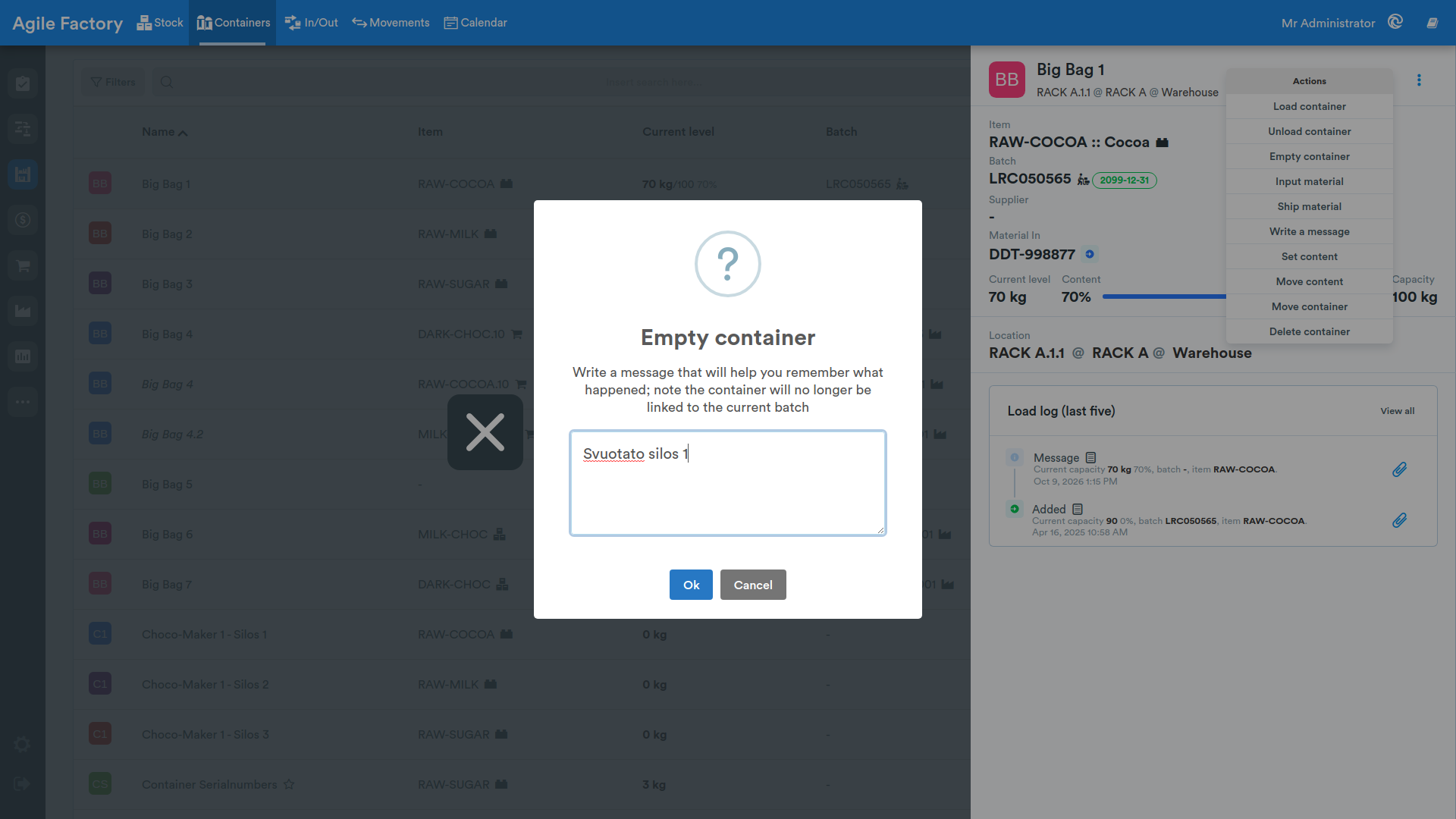
Empty Container
Press Empty container and follow the instructions.
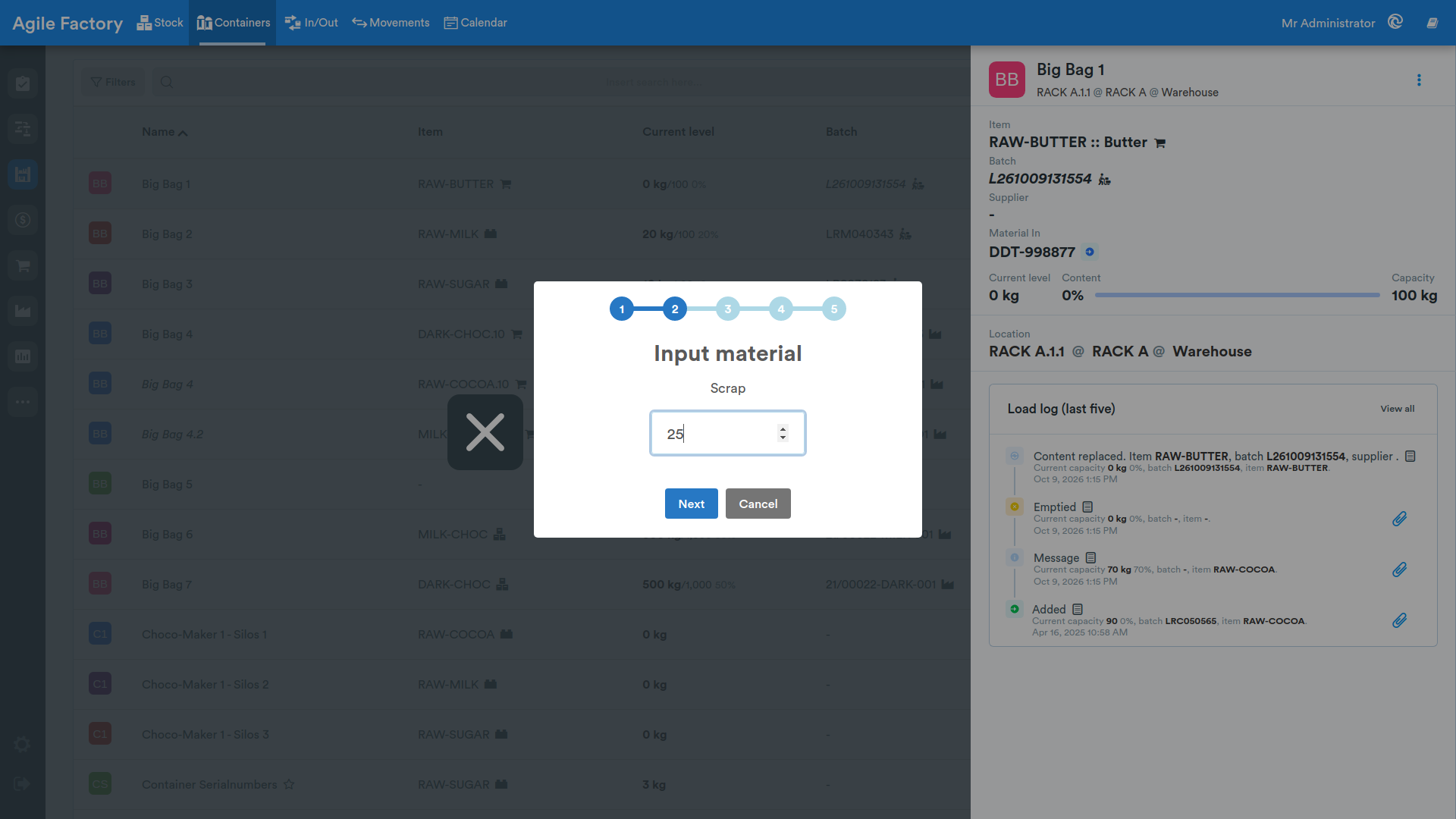
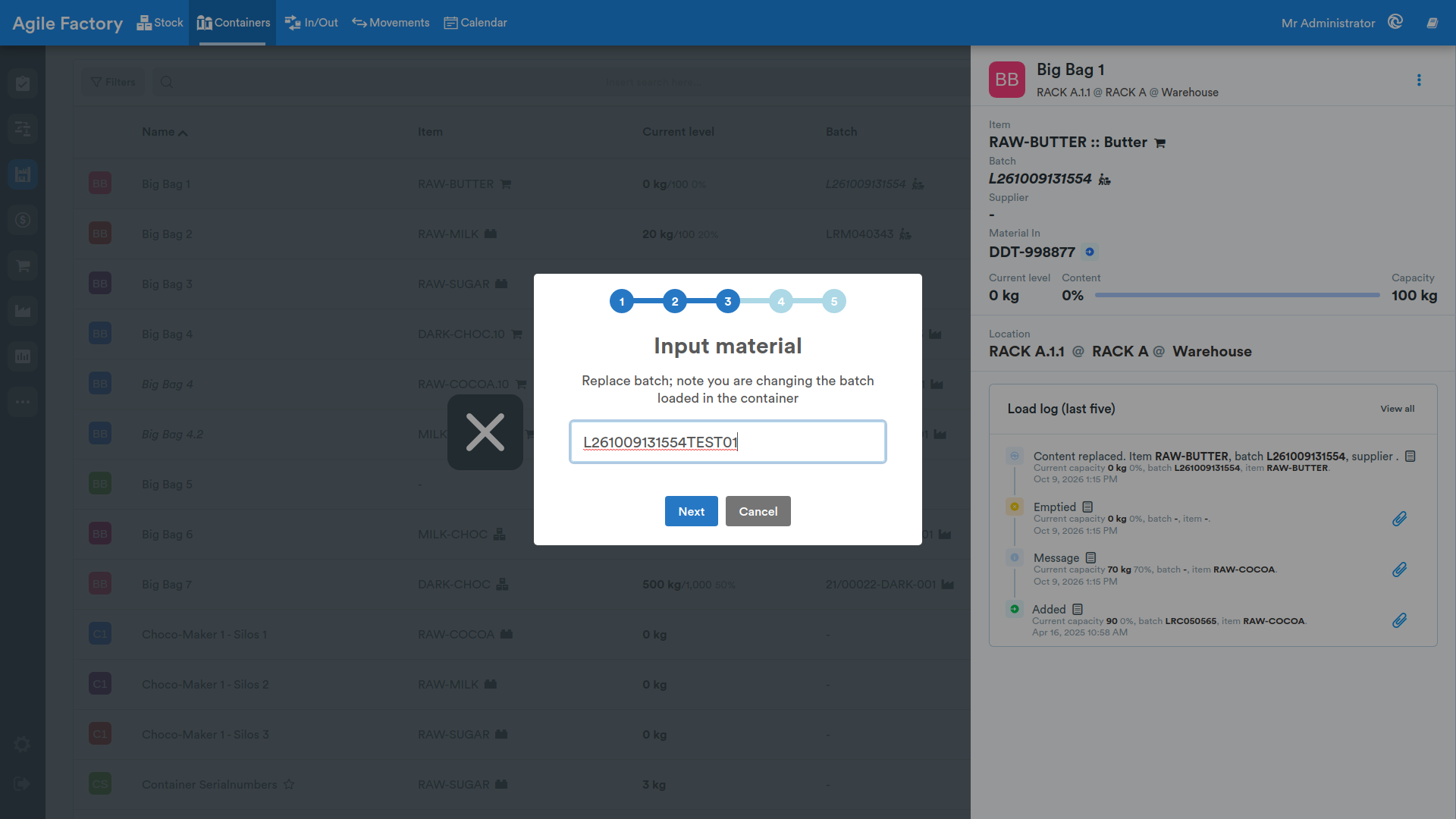
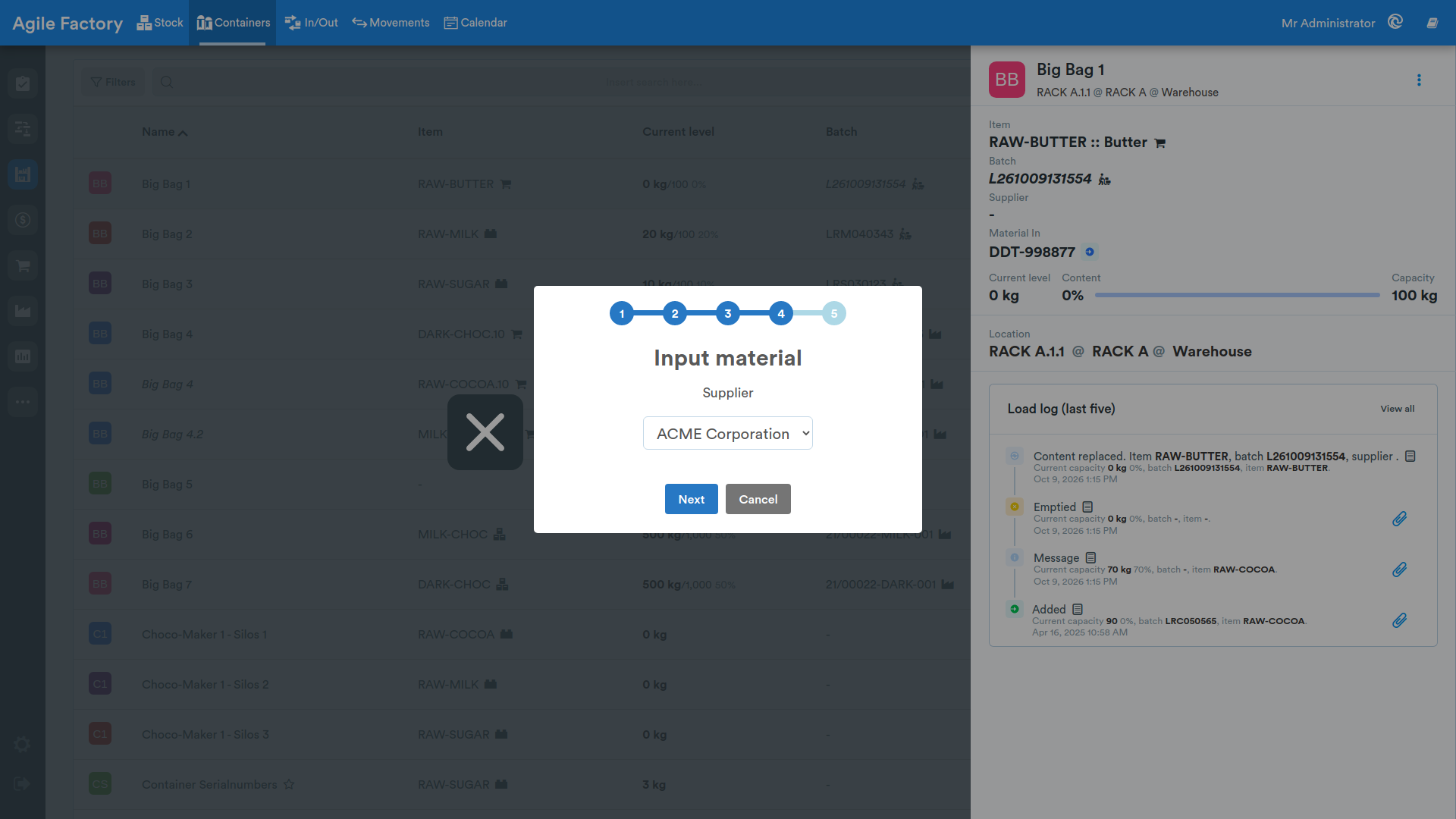
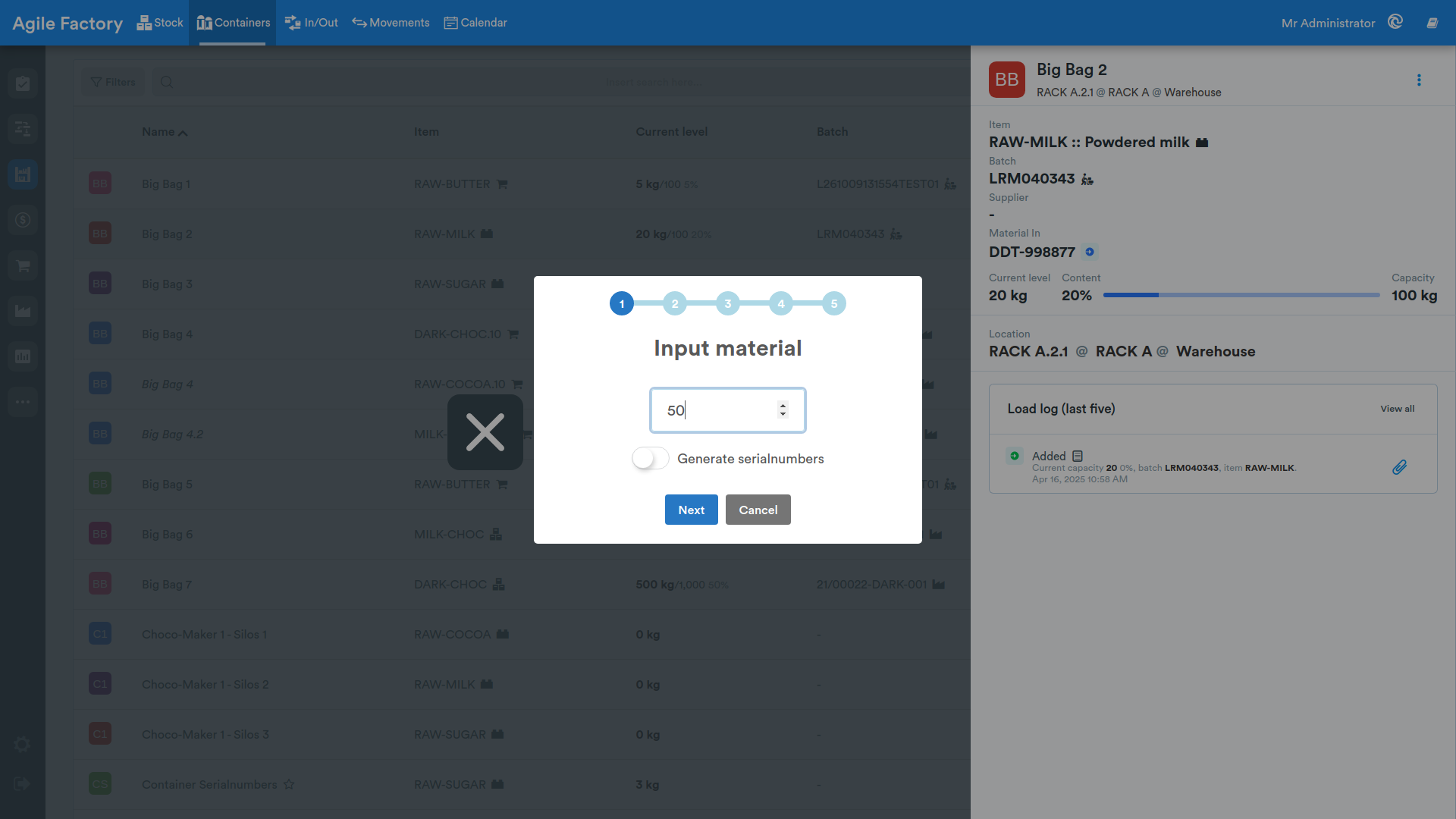
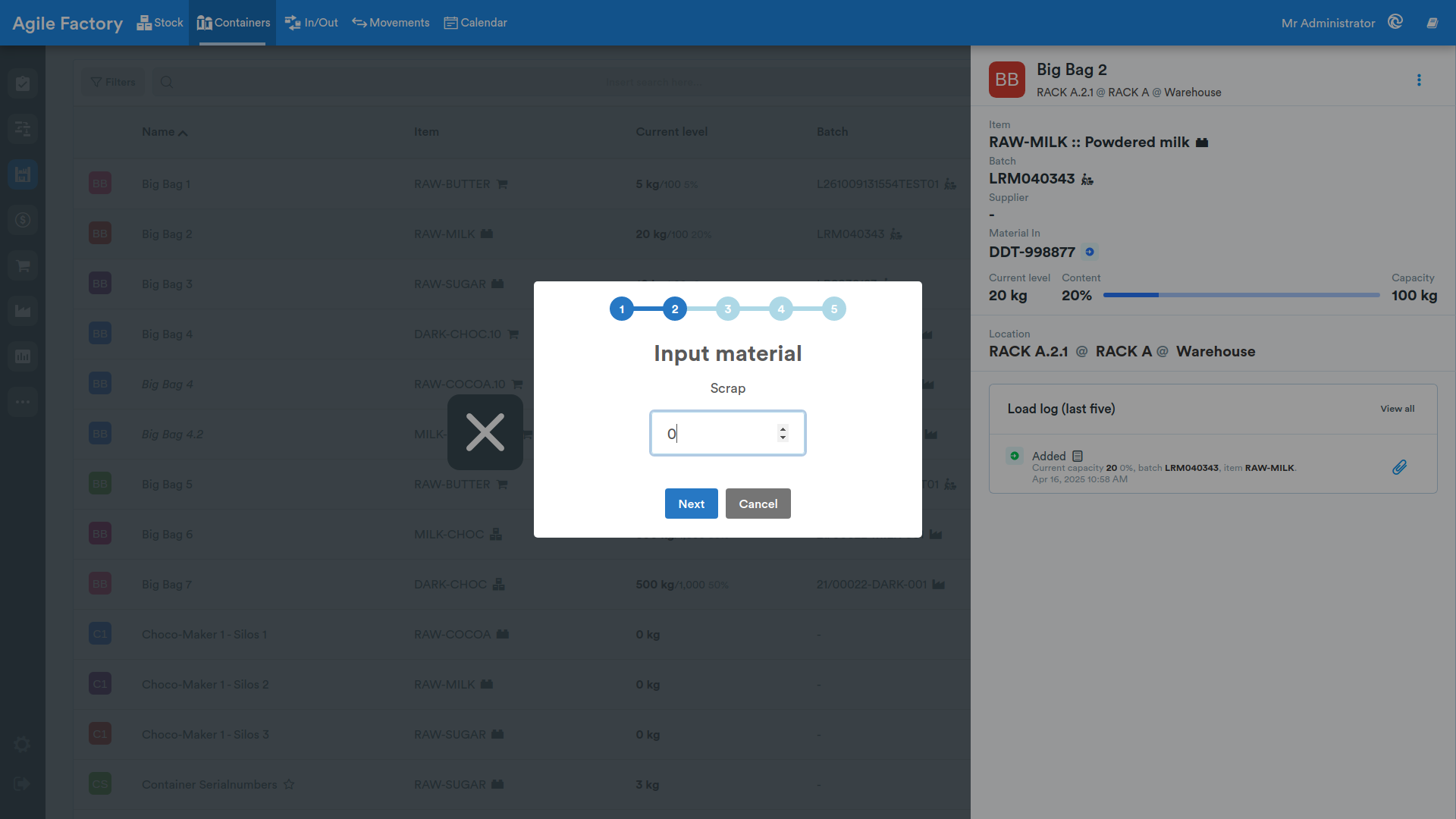
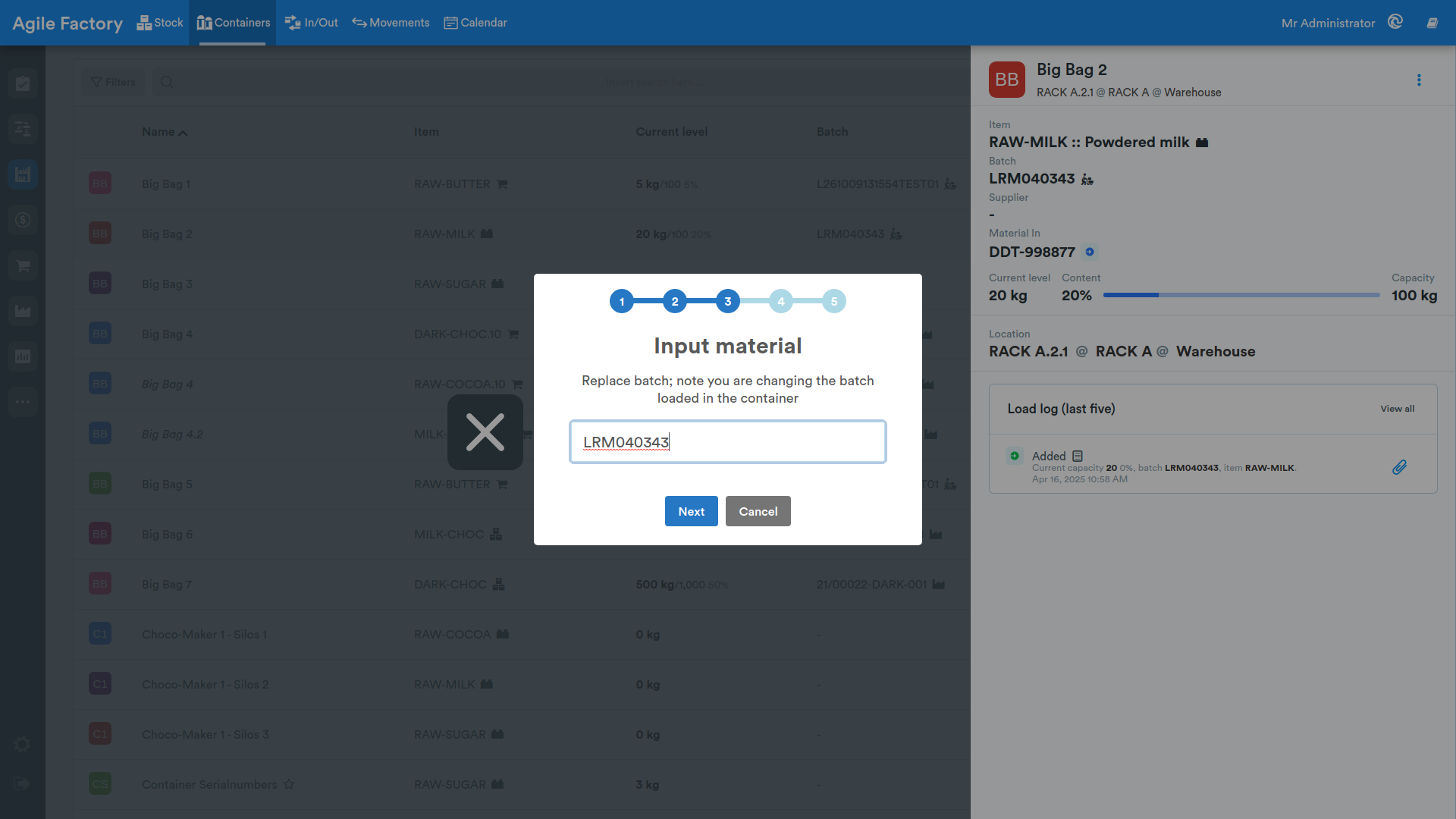
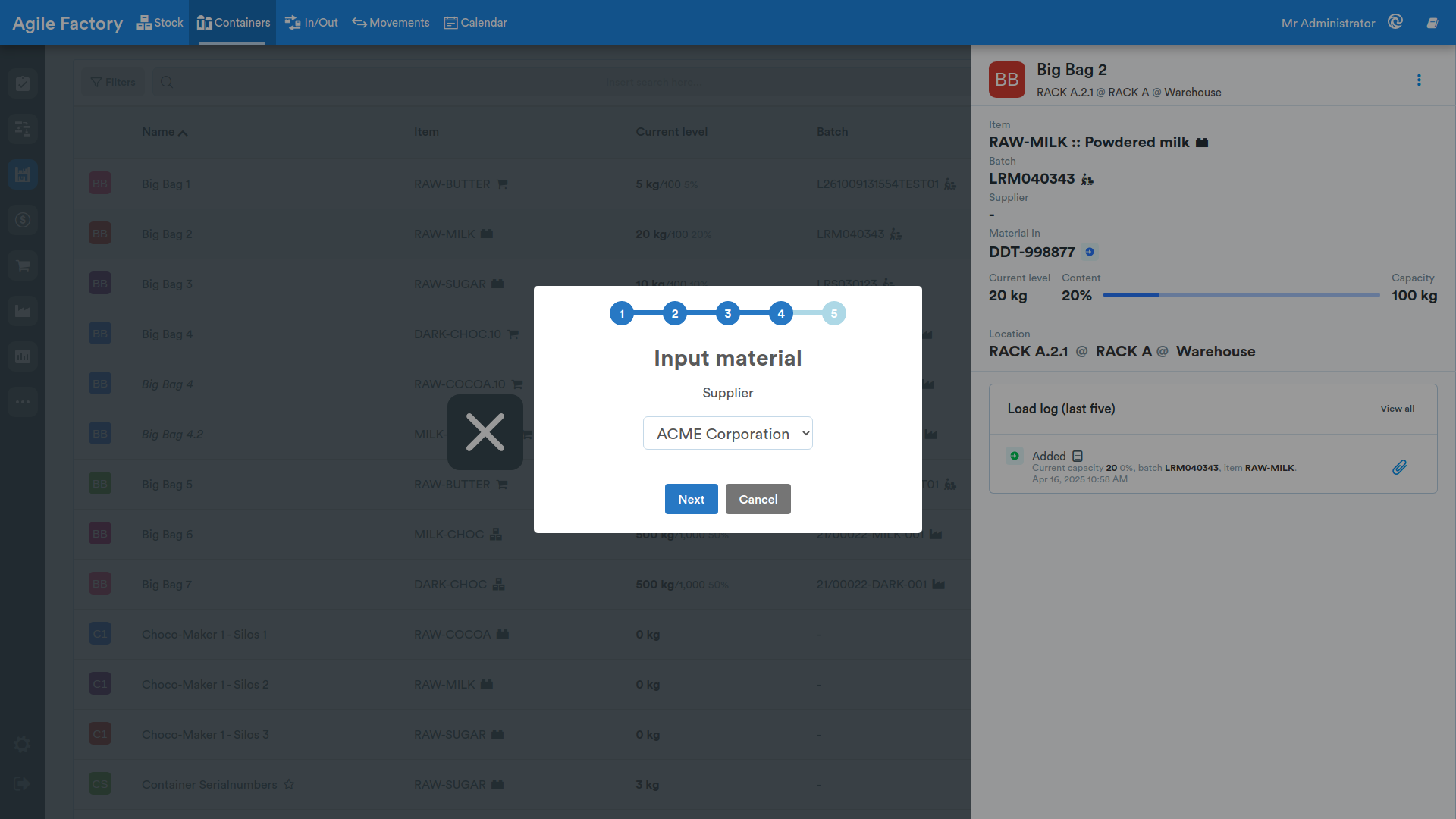
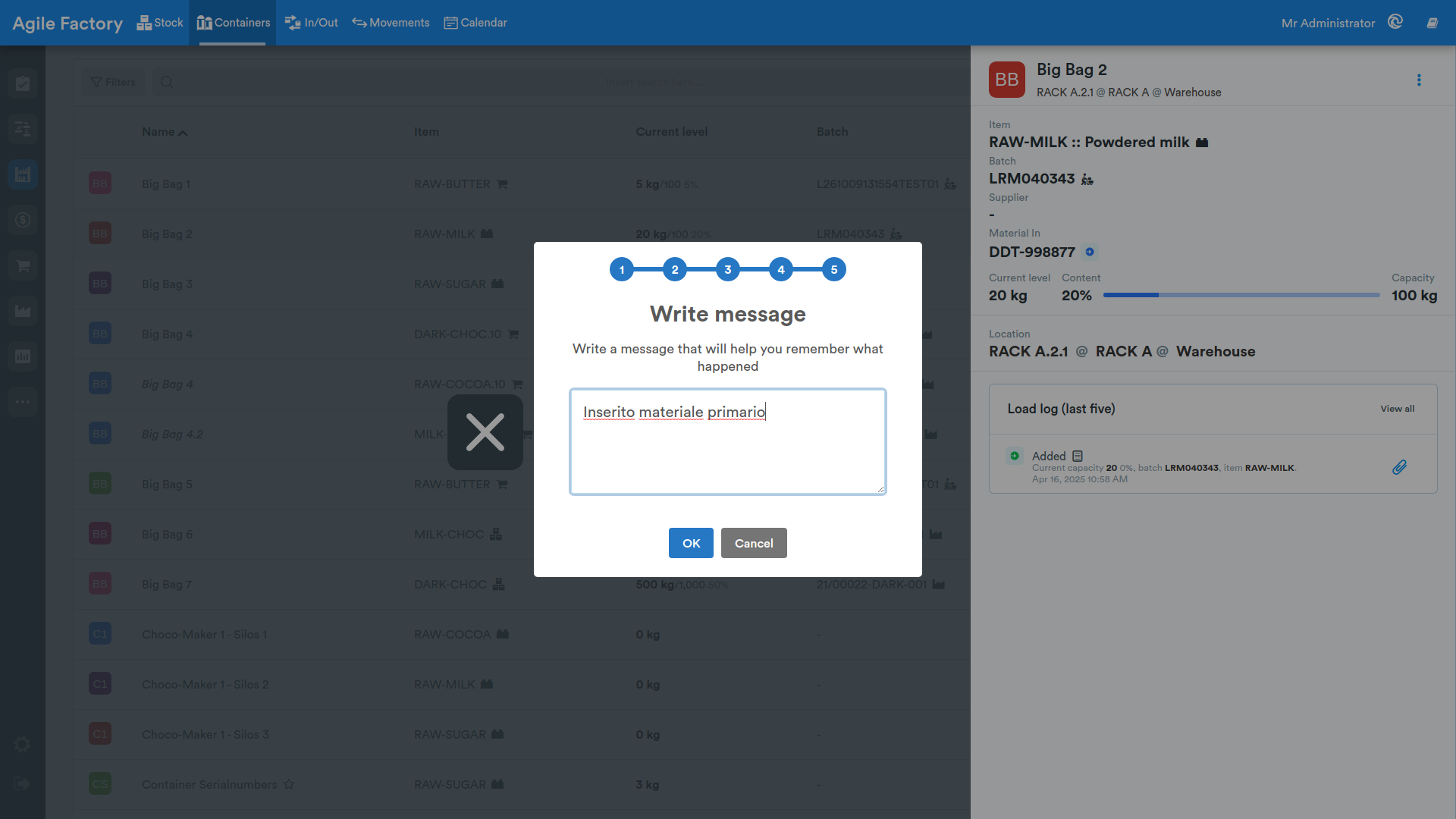
Insert Material
Press the Insert material button and follow the instructions
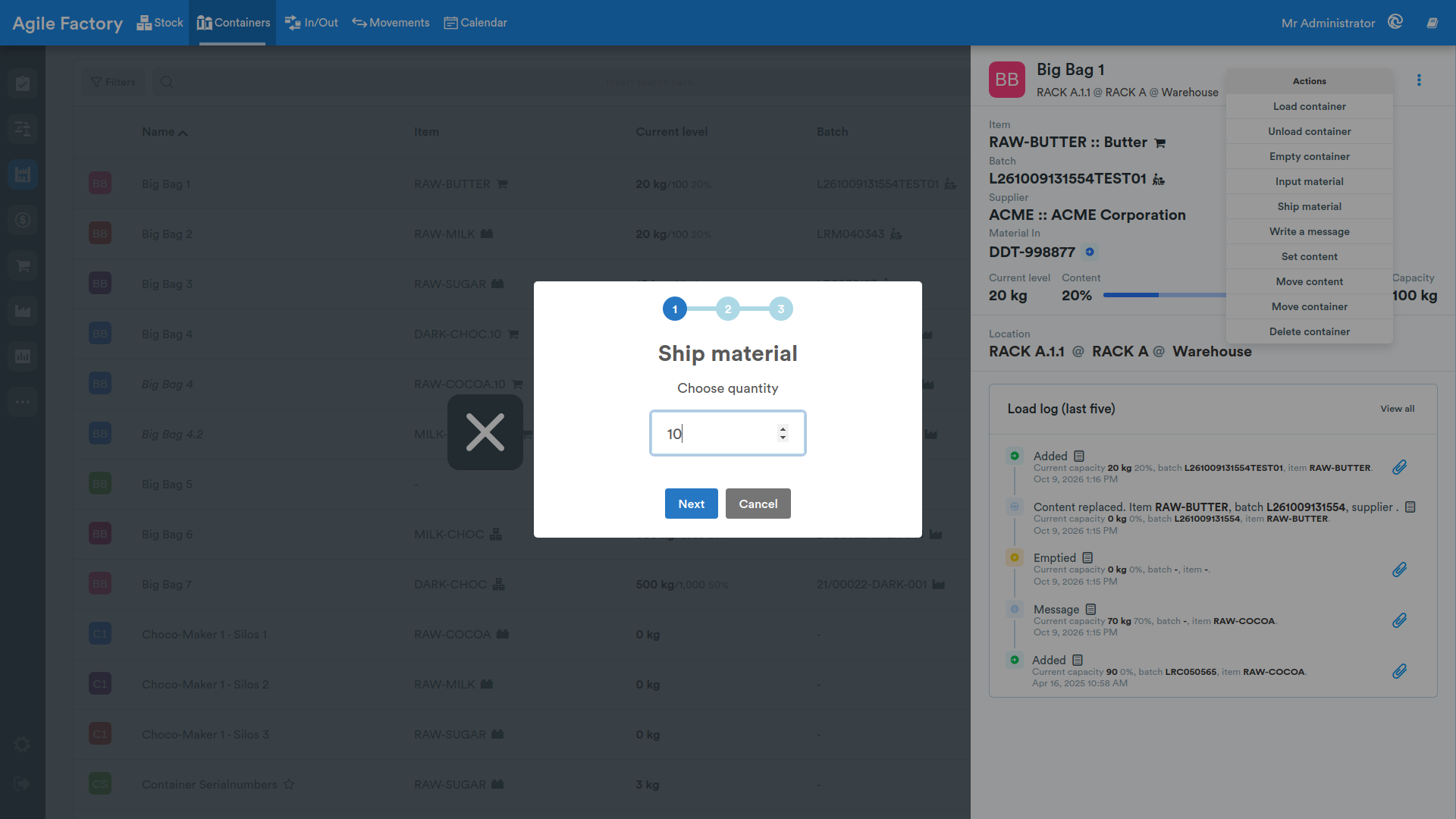
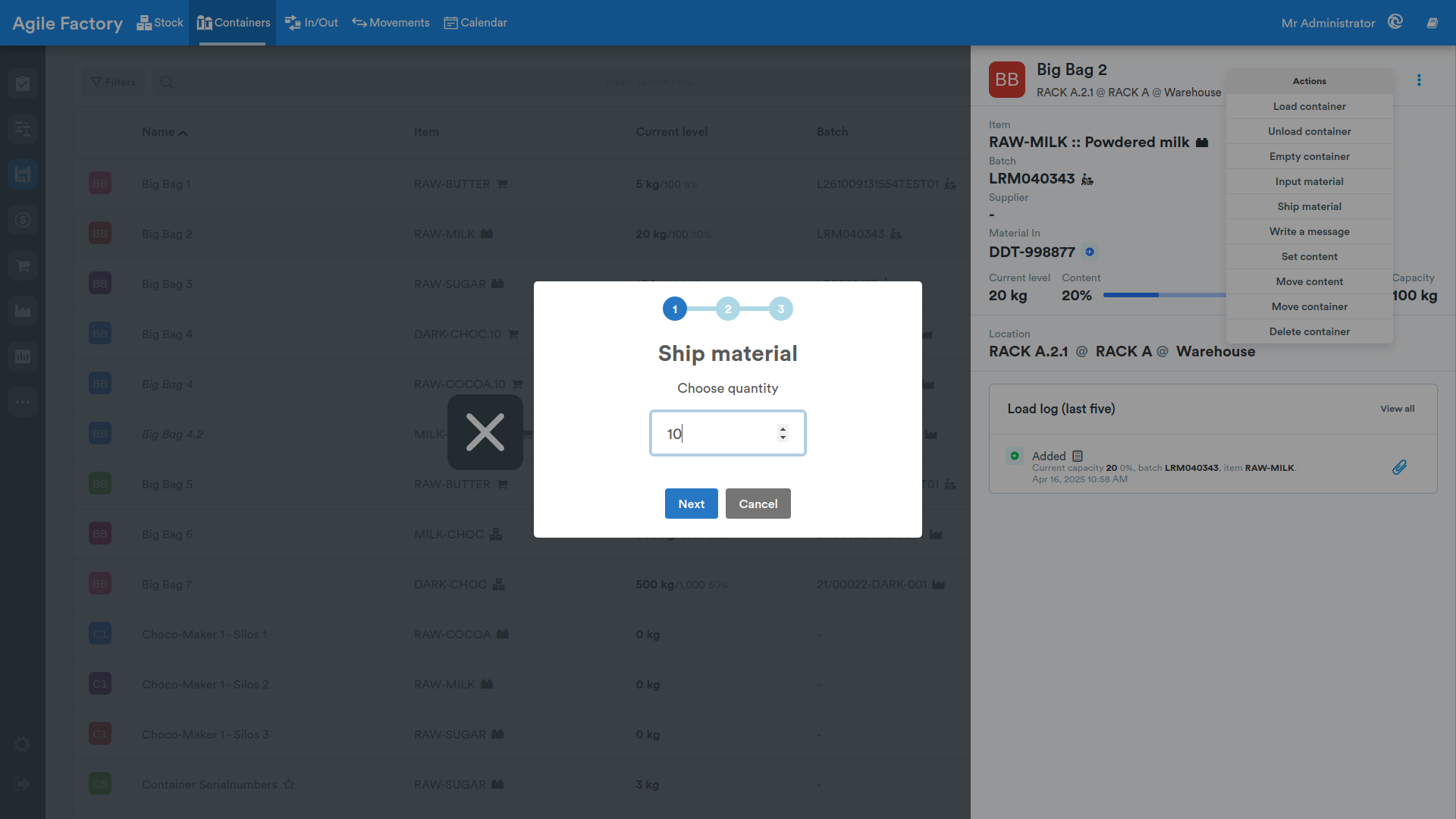
Ship Material
To ship material, press Ship material and follow the instructions
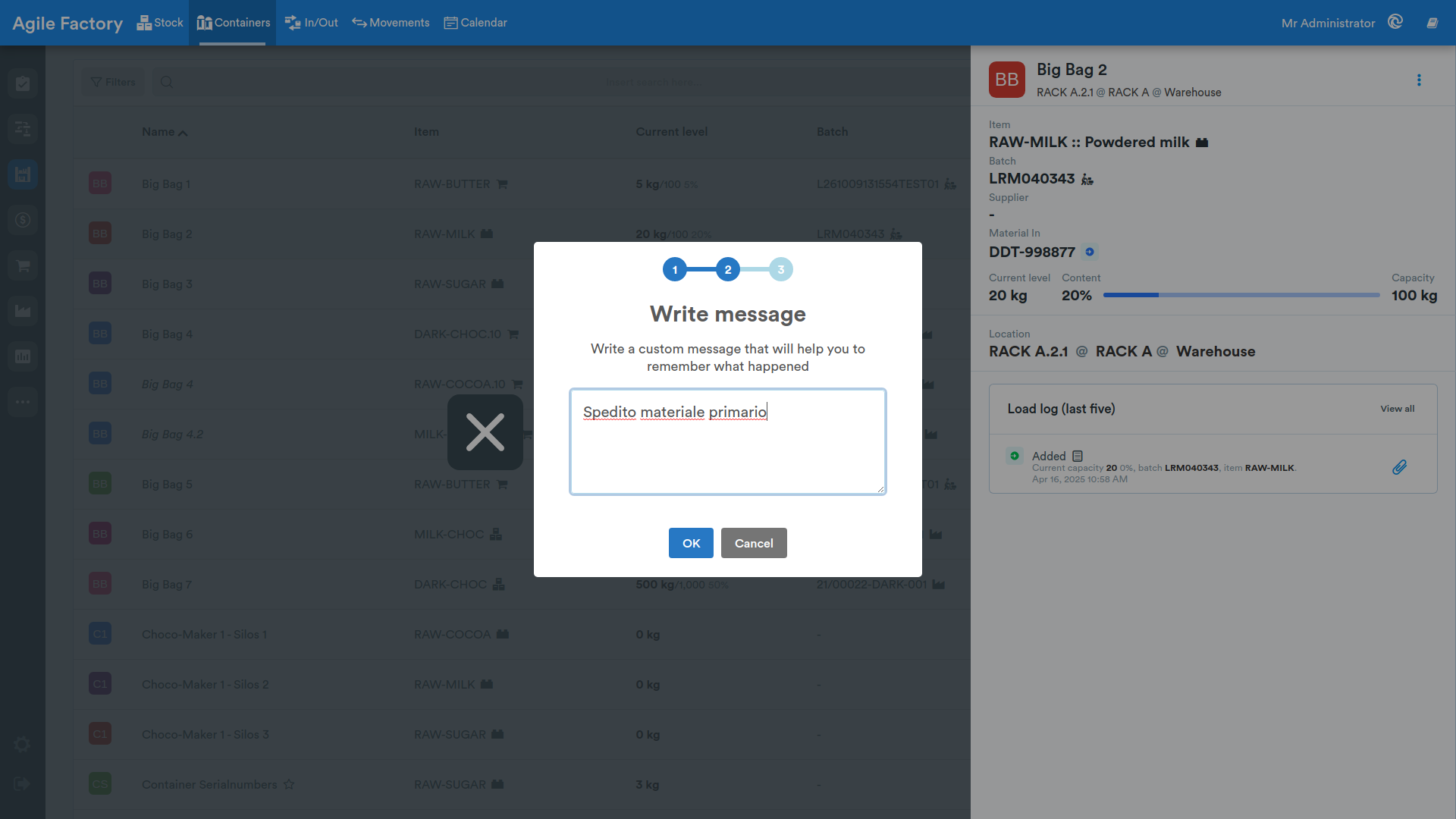
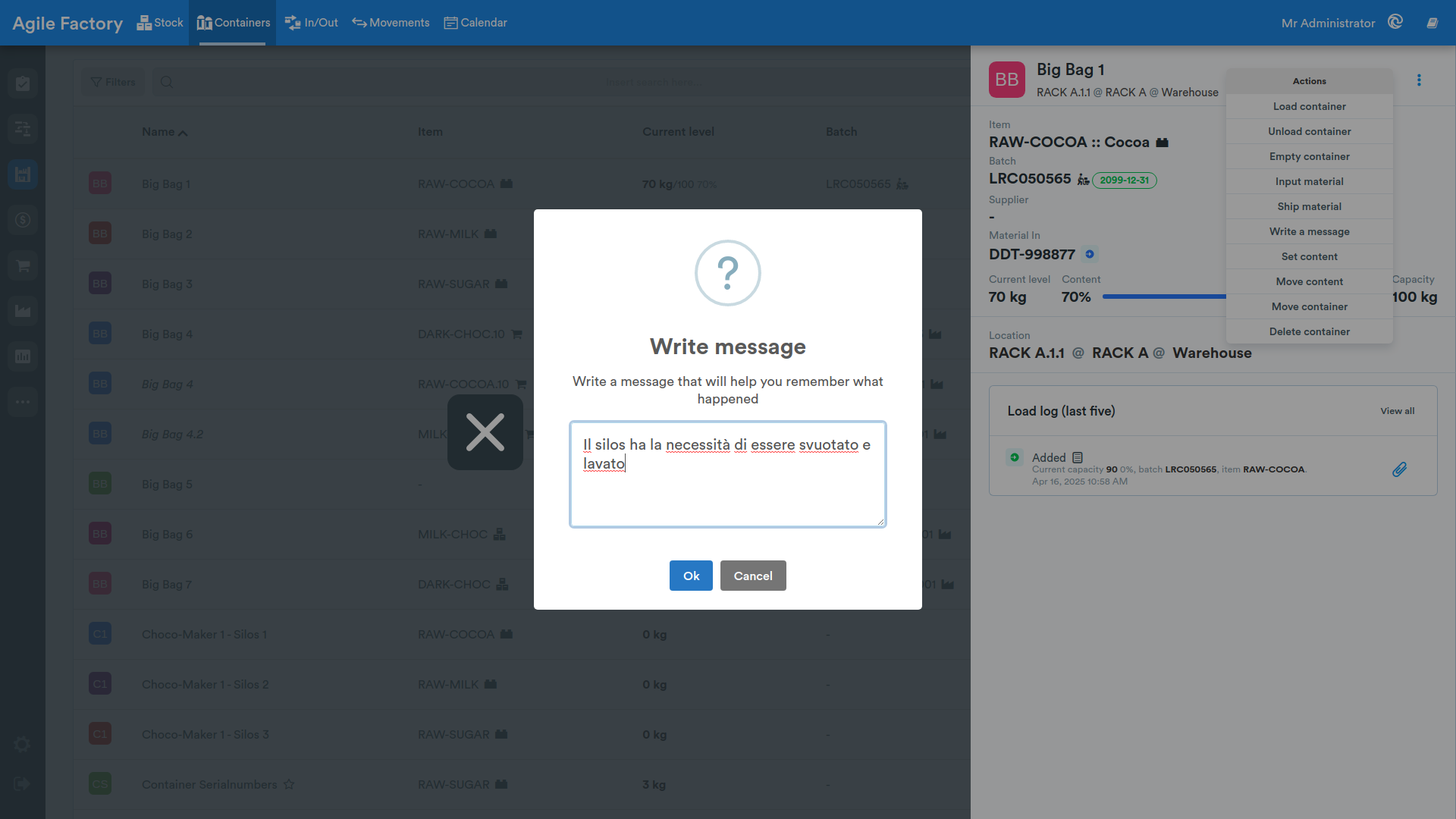
Message
Press the Message button to leave a note.
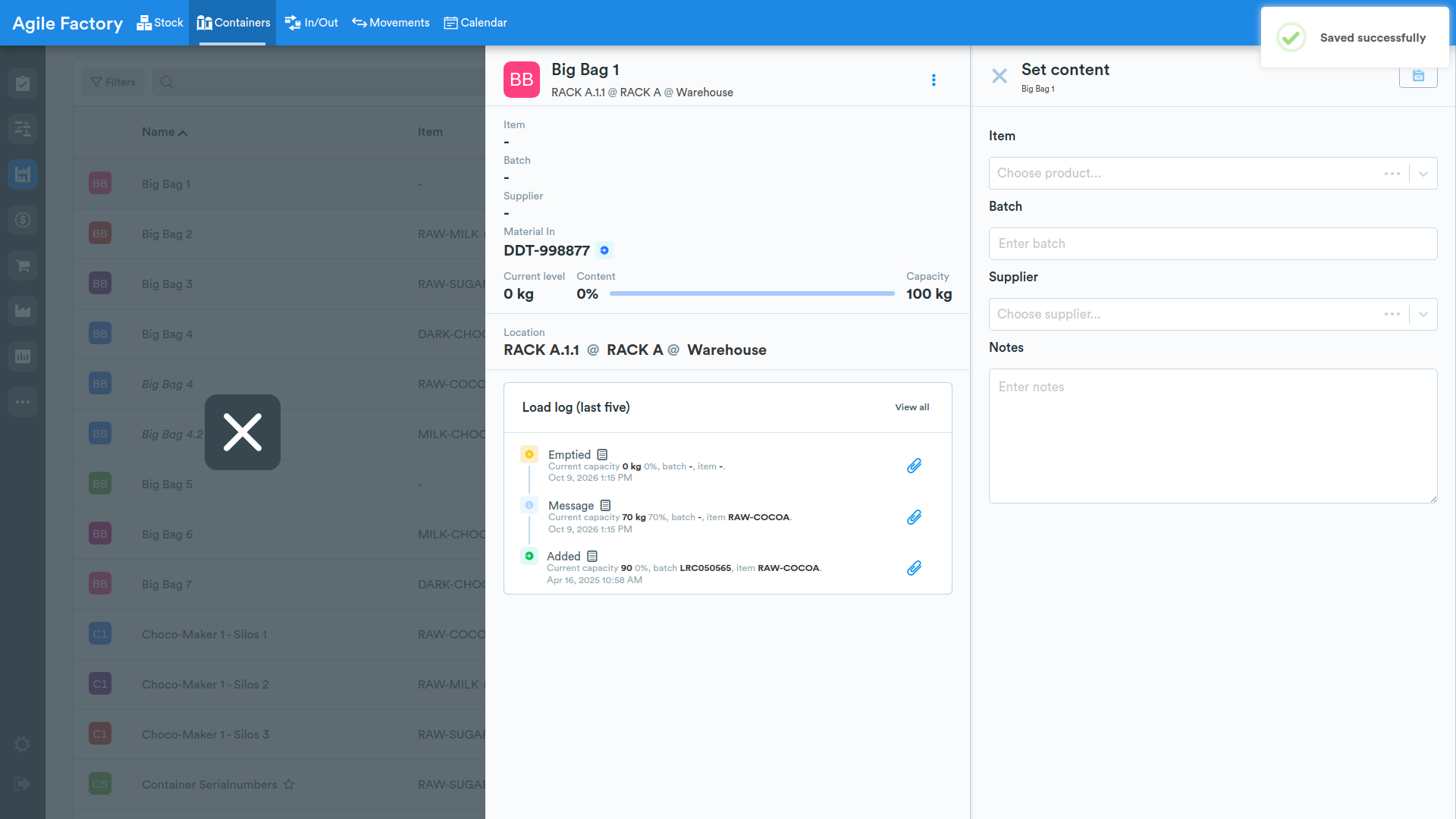
Set Content
To set the container material, press Set content and fill in the necessary fields (don't forget to press Save - 💾).
Move Material
To move content between two containers, press Move content and follow the instructions (don't forget to press Save - 💾).
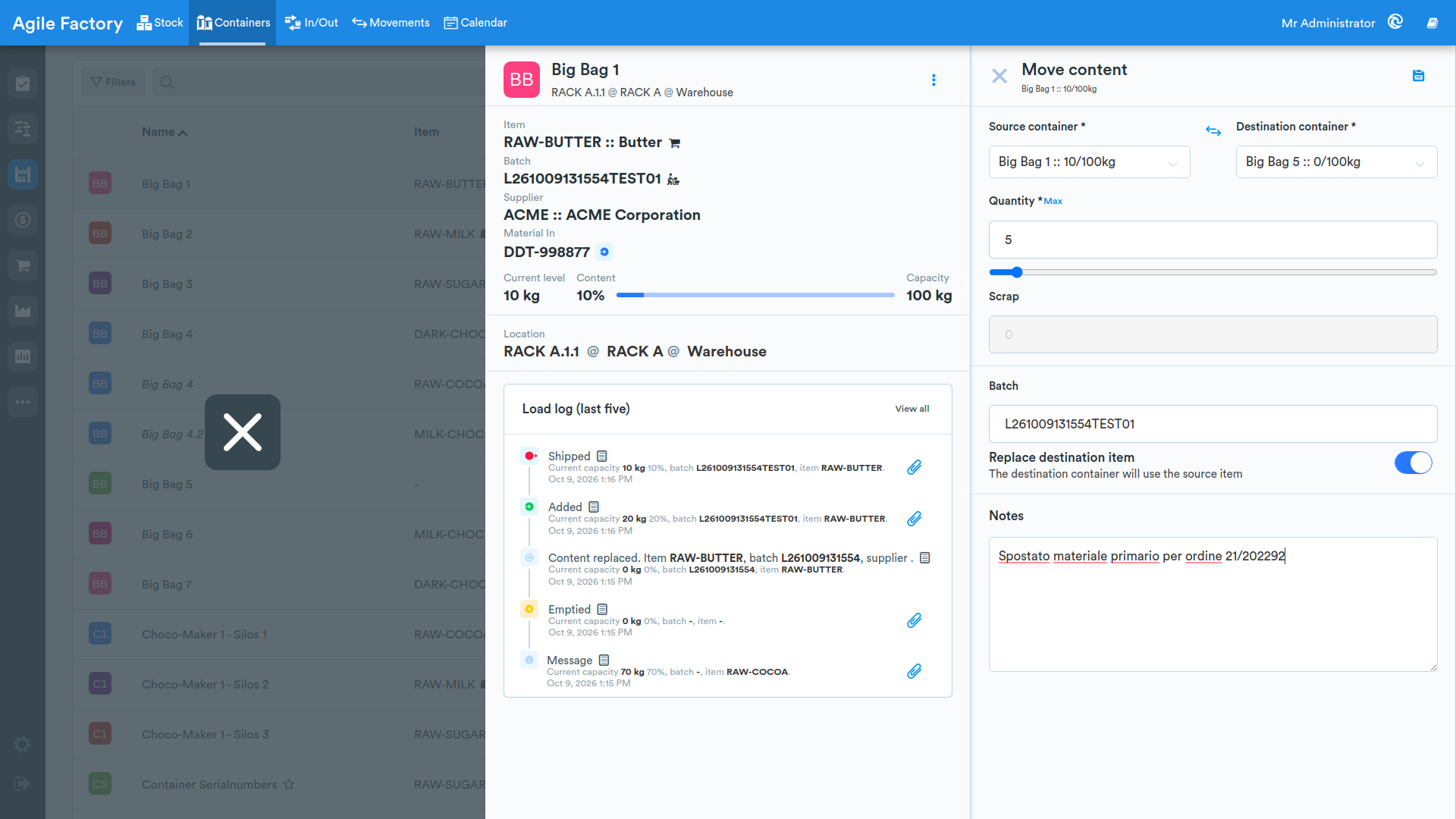
To select the quantity of material to move, you can use the slider below the Quantity field.
Move Container
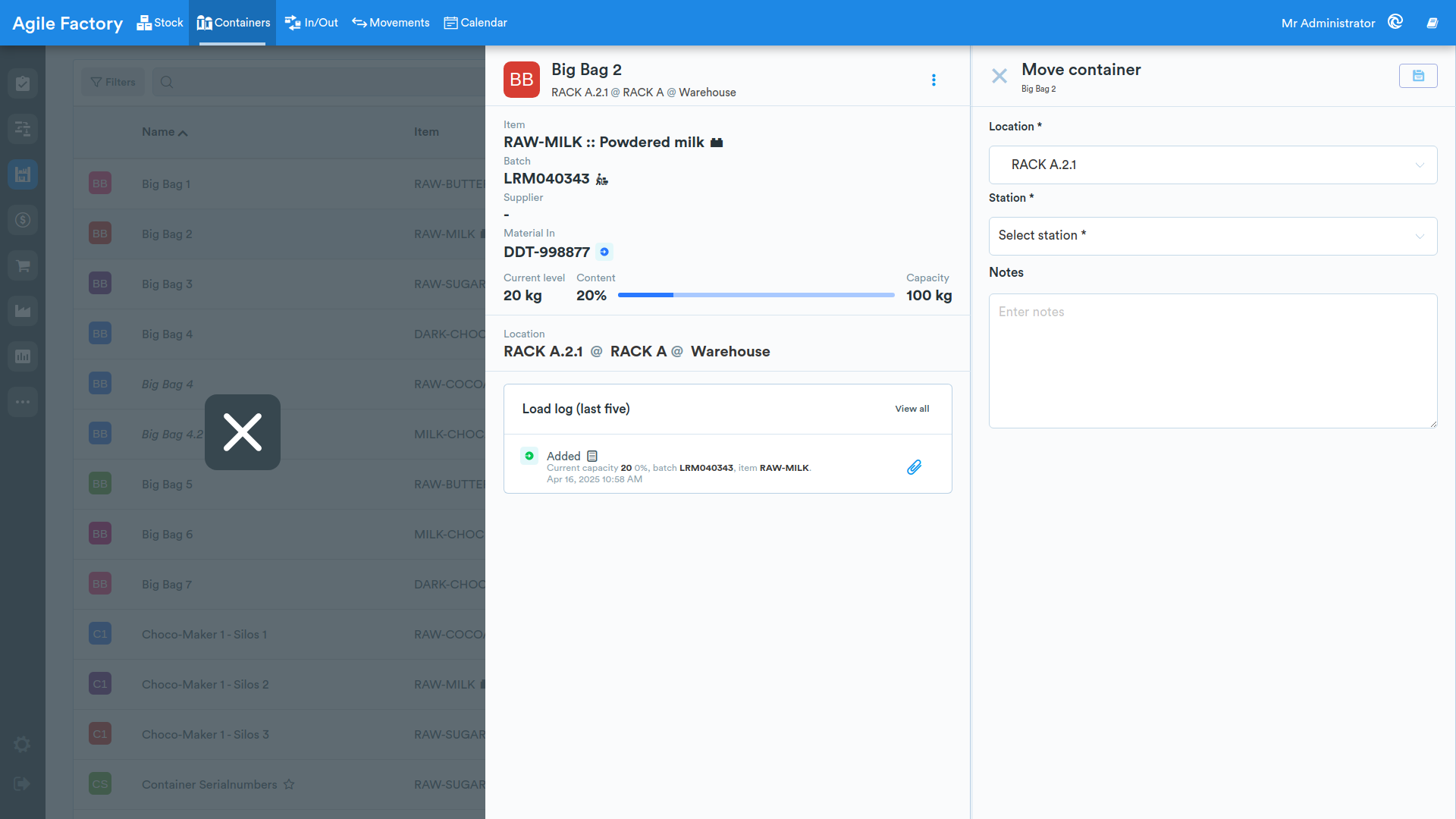
To move the container to another location, press Move container and choose the options (don't forget to press Save - 💾).
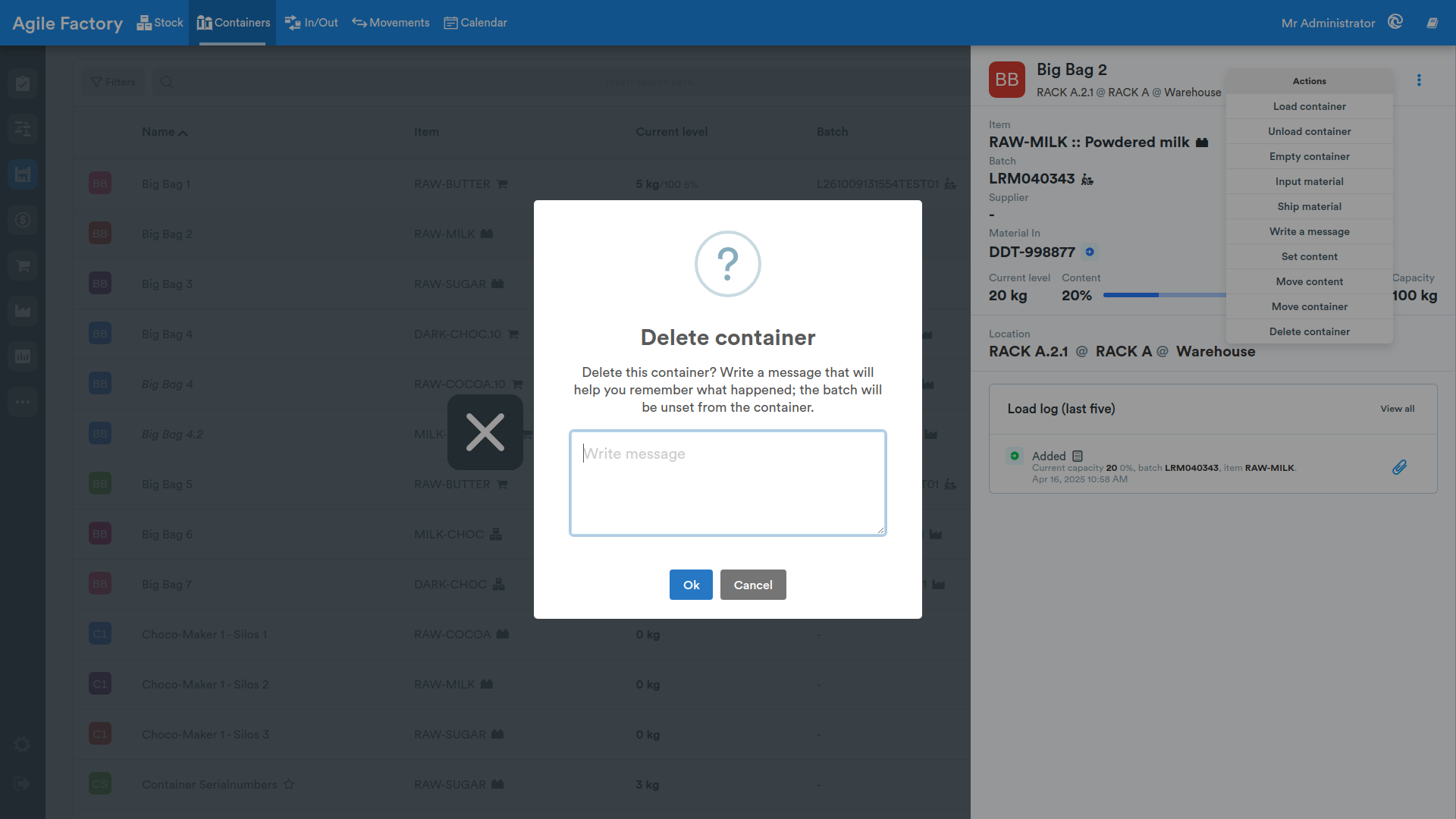
Delete Container
To delete the container, press Delete container.
In/Out
This section of the module is intended for managing arrivals and shipments to and from the warehouse. There are the following types of warehouse in/out:
- in order
- to purchase order
- in stock
- in phase
- from sales order
Above the tabular data, various filters are available that allow the user to find the necessary information (by dates, by type, by supplier, by customer, by order, by item, by batch, search bar).
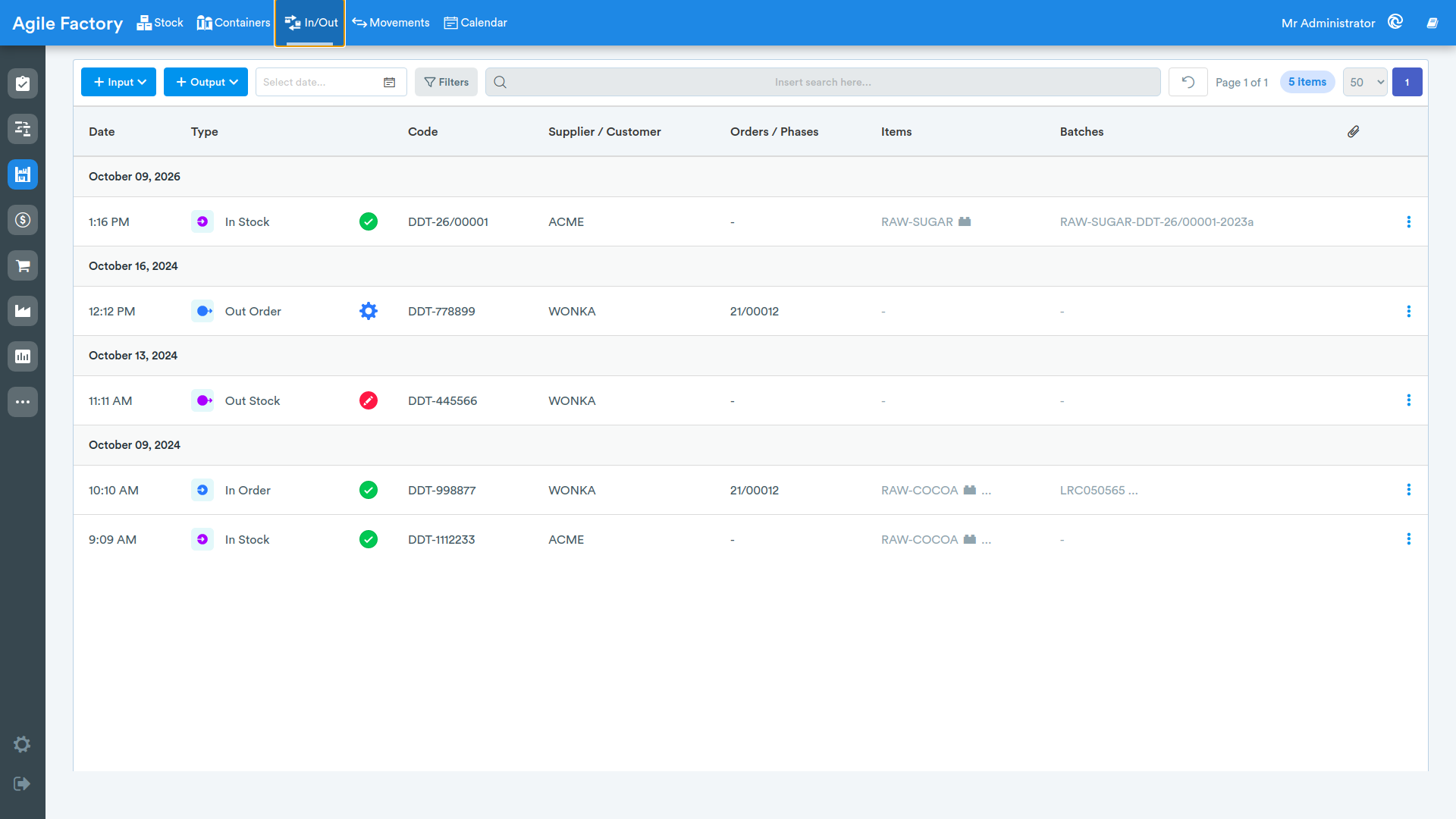
The 🔄️ button is used to reset all search filters.
In Order
This type of entry is used for materials coming directly from the customer for whom the production order is being executed.
To enter data related to this type of operation, click on +Inbound and select In Order from the dropdown menu.
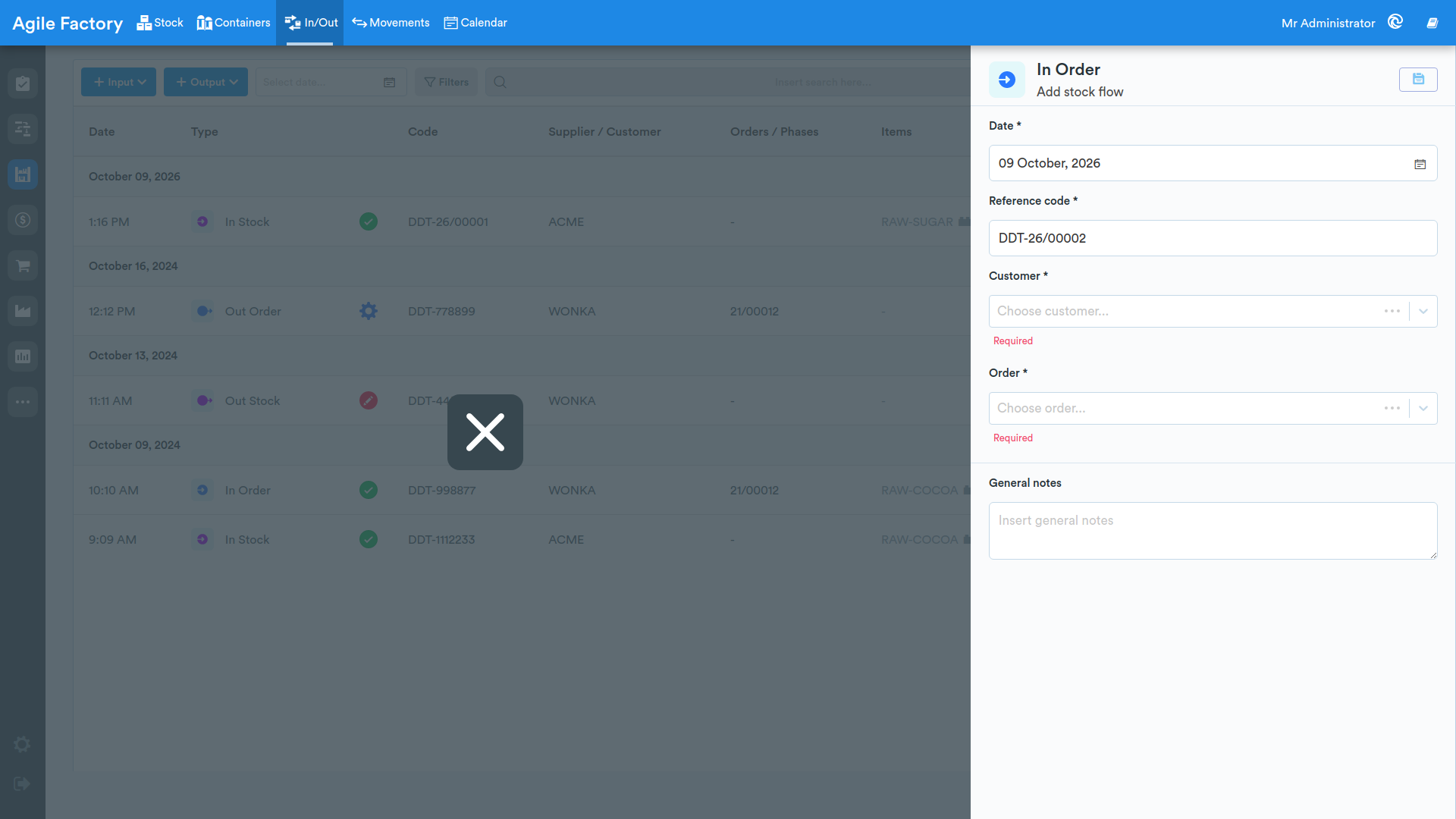
After filling in the mandatory fields, click on the Save button: additional menus to use will appear.
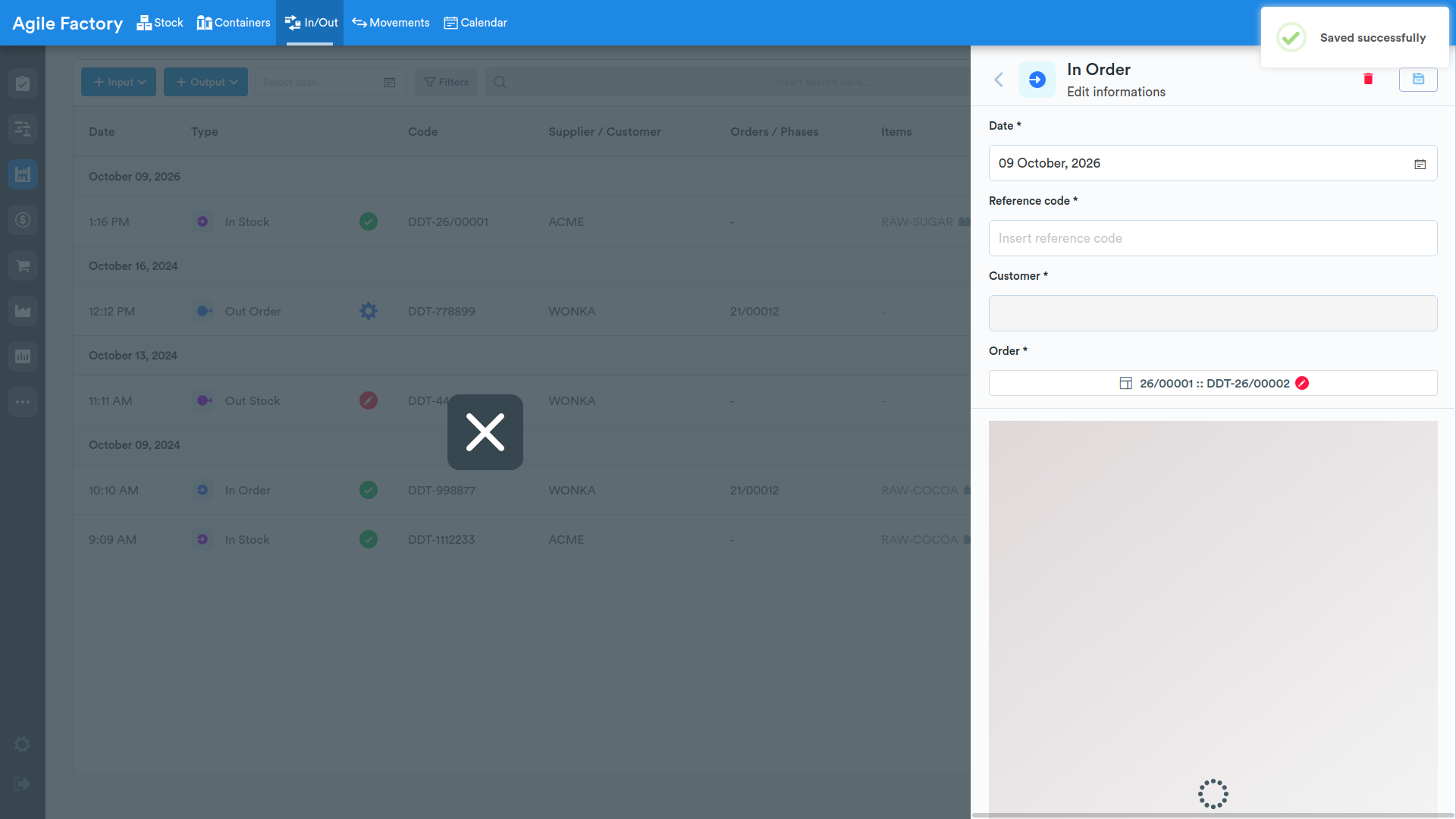
To add the materials that need to be registered, click on the +Add button in the items section.
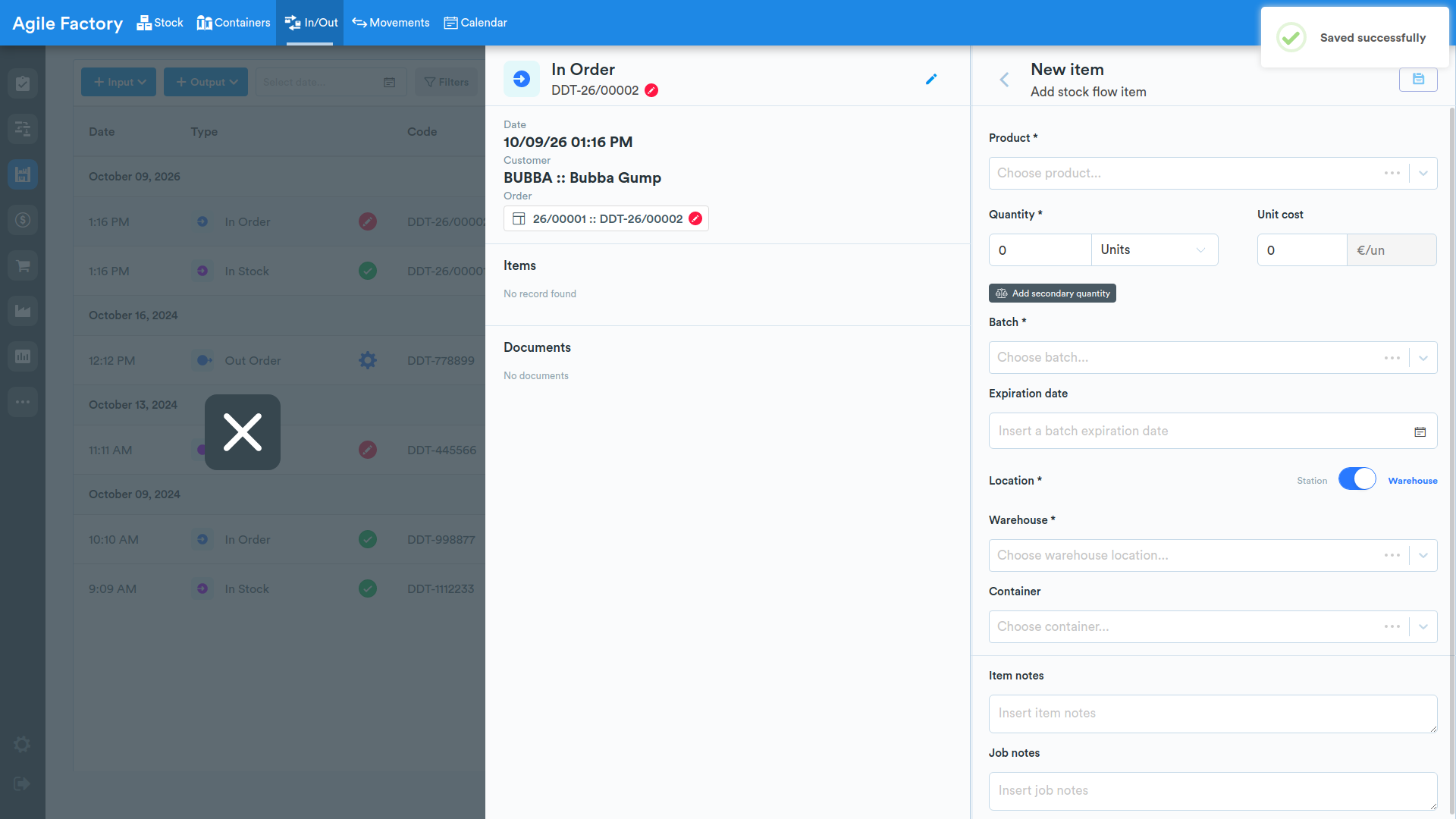
Enter the data related to the item name, quantity and cost, select or add a new batch (if the additional Batch Traceability🔥 functionality is activated), if the batch already exists, the other data will be selected automatically. If it is a new batch, it is necessary to select the location of that batch (if necessary, add notes), click on the Save button. Repeat the operations if it is necessary to add other items.
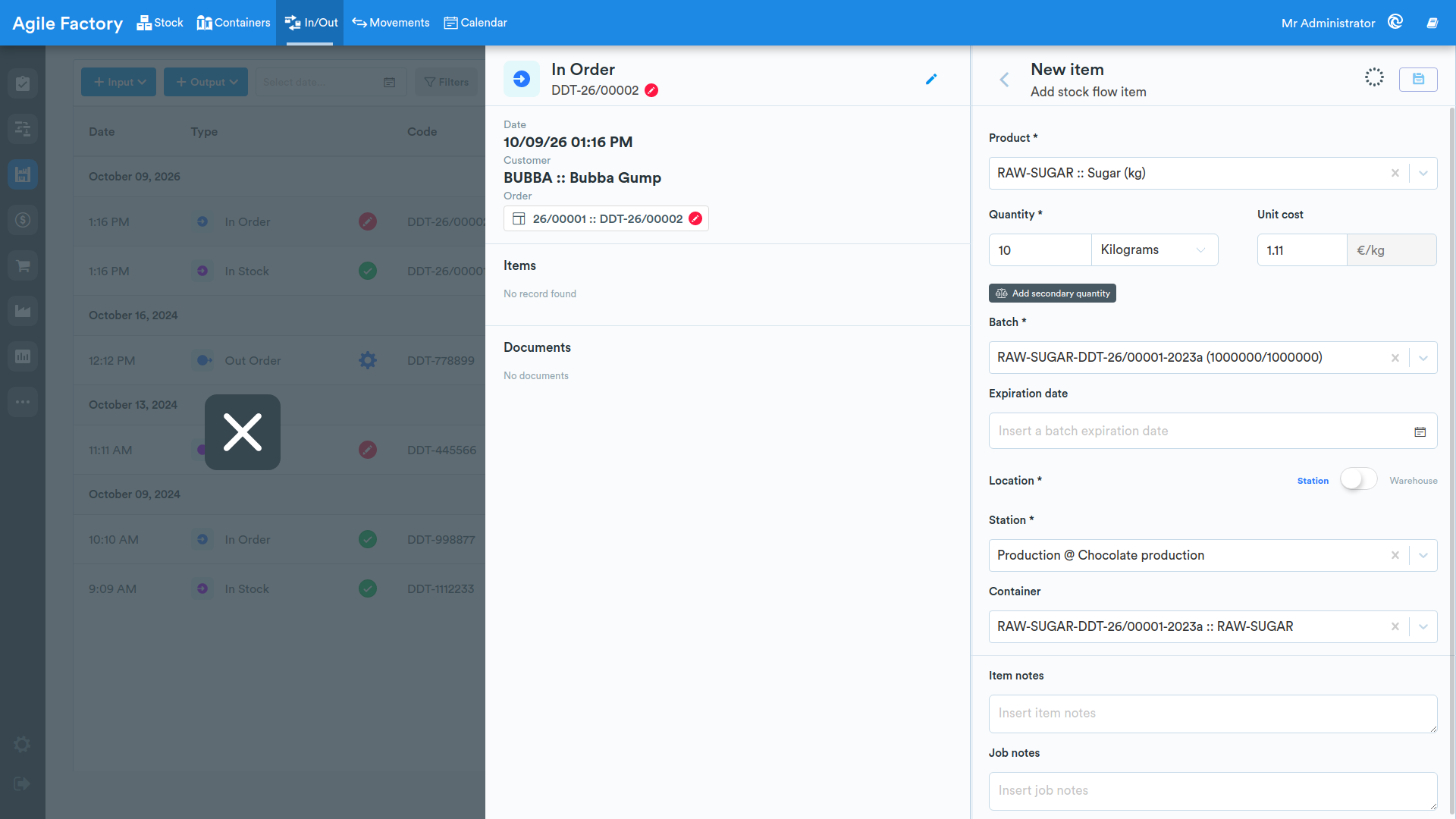
After adding the necessary number of items, click on the Confirm material in button.
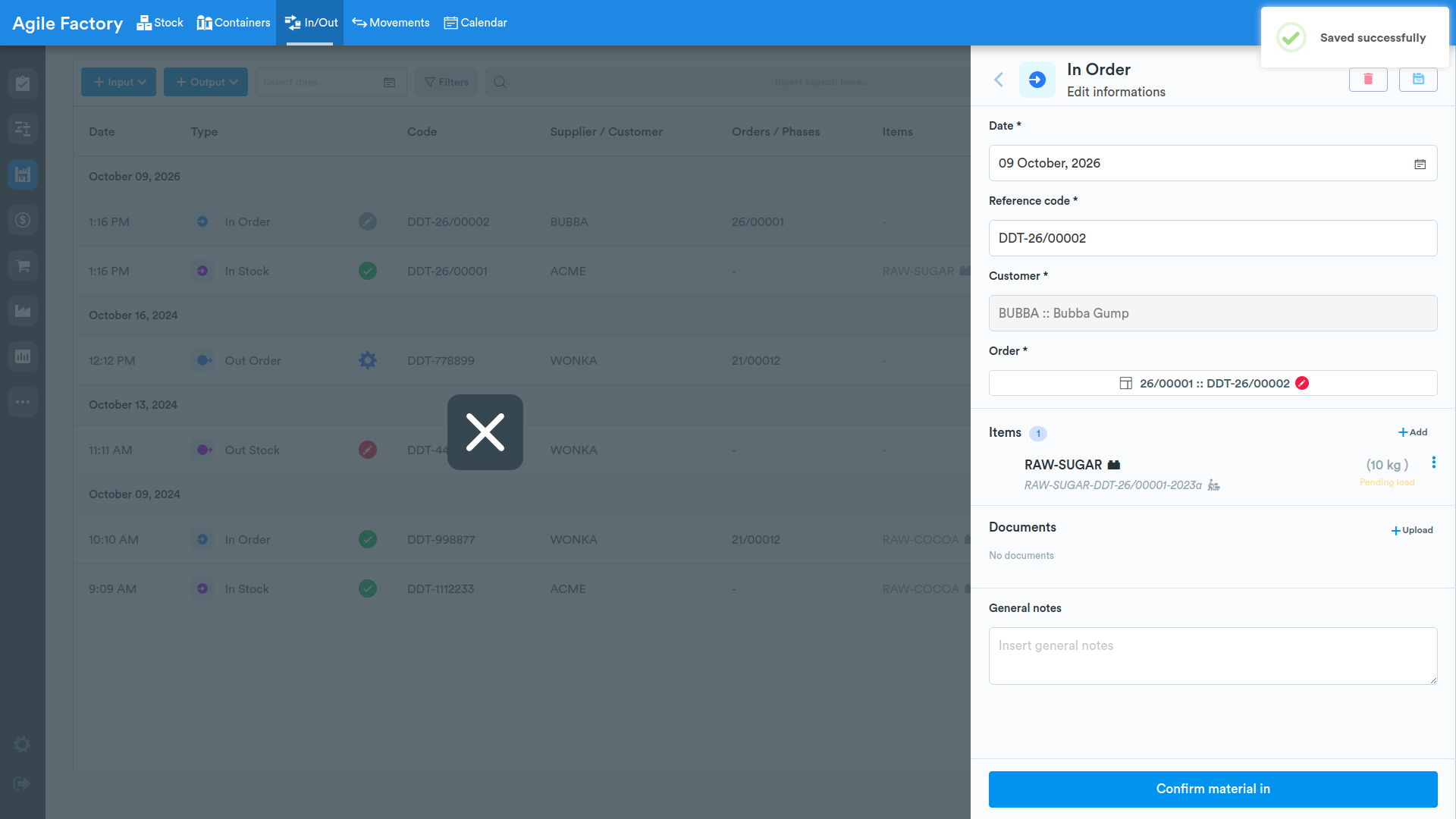
Until this button is pressed, the entered material is saved in a draft that can be completed or modified. It is possible to make changes even after confirming the entry.
To Purchase Order
This type of entry (In Purchase) is used to record the arrival of materials in relation to a purchase order.
To enter data related to this type of operation, click on +Inbound and select To purchase order from the dropdown menu. The other steps are similar to those of the other entry types.
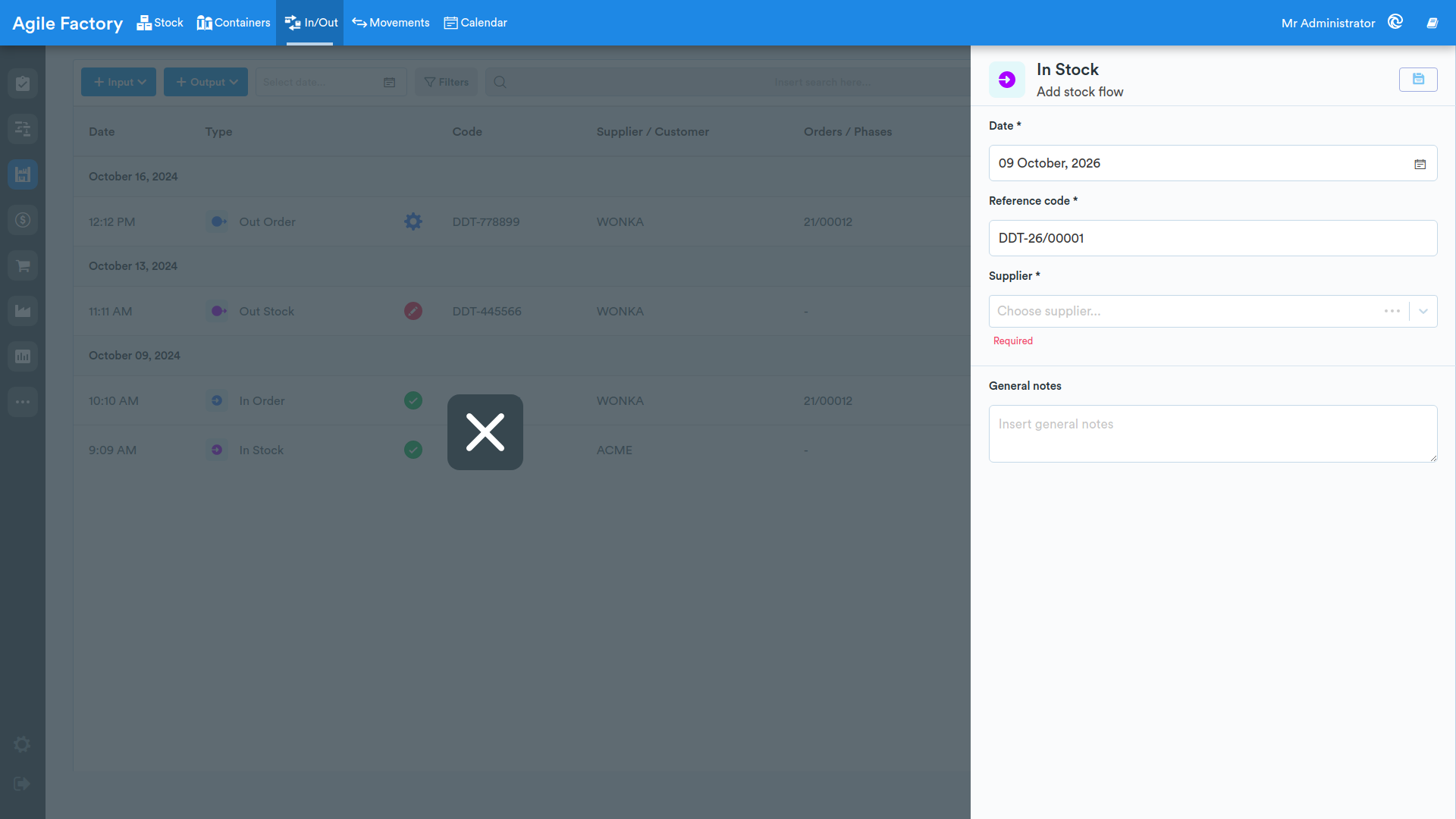
In Stock
The mechanism for entering materials into the warehouse is similar to the previous entry type, except that it is not necessary to specify the specific customer and production order, but only the supplier. The other steps are similar.
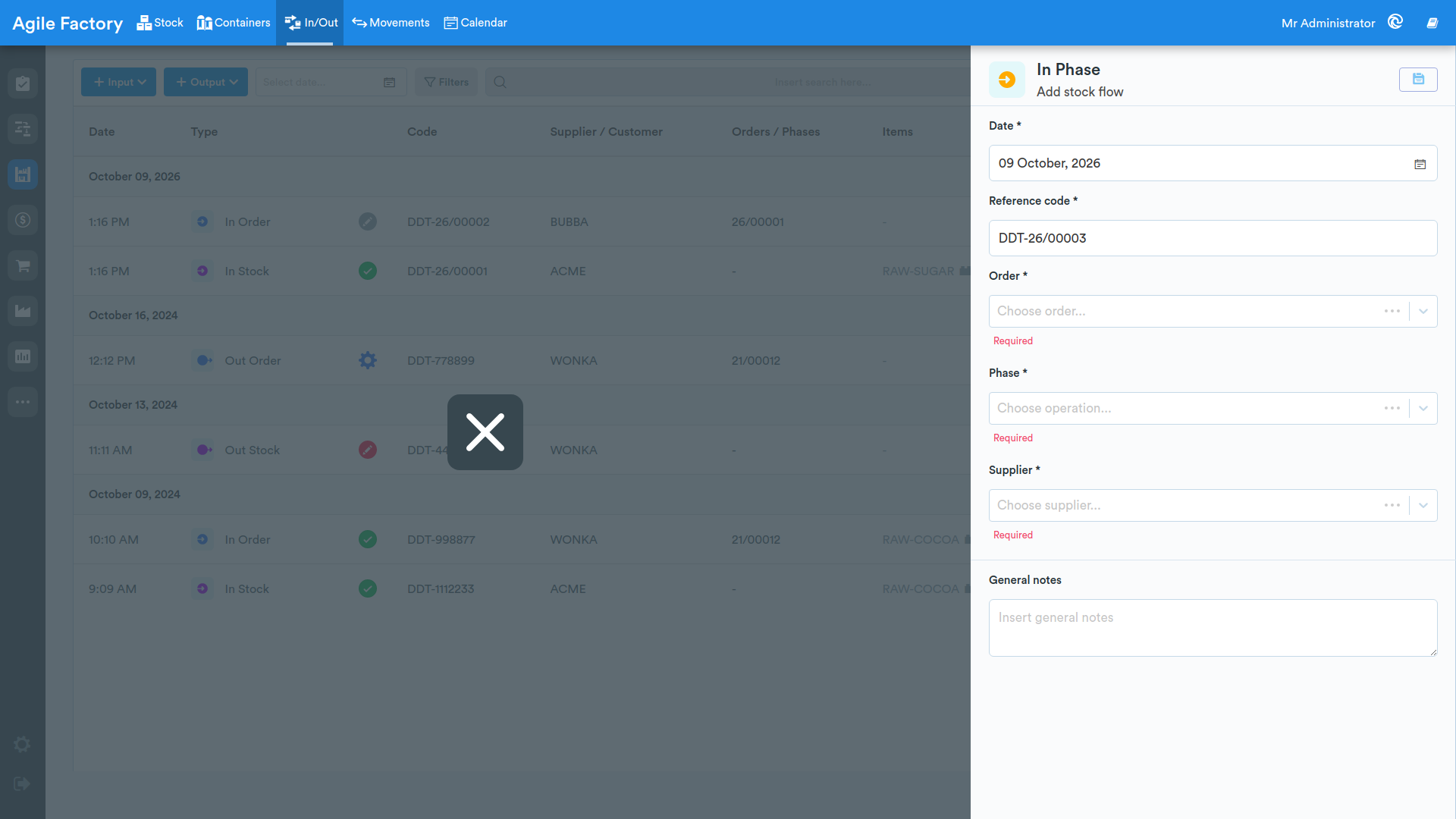
In Phase
The mechanism for entering materials for a specific phase is similar to the previous entry type, it is necessary to enter data related to the production order, operation and supplier. The other steps are similar.
Out from Order
This type of material Out from the warehouse is used when it is necessary to ship materials from your warehouse to the customer's warehouse as part of the execution of an order (during order execution it is necessary to refine the material according to the customer's conditions, or the finished product must be shipped to the customer's address and deleted from your warehouse register).
To enter data related to this type of operation, click on +Out and select from order from the dropdown menu. Among the orders, it is possible to select one or more production orders.
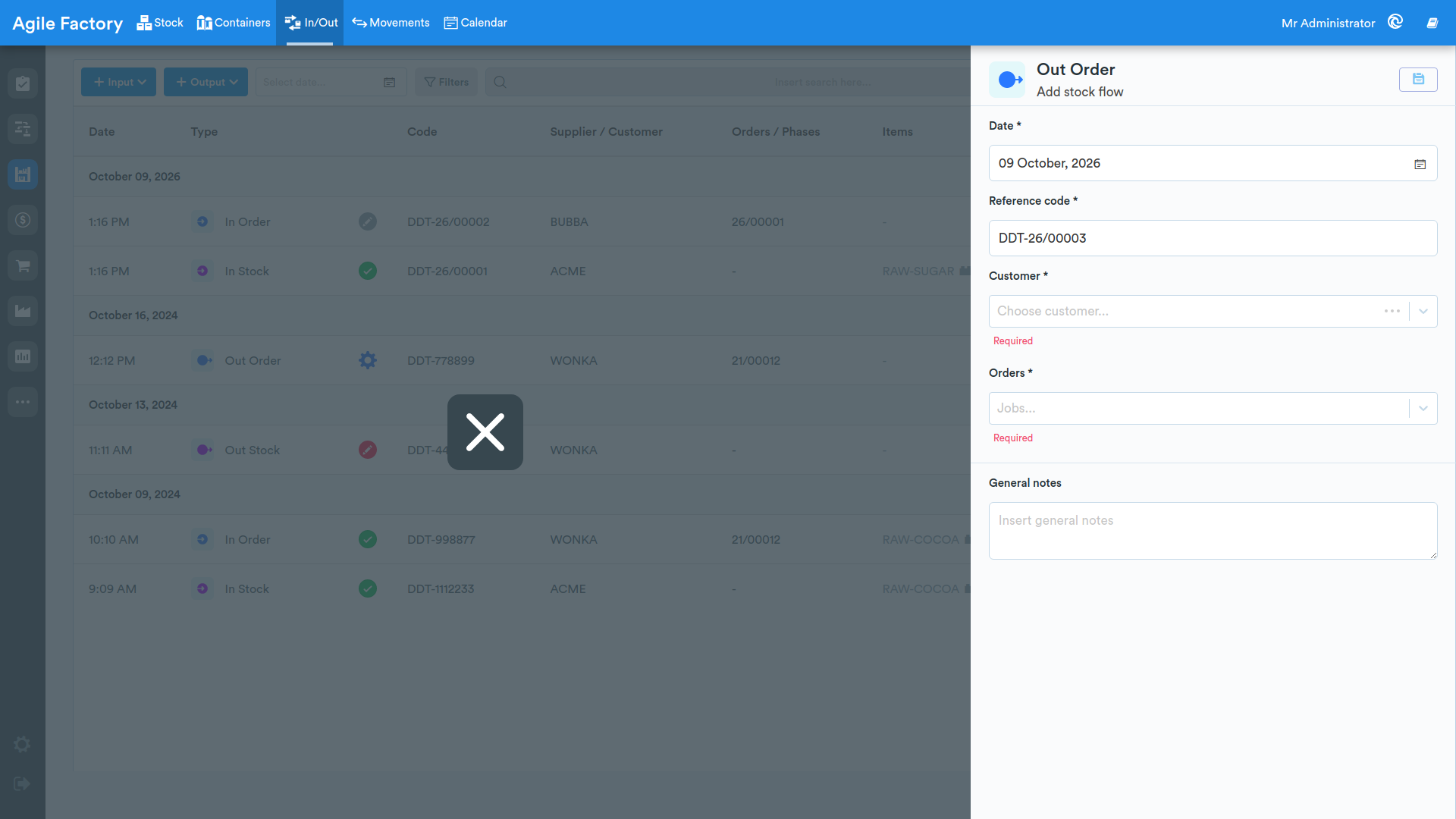
After filling in the mandatory fields, click on the Save button: additional menus to use will appear.
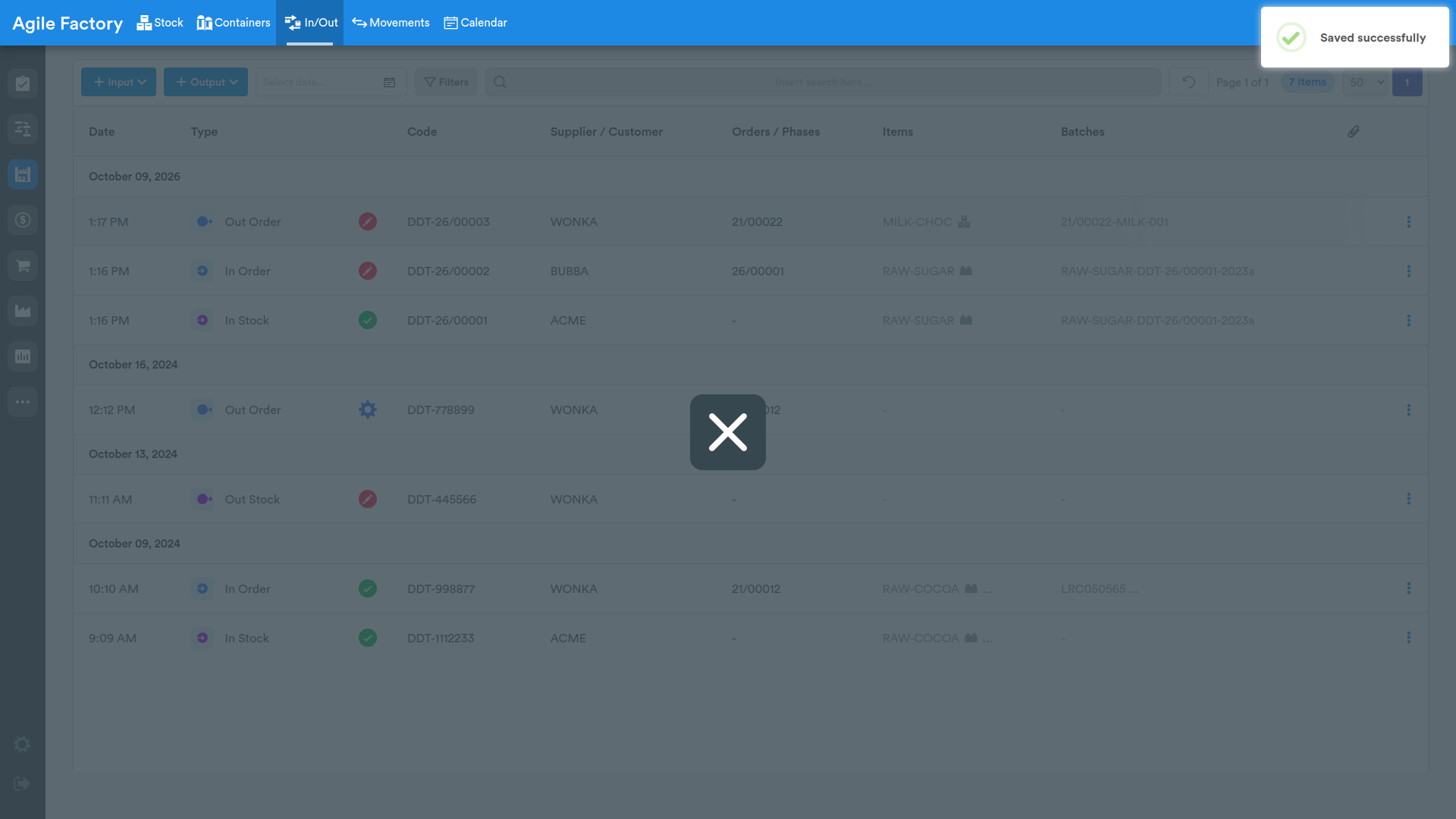
The item code is automatically determined by the system based on the production order.
In the lower part of the menu, after saving the document, it is necessary to fill in additional data related to the reason for the items leaving the warehouse (the list of reasons can be customized based on specific tasks), as well as recipient data and transport data, if it is necessary to generate a transport document (the transport document template can also be customized).
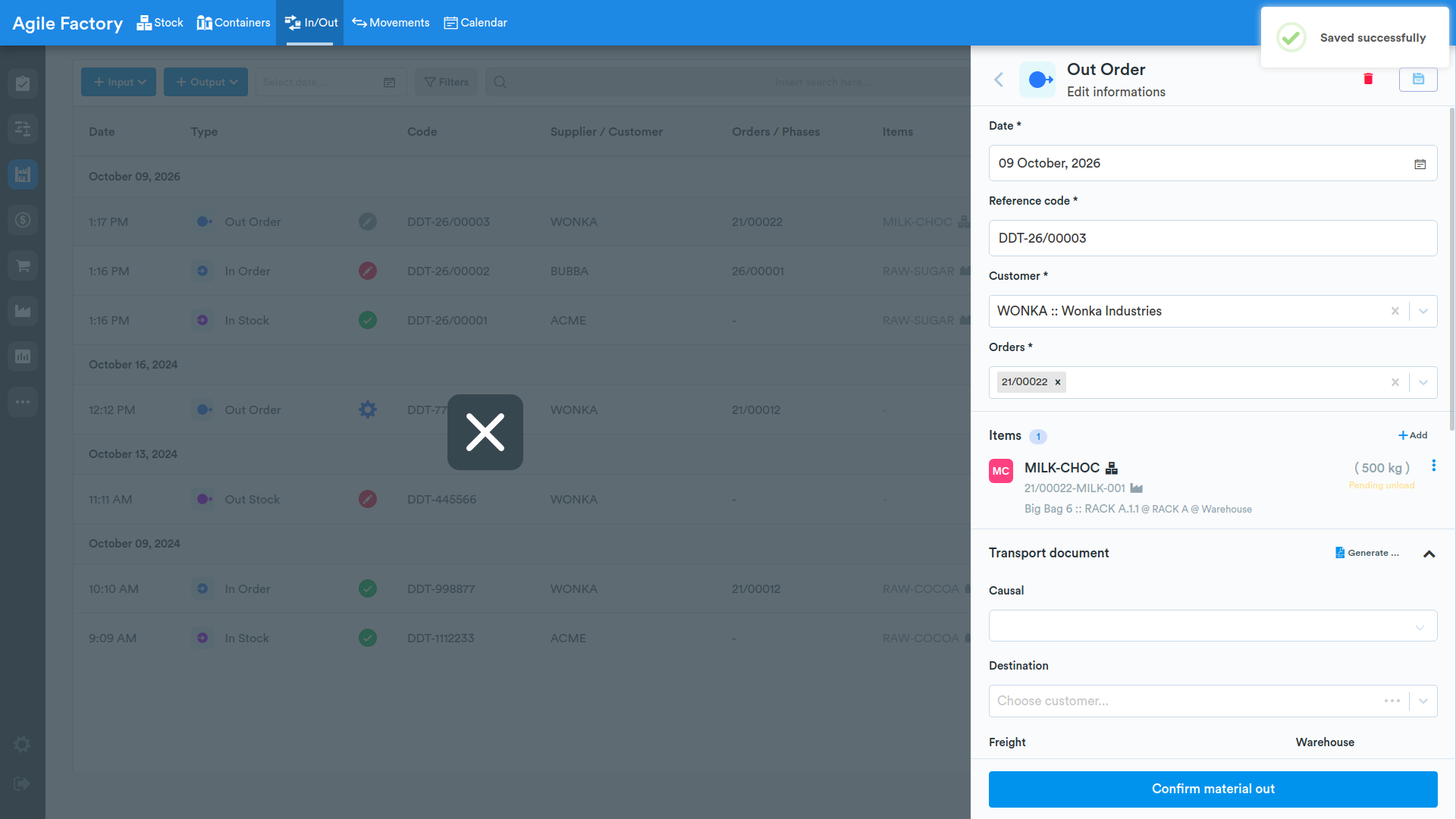
After entering the data, click on Confirm material out. Within certain technical requirements, it is possible to send electronic documents to third-party software.
Out from Sales Order
This type of out (Out Sales) is used to record the materials leaving the warehouse in relation to a sales order.
To enter data related to this type of operation, click on +Out and select From sales order from the dropdown menu. The other steps are similar to those of the other out types.
Out from Stock
The mechanism for material Out from the warehouse is similar to the previous outbound type, except that it is not necessary to specify the specific customer and production order, but only the customer. The other steps are similar.
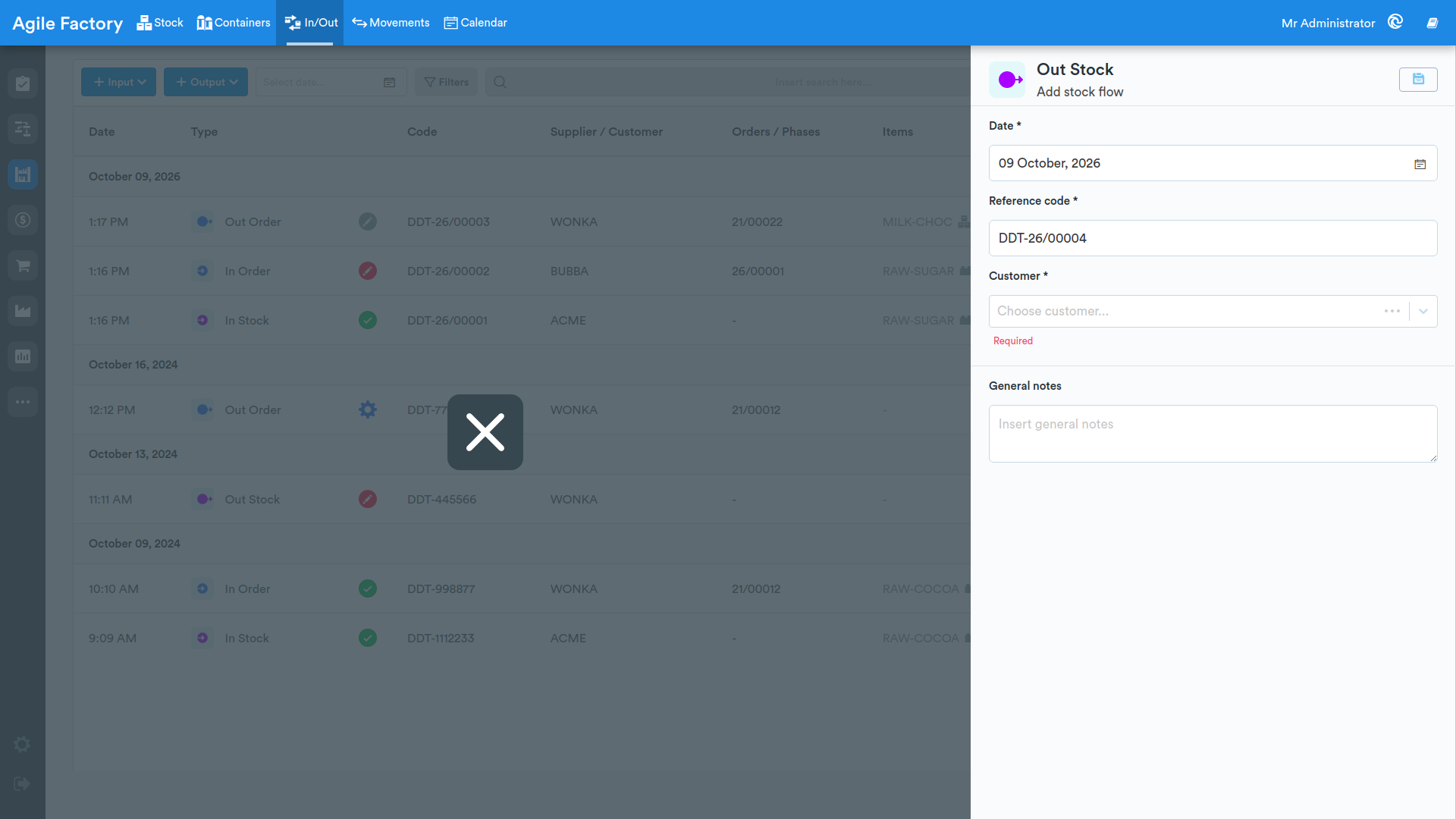
Out from Phase
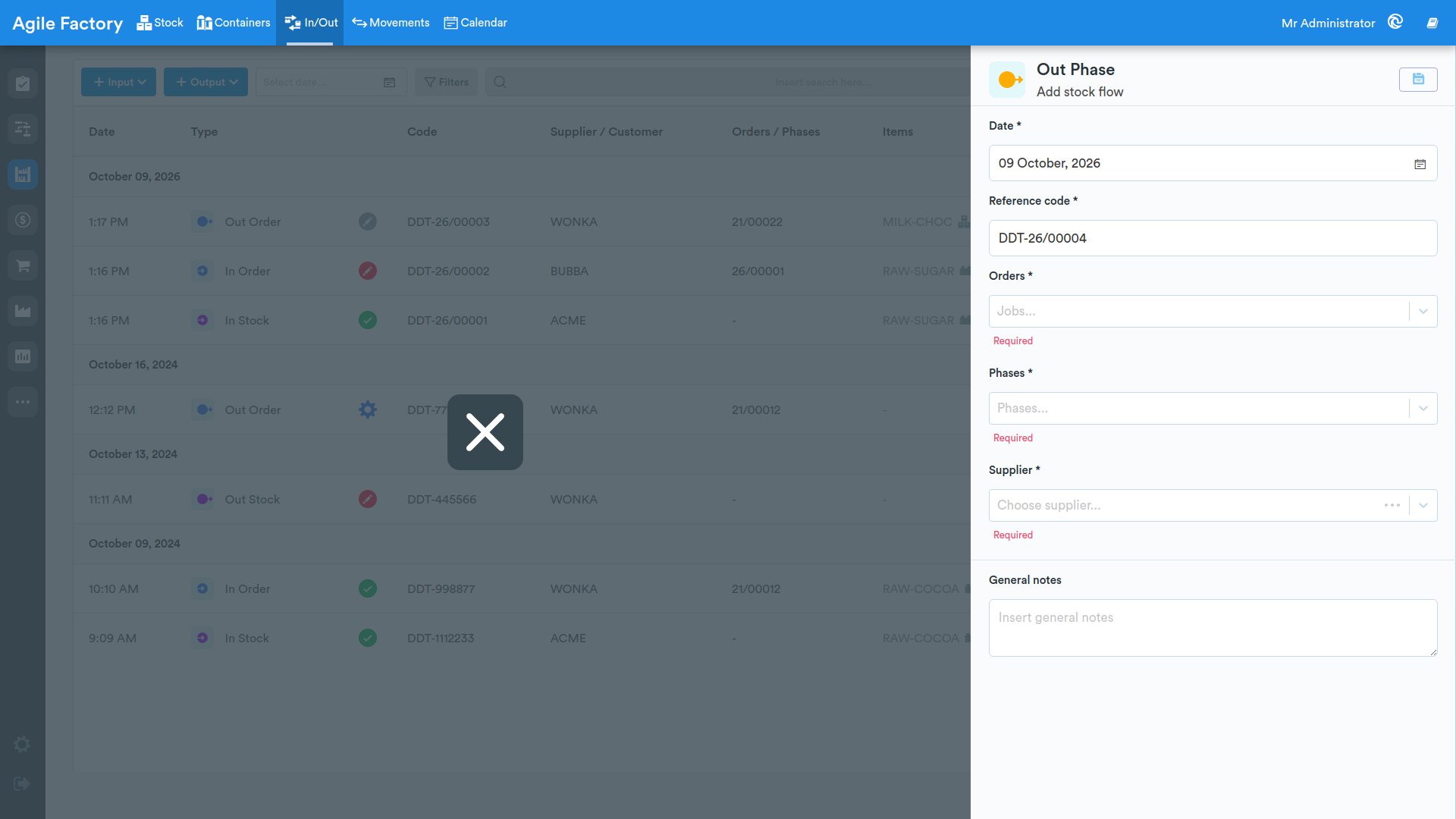
The mechanism for material Out from a specific phase is similar to the previous outbound type, it is necessary to enter data related to the production order, operation and supplier. The other steps are similar.
Movements
This section of the module is intended for monitoring internal warehouse movements of materials.
Above the tabular data, various filters are available that allow the user to find the necessary information (by dates, by movement type, by item, by department, by station, by warehouse, search bar).
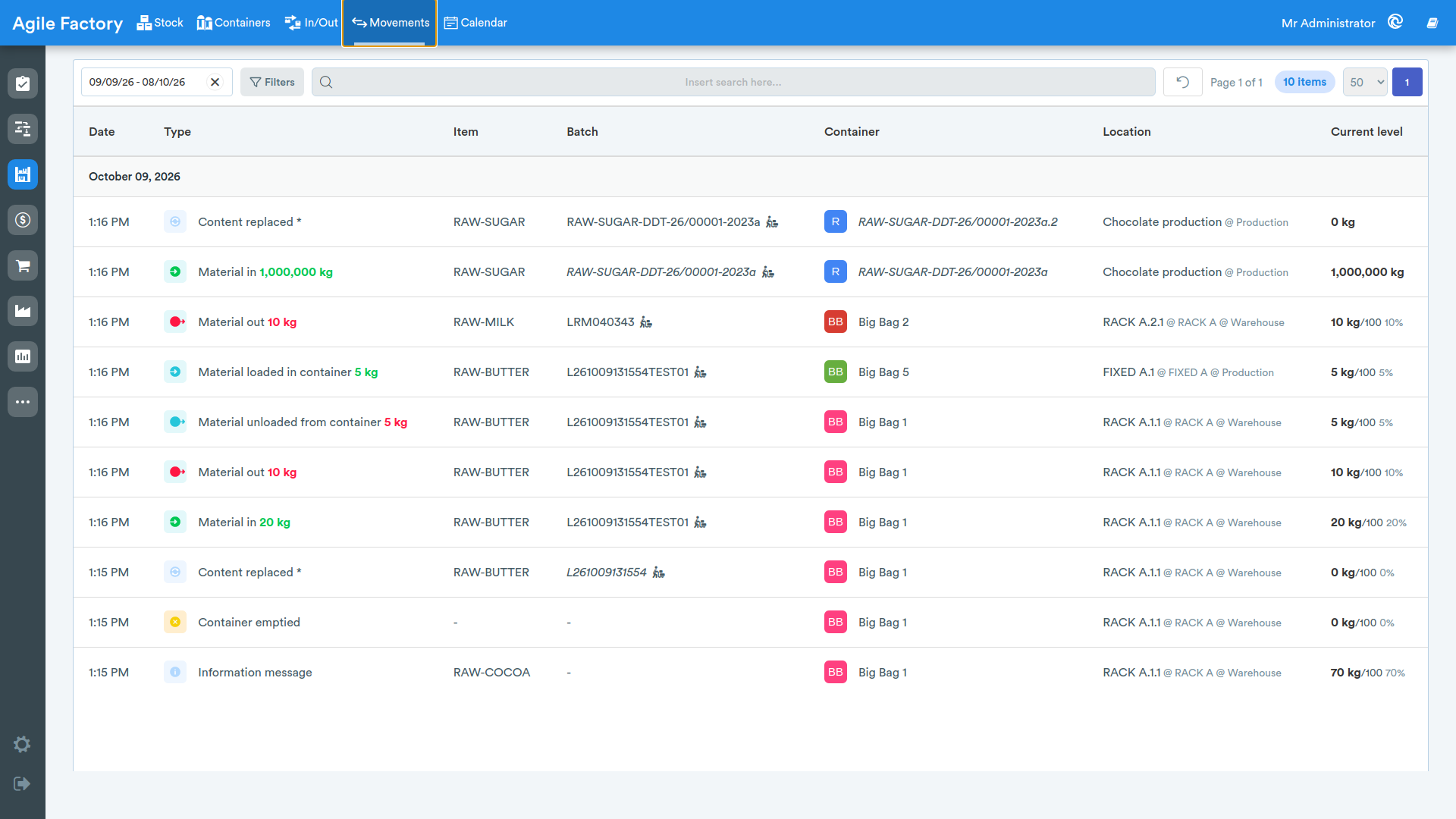
The 🔄️ button is used to reset all search filters.
By selecting an item from the list, it is possible to view the movement details.
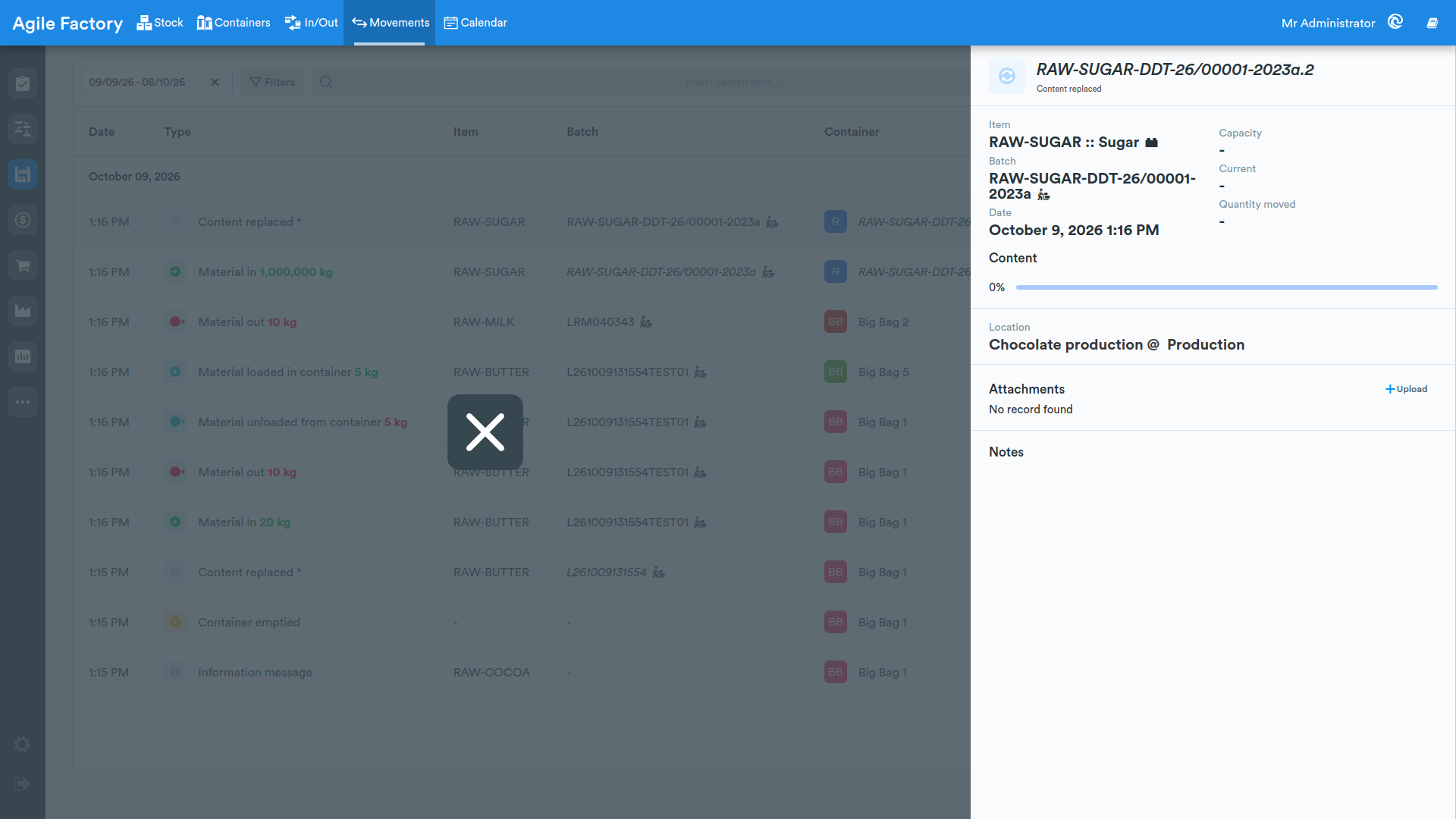
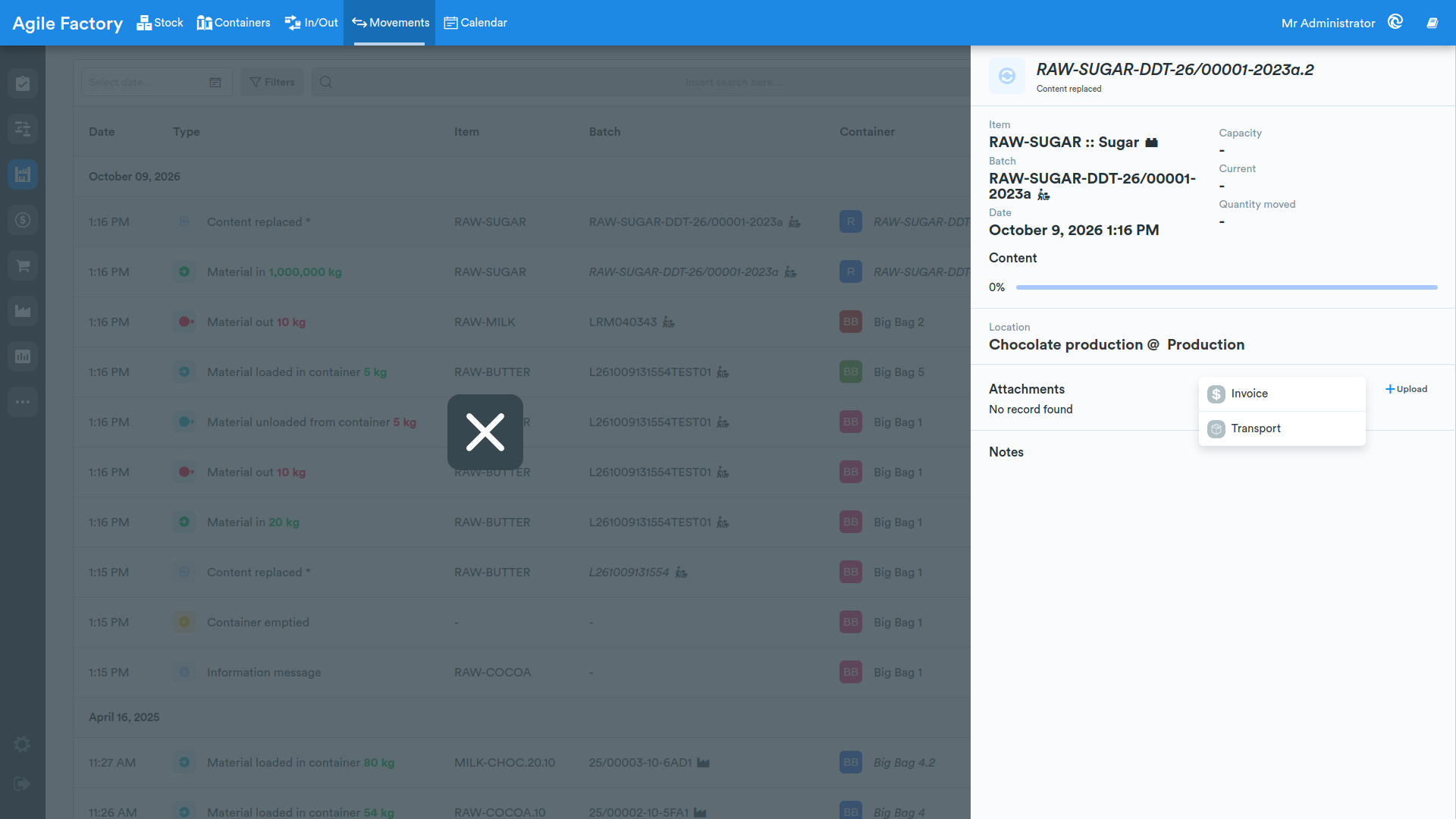
In the movement details, it is possible to attach a document for the transfer (the document type can be customized).
Calendar
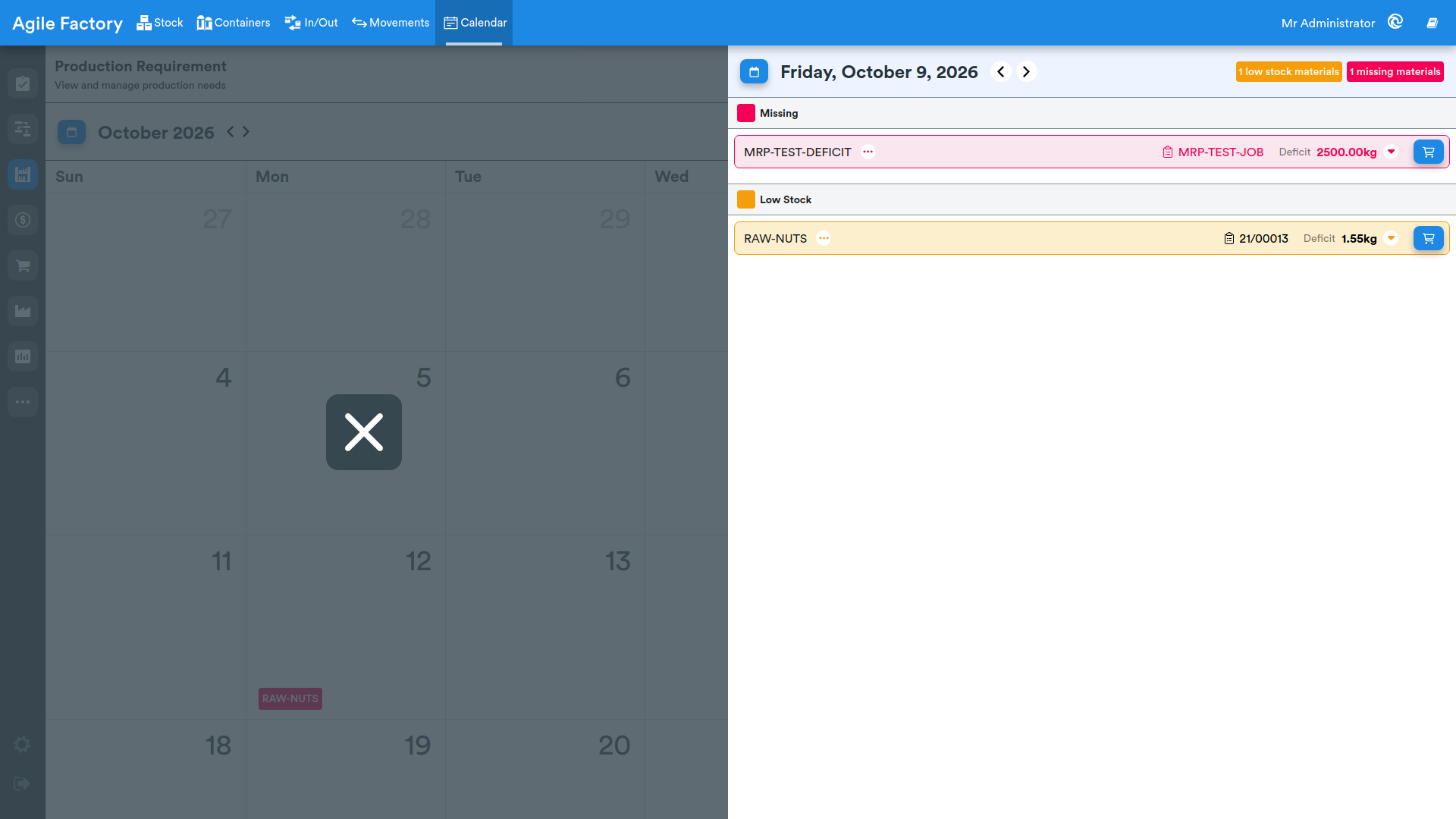
The Calendar section displays a monthly view of material requirements for production, based on MRP data. It requires the dynamic scheduler to be active.
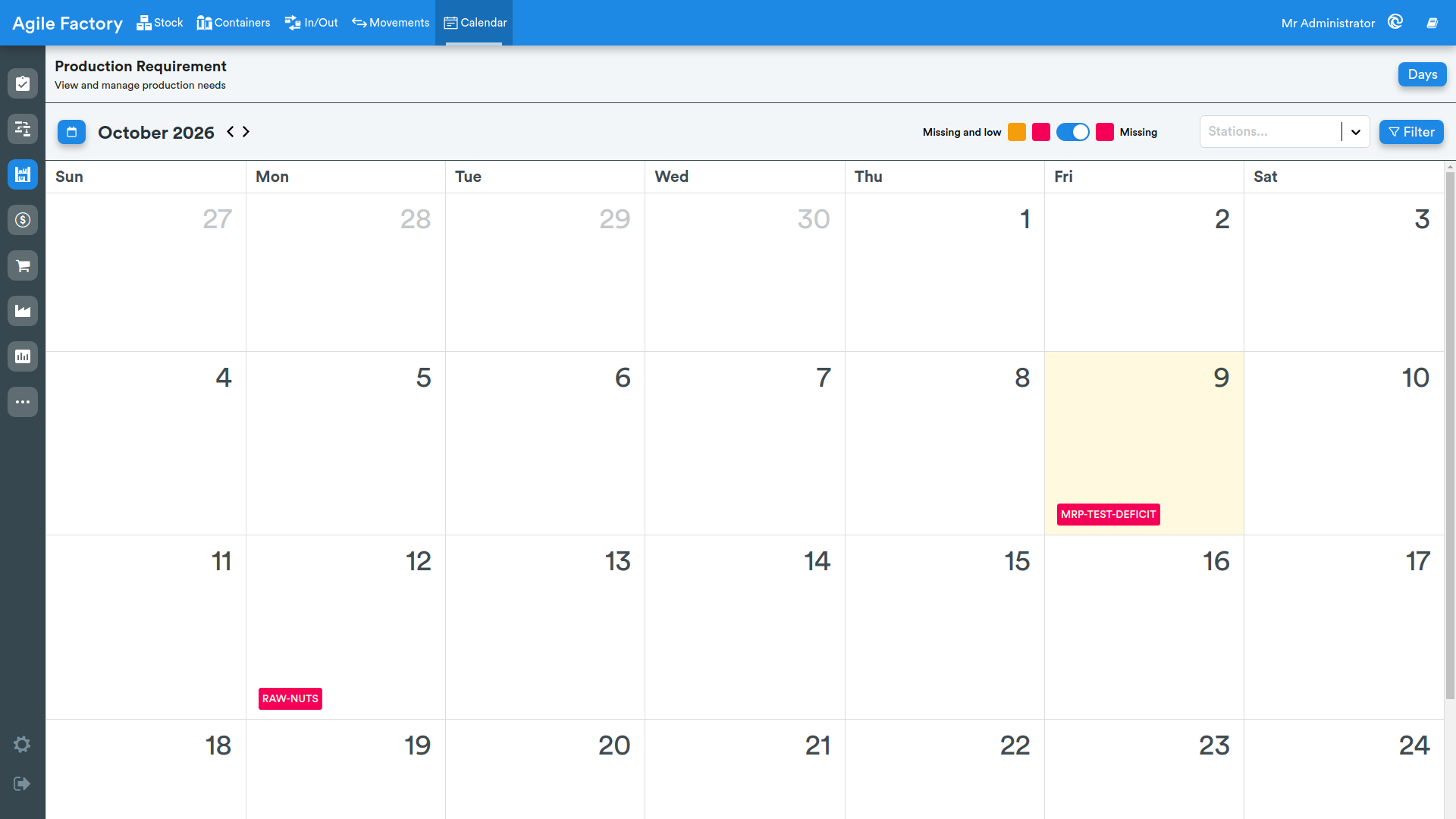
Each day on the calendar can show one or more color-coded alerts:
- Red — missing materials: available quantity is exhausted but production commitments exist
- Amber — low stock materials: available quantity is positive but the overall balance is negative
If only one item is affected on a given day, its code is shown directly; if multiple items are involved, the count is shown (e.g. 3 missing materials).
The top bar provides:
- A toggle to switch between Missing only and Missing and low stock views
- A color legend for the two alert types
- A Station filter to restrict the analysis to a specific production station
- Navigation buttons to move between previous and next months
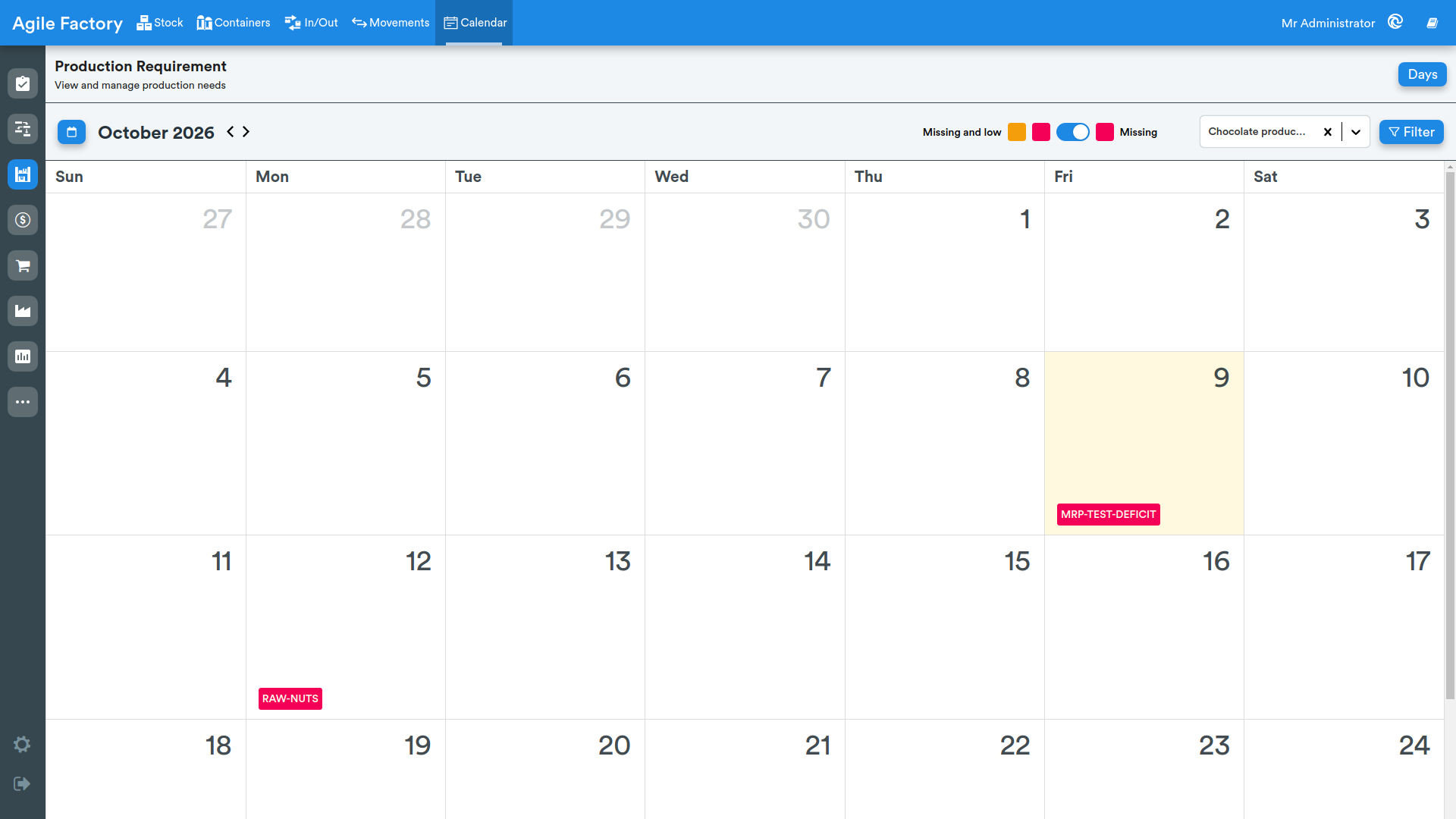
Clicking on a day opens the day detail view.
Day detail
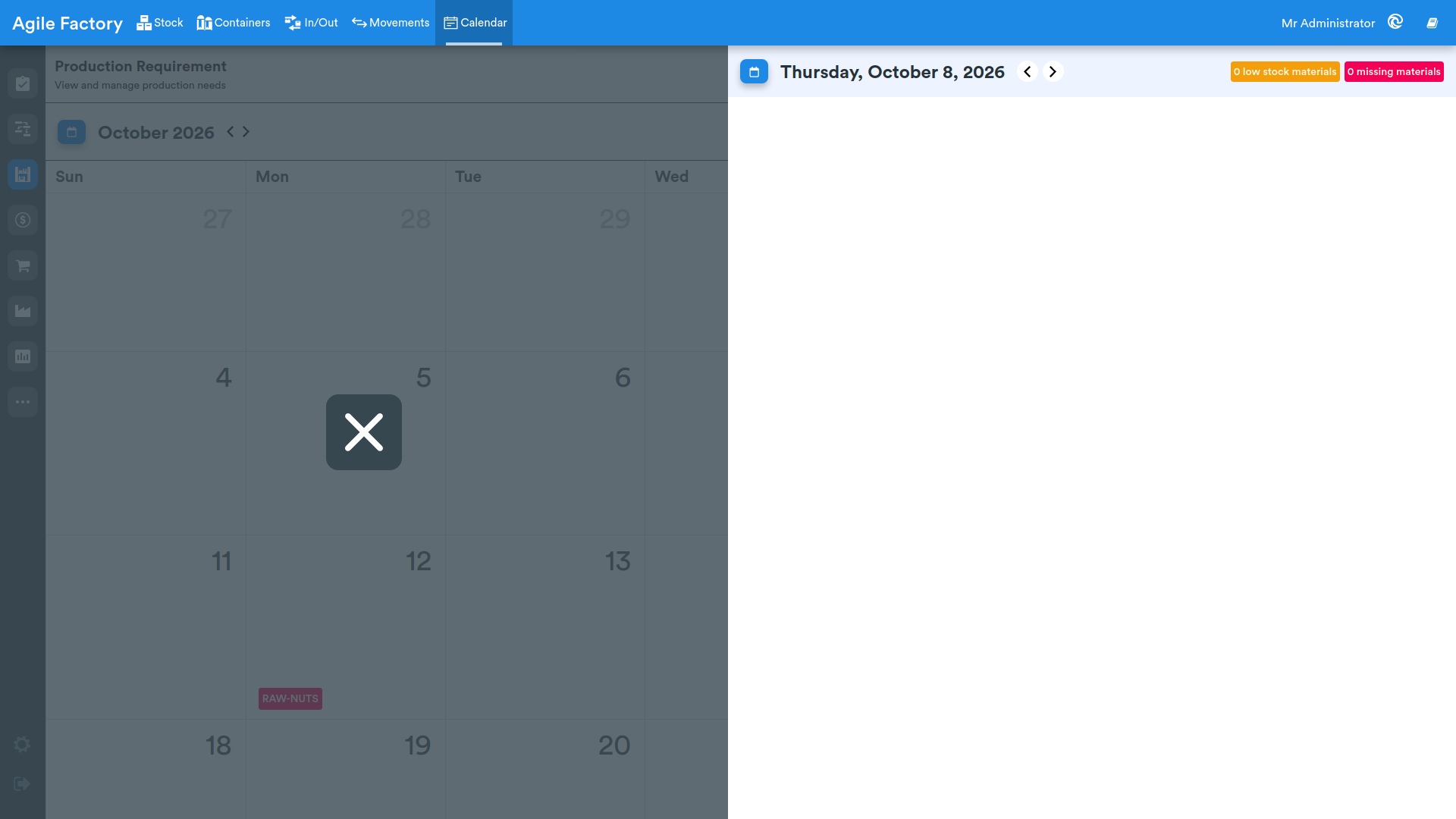
The day detail view shows in the top header the full date, navigation buttons for the previous and next day, and the count of low stock (amber) and missing (red) materials.
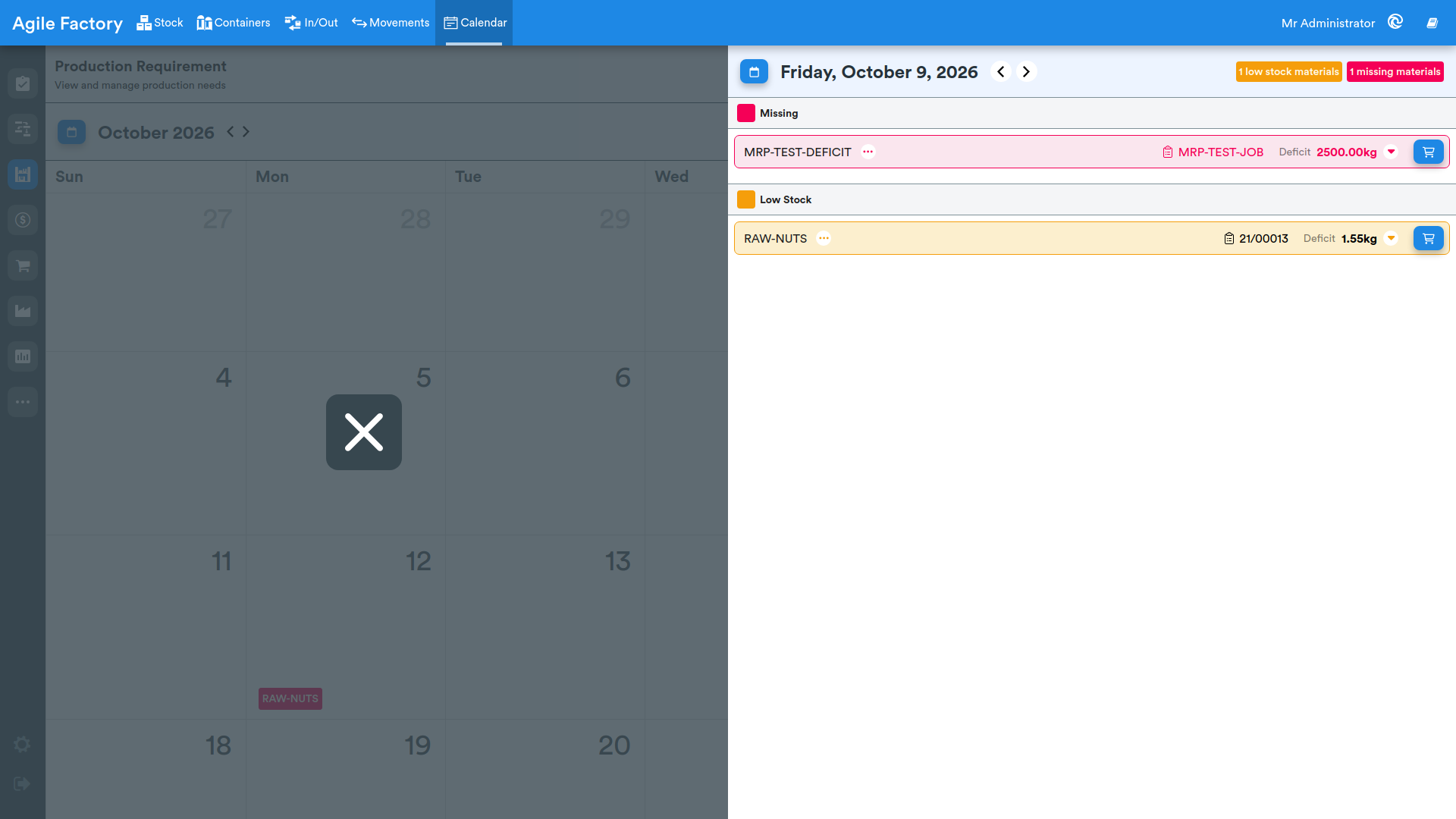
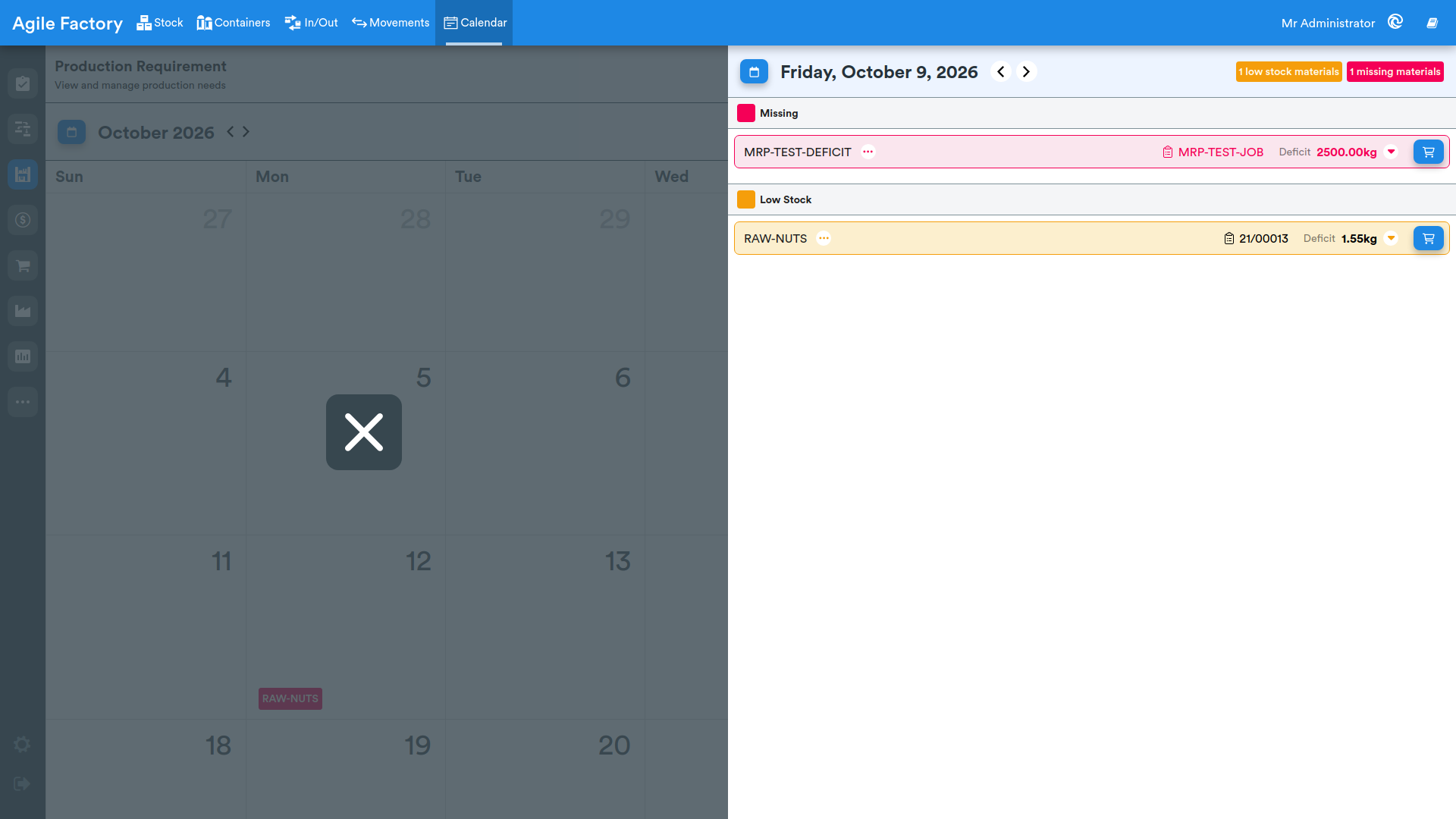
Materials are divided into two sections:
Missing (red) — for each item the following is shown:
- The item code
- If the item is required by multiple jobs: a clickable chip showing the number of jobs involved; if only one job: the job code
- The Deficit quantity relative to the requirement
Low stock (amber) — same structure as the Missing section.