Sales orders
This section is dedicated to managing sales orders: recording orders received from customers, advancing them through their various statuses, tracking fulfillment and shipping, and managing the individual order lines (items). It is where the company gathers commercial demand and turns it into the production, stock-picking and purchasing activities needed to satisfy it.
The typical workflow starts when an order is received from a customer. The order is created in Draft status, where it can be completed and freely modified; once it is ready it is put In queue, becoming workable and no longer editable. From there it moves to In progress as its lines are produced, purchased or shipped, until it is marked Ready and finally Done. At any point an order can be Canceled. Throughout the cycle the Fulfillment and Shipping progress bars show, at a glance, the percentage of goods produced or prepared and the percentage actually delivered to the customer.
A sales order collects all the commercial information (customer, price, deadline, shipping address) and one or more order lines, each referring to a product to be produced, picked from stock or purchased. Each line can therefore be linked to the Production jobs that make the item and to the Purchase orders that source it from suppliers, while the quantity already available In stock reduces the amount still to be produced or bought. In this way the sales order acts as the link between the customer's request, internal production and procurement.
Orders list
The list shows all the recorded sales orders. You can sort the columns, filter by customer and by status, search by text and export the data.
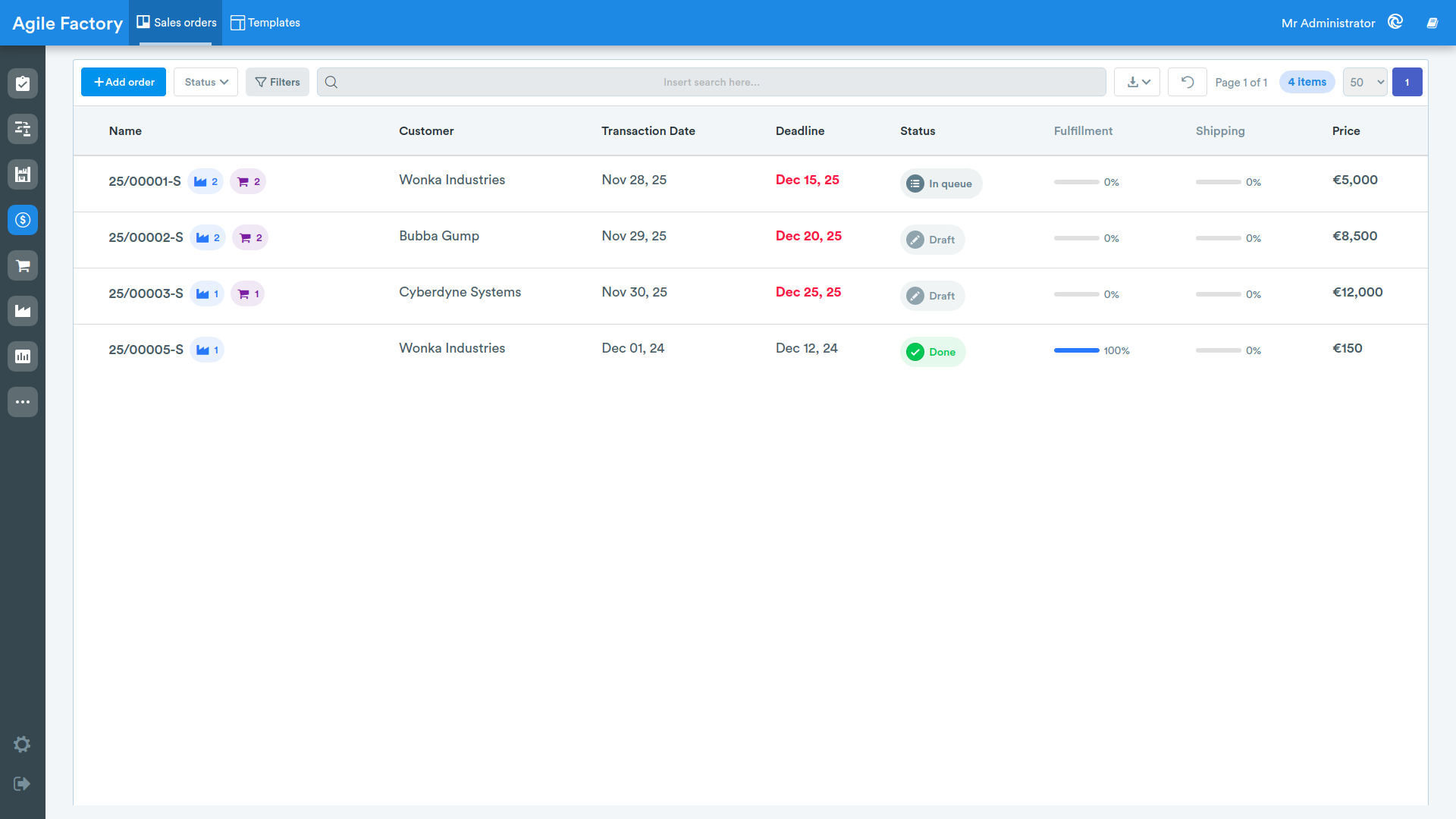
The available columns are:
- order Name
- the Customer associated with the order
- Transaction Date, i.e. the date the order was received
- Deadline by which the order must be completed (overdue deadlines are highlighted)
- order Status
- Fulfillment, a progress bar showing the order fulfillment percentage
- Shipping, a progress bar showing the percentage of goods shipped
- the order total Price
At the top there are tools to:
- add a new order with the Add order button
- filter by Status (Draft, In queue, In progress, Ready, Done, Canceled)
- filter by Customer
- search for an order using the search bar
- export the list
Clicking on an order row opens the details page; if the order is still in draft status the edit page opens directly instead.
Creating and editing an order
The edit page lets you enter and update the order data.
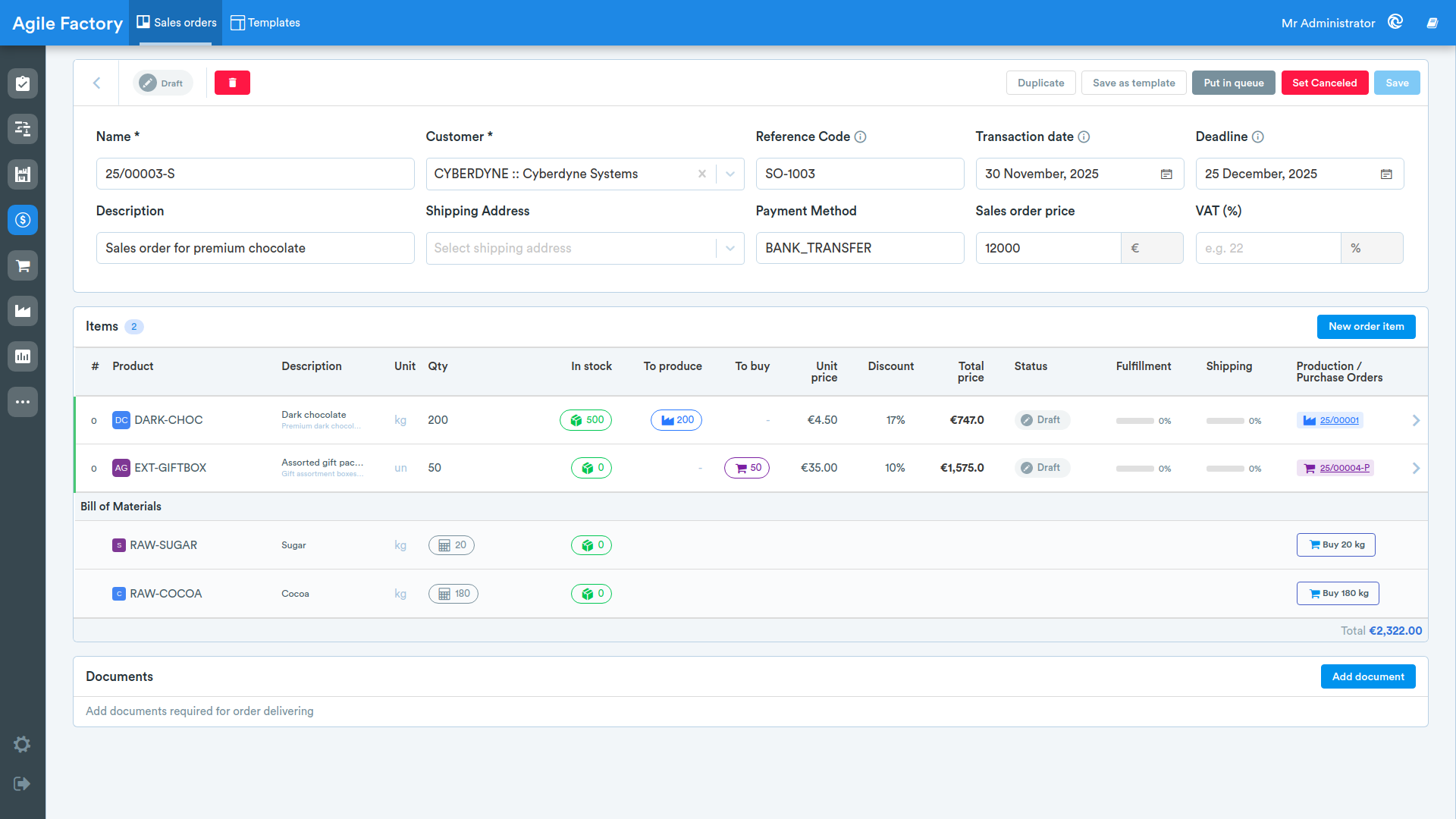
The header fields are:
- Name (required)
- Customer (required)
- Reference Code: the code with which the customer identifies the order
- Transaction date: the date the order was received
- Deadline: the date by which the order must be completed
- Description
- Shipping Address, selectable among the customer's addresses
- Payment Method
- Sales order price
- VAT (%)
In the Items section you add the order lines with the New order item button. An order without a customer or without items cannot be put in queue.
In the Documents section you can attach the required documents (for example transport documents or invoices) with the Add document button.
From the top bar of the edit page you can also:
- Apply template to pre-fill the order from a saved template (available only for a draft order with no items)
- save the current order as a template when the order is valid and contains items
- Put in queue to move the order to the next status and make it workable (an order in queue can no longer be modified)
- Set Canceled to cancel the order
Order items table
Both in edit and in the details view, the order items are shown in a table with the following columns:
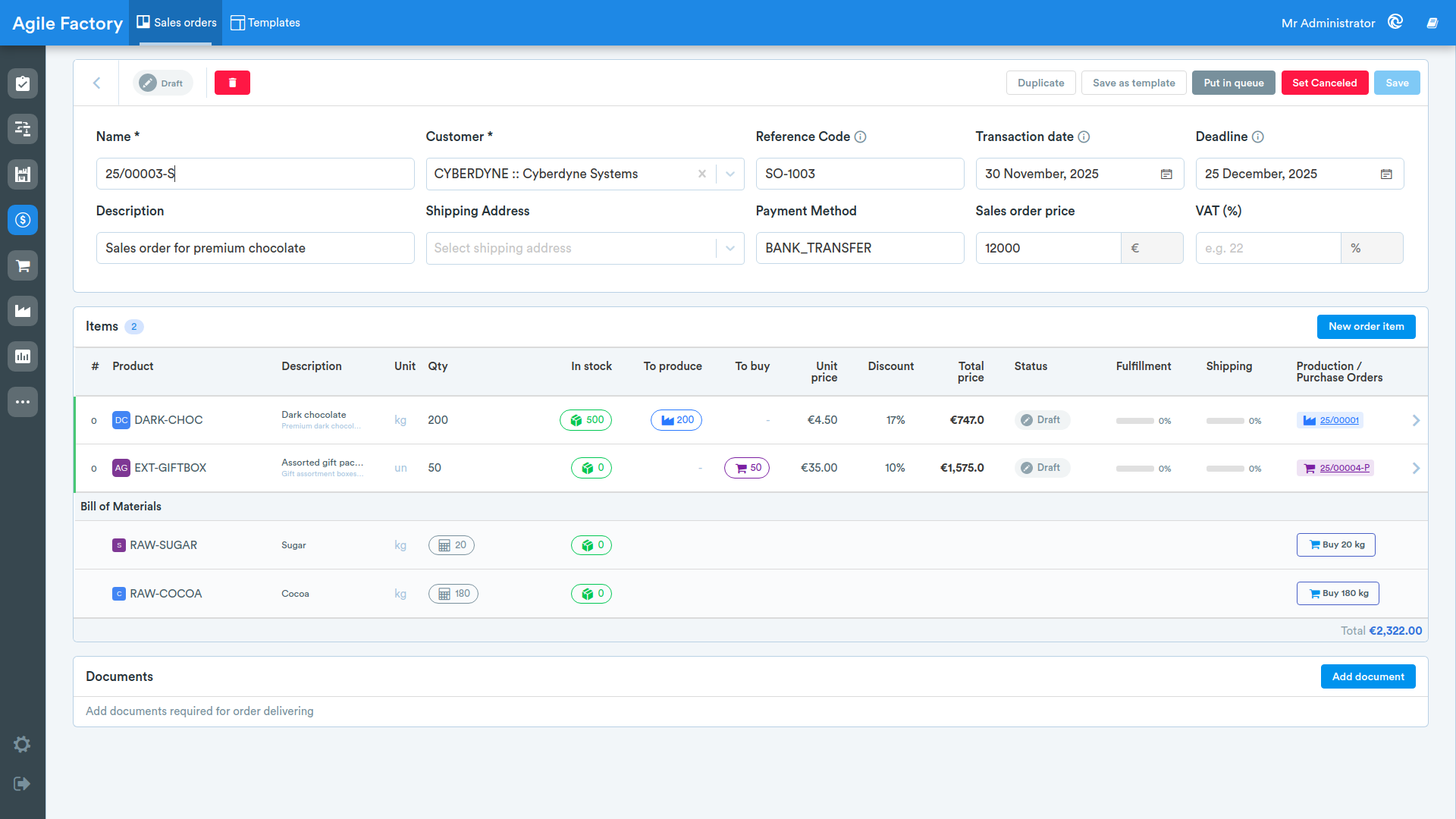
- #: line sequence number
- Product
- Description
- Unit
- requested Qty
- In stock: quantity available in the warehouse
- To produce
- To buy
- Unit price
- Discount
- Total price
- line Status
- Fulfillment: progress bar of the produced percentage
- Shipping: progress bar of the delivered percentage
- Production / Purchase Orders: links to the production and purchase orders associated with the line
The In stock, To produce and To buy columns show, for each line, how the requested quantity will be covered: the share already available in the warehouse, the share assigned to production orders (for assembled products) and the share assigned to purchase orders (for purchasable products). Whatever is already In stock correspondingly reduces the quantities to produce and to buy, while the links in the Production / Purchase Orders column point to the respective orders.
At the bottom of the table is the Bill of Materials section, which summarizes the required components with their warehouse availability and the quantity to buy. From here you can generate or link a purchase order for the missing components.
The footer shows the order Subtotal, VAT and Total.
Order details
The details page shows, in read-only mode, all the order information, the current status, the items and the documents.
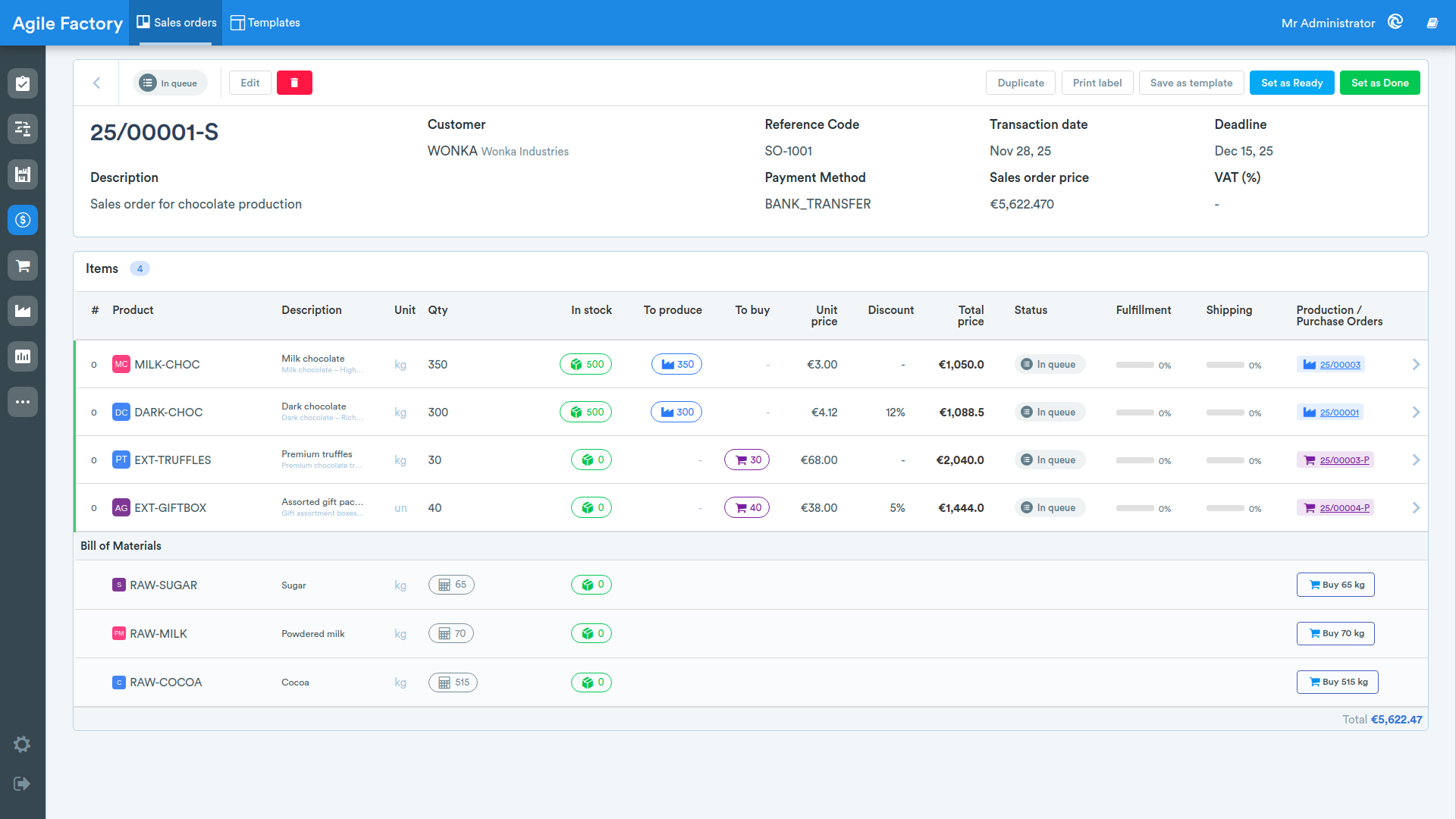
From the top bar, depending on the order status, the following actions are available:
- Set as Ready to move the order to the ready status
- Set as Done to complete the order (once completed no further changes are allowed)
- Put in queue to bring the order back into processing
There are also buttons to duplicate the order, print it and save it as a template.
Order item details
Clicking on a row in the items table opens the order line details panel.
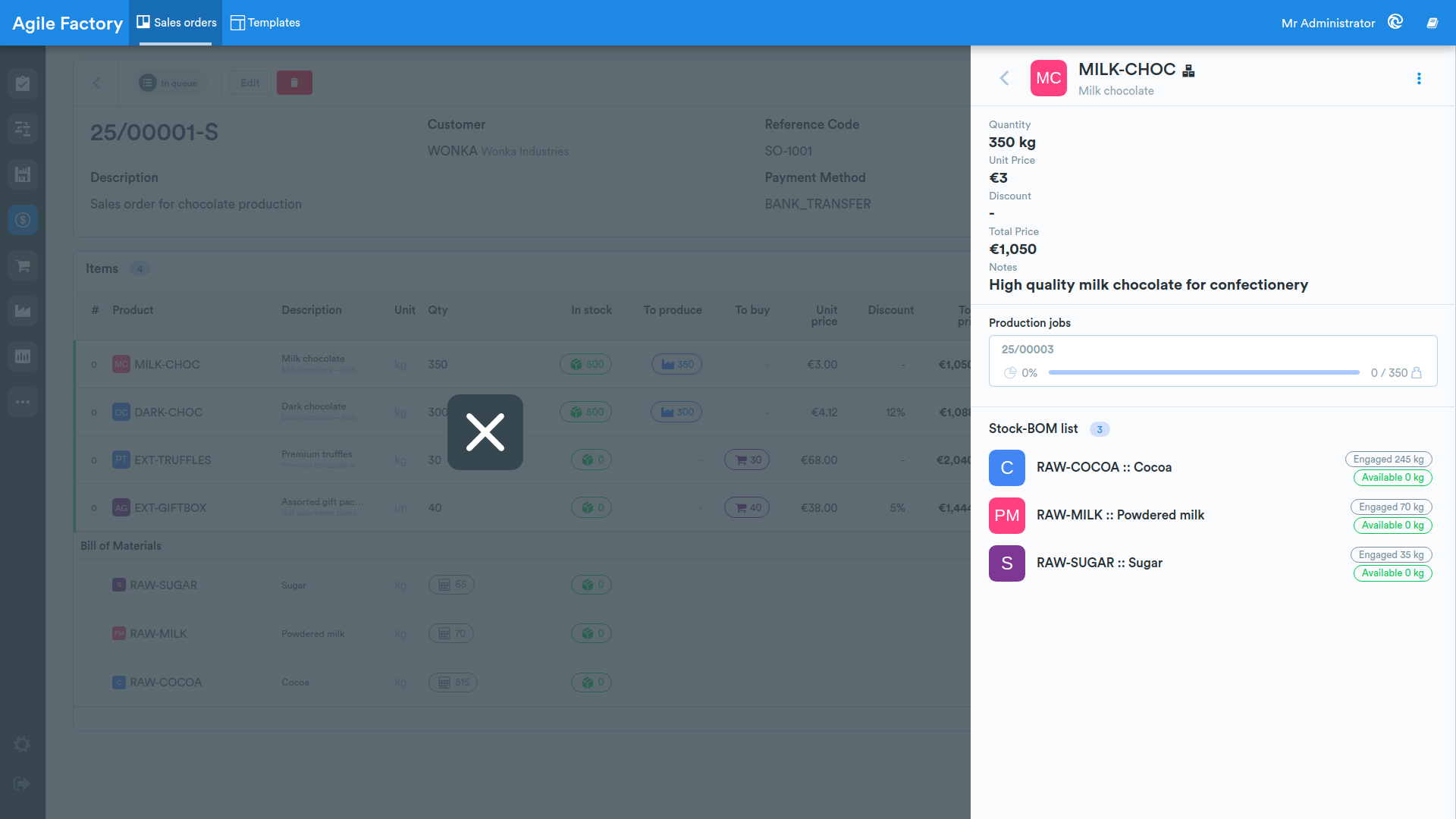
The panel shows:
- the line Quantity, Unit Price, Discount, Total Price and Notes
- the Production jobs section with its jobs and the Produced percentage
- the Purchase orders section with its orders and the Purchased percentage
- the Stock-BOM list, i.e. the bill of materials with the warehouse availability of the components
- any documents attached to the line
The sections shown depend on the product type: assembled products are fulfilled through Production jobs, whereas purchasable products are fulfilled through Purchase orders; the Stock-BOM list lists the required components with their warehouse availability, so you can identify the ones to procure.
Through the Actions menu you can update the status of the individual line:
- Set as ready
- Mark as done
- Back in queue
When a line has been Fully delivered (delivered quantity equal to or greater than the requested quantity) its status can no longer be modified.