Factory Live
This section displays the real-time status of the factory.
The three related subsections show this information from three different viewpoints:
- production orders (detail and relative completion)
- workstations (which operations are active or queued at a station)
- personnel (which operations are assigned to individual operators)
If there are no orders currently being processed, this section will appear empty.
The status of each order is updated in real time: as soon as the operator marks the start of a production phase from the HMI, the manager will instantly see the changes.
Production Orders
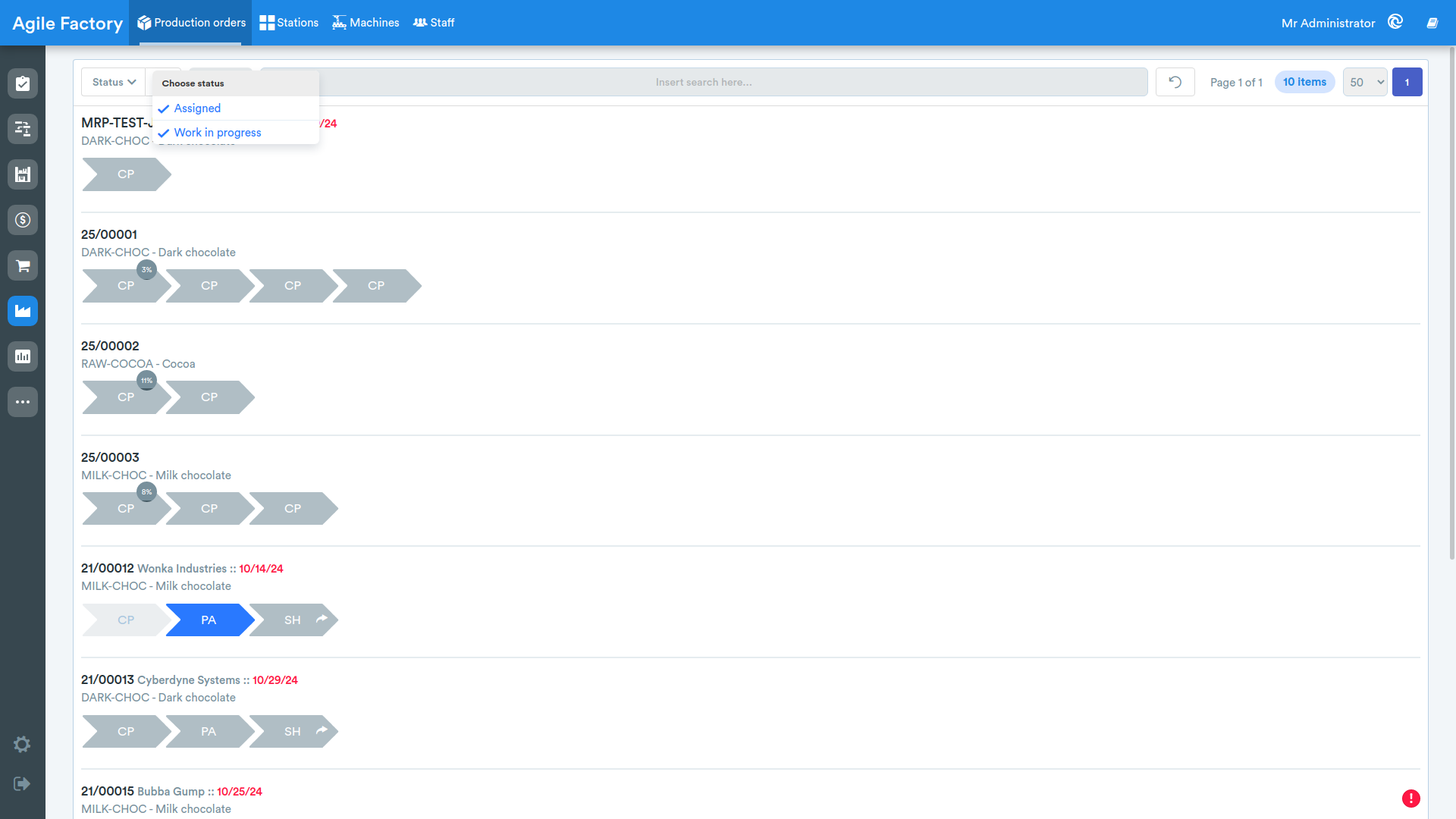
All orders in production are displayed in this subsection.
In particular, it is possible to observe the progress status of the various orders updated in real time.
For each one, the respective production flow is marked in which each operation takes the color of the relative state in which it is.
Filters
At the top it is possible to filter the displayed orders. In addition to the status filter and the error button, the Filters button opens a panel from which you can select one or more values for each criterion:
- Filter by product
- Filter by customer
After choosing the desired values, the Apply button confirms the selection.
A search bar (Insert search here...) also lets you filter the orders by text.
Active filters are shown below the bar as removable chips: clicking the x of a chip removes that filter individually, while the reset button removes all the set filters.
View Information Related to a Specific Phase
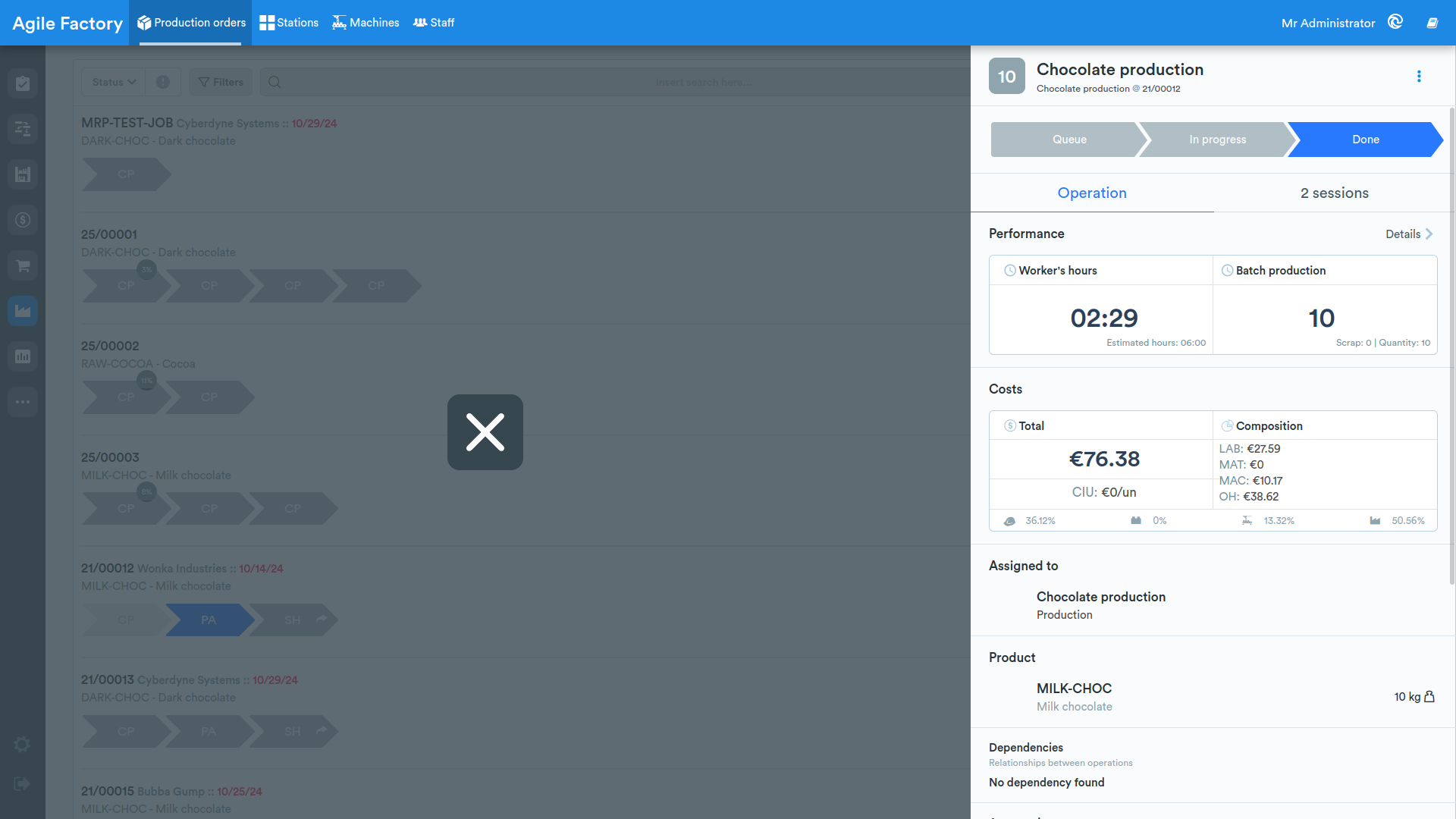
By clicking on a specific operation of a production order, all information related to it is illustrated, such as duration, general performance, and work sessions performed.
The screen presented will be the same as in the Order Management section.
Workstations
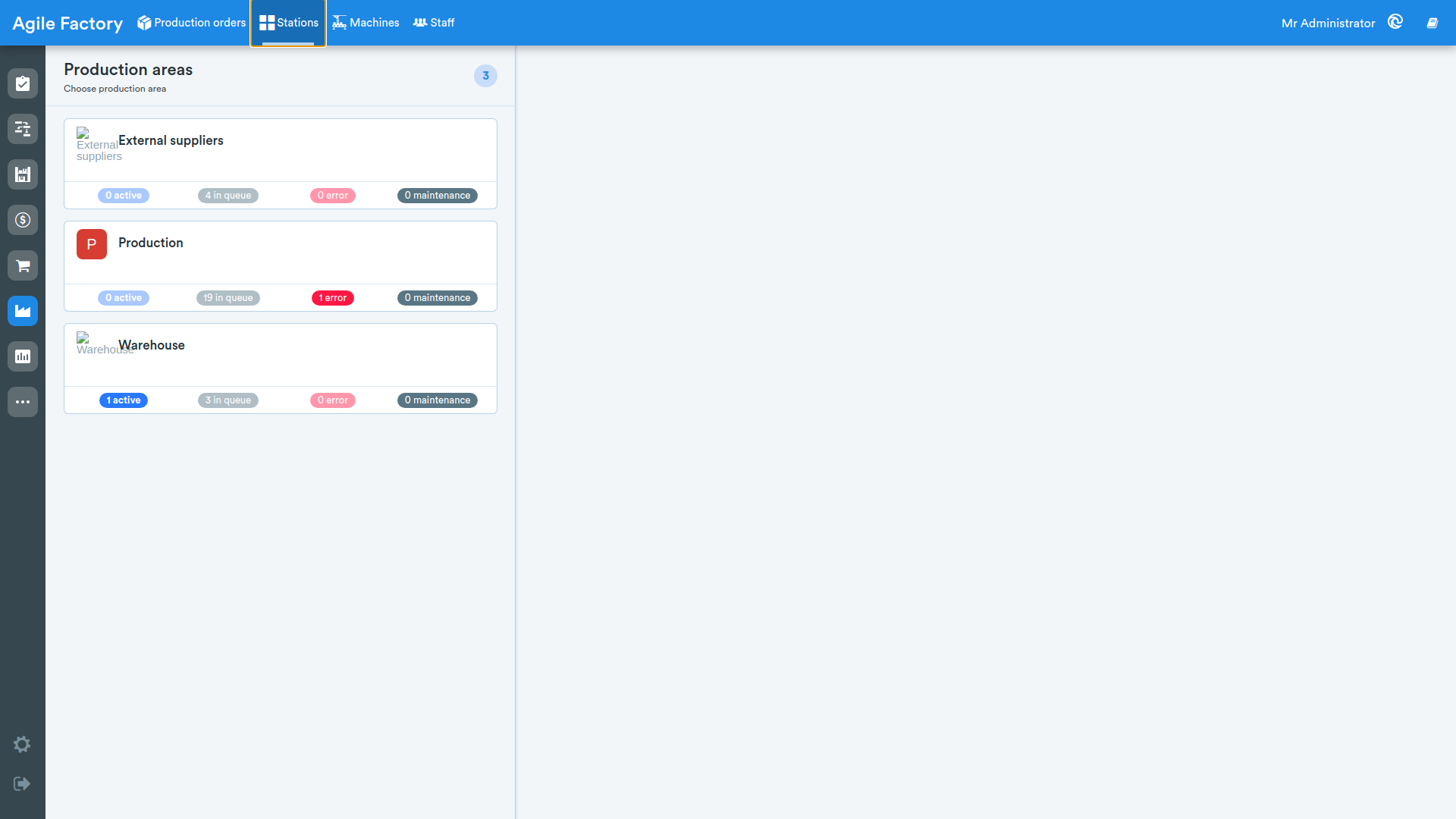
This subsection displays the list of all production areas (departments) present in the factory.
For each area, the number of active, queued, and error operations is indicated.
By selecting a production area, the stations present in it will be displayed with the relative number of assigned operations and the processing queue indicated.
For each station, the number of active, queued, and error operations is indicated.
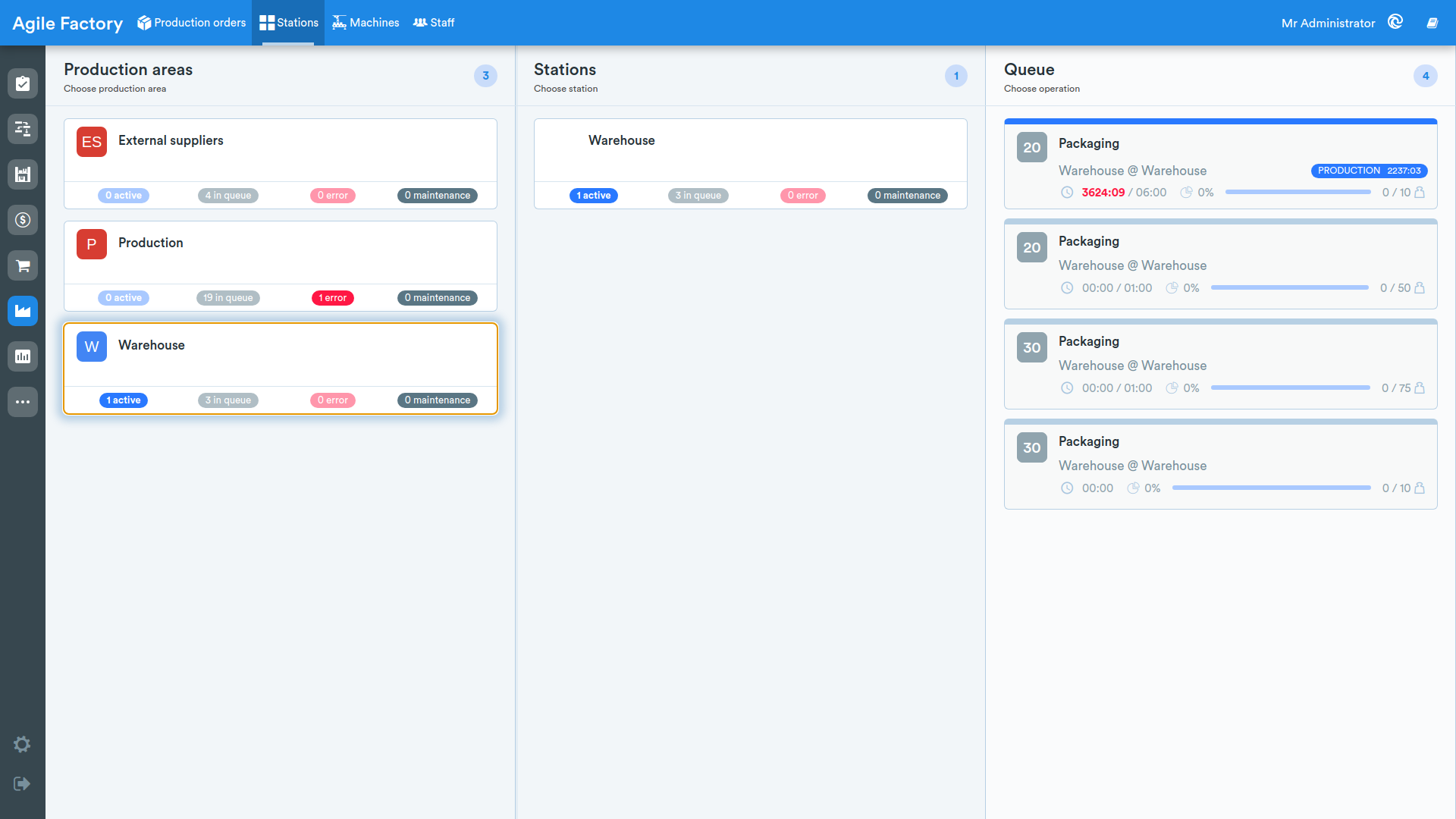
By selecting a specific station, the relative processing queue will be displayed.
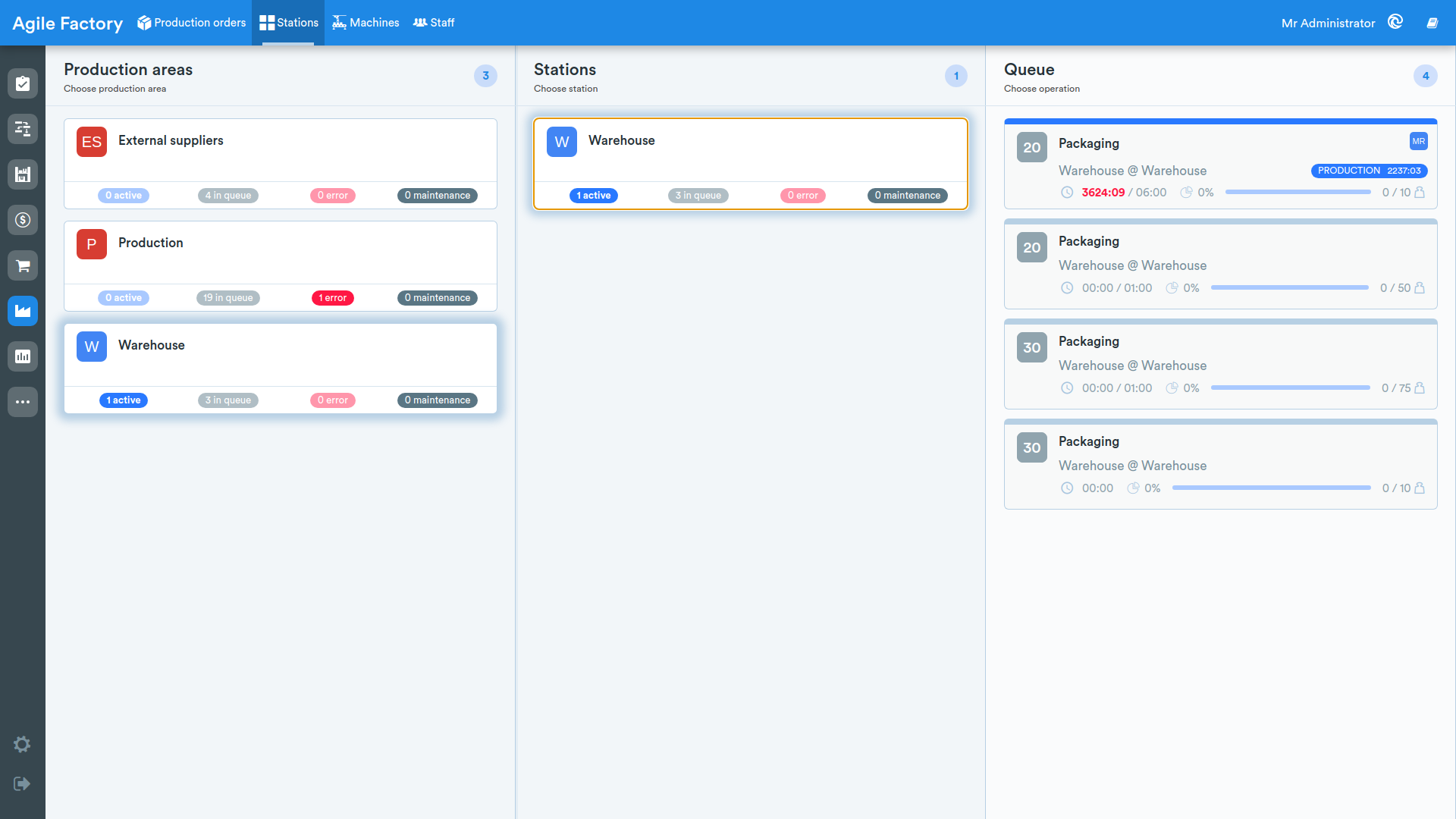
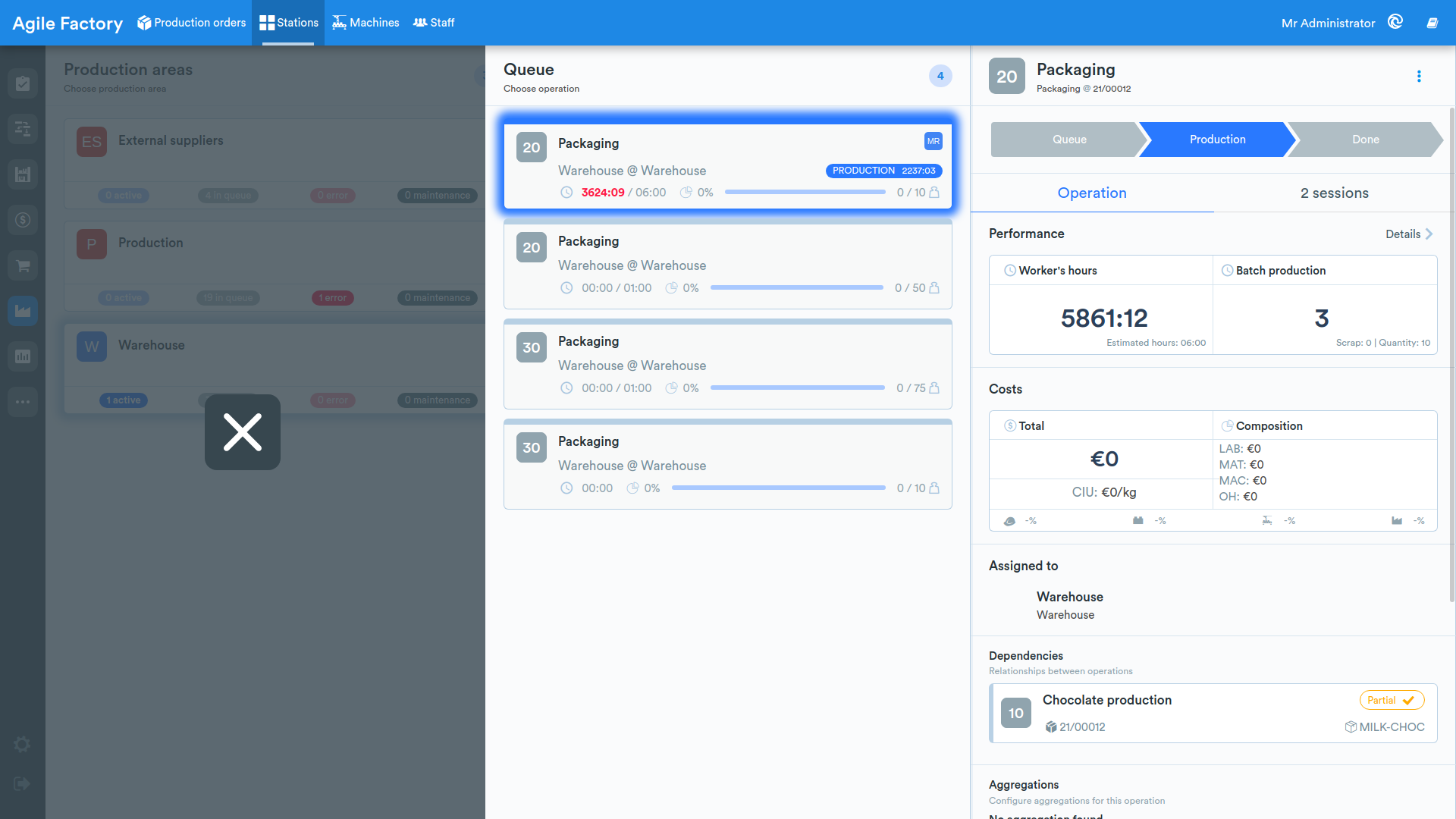
By clicking on an operation, it will be possible to view the data related to performance and work sessions.
The screen presented will be the same as in the Order Management section.
Machines
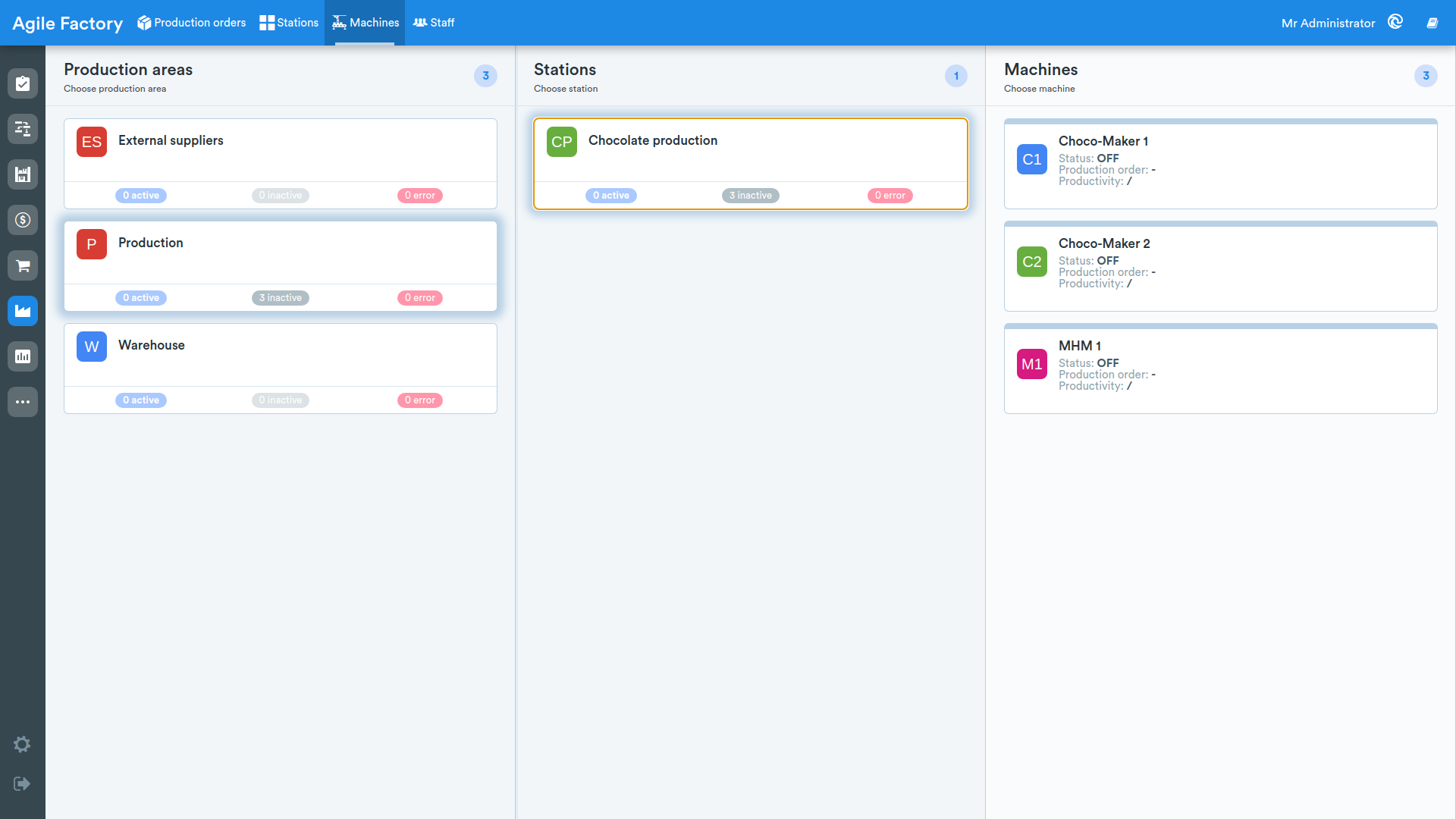
This subsection displays the list of all machines present in the factory.
For each production area and station, the number of active, total, and error machines will be indicated.
By selecting a specific station, the machines present inside will be displayed.
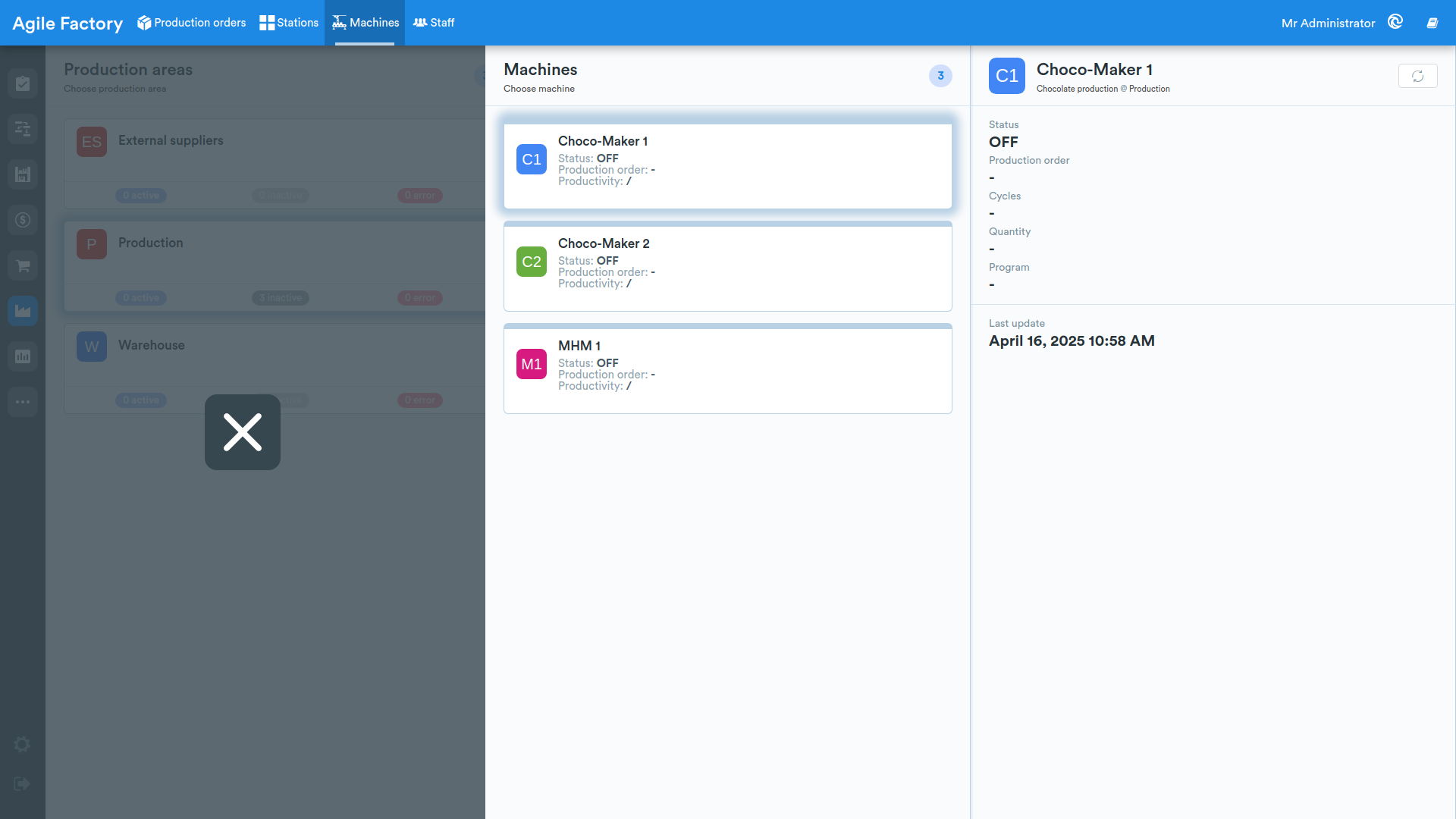
By clicking on a machine, it will be possible to view the current status, updated in real time.
Operators
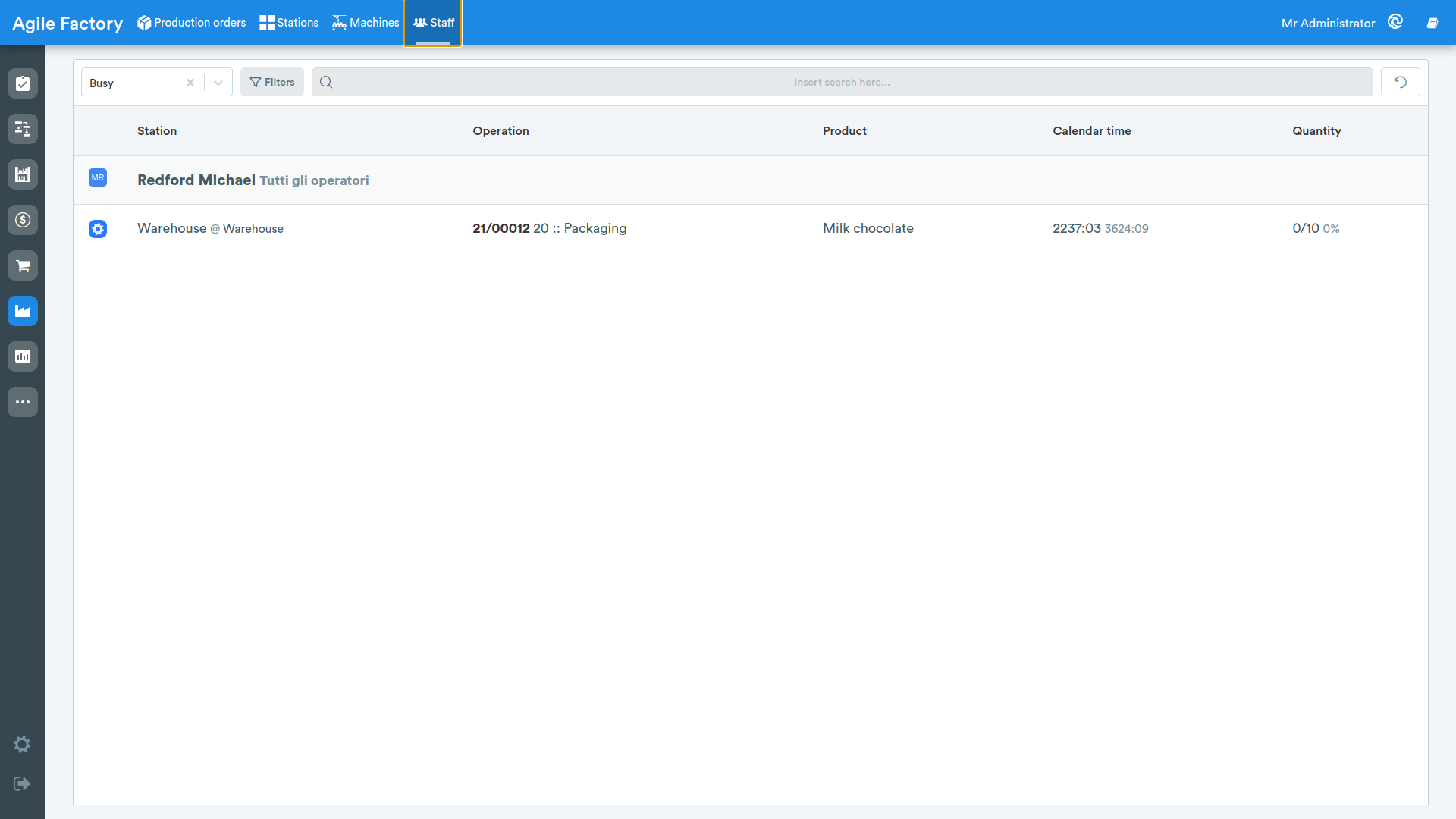
This section contains the list of all factory personnel working in production.
For each operator, the following information related to the current operation can be viewed:
- station where the operator is working
- operation they are handling
- product
- working time
- quantity produced
Processing Details
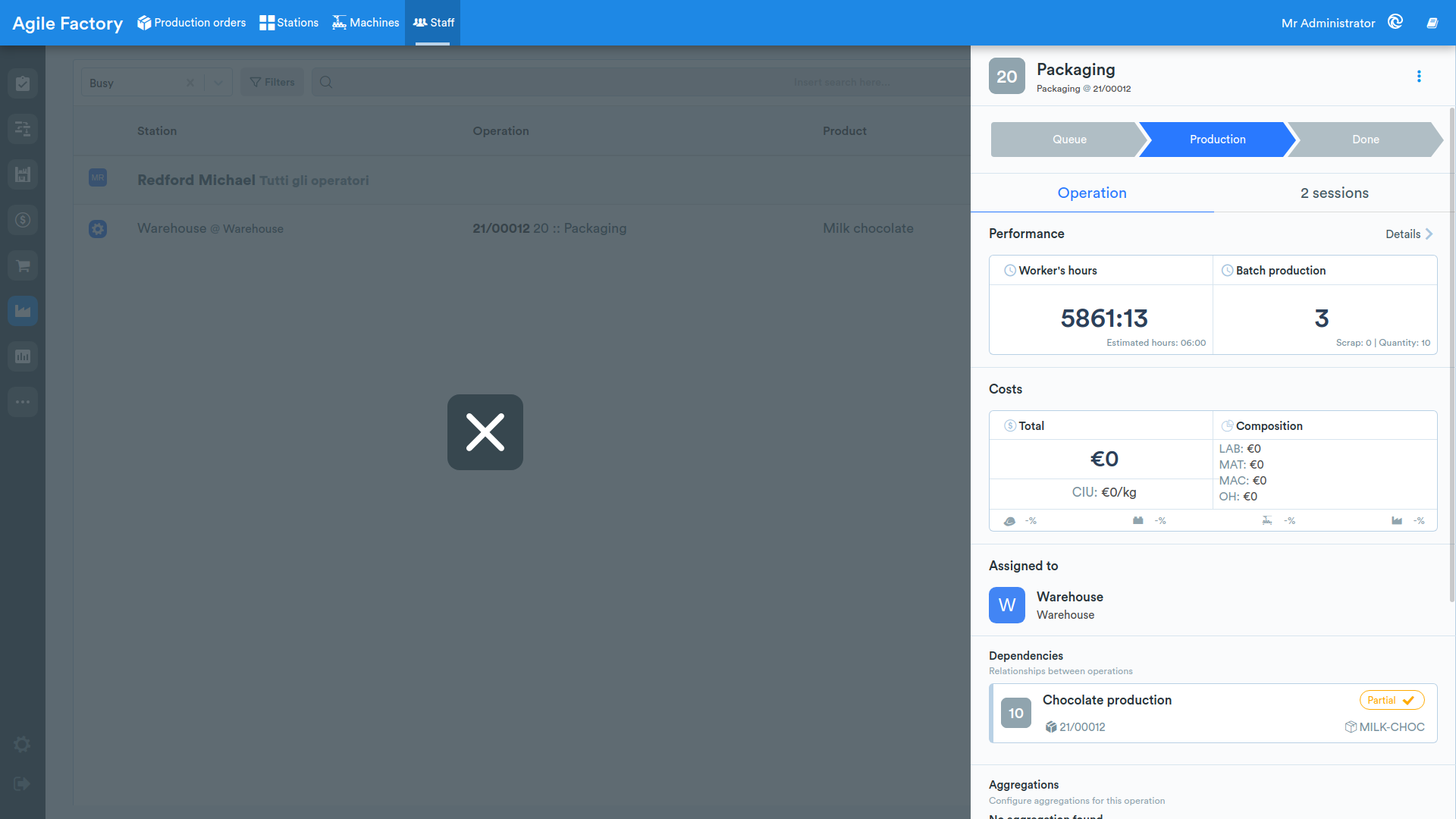
By clicking on an operation, it will be possible to view the detail of data related to performance and work sessions.
The screen presented will be the same as in the Order Management section.
Filters
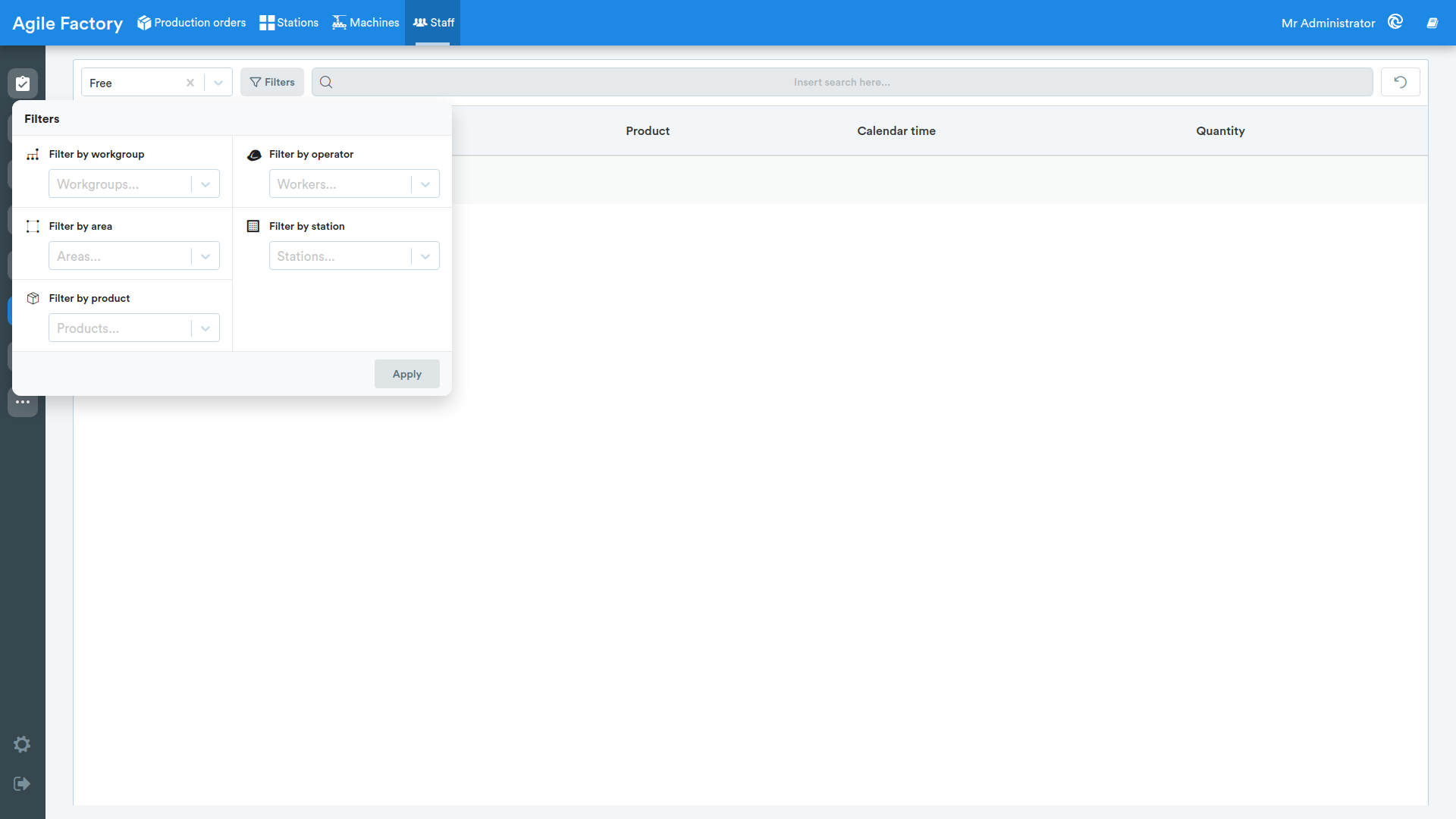
At the top there is a status dropdown (Status) to view personnel that are Busy or Free.
The Filters button opens a panel from which you can select one or more values for each criterion:
- Filter by workgroup
- Filter by operator
- Filter by area
- Filter by station
- Filter by product
After choosing the desired values, the Apply button confirms the selection.
A search bar (Insert search here...) also lets you filter the operators by name.
Active filters are shown below the bar as removable chips: clicking the x of a chip removes that filter individually, while the reset button removes all the set filters.