Maintenance ✨
This section is used to manage repair and maintenance jobs for the factory's machines and equipment. Unlike production orders, these jobs do not produce items: they serve to bring a resource (machine, station, area) back into working condition or to keep it efficient over time.
There are two types of job, which originate in different ways:
- Repair — it is event-driven and is created automatically by the system when an operator, during a production session on the HMI, reports a blocking error. It is the response to an unexpected breakdown.
- Maintenance — it is planned and is created manually by the manager for preventive or scheduled activities (oil change, calibration, lubrication, periodic checks, etc.). It does not depend on a breakdown.
Both types share the same structure as production orders (operations, attachments, child jobs, templates and priority management) and, once placed in the queue, are handled by the scheduler exactly like a production order: they occupy a time slot on the machine or station involved.
Use cases
Use case — Repair job (event-driven) 
This is the main scenario of this section. The full lifecycle of a repair unfolds as follows:
-
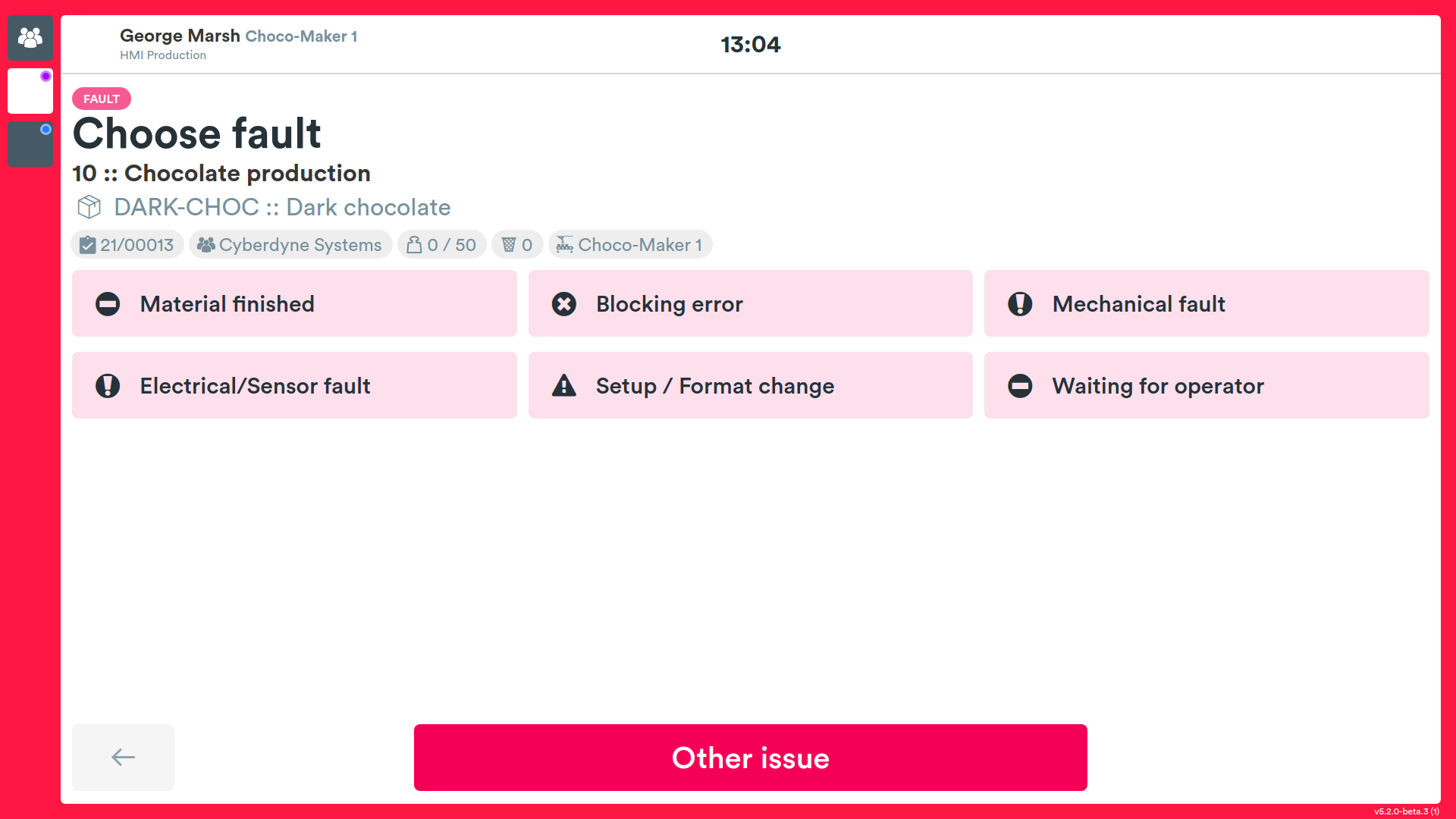
A blocking error occurs. During a work session, the operator on the HMI reports a fault that prevents the work from continuing (for example a machine that stops or breaks down).
-
The system automatically creates the repair job. If the reported fault type requires a repair intervention, the system automatically generates a new Repair job in the Draft state, already linked to the machine / station that caused the fault and to the phase error that originated it. The repair work phase is already set up on the faulty resource.
-
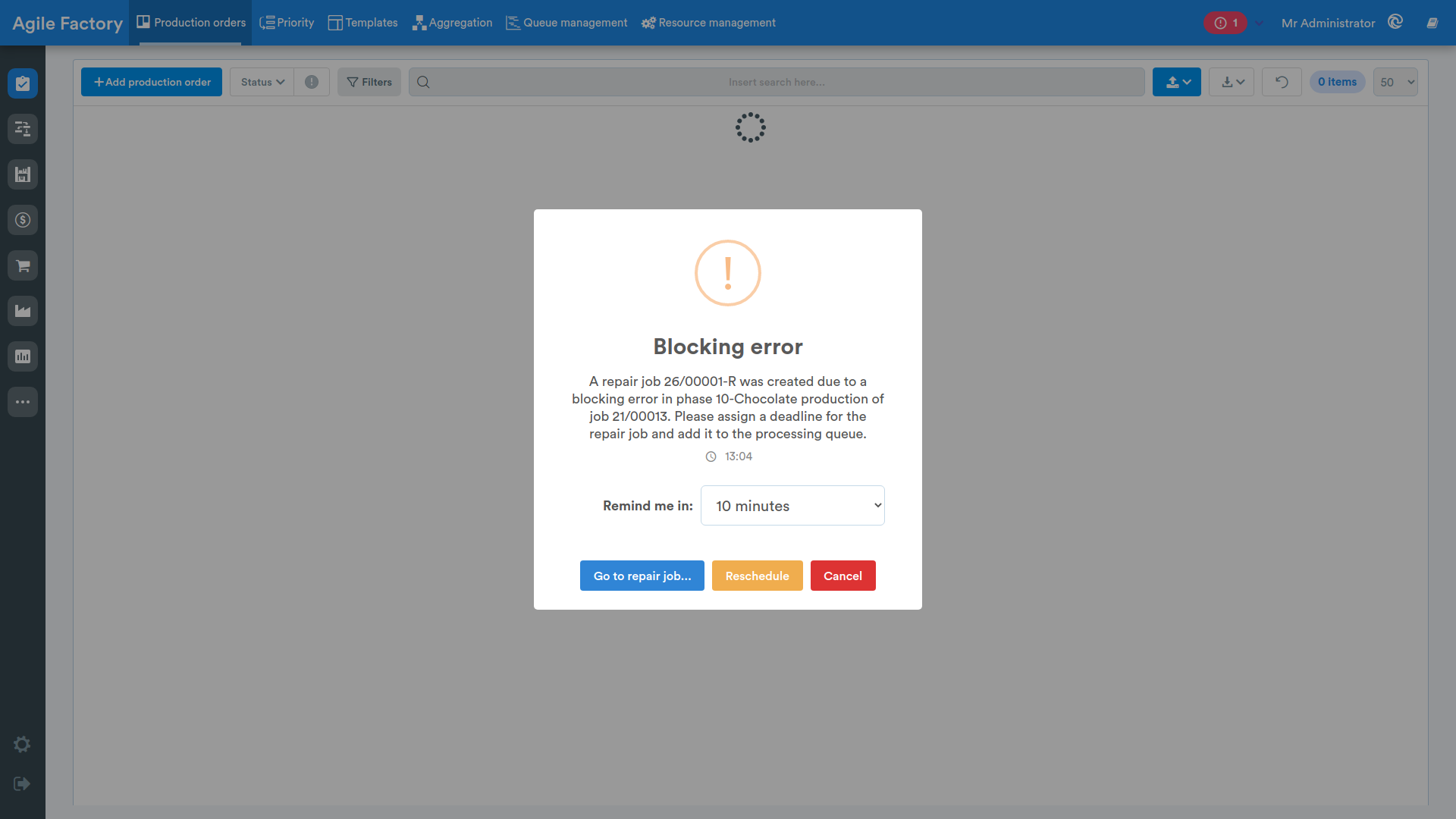
The manager receives the notification. A Blocking error alert appears in the manager's notification area, with a Go to Repair Job... action that takes them directly to the newly created job without having to search for it in the list.
-
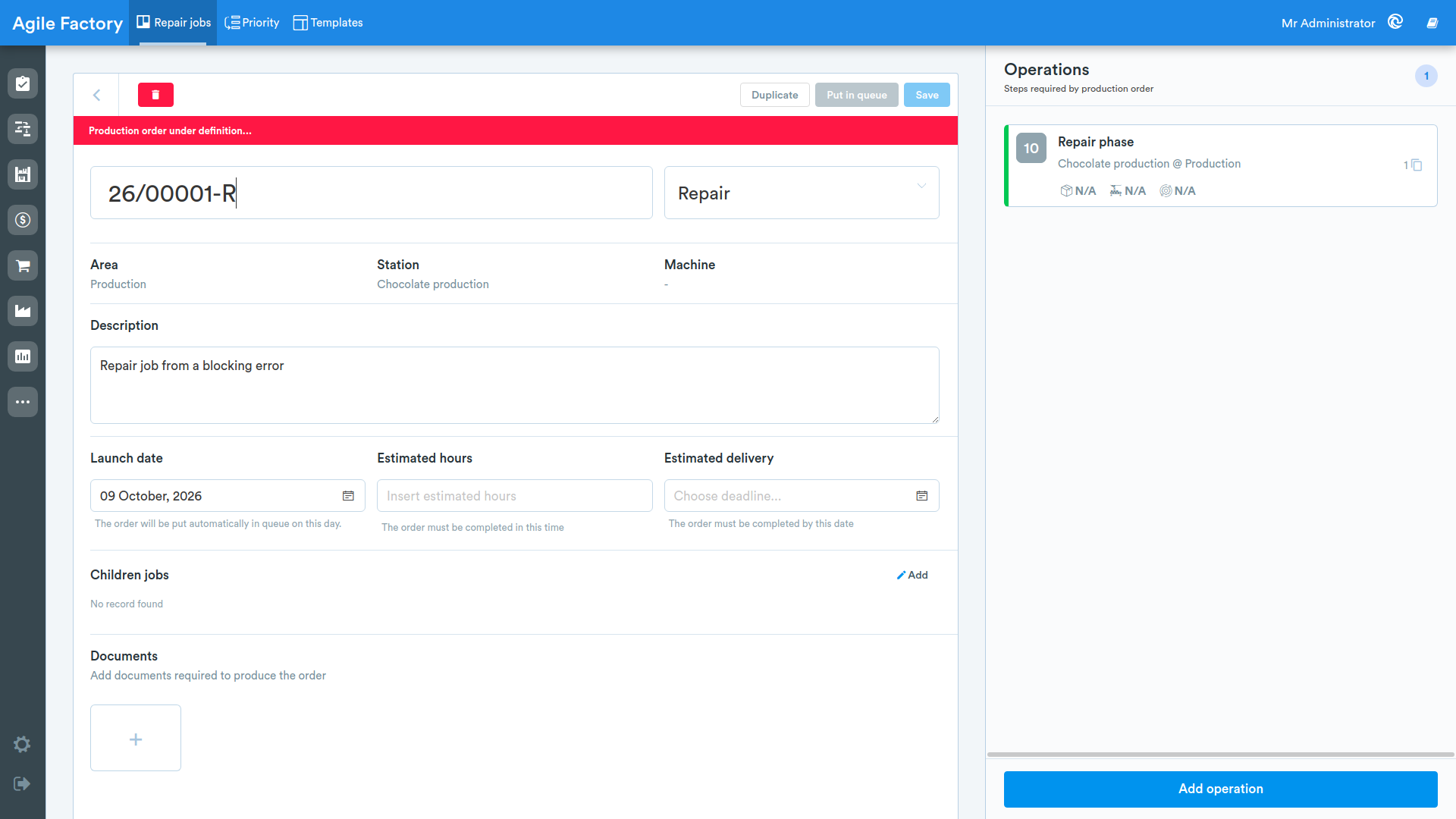
The manager opens the job and configures it. Opening it (it is in the Draft state, so it opens in edit mode) the manager defines the elements required for scheduling:
- the durations of the operations, by setting the Estimated hours (or the Estimated delivery date, from which the hours are recalculated);
- the assignments, that is which machine, which operator and which workgroup will perform the repair, by configuring the job's operations;
- the Launch date, i.e. the day on which the job is automatically placed in the queue.
-
The job is put in the queue. When the job is valid, the Put in queue button sends it to the scheduler.
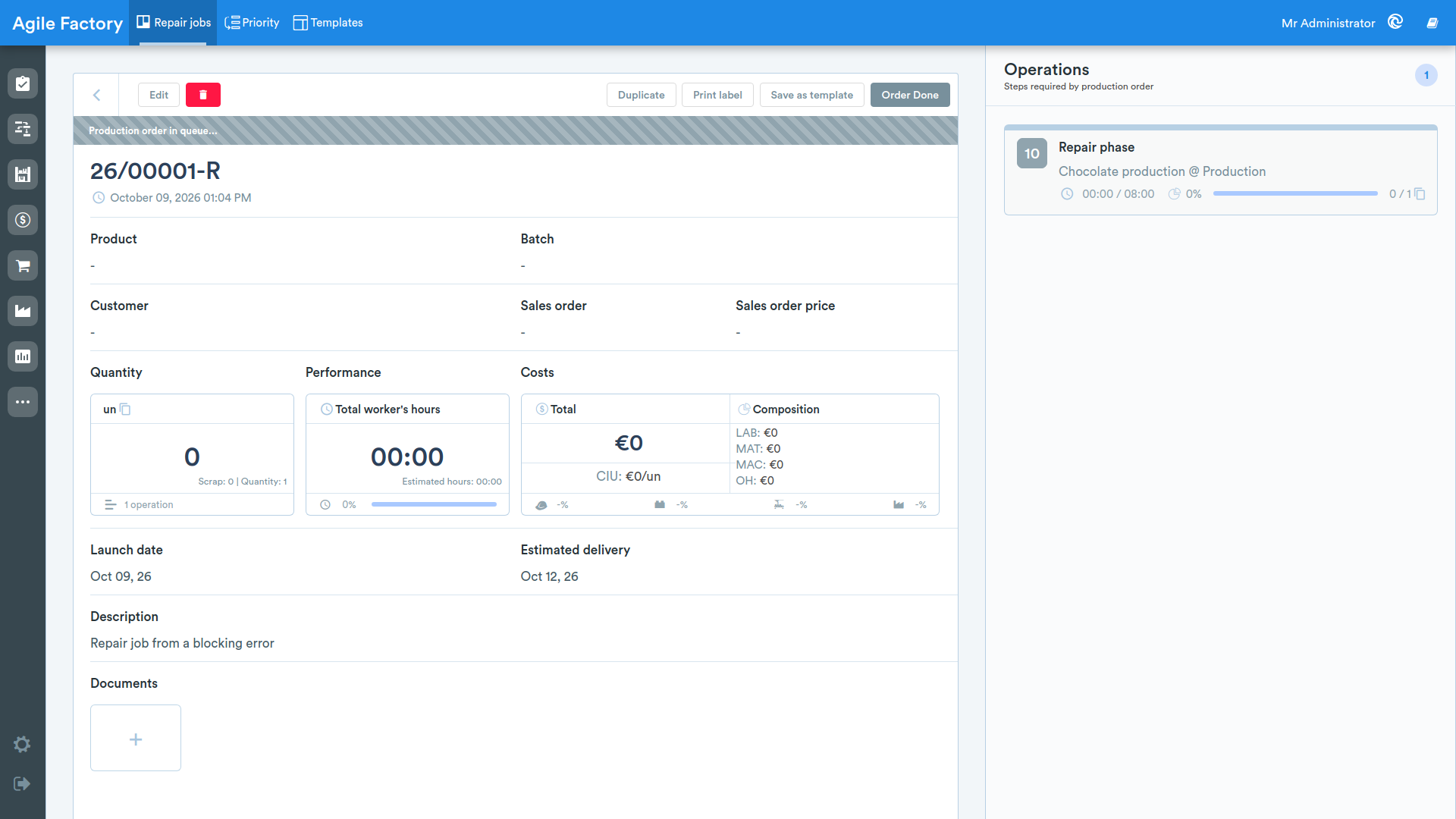
-
The scheduler blocks the resource. The repair job occupies a time slot on the machine/station involved: for the whole repair window the resource is blocked and the scheduler will not be able to plan production jobs on it until the repair is complete. This way the repair stays consistent with the factory's overall planning.
-
The operators carry out the repair from the HMI like a normal job, until the operations are completed.
-
The machine returns to production. When the job is completed the linked phase error is resolved and the slot is freed: the resource is available again for production jobs.
Use case — Maintenance job (planned)
Preventive or scheduled maintenance does not arise from a breakdown, so the job is not created automatically: it is the manager who creates it. The cycle is as follows:
- The manager creates the job manually with the Add job button and sets its Type to Maintenance.
- They configure it in the same way as a repair: a description of the intervention, Estimated hours / Estimated delivery date, Launch date and operations with their assignments (machine, operator, workgroup). For recurring activities you can start from a template (see Templates).
- They put it in the queue with Put in queue.
- It integrates with the scheduler exactly like a repair job: the maintenance slot is reserved on the resource, which stays blocked for production jobs during the intervention window.
- The operators carry out the intervention and, on completion, the resource becomes available again.
Repair jobs
Main view
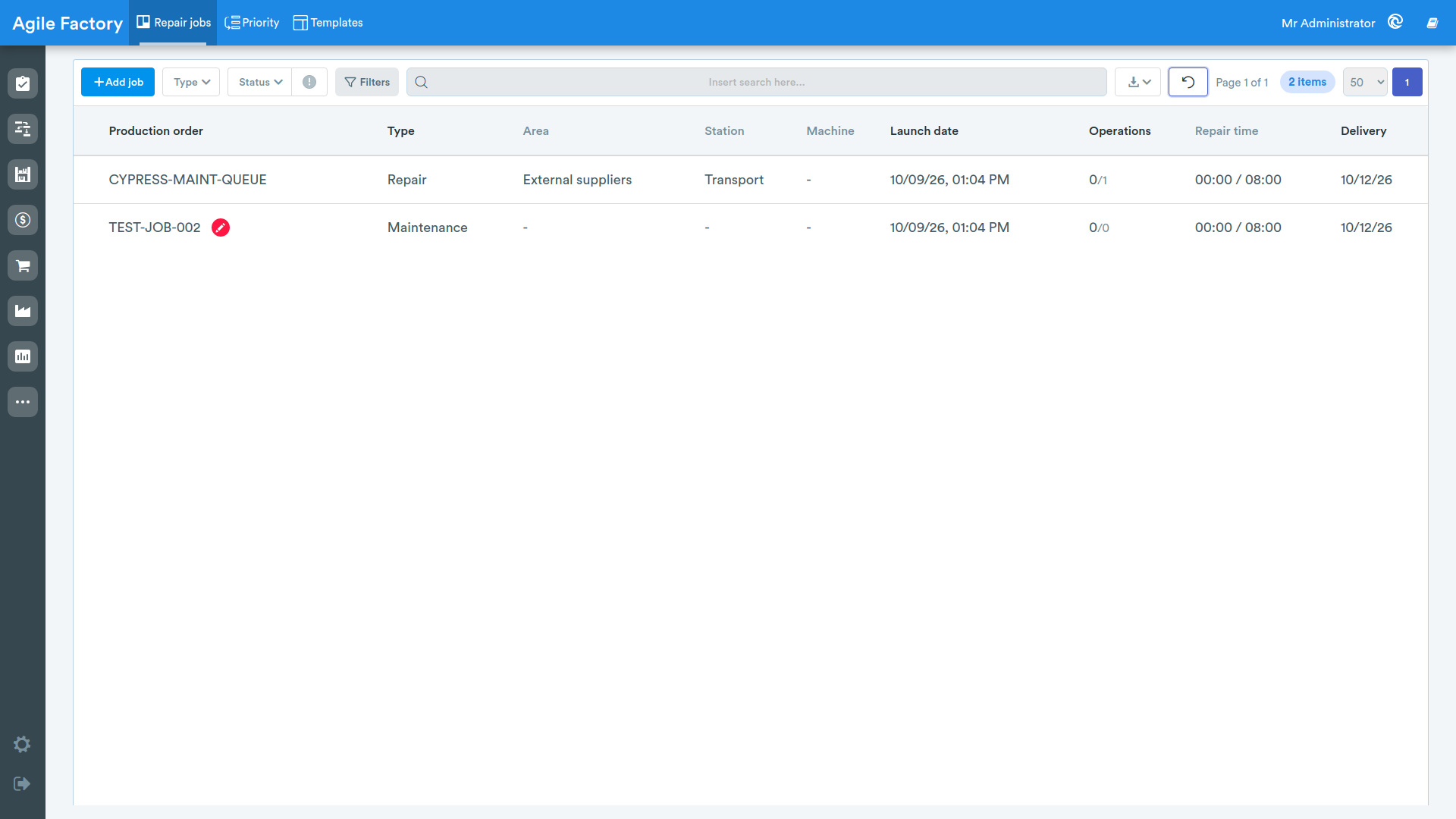
The main screen shows the list of repair and maintenance jobs in tabular form, from which the manager spots both the automatically generated repairs and the manually created maintenances.
The following columns are available for each job:
- Name — name of the job, accompanied by the status icon
- Type — Repair or Maintenance
- Area — production area on which the job is scheduled
- Station — workstation on which the job is scheduled
- Machine — machine on which the job is scheduled
- Launch date — launch date of the job
- Operations — number of completed operations out of the total
- Maintenance time — actual time spent, compared with the estimated duration
- Estimated delivery — highlighted in red if the job is late
Jobs that contain child jobs can be expanded via the arrow at the start of the row to display their hierarchy. Clicking on the column headers sorts the list; pagination controls are available at the bottom. If no job matches the criteria set, the message No record found is shown.
Lifecycle and statuses
A job's status determines what can be done with it and how it appears to the scheduler:
- Draft — the job is being configured (this is the state in which both the automatic repair and the manual maintenance are born). It is not yet visible to the scheduler and opens in edit mode.
- Assigned — the job has been put in the queue: it occupies a slot on the resource and the scheduler respects it, blocking the machine/station for the intervention window.
- Work in progress — the operators are performing the job's operations.
- Completed — the intervention is finished, the resource becomes available again and, for a repair, the linked phase error is resolved.
Filters
A toolbar with the following controls is available at the top:
-
The Add job button to create a new maintenance or repair job (typically a maintenance, since repairs are created automatically).
-
The Type dropdown to select the type of job to display (Repair and/or Maintenance).
-
The Status dropdown to filter jobs by status (Draft, Assigned, Work in progress, Completed).
-
The button with the alert icon to show only jobs in error.
-
The Filters button, which opens a panel where you can select one or more values for each criterion:
- Filter by area
- Filter by station
- Filter by machine
After choosing the desired values, the Apply button confirms the selection.
-
A search bar (Search here...) to filter jobs by text.
-
A button to export the tabular data in *.csv and *.xls formats.
-
The reset button 🔄️ to clear all the filters set.
The active filters (area, station, machine, error) are shown below the bar as removable tags: clicking the x of a tag removes that filter individually, while the reset button removes all the filters.
Configuring a job
Clicking Add job, or opening a job in the Draft state (the typical case of a repair just generated by the system), opens the edit screen. This is where the manager takes the most important step of the flow: turning a raw job into a schedulable one, by defining durations and assignments.
On this screen you can set:
- Name of the job (mandatory). For automatic repairs it is already filled in by the system.
- Type of the job: Repair or Maintenance.
- Area, Station and Machine on which the job is scheduled. They are derived from the operations; for an automatic repair they are already set on the faulty resource.
- Description of the intervention.
- Launch date — the day on which the job is automatically placed in the queue.
- Estimated hours — this is the duration of the intervention, essential for the scheduler to reserve the correct slot. Setting this value calculates the delivery date automatically, considering only working hours (8–17, weekends excluded).
- Estimated delivery — by which the job must be completed; changing it recalculates the estimated hours accordingly.
- Children jobs — child jobs can be added via the Add button.
- Documents — attachments related to the job (available after saving the job).
On the right is the list of the job's Operations. This is where you define the assignments the scheduler will use to plan the intervention: for each operation you set which station/machine, which operator and which workgroup it is assigned to, along with product, step, dependencies and picking list. Operations are configured in the same way as described in the Order management section.
Changes are confirmed with the Save button (or with the CTRL+S shortcut). For jobs without operations the Apply template button is available to start from an existing template; when the job is valid it can instead be saved as a template.
Once the job is valid, the Put in queue button sends it to the scheduler making it available for execution: from this moment the slot on the resource is reserved and production jobs cannot be planned on that machine/station until the intervention is finished.
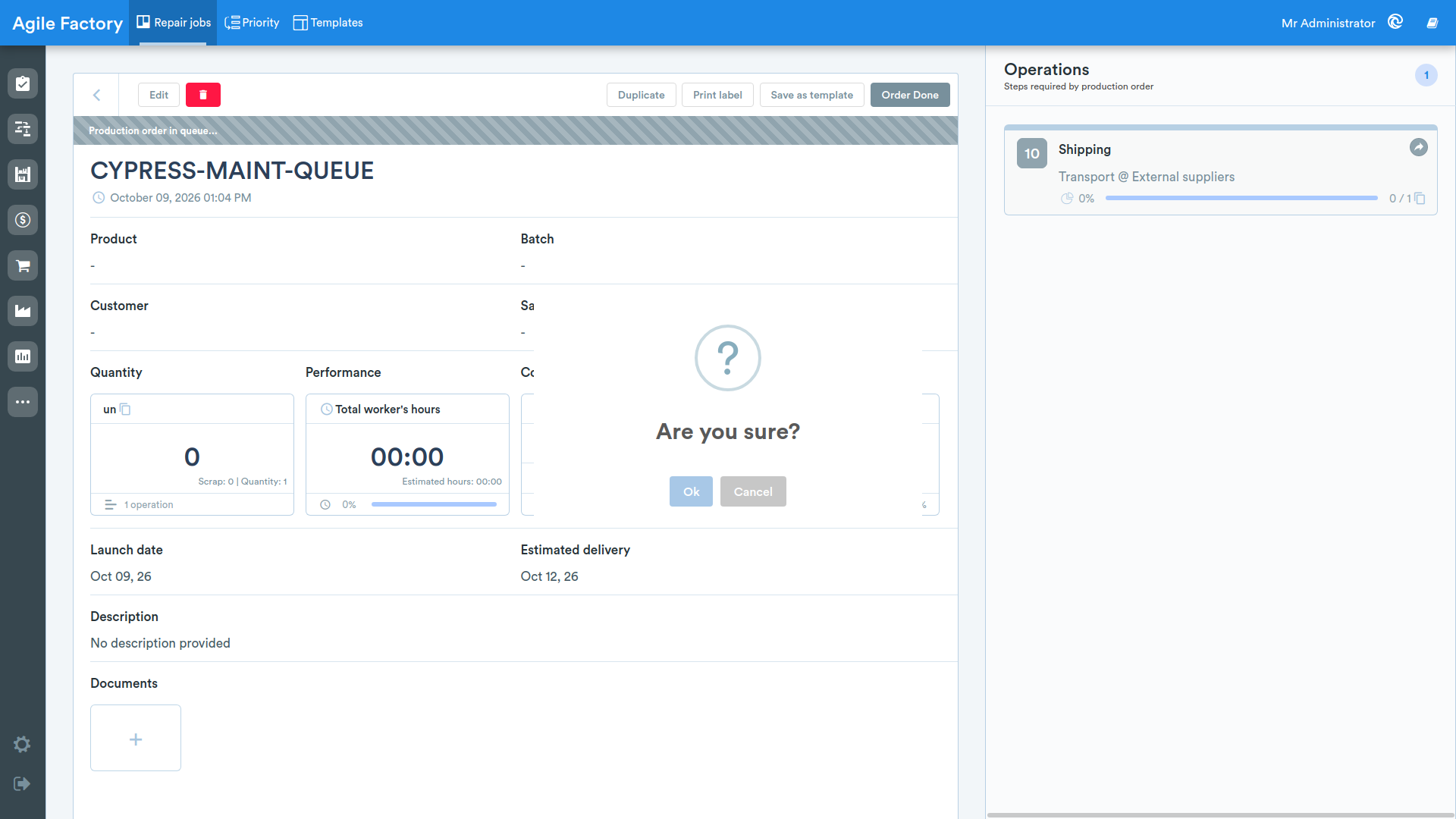
Job details
Opening a job that is not in the Draft state shows the details screen, with the following information:
- status and type of the job
- name and launch date
- Product and Batch
- Customer and Sales order (with its price if Industrial accounting✨ is enabled)
- Quantity produced, with scrap and number of operations
- Performance — total hours worked compared with the estimated hours and completion percentage
- Costs (visible if Industrial accounting✨ is enabled)
- Launch date and Estimated delivery
- Description of the intervention
- any picking list
- linked Children jobs
- attached Documents
On the right is the list of the job's operations. Clicking on an operation opens its details, analogous to the one described in the Order management section.
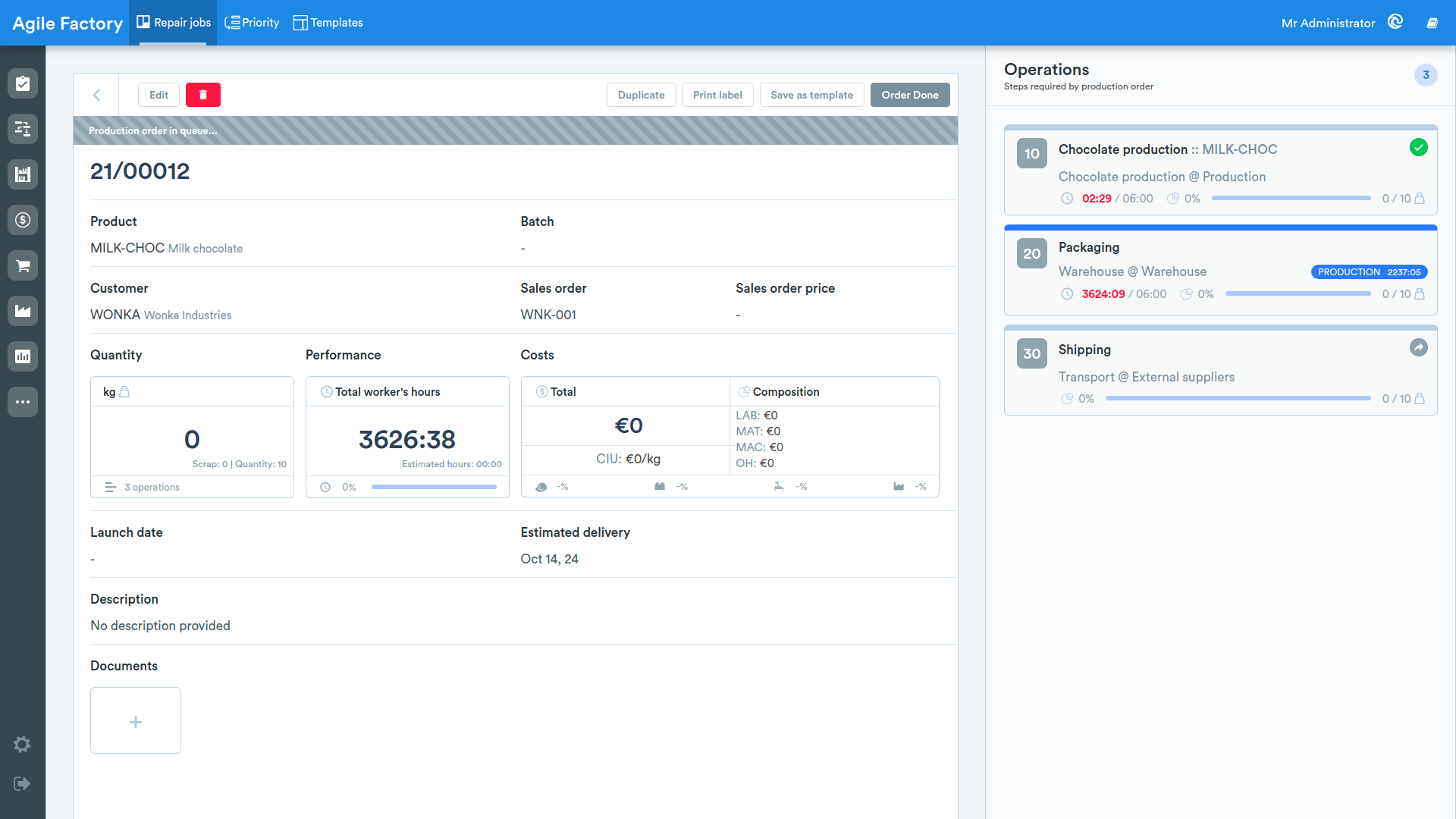
Several actions are available from the top bar, depending on the job's status:
- Edit — brings the job back to the Draft state to allow editing it (a job being edited cannot be worked on and temporarily frees the scheduler slot)
- the job removal button
- Duplicate the job
- print the job
- save the job as a template
- Order Done — sets the job as completed (not available if the job is in error); on completion of a repair the linked phase error is resolved
- Put in queue — for an already completed job, allows bringing it back into processing
Priority
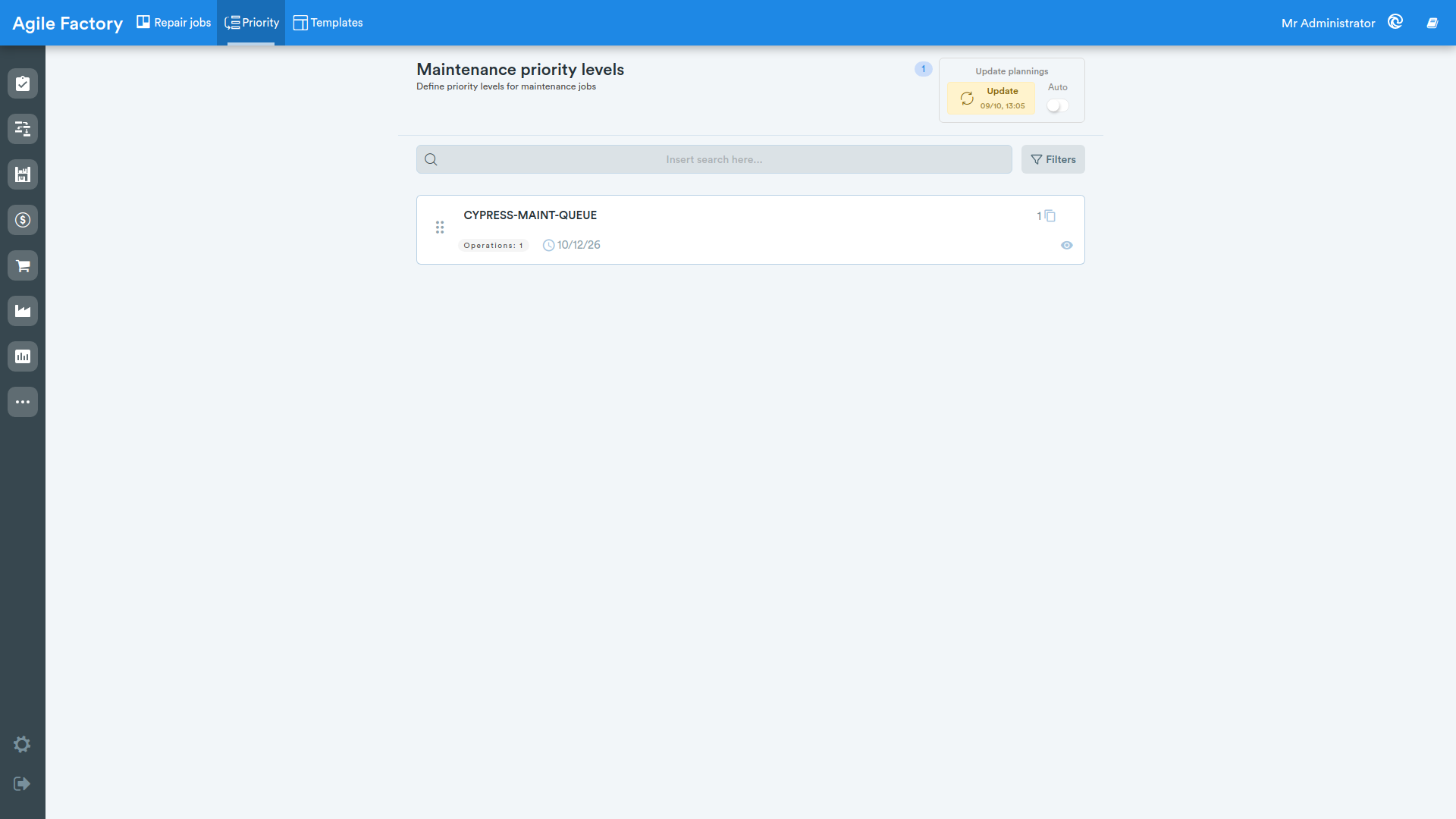
In this section you can manage the priority of repair and maintenance jobs, determining the order in which the scheduler takes them on when they fall on the same resource.
You can change the priority by dragging the job; the main details are also displayed. It works in the same way as described for production orders in the Priority management section.
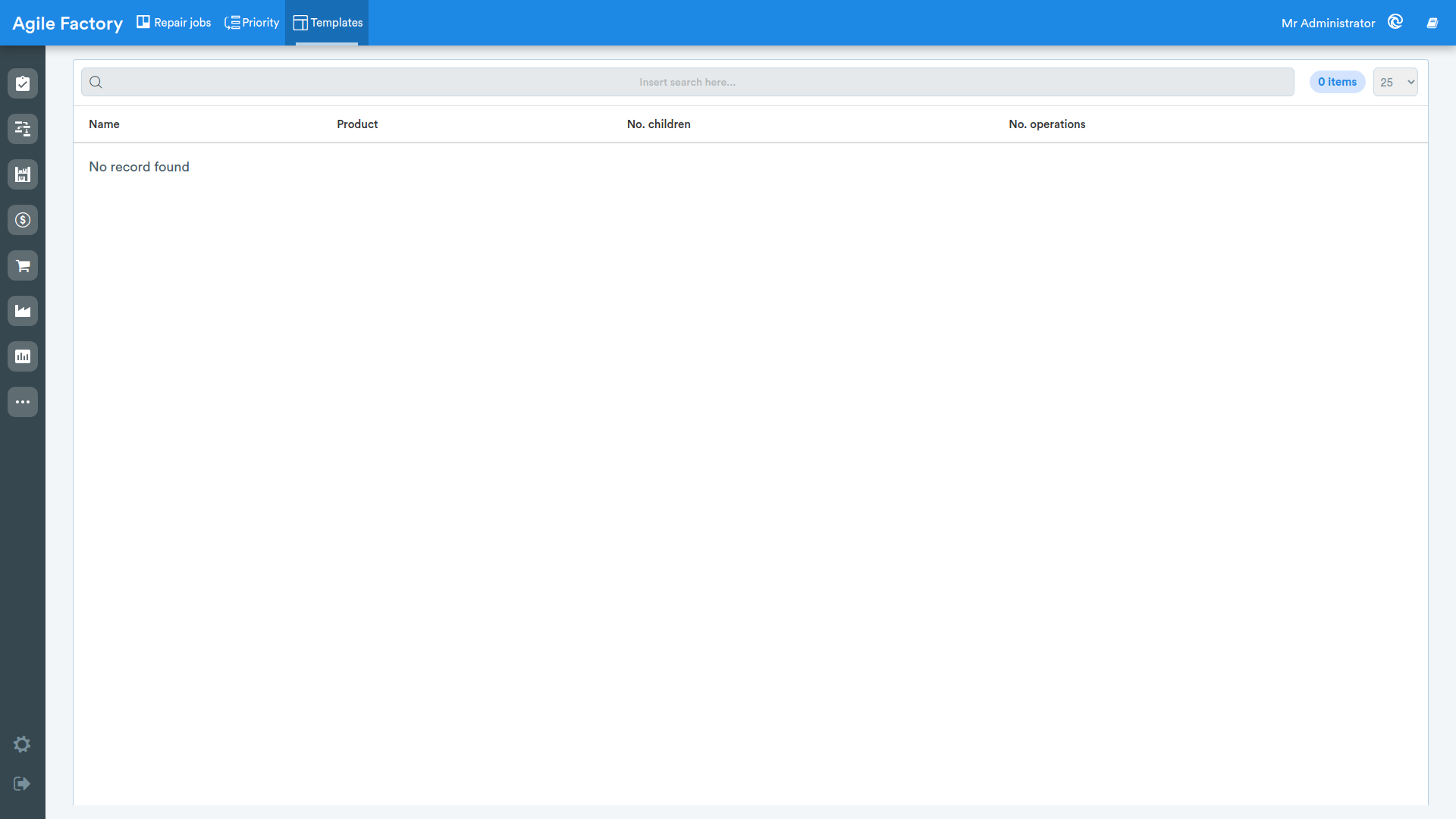
Templates
This section collects the reusable templates for creating new maintenance and repair jobs, avoiding having to repeat their configuration every time. They are particularly useful for recurring maintenance (for example a periodic oil change), where operations, durations and assignments are always the same.
Templates are managed (saving, details and use) in the same way as described in the Templates section of Order management.