Planning
The MES scheduler is an APS (Advanced Planning and Scheduling) type system that allows dynamic calculation of the production plan based on various criteria, such as:
- operation execution time
- production work schedule
- resource availability (personnel and machinery)
- required delivery date of production orders
- other
The basic scheduler configuration is based on the principle of "reverse planning", that is, planning is based on the need to execute as many operations as possible within the expected timeframe, but the operating algorithm can be customized based on the user's specific needs (configurable as part of software customization). This functionality is not included in the basic MES supply.
Configuration
For the correct operation of the scheduler, it is necessary to ensure that the following basic parameters are defined in the MES settings:
- Schedules for departments, stations, machinery, work groups and individual employees have been configured
- The created schedules have been assigned:
- The created processes have been assigned to workstations
- Production units have been configured
For information on configuring the above objects, use the links to the Settings section.
Main View
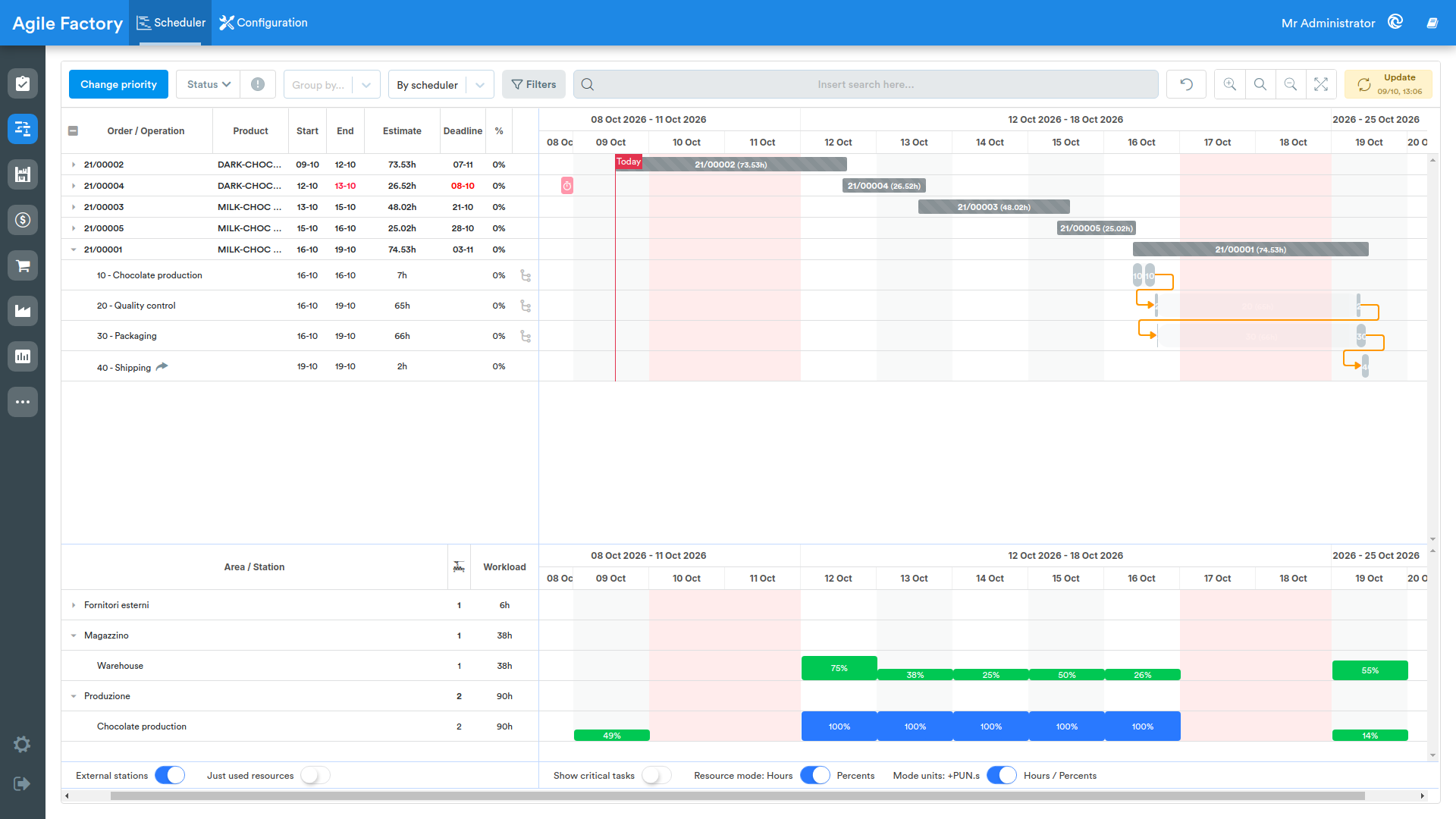
Once the settings are completed, it is possible to use the scheduler functionalities. To create a production plan, it is sufficient to send at least one order to the production queue (the Queue button for the production order is a sort of trigger for the scheduler). In the main scheduler screen, a Gantt chart must be generated, which represents a visualization of the planned execution of production operations over time, taking into account the preset working hours of the involved facilities (including lunch breaks, holidays and other).
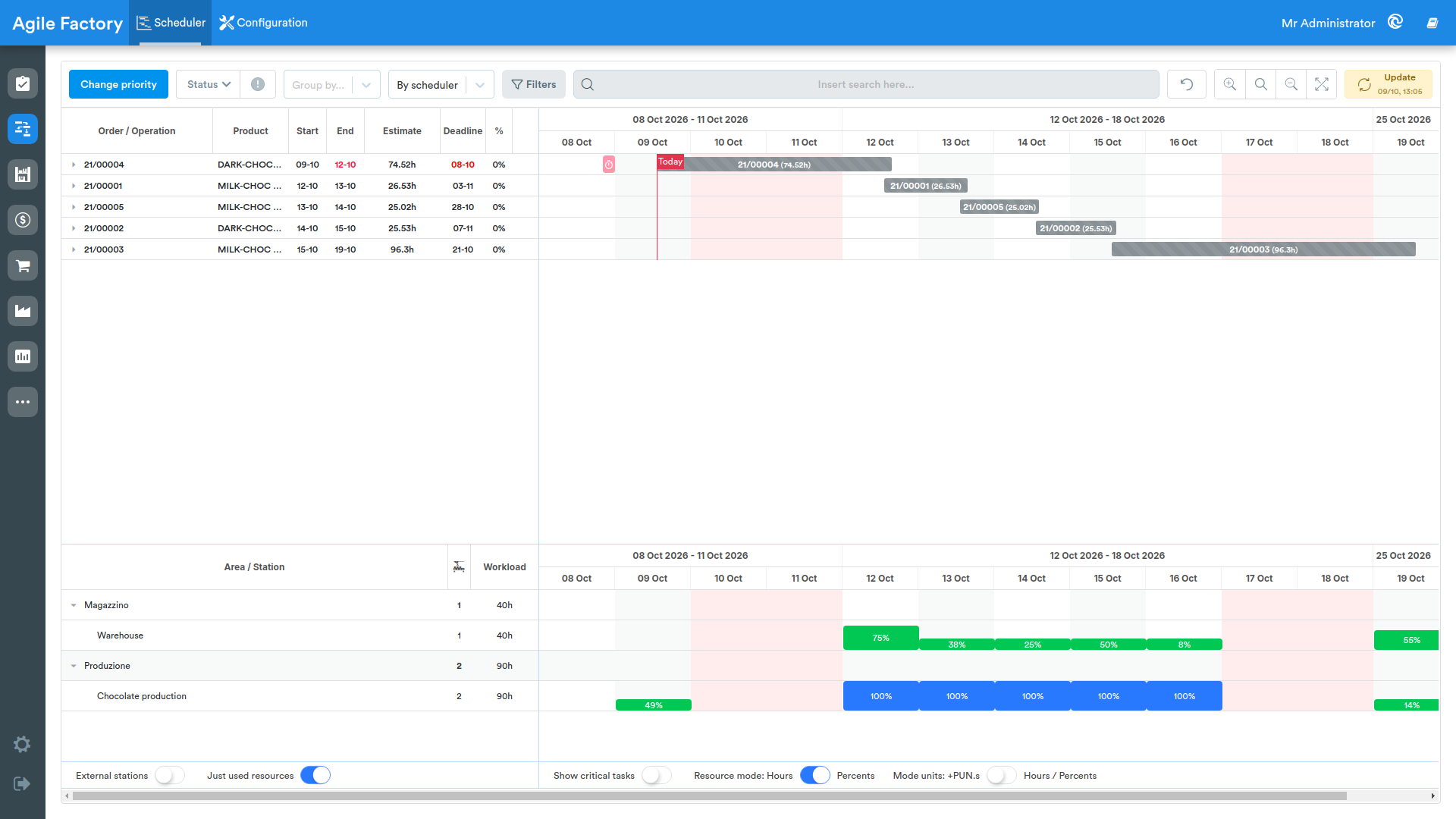
At the top of the screen, various filters and functional interface tools are available:
- the Change priority button, which allows you to manage the execution order of production orders in case the automatically planned sequence does not meet user expectations. How to manage production order priorities will be explained later in a separate section.
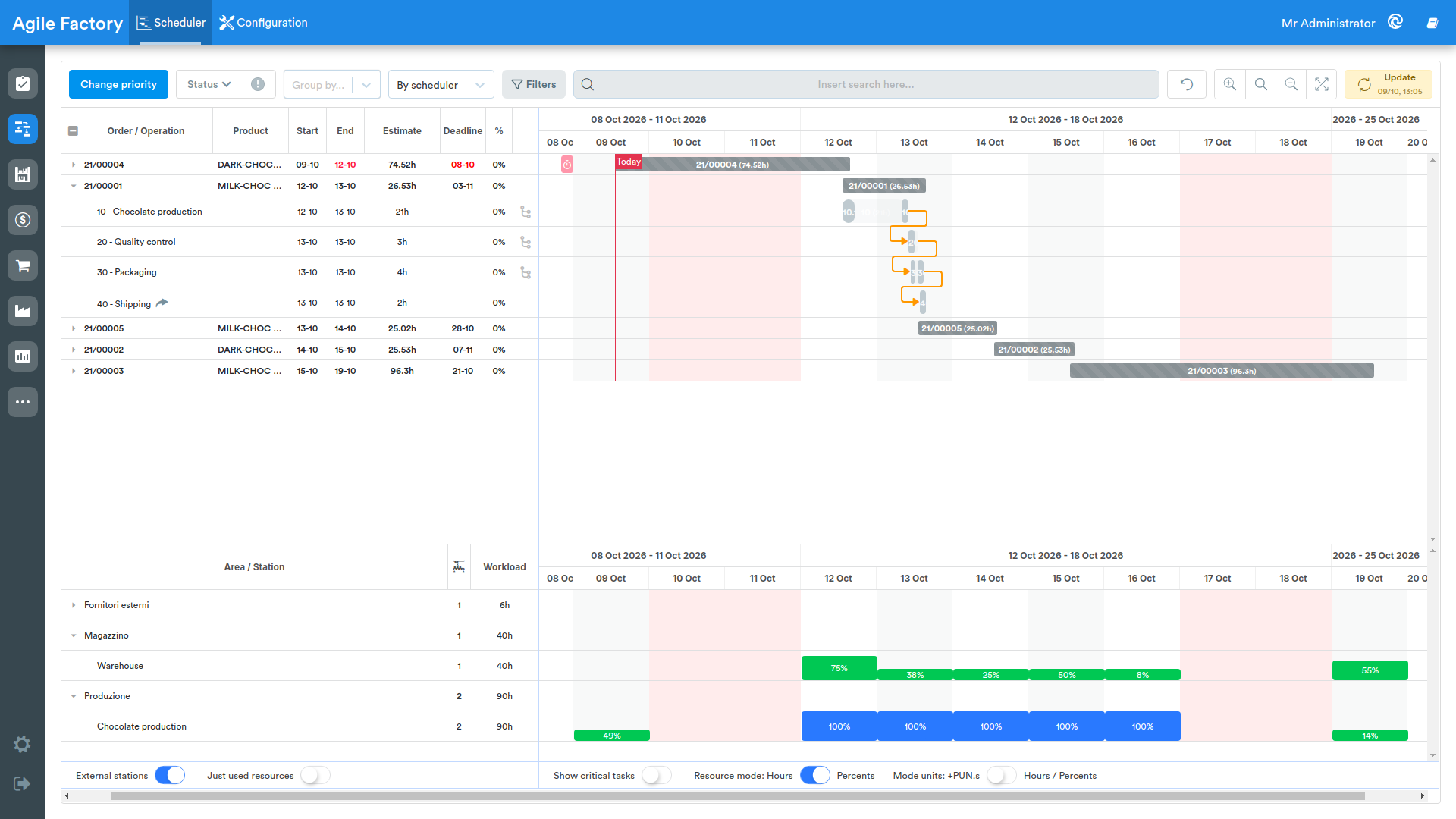
- filters by order status (Assigned - the order is queued, but production has not yet started, In progress - orders in the production phase for which work sessions are open, Completed - completed orders)
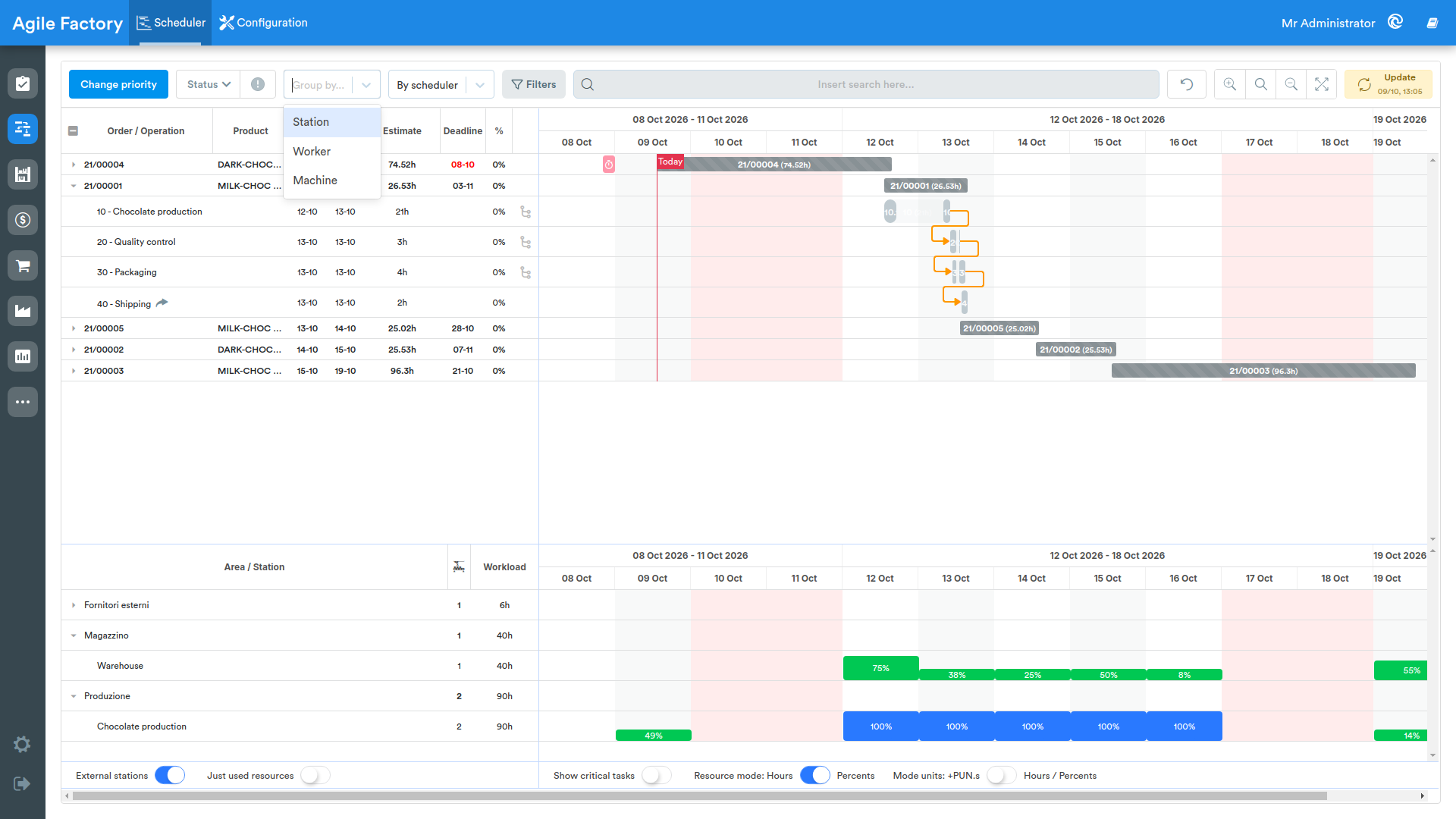
- the Group by... dropdown, which allows you to change the diagram view by grouping production operations by resource type. You can choose between Station, Worker and Machine. When grouping is active, the Gantt chart shows the queue and load over time for each resource of the selected type. Selecting the same option again, or clicking the × button to clear the selection, removes the grouping and restores the default view.
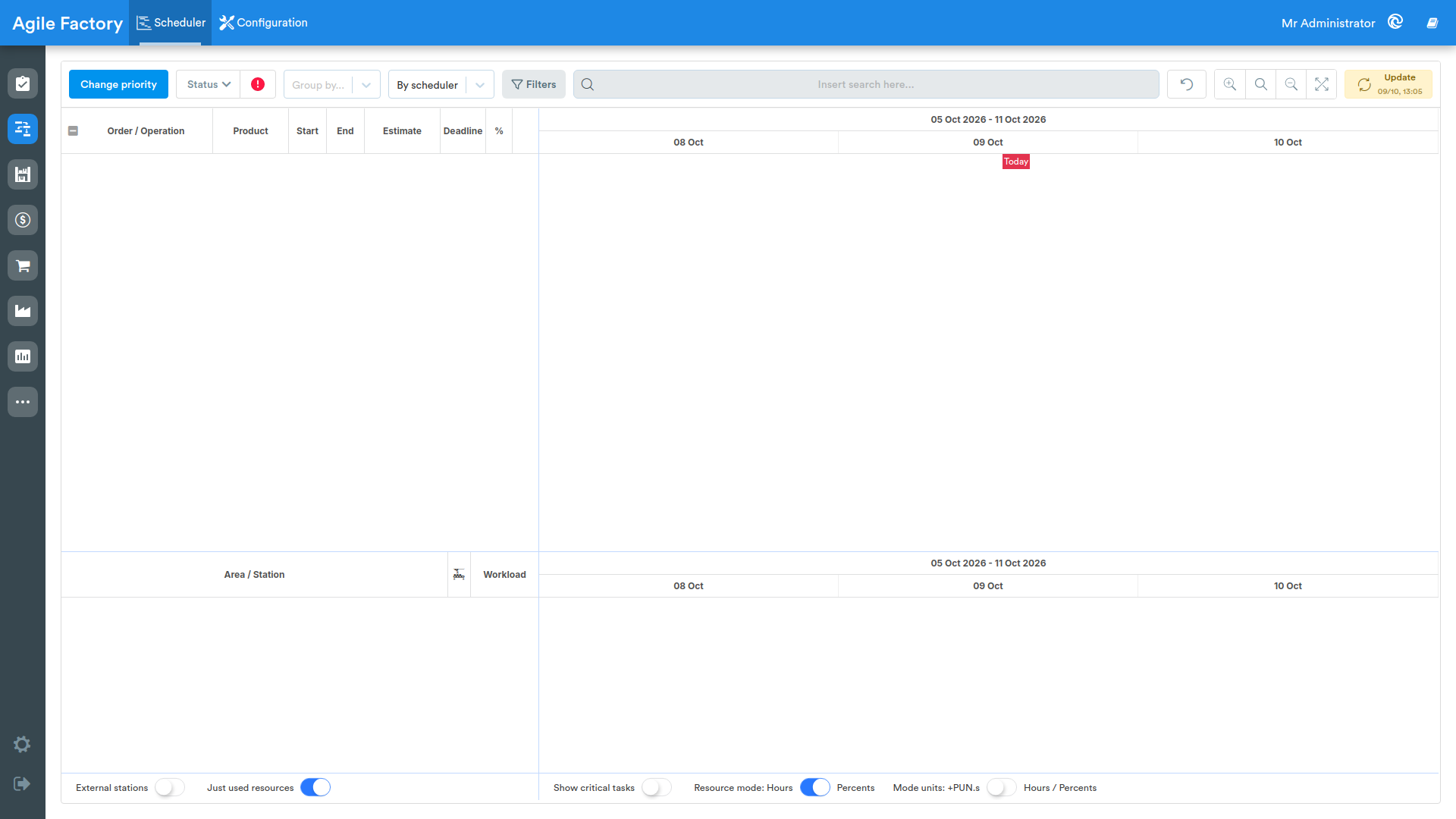
- The Filter by error button
By clicking this button, only orders currently in error whose processing is interrupted due to a problem encountered in production will be shown.
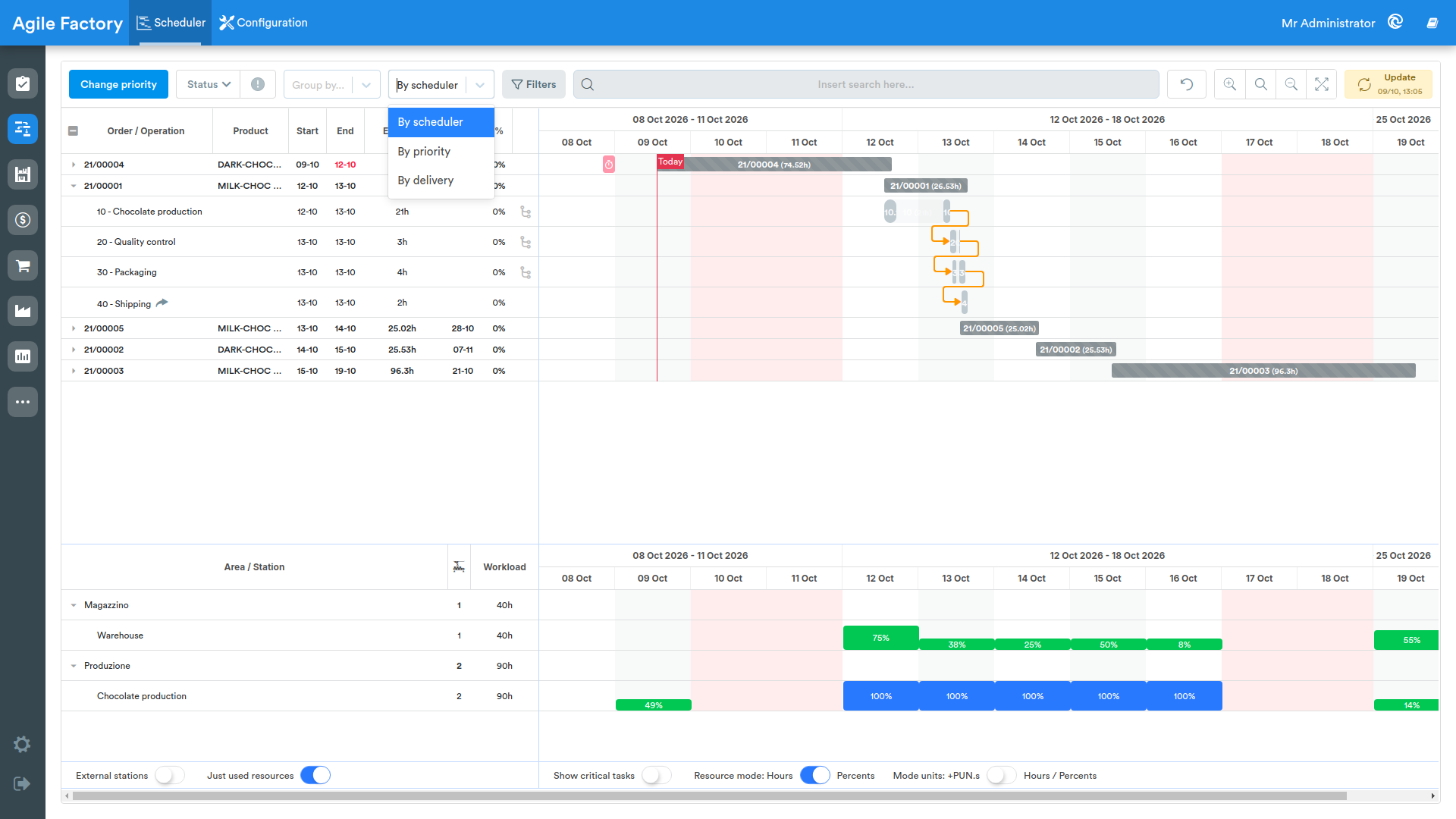
- It is possible to sort orders in the graph based on three parameters: By scheduler - according to the automatic plan, By priority - according to creation order, By delivery - according to the expected delivery date.
- the Filters button, which opens a popover where you can filter by product (Filter by product) and by customer (Filter by customer); selections are confirmed with the Apply button. Active filters are shown as removable chips below the toolbar and can be deleted individually; the reset button next to Filters clears all applied filters
- the search bar to search orders by text
- zoom mode control buttons with full screen mode activation button
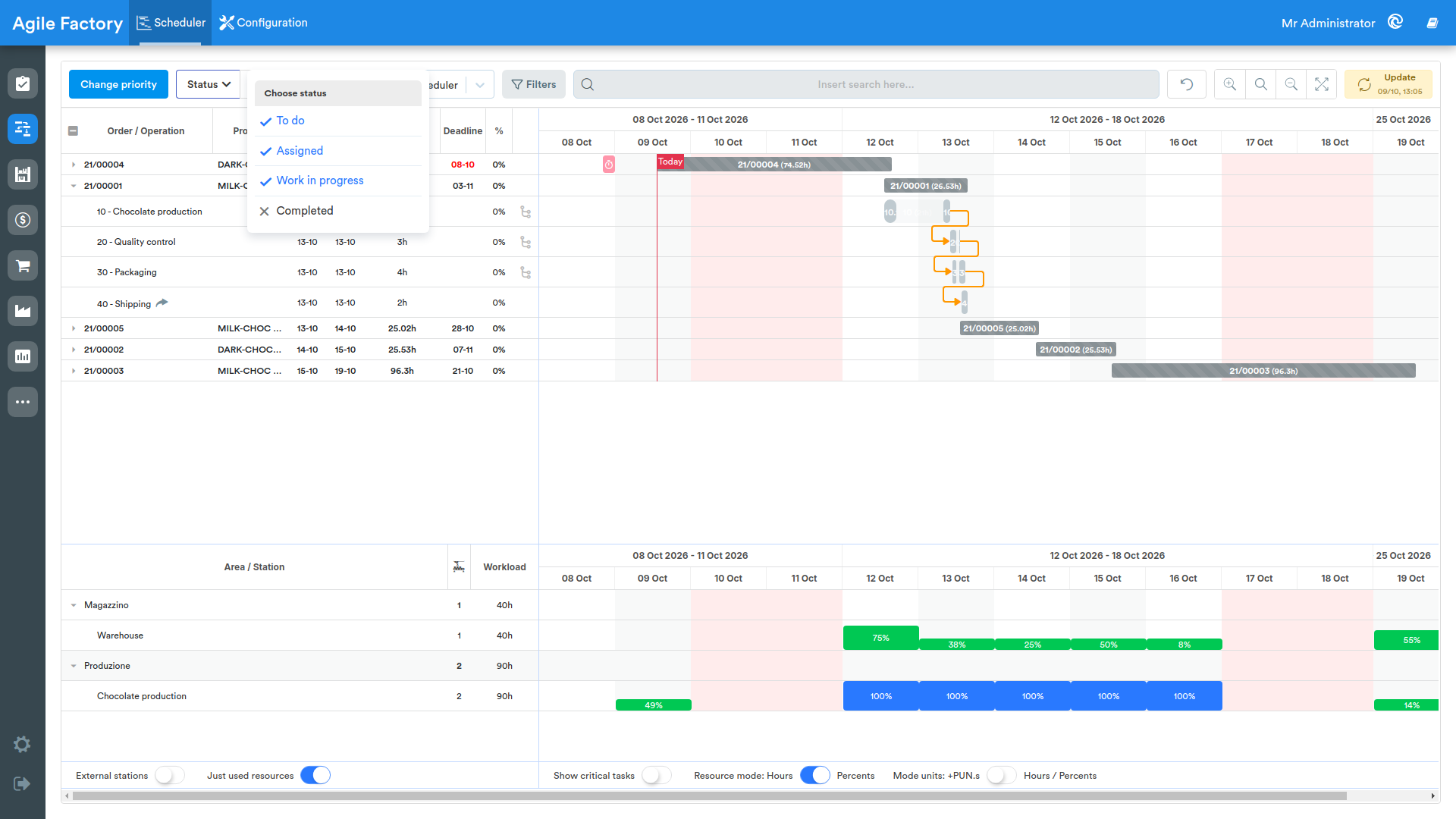
Each production order represents a "timeline" with the ability to cascade the production operations that compose it. The time scale represents a subdivision of 24 hours for each day; in the indicated image, the interruptions in operation execution are due to working hours (work only during the day with lunch break).
The red block with the alarm clock on the graph represents the date set for delivery of the production order (end of delivery day).
On the left side of the screen, the following data is available for each order and operation:
- order/operation: order/operation name
- product: product name
- start: execution start date (determined by the scheduler)
- end: execution end date (determined by the scheduler)
- estimate: estimated execution time (indicated in man-hours needed for execution, can be preset if known, otherwise it will be determined based on statistics of execution of such operation as average execution time)
- %: percentage of completion at the current moment
- delivery: required delivery date of the order (displayed in red when the order cannot be delivered on time)
At the bottom of the screen is the production resource bar, that is, areas and stations with data related to the number of production units expected for each station, as well as the maximum possible load of stations, expressed in processing hours.
The buttons located at the bottom of the screen allow you to configure the resource bar, namely
- Show external stations: show/don't show external stations (outsourcing jobs)
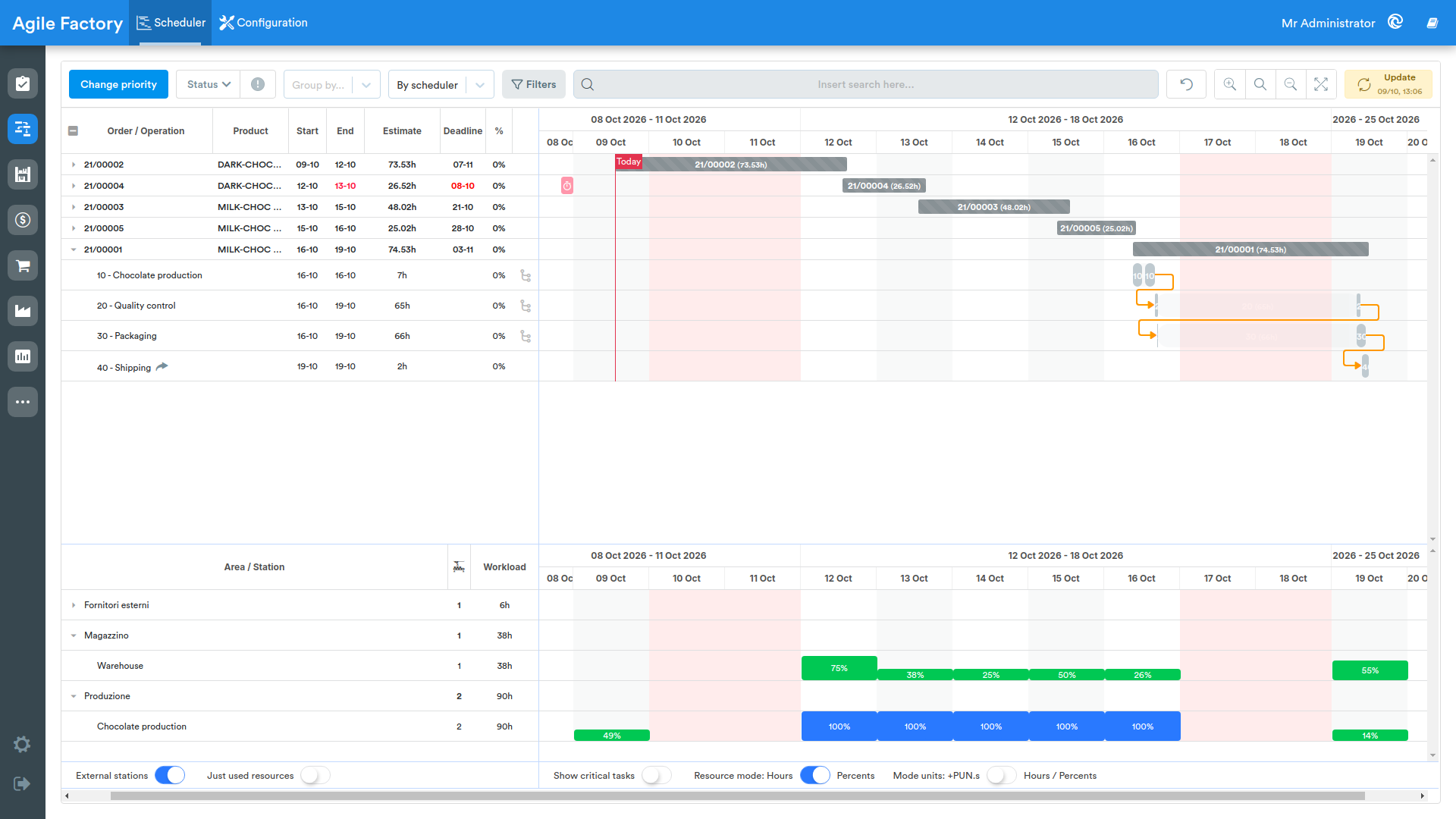
- Show used resources: show only stations used
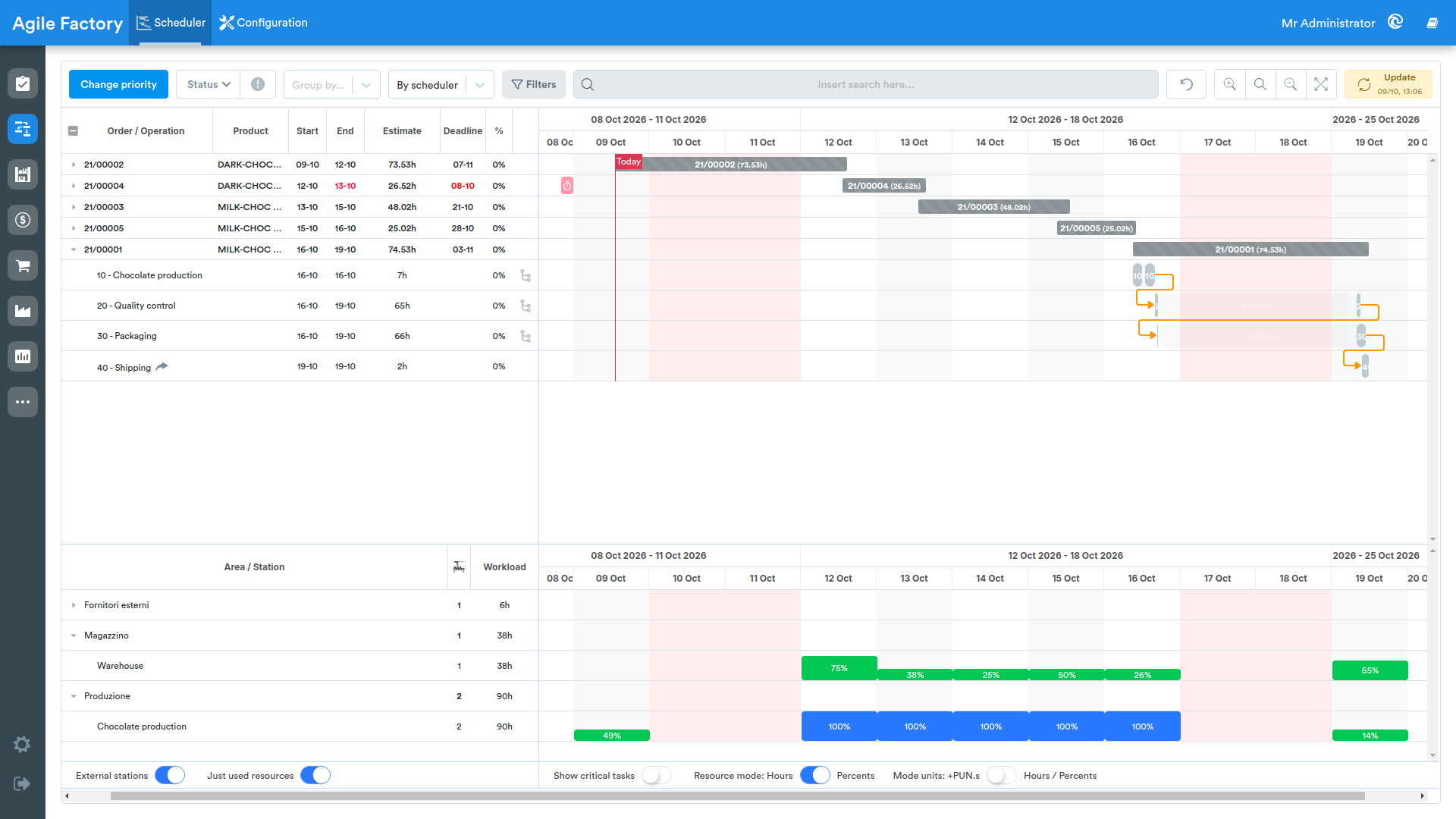
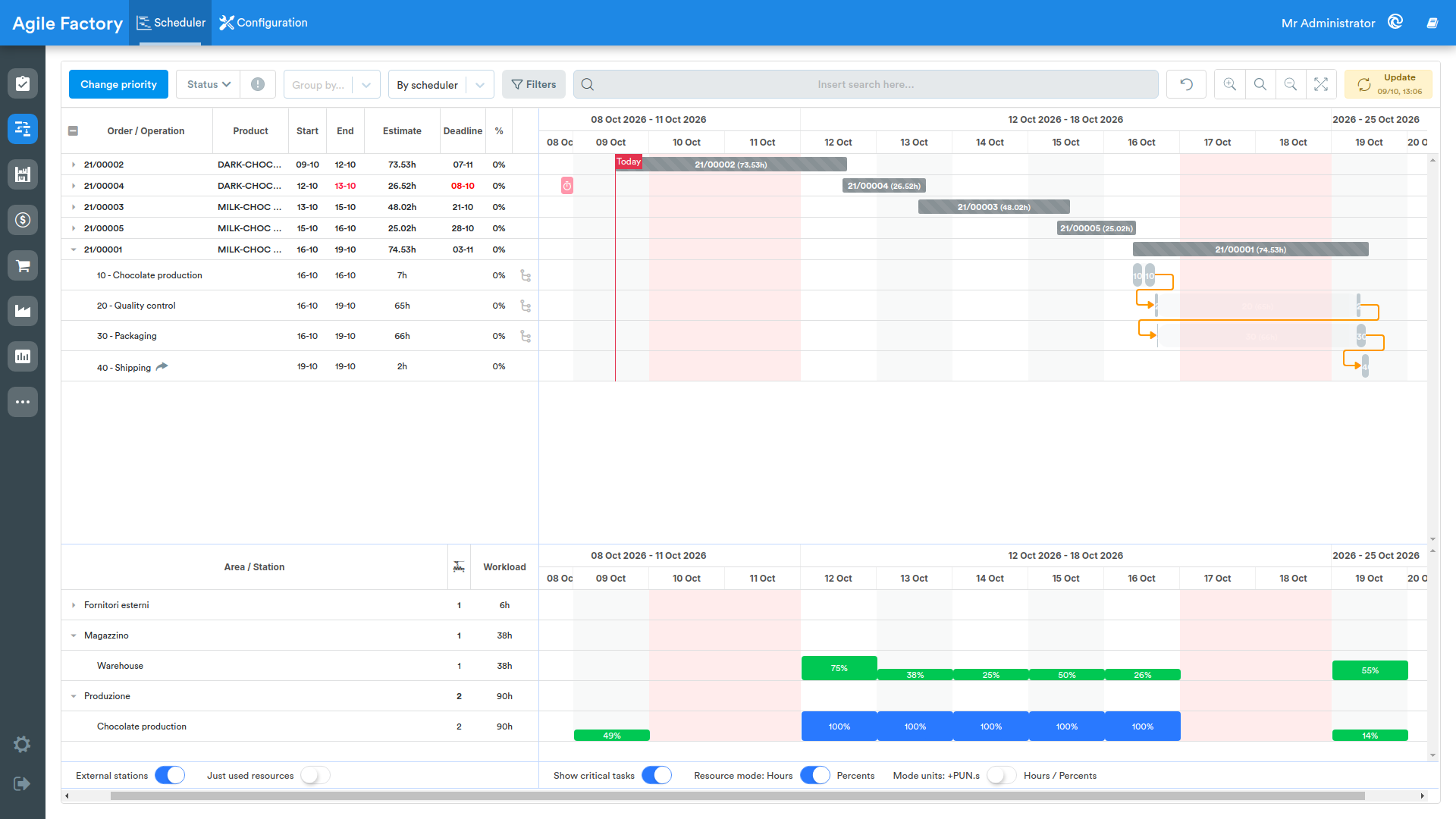
- Show critical activities: show/don't show critical operations (if the operation cannot be completed by the delivery date)
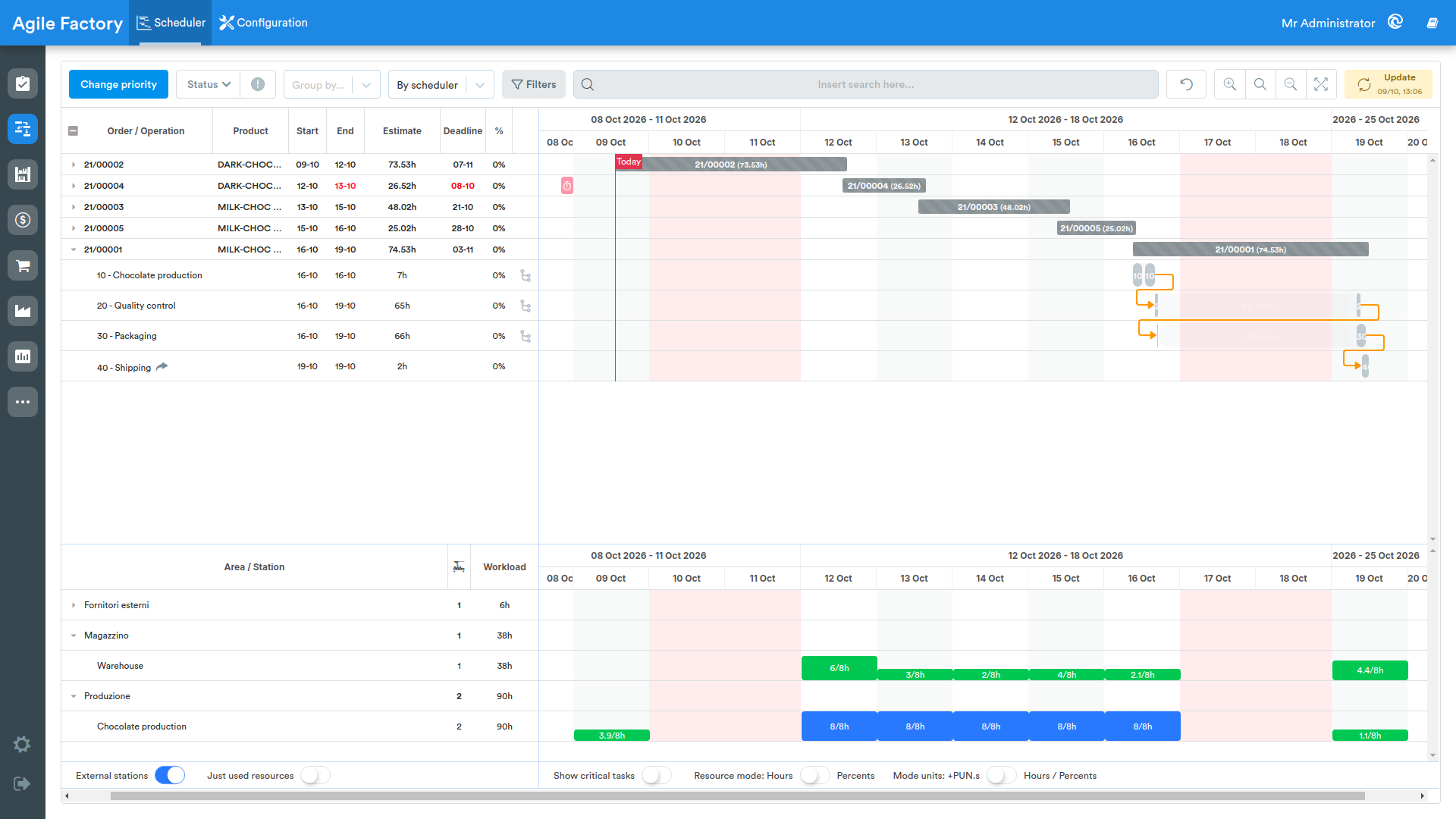
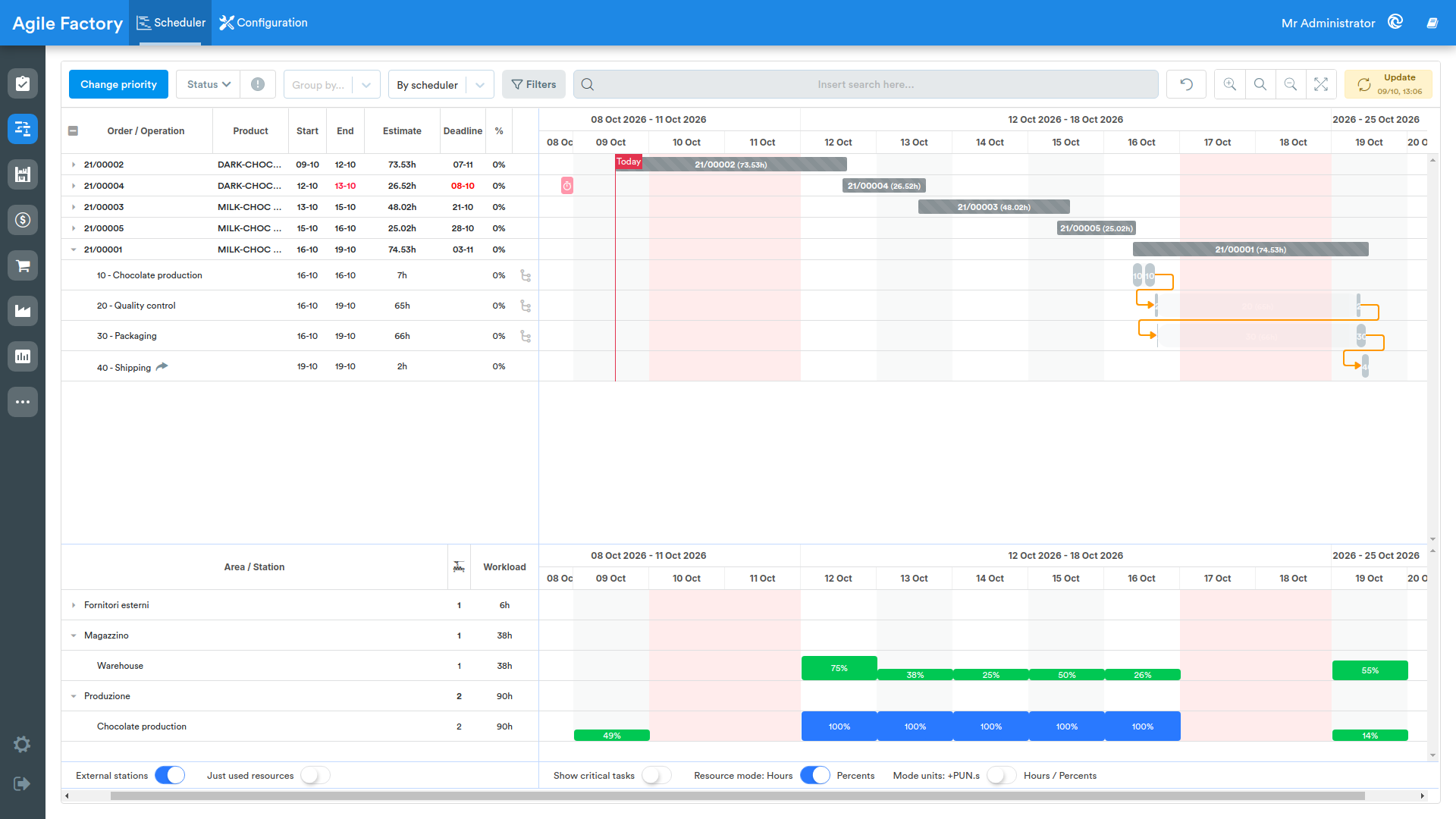
- Resource mode: Hours/Percentages: show resource loading in hours or percentages
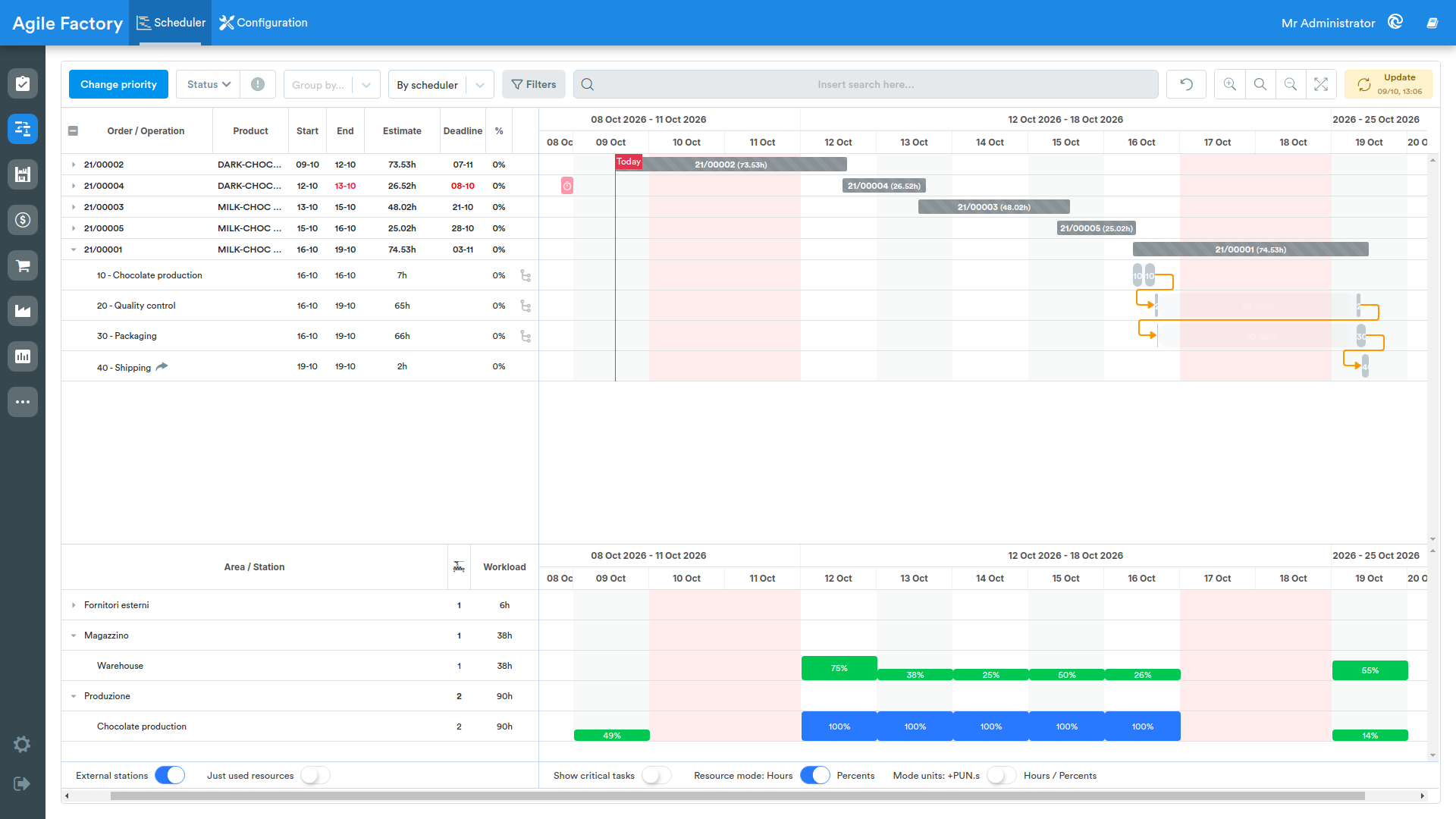
- Unit mode: +PUN.s / Hours/Percentages: show the required number of production units in pieces or hours/percentages (depending on the position of the previous switch)
How to Use
The scheduler is dynamic, that is, when a new production order is entered into the plan, the production plan is recalculated taking into account the current situation (time moment, quantity of products made since the last planning, changes in average production times for each process, changes in resource availability, any more urgent orders to be fulfilled, etc.). in this way the scheduler allows obtaining an operational plan, correct taking into account real circumstances, which allows answering with maximum precision the question: when will a certain order be delivered.
The scheduler also distributes resources (workers and machinery) among production operations. However, the actual assignment of workers and machinery for the execution of a specific operation occurs in free mode, so it is possible to decide independently whether or not to follow the scheduler's plan.
Possible Actions
Change Priority
Sometimes it happens that, for some reason, it is necessary to modify the production plan and give priority to specific individual orders. To perform this operation, the Change priority button is provided. By pressing this button, a list of orders is displayed in the execution order currently planned by the scheduler. By moving an order up or down in the list, it is possible to change the execution order of orders in the plan and recalculate it. It is important to understand that, by giving priority to certain orders, the production plan may no longer be optimal and there may be consequences that could translate in the future into failure to meet the execution deadlines of other orders, therefore it is necessary to use the order priority change function with caution.
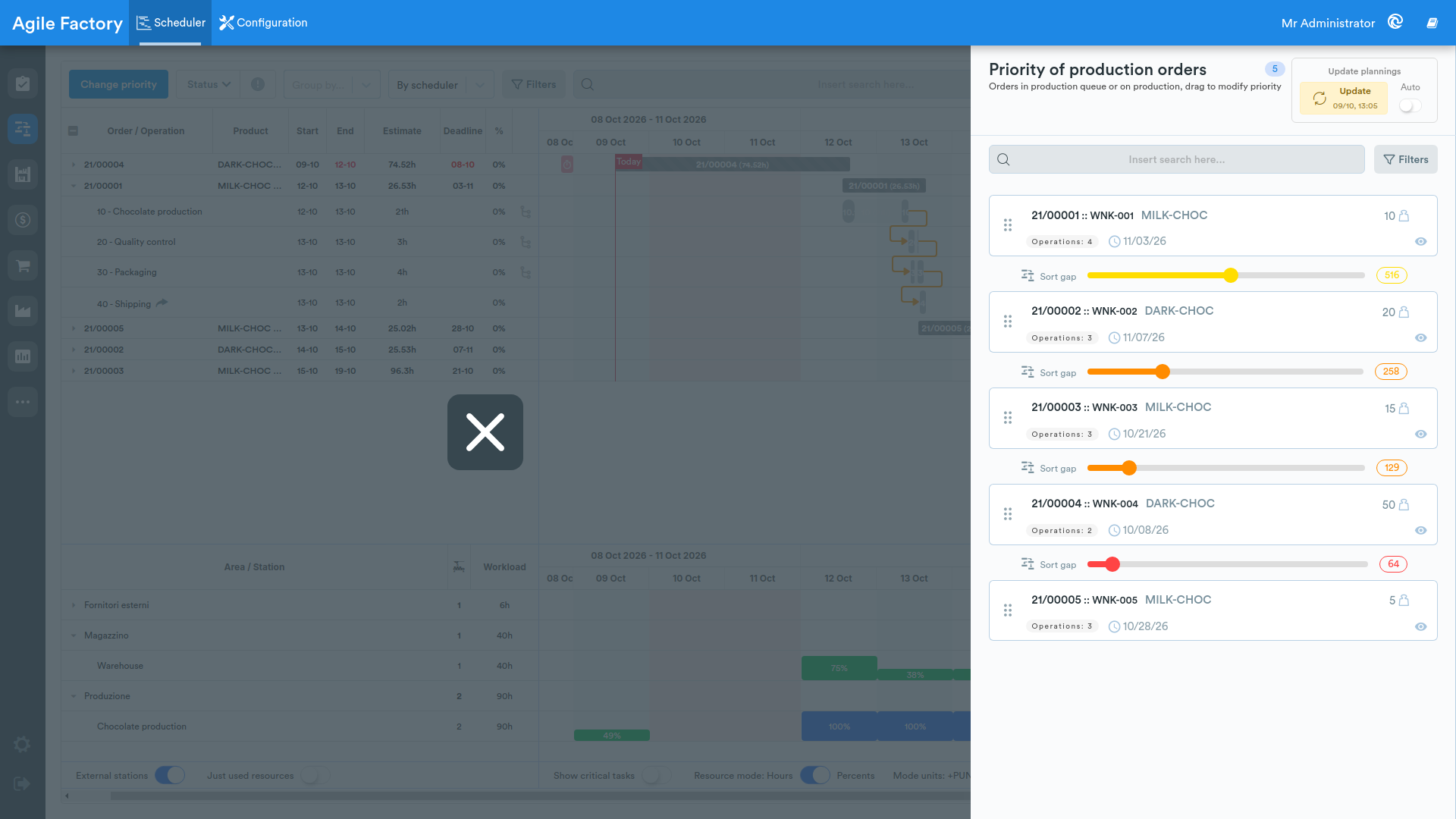
In this menu it is also possible to apply filters by product, customer or use the search bar. It is important to understand that changing order priority with active filters may not give the desired result, since part of the orders will be hidden from view.
Add Resources 
When the Show critical activities button is activated, if it is not possible to execute the order within the expected timeframe, pink banners appear on the diagram that signal to the user how many production units and working hours are missing to execute the operations within the expected timeframe (by how many working hours it is possible to accelerate execution by adding to the various stations the indicated number of production units). The banners do not appear for all operations, but only for those whose execution time is significant compared to the total execution time of the order (>2%). By clicking on the banner, the system asks the user a question.

The Add resources button does not physically add production units for this operation in this time period, but reduces the planned time for operation execution, leaving a note on the operation (the Split operation button can be used in rare cases and allows splitting the operation into 2 parts in case, for some reason, the scheduler does not use the available production units).

The "reduced" operation is highlighted in yellow in the diagram; in the operation details a note appears indicating that the time has been shortened and that more resources than usual are needed to execute this operation; this message is also visible in the operator interface at the start of operation execution.
This functionality is experimental and may be modified or improved in the future.
Monitoring Plan Execution
When someone starts executing a production operation, the color of the diagram changes. The ongoing order is colored blue, while the running operation is colored with the color corresponding to the execution step.
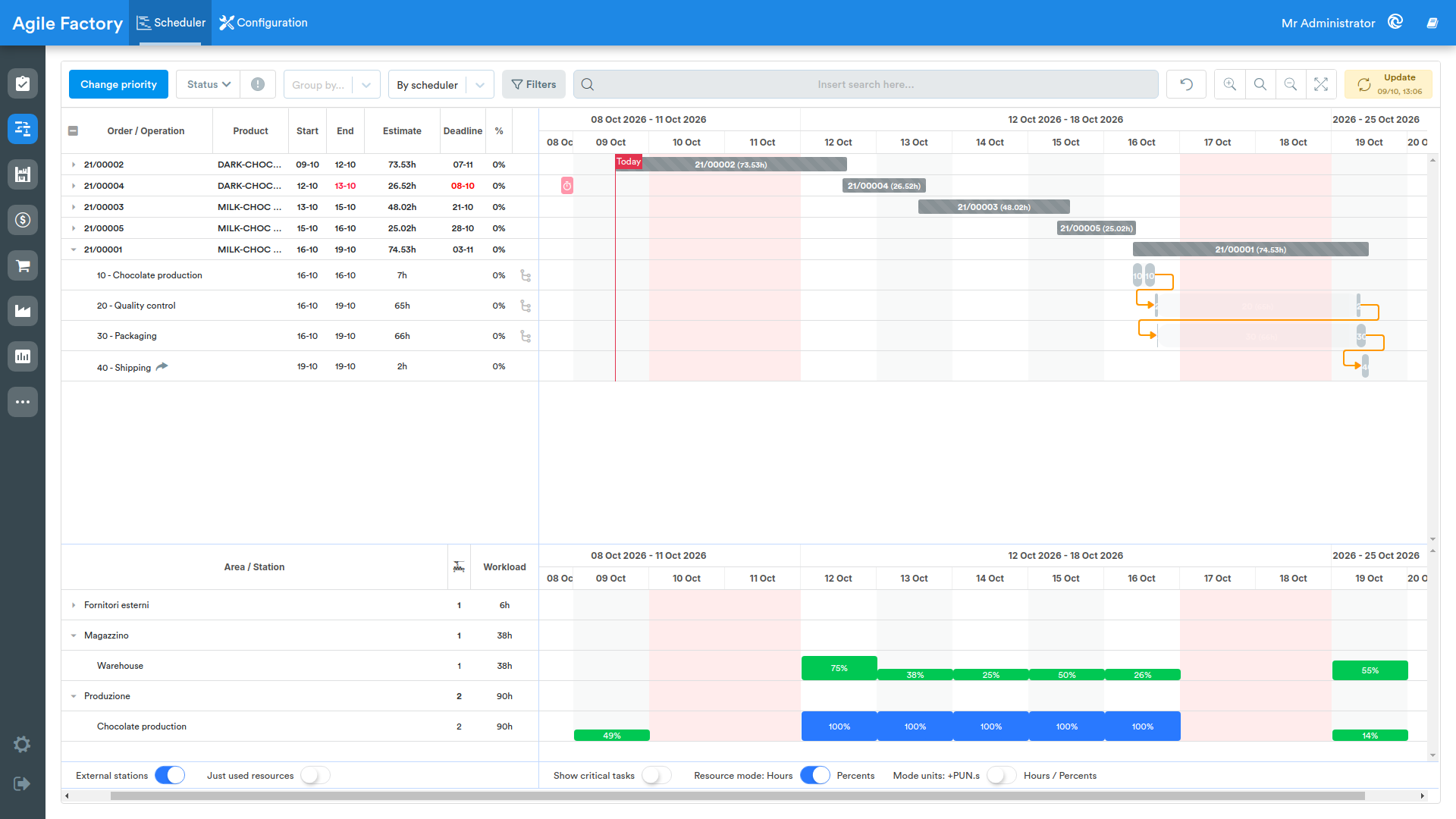
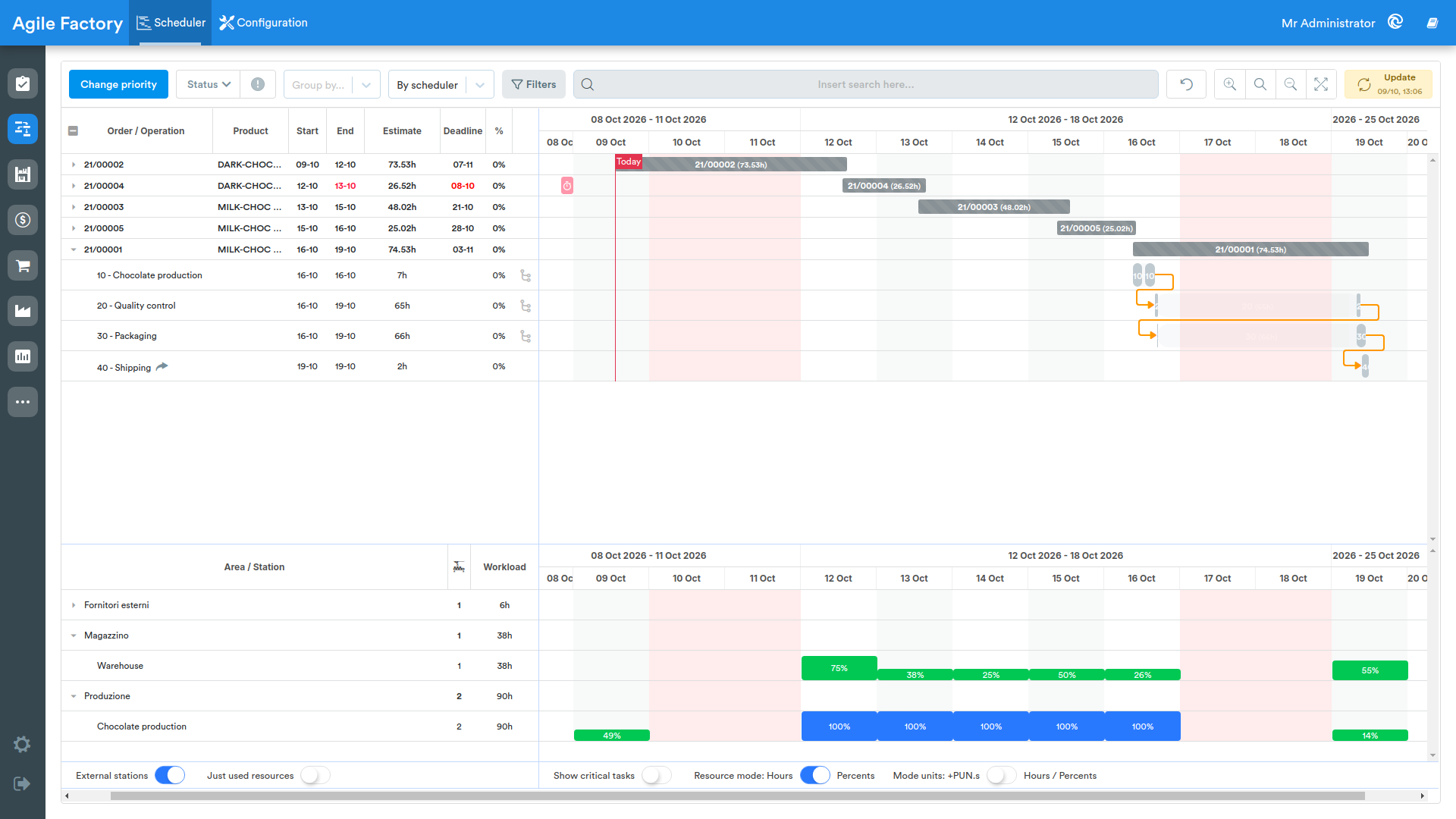
Ongoing operations look different from those not yet started. During production operations, to the left of the today line a separate "timeline" is displayed, which represents the execution history, colored with the colors of the "steps".
Activity Details
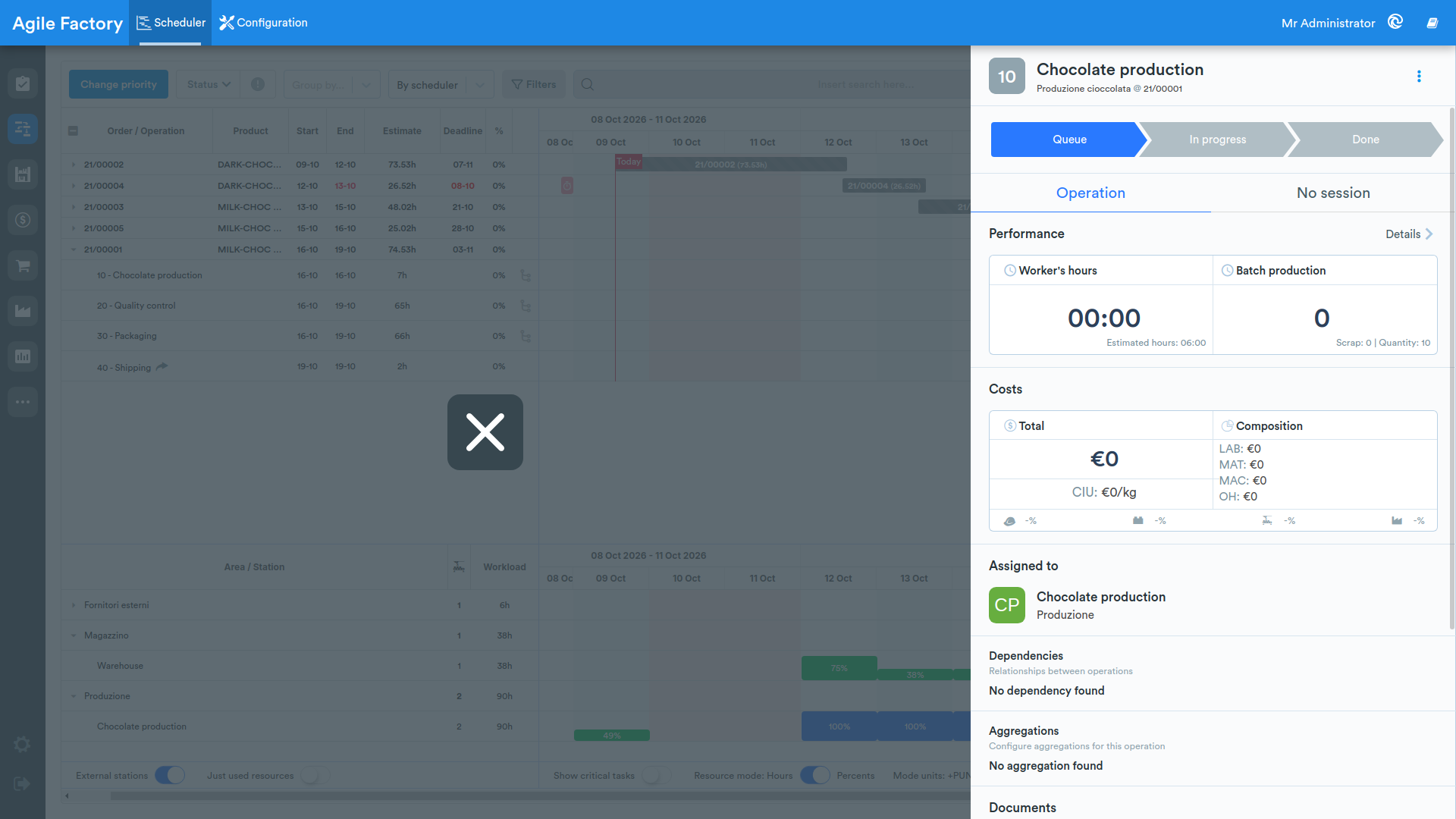
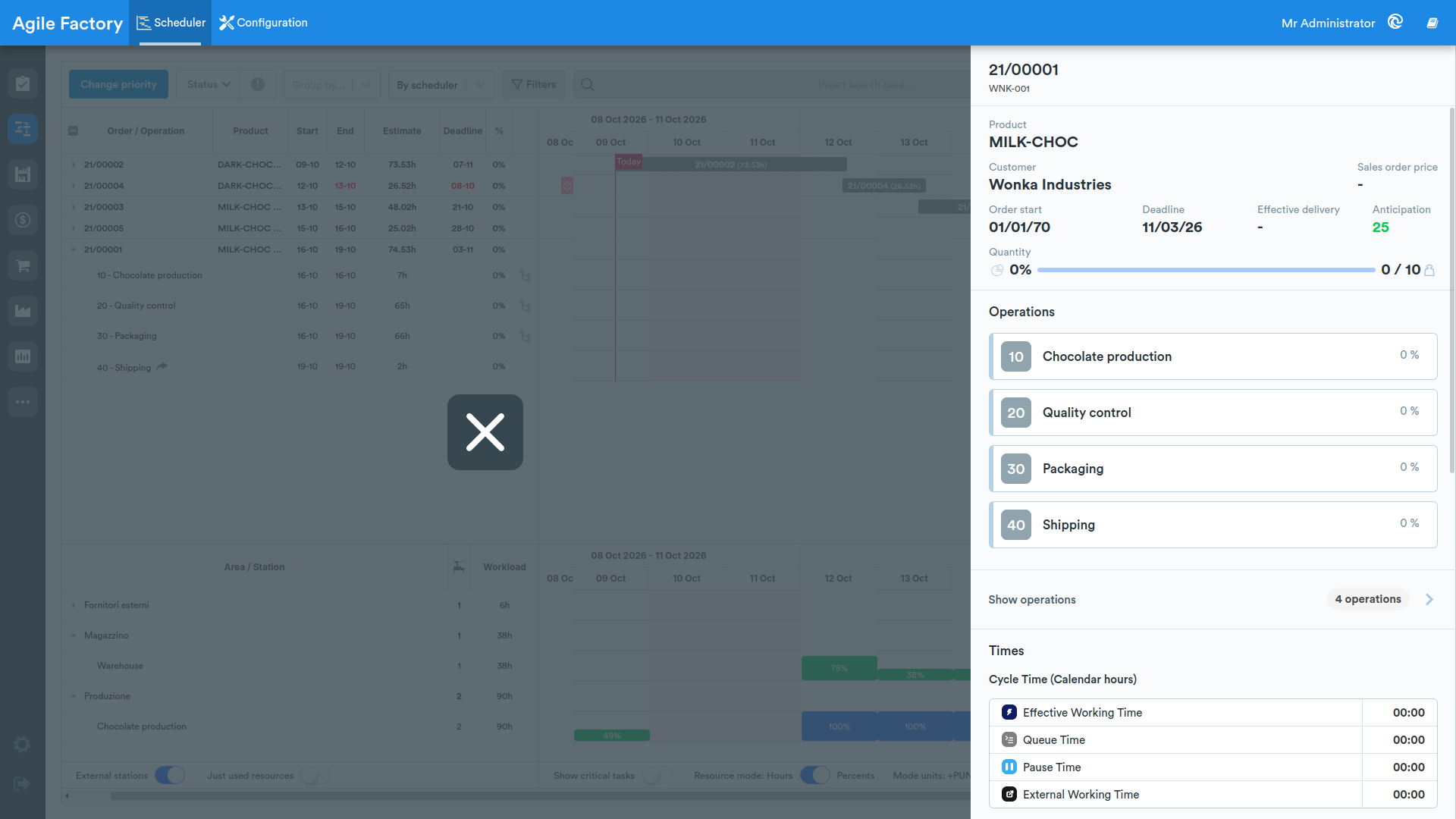
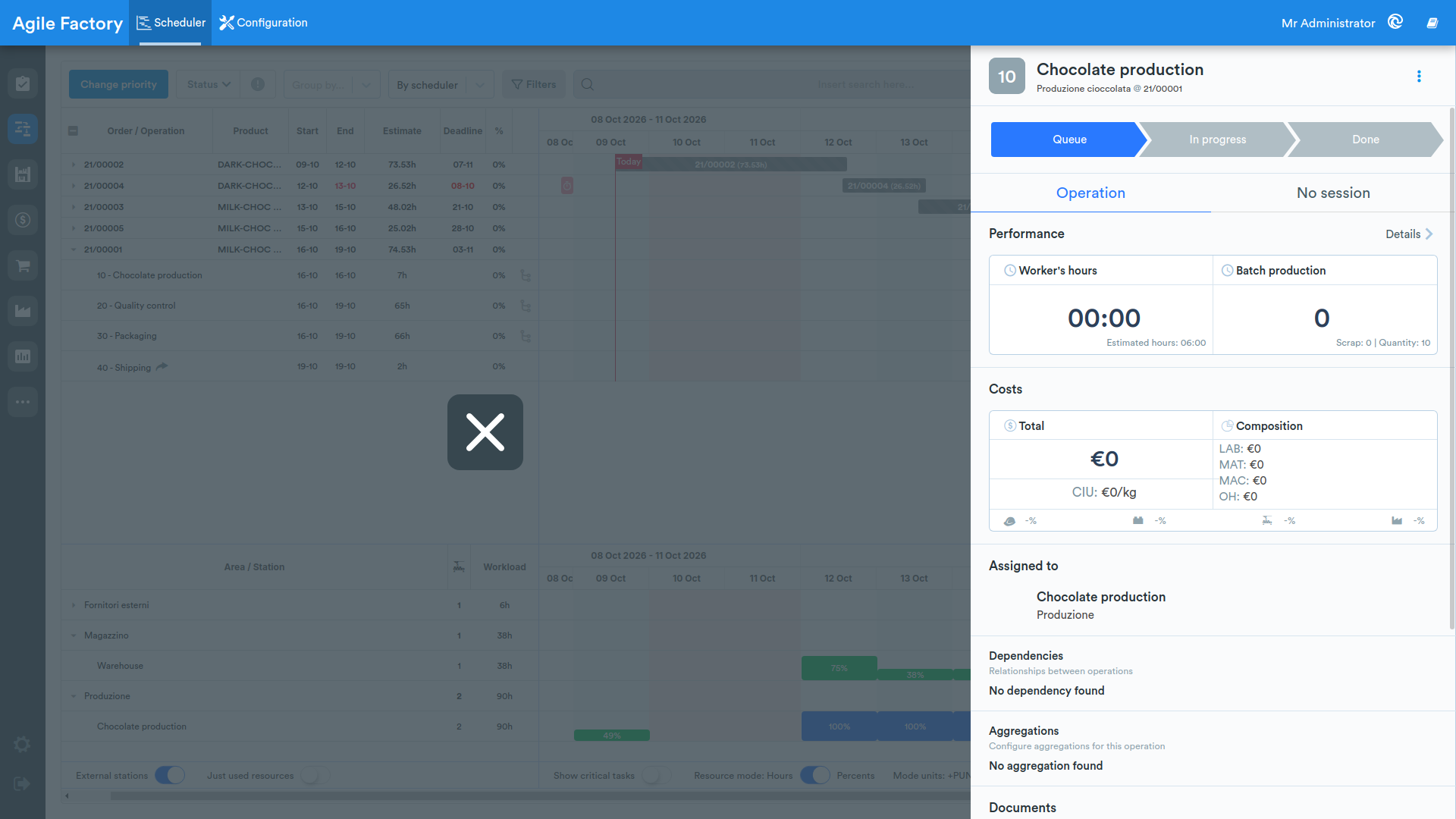
By double-clicking on an order or operation, it is possible to obtain detailed information on actual KPIs, view details of completed work sessions and evaluate the effectiveness of job execution.
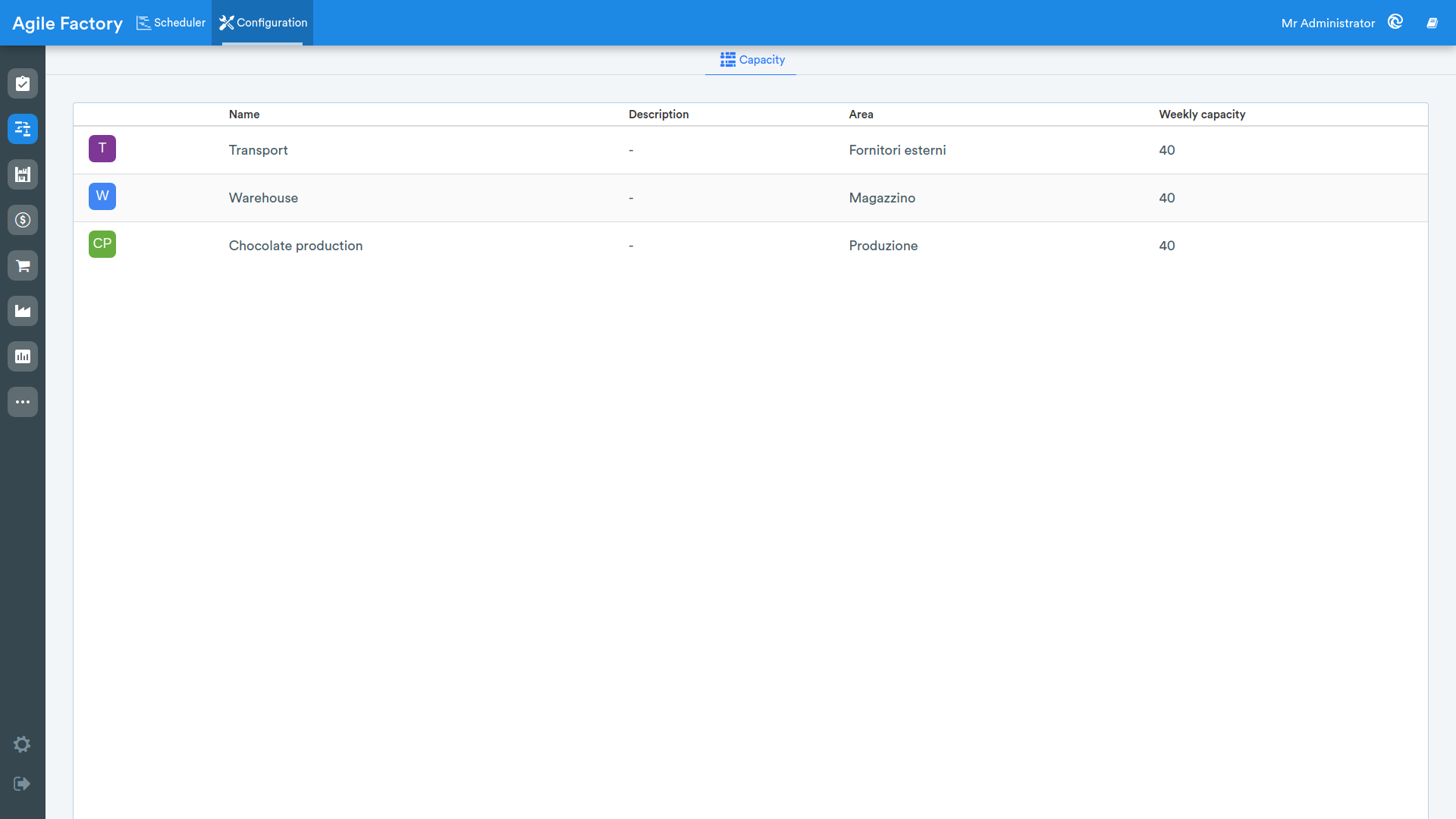
Station Capacity
In the Configuration section, at the moment it is only possible to obtain information on the capacity of production stations, expressed in hours. In the future, custom scheduler settings will be available in this section.