Online Catalogs ✨
The Online Catalogs module lets you compose and publish online a catalog of any items, products or services managed in the MES, making them available as an online catalog or marketplace for a production facility's customers through a public web page with a slug-based URL. The module is generic by design: the Catalog type field ranges from Food & Menu to Industrial products, Services, Items and Other. Alongside the catalog sits a booking layer — groups, members, bookings and a summary dashboard — conceived as a set of generic building blocks reusable for any reservation scenario. The first verticalization built on it is, as an example, meal booking in collective-catering contexts (e.g. healthcare), with menus split by slot/category and bookings with a cutoff time.
The module is optional and is enabled through the add-on features CATALOG:COLLECTIONS, CATALOG:BOOKINGS, CATALOG:DASHBOARD and CATALOG:SETTINGS. When enabled, the Online Catalogs entry appears in the sidebar and opens a secondary navigation bar with four tabs: Catalogs, Bookings, Dashboard and Members.
The following documentation covers mainly the Manager (backoffice) interface. The public app used by operators and end users to place bookings is a separate application: its public-facing screens are nonetheless illustrated below for context (see Public storefront).
Catalogs
List view
The Catalogs tab shows the list of catalogs in a table with the following columns:
- Name: the catalog's name and code (the code is generated automatically by the system).
- Status: the catalog's status (see Status lifecycle).
- Access: the access mode of the public page (Public, Access code or Authenticated).
- Responsible: the user responsible for the catalog.
- Customers: the customers the catalog is associated with.
- Scheduling: the catalog's start and end validity dates (see Scheduling).
- Completeness: a progress bar with the completion percentage and a sub-label in the form
{sections} Sections, {items} Items. - Updated at: date and time of the last change.
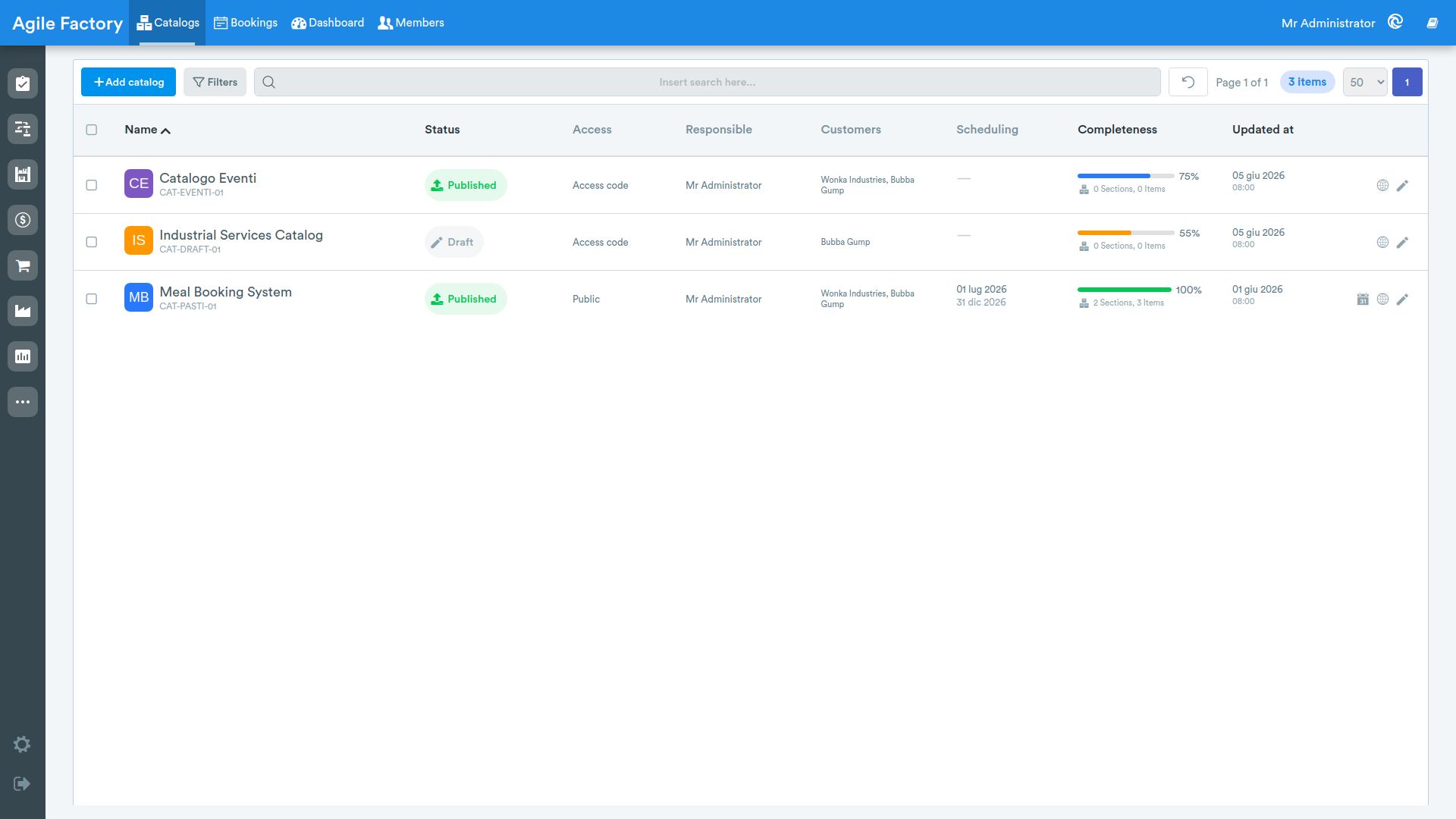
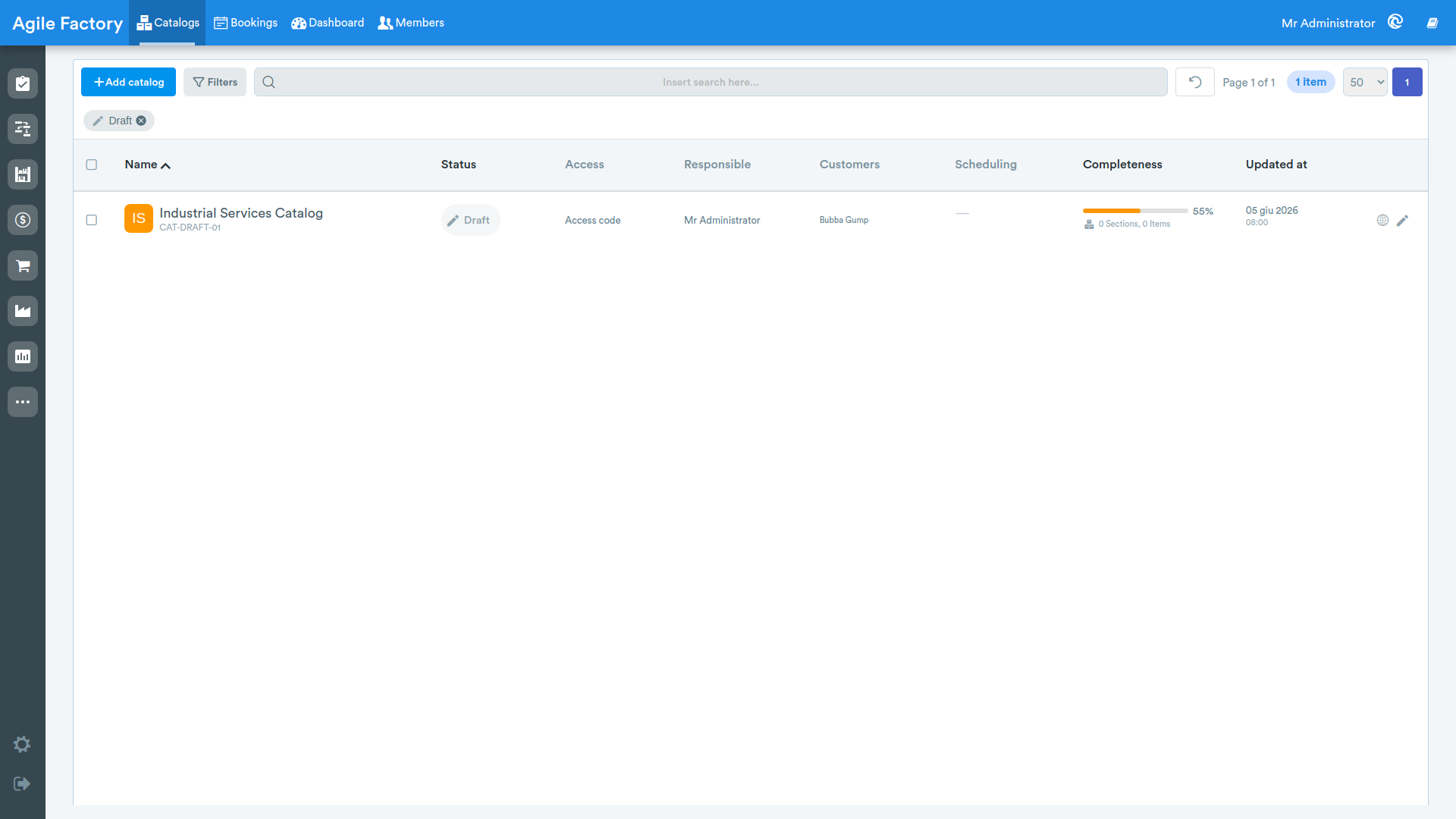
Above the table there are a search bar (by name, code or slug), a filter and the reset button 🔄️. The filter narrows the list by Status, Responsible and Customer; active filters are shown as chips below the toolbar. Column headers allow sorting. When one or more timetables are assigned to a catalog, its row also shows a quick-access icon to its scheduling.
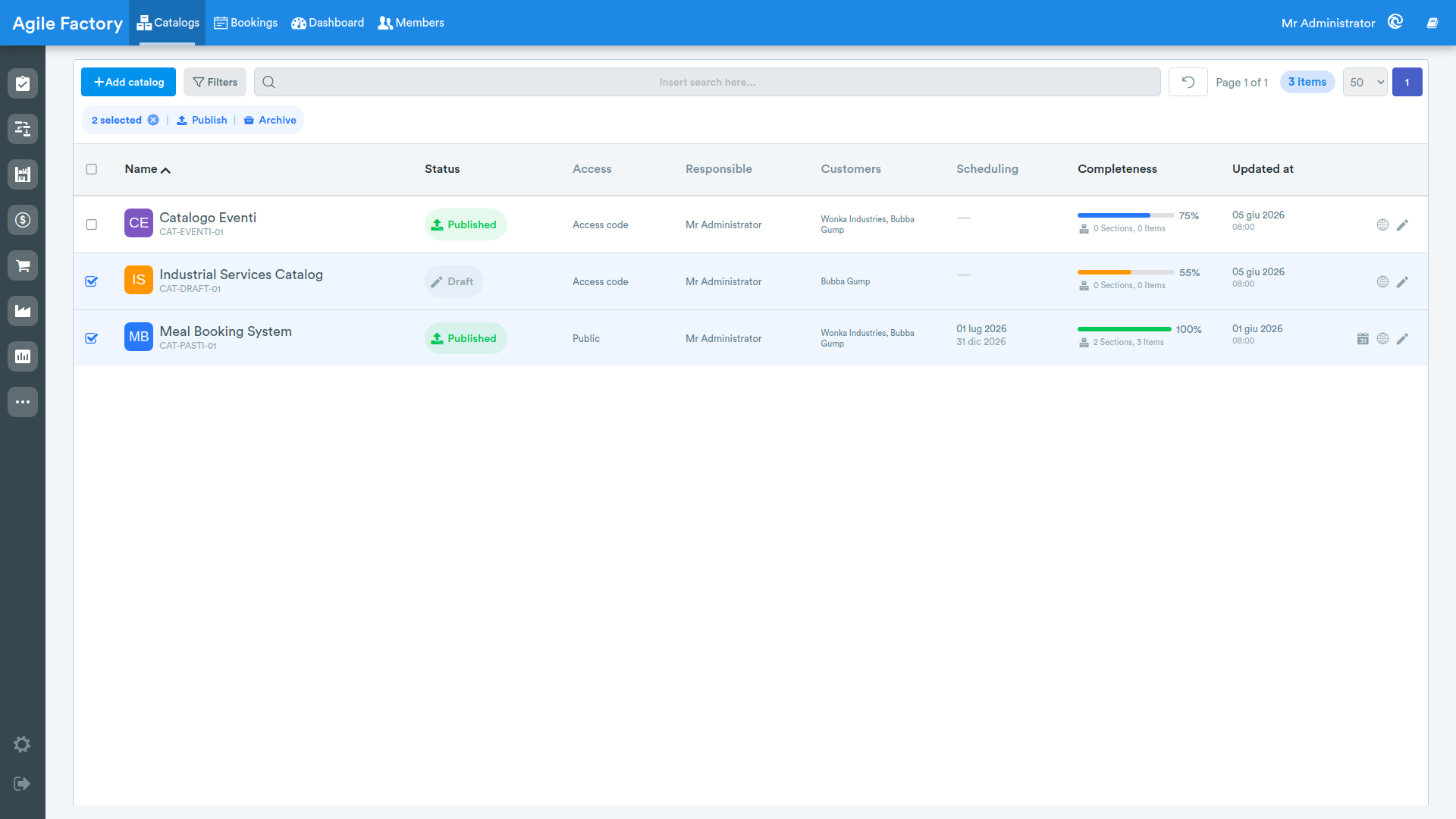
Selecting one or more rows via the checkboxes shows a selection bar that reports the number of selected items and offers the bulk actions Publish and Archive, along with the option to deselect.
Creating a catalog
The Add catalog button opens the creation form. The fields are grouped into four sections.
Information section:
- Catalog name (required).
- Catalog type (required): Food & Menu, Industrial products, Services, Items or Other.
- Main language: Italian, English, French, German or Spanish.
- Access mode (required): Public — accessible to everyone, Code — protected by access code or Authenticated — registered users only. Choosing Code reveals the Access code field.
- Responsible: the responsible user.
- Customers: multi-select of the customers to associate with the catalog (feeds the sales-order flow and the booking customer filter).
- Internal description: free text for internal use, not shown on the public page.
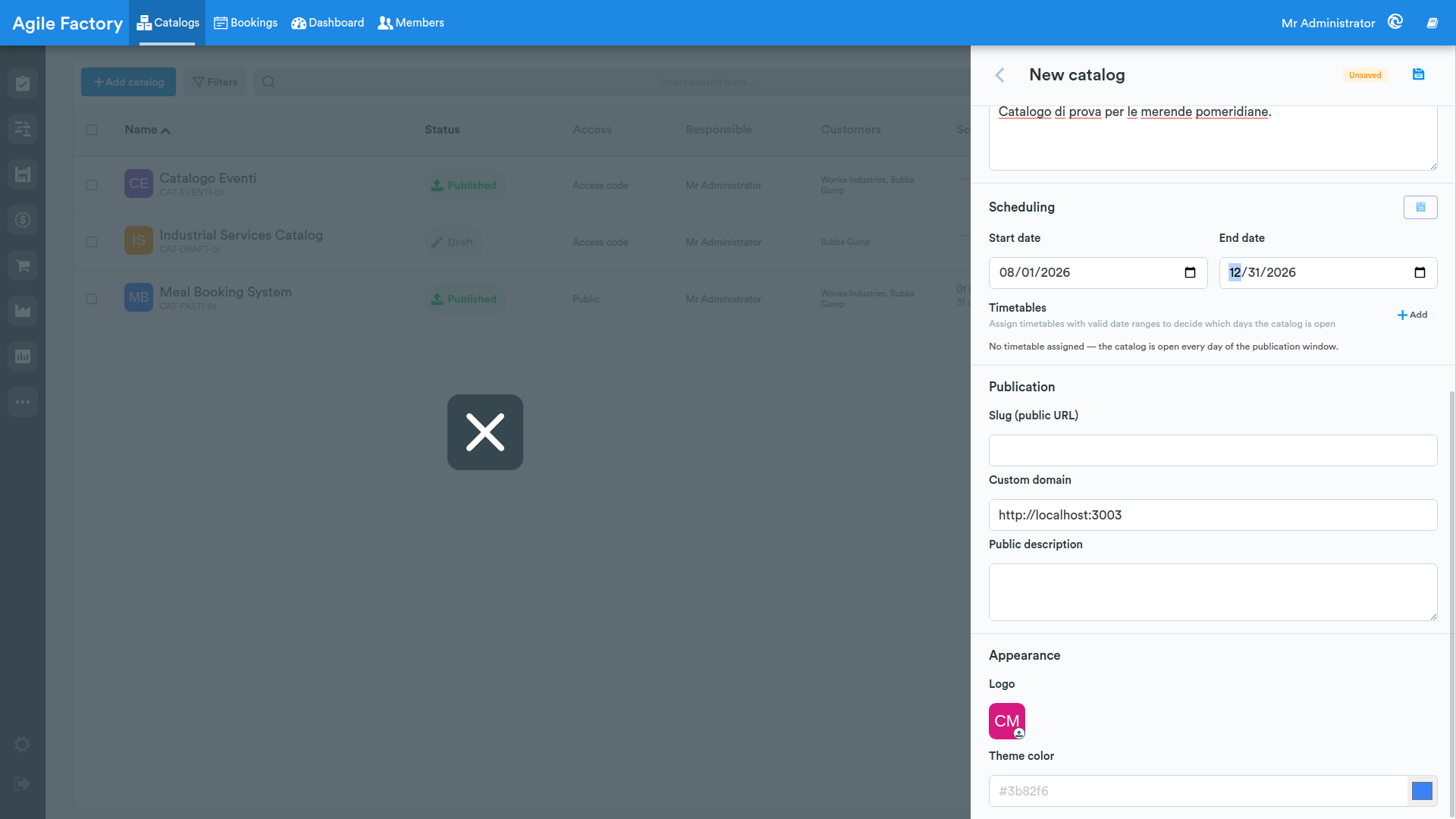
Scheduling section:
- Start date and End date: the catalog's publication window, set manually.
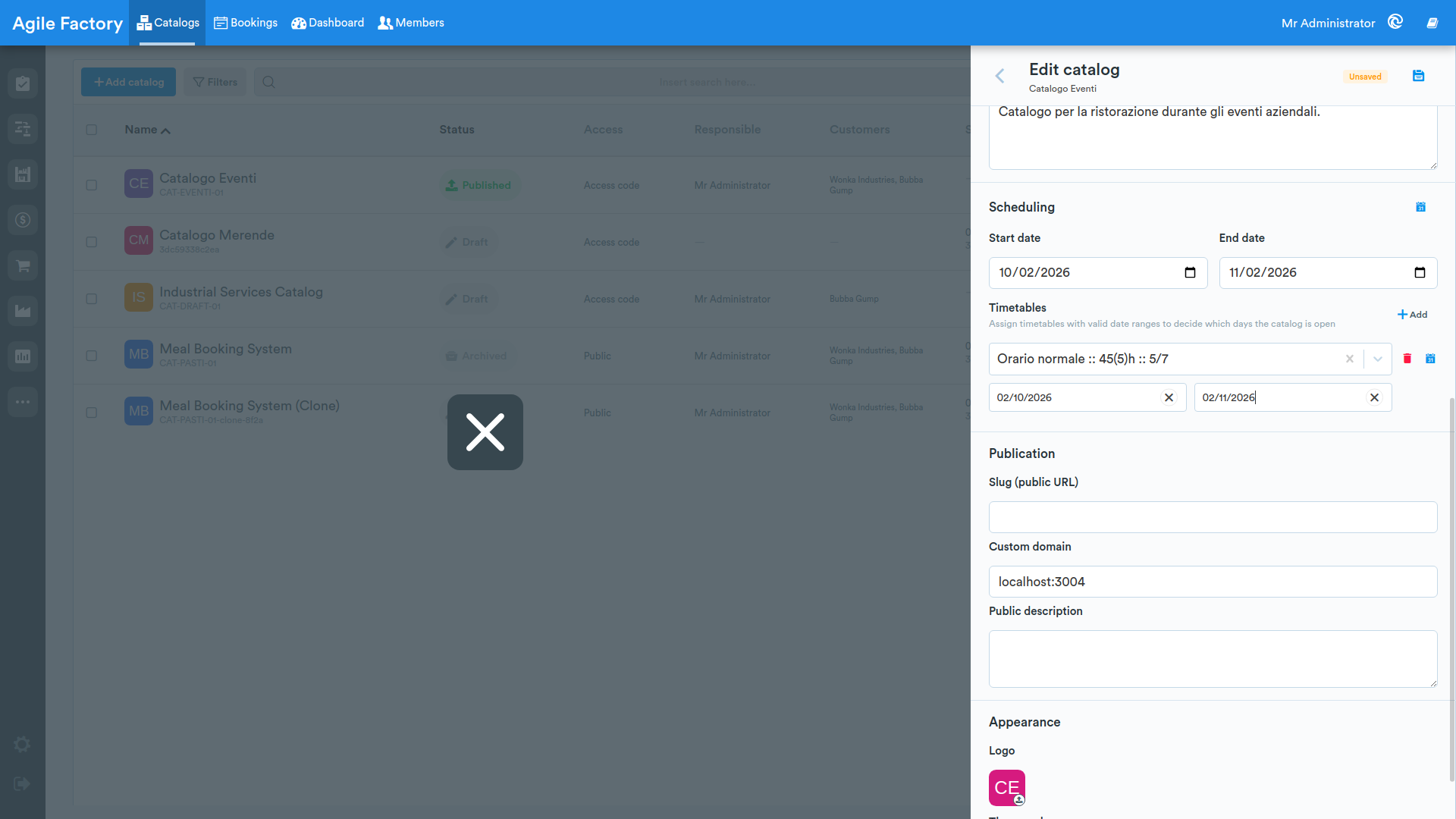
- Timetables: a list of timetables that can be assigned to the catalog, each with its own validity window (Start date/End date); the Add button creates a new row with a timetable picker, while the icons next to it let you remove the row or open a calendar preview for its window. If no timetable is assigned, the empty state "No timetable assigned — the catalog is open every day of the publication window." is shown. A 📅 button next to the section title opens a preview of the catalog's overall schedule (available only after the catalog has been saved once and at least one timetable is assigned) — see Scheduling.
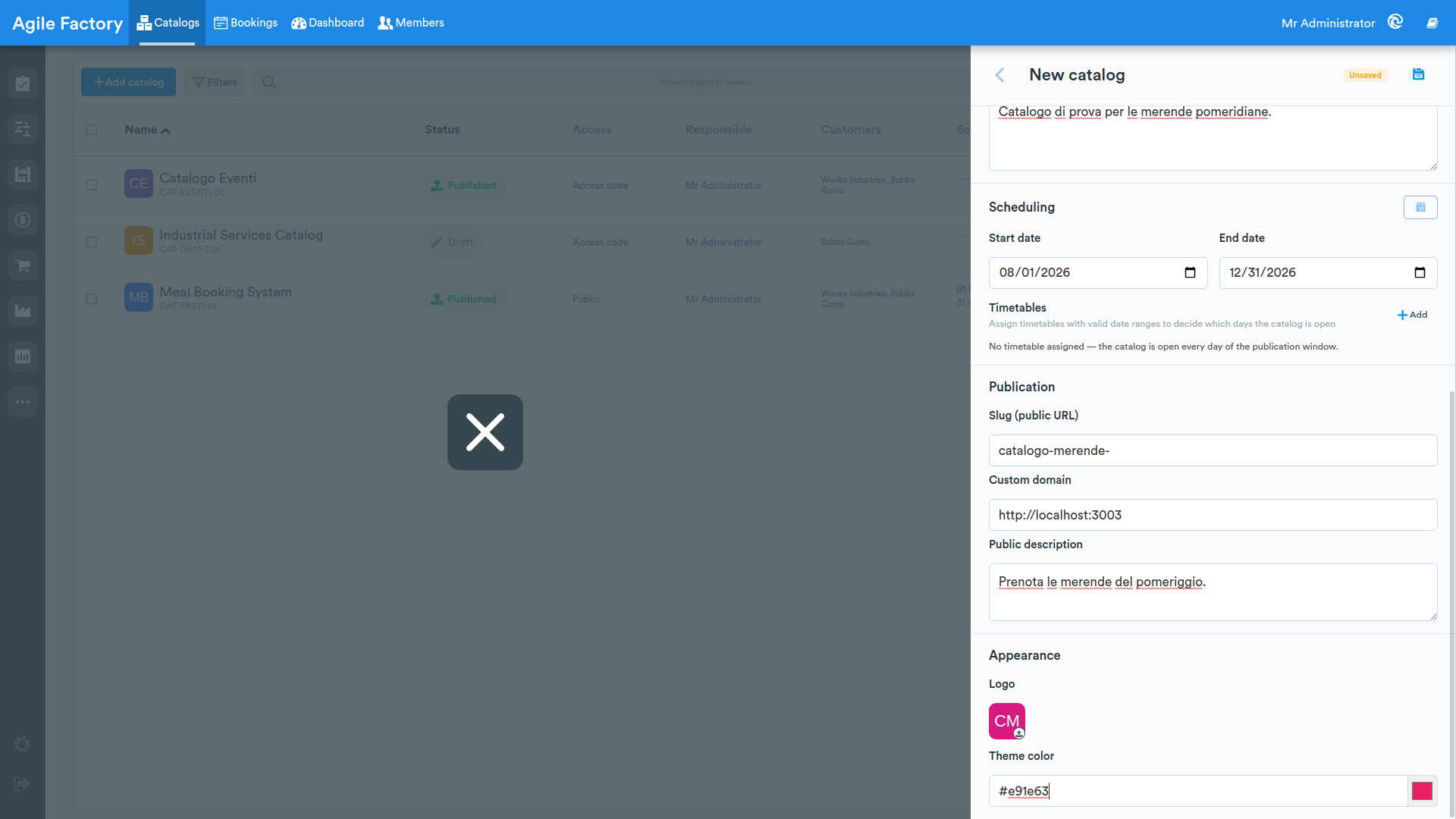
Publication section:
- Slug (public URL): the public URL key, normalized automatically as you type (spaces and unsupported characters are converted).
- Custom domain.
- Public description: text shown on the public page.
Appearance section:
- Logo: upload the logo image.
- Theme color: a hex field next to a color picker (Choose from palette).
The Code field is generated by the system and is not present when creating a catalog: it appears, read-only, only when editing an existing catalog. After saving, the new catalog appears in the list with status Draft.
Catalog detail
Clicking a row opens the detail panel. At the top, a stats strip reports Items, Sections, Completeness and Status; below it a bar with the Structure, Members, Scheduling and Publication tabs (the Members and Scheduling tabs carry a badge with, respectively, the number of members and the number of assigned timetables) and an Information section with the catalog data (name, code, type, access, customers, responsible, main language, descriptions, slug and, in a Scheduling row, the publication window and the assigned timetables — see Scheduling).
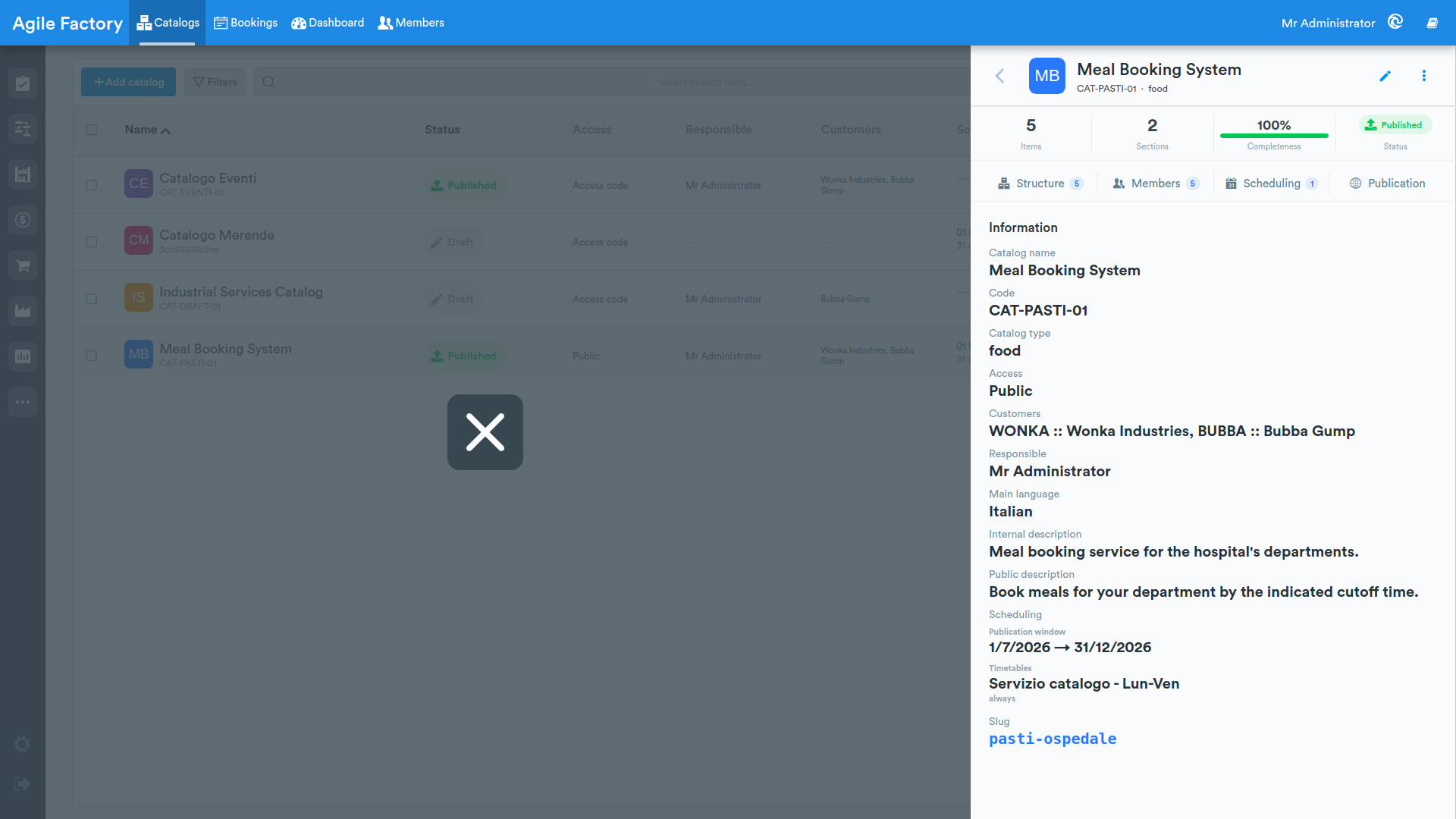
The edit button opens the catalog form; the ⋯ menu offers, depending on the current status, the actions: copy the public URL, Publish, Suspend, Archive, Clone and Delete. Actions that do not apply to the current status are hidden.
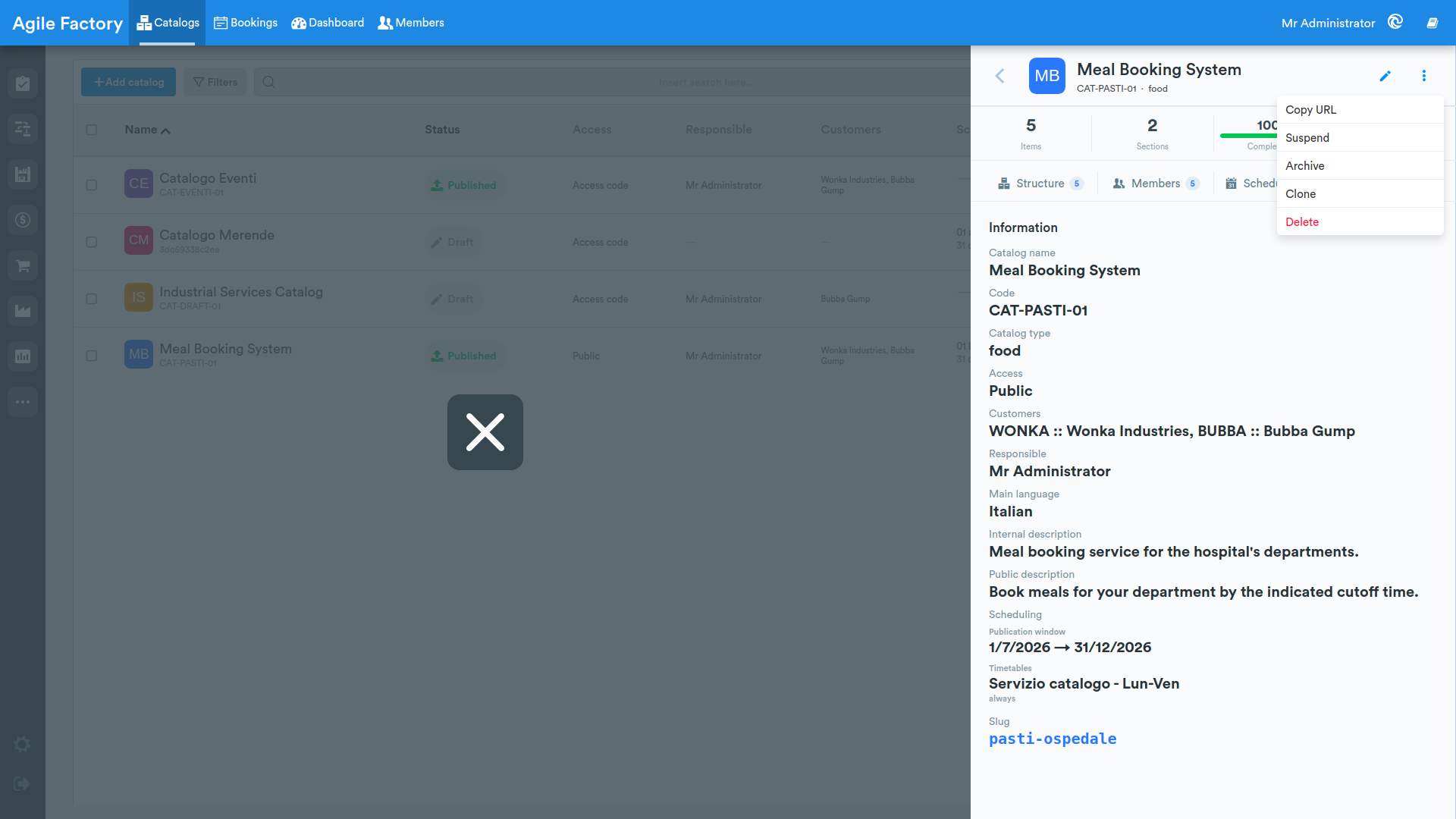
Status lifecycle
A catalog goes through the following statuses:
- Draft: the initial status of every new catalog.
- Under review.
- Published: the catalog is visible on the public page.
- Suspended: publication is temporarily interrupted.
- Archived: the final status.
The available actions depend on the status:
- Publish is available from Draft, Under review and Suspended.
- Suspend is available only from Published.
- Archive is available from Published and Suspended.
Transitions can be performed both from the detail ⋯ menu and from the Publication tab.
Structure
The Structure tab lets you compose the catalog content through categories and products.
At the top is the list of Categories. The Add section button creates a new category; for each category you can set, in edit mode, the Name, the Cutoff time, the Cutoff falls on the day before option and an Image. A toggle enables/disables the category. If there are products not assigned to any category, the Uncategorized tab appears at the end of the strip.
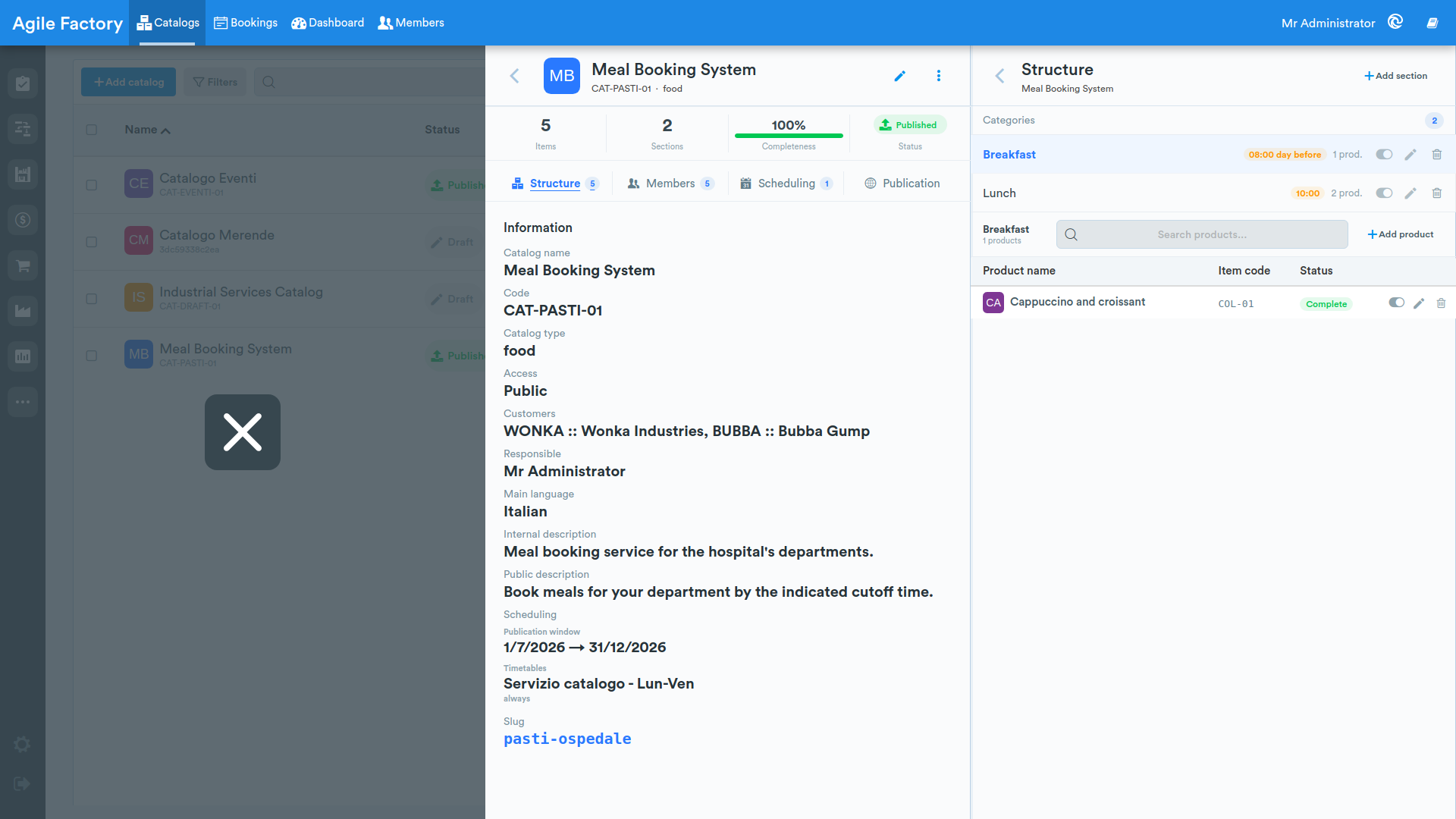
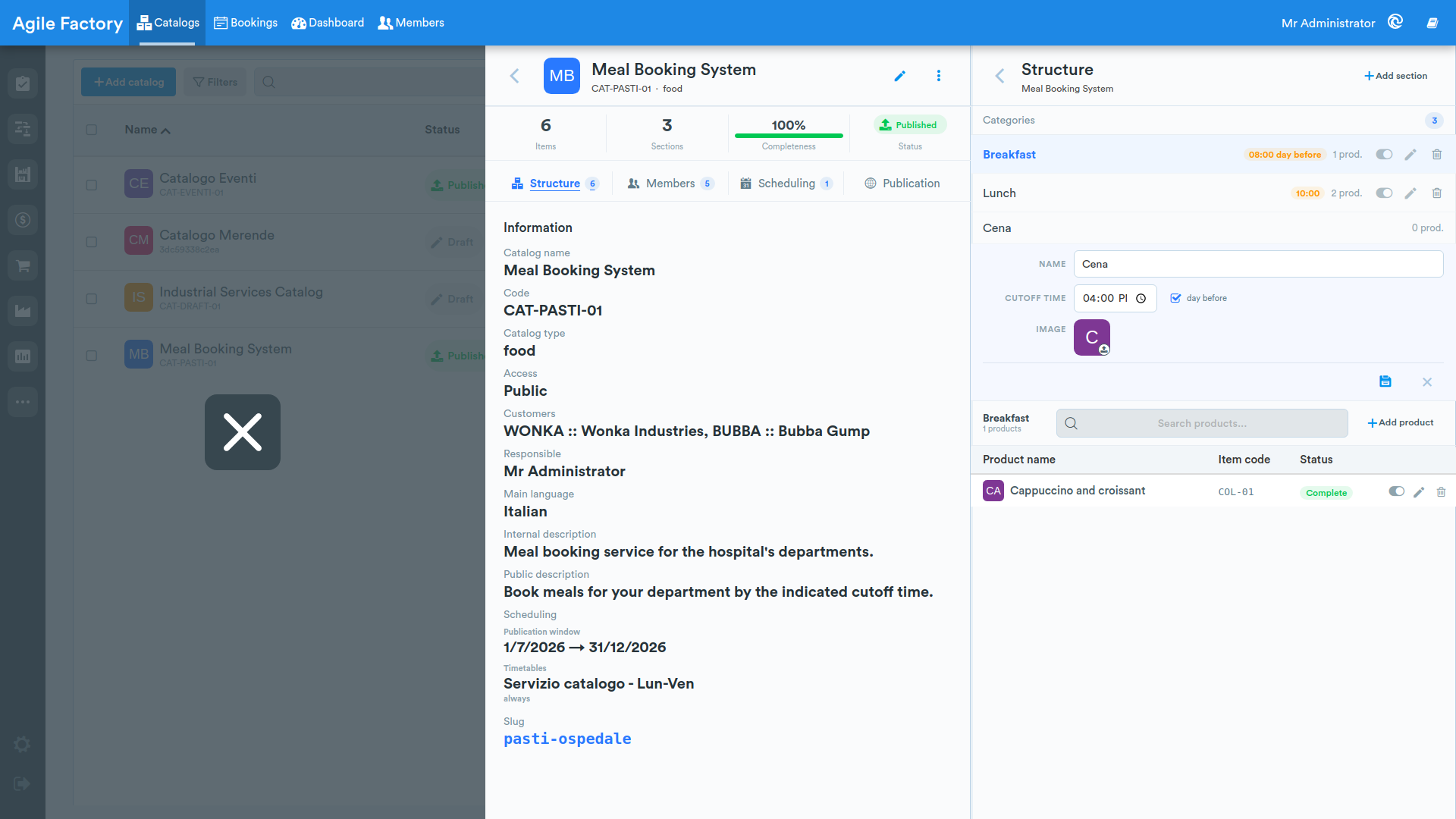
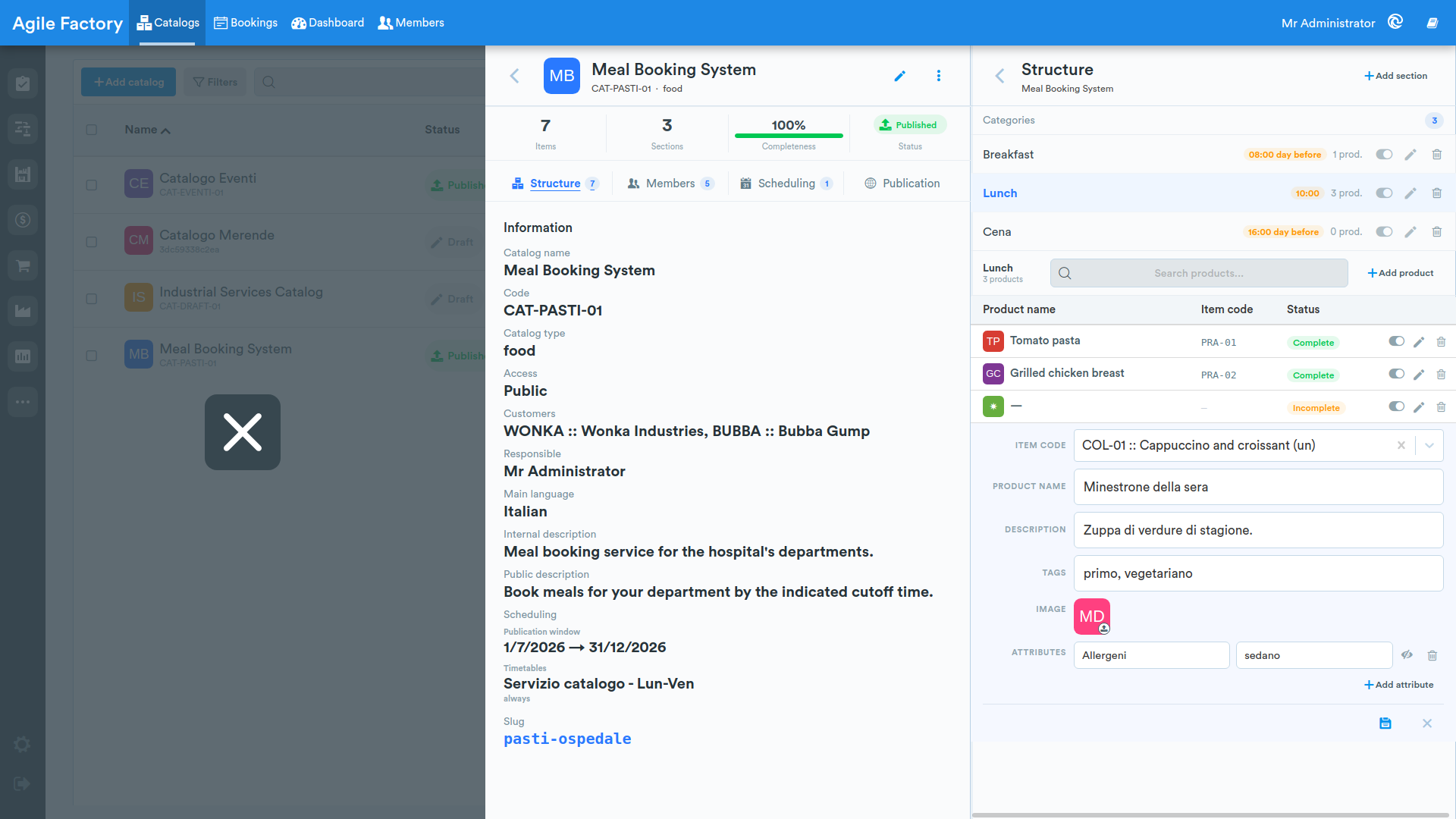
For the selected category the products table shows the columns Product name, Item code and Status. The Add product button adds a product and opens its edit panel, which contains:
- Item code: a link to a registry item through a picker.
- Product name and Description.
- Tags: keywords separated by commas.
- Image: the product's own image or one inherited from the linked item (removable).
- Item props: a read-only panel with the custom properties of the linked item flagged as publishable online (numeric values show their unit of measure, booleans show Yes/No, multiple values are joined with commas).
- Attributes: free key/value pairs, each with a visibility toggle that controls whether it is published on the public page.
A status badge indicates whether the product card is Complete or Incomplete based on the presence of product name, item code and description.
Catalog members
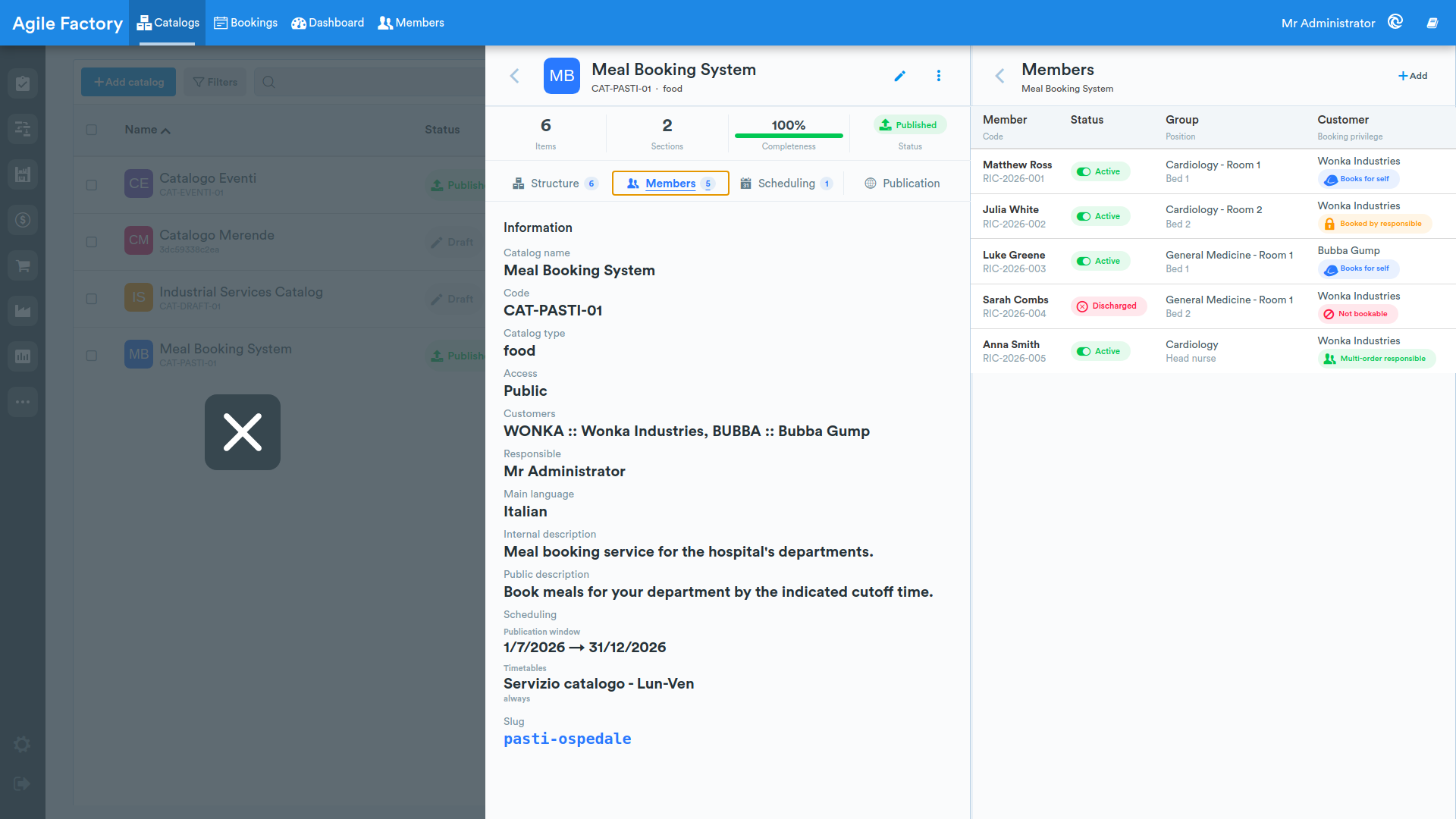
The detail's Members tab lists the members associated with the current catalog in a table, with the columns Member (and Code), Status, Group (and Position) and Customer (and Booking privilege). The Add button creates a new member already linked to the catalog, while clicking a row opens the member detail (the same data managed in the Members view).
Scheduling
The detail's Scheduling tab reports the catalog's Publication window and the list of assigned Timetables, each with its name and validity window (or "always" when unbounded, from {date} / until {date} when open on only one side). Below, a monthly calendar shows, for each day, whether the catalog is Open, Closed or a Holiday, together with any shift ranges for the day; a legend recalls the three colors, and the count of open days for the current month is shown at the top. If no timetable is assigned to the catalog, the catalog is considered open every day of the publication window.
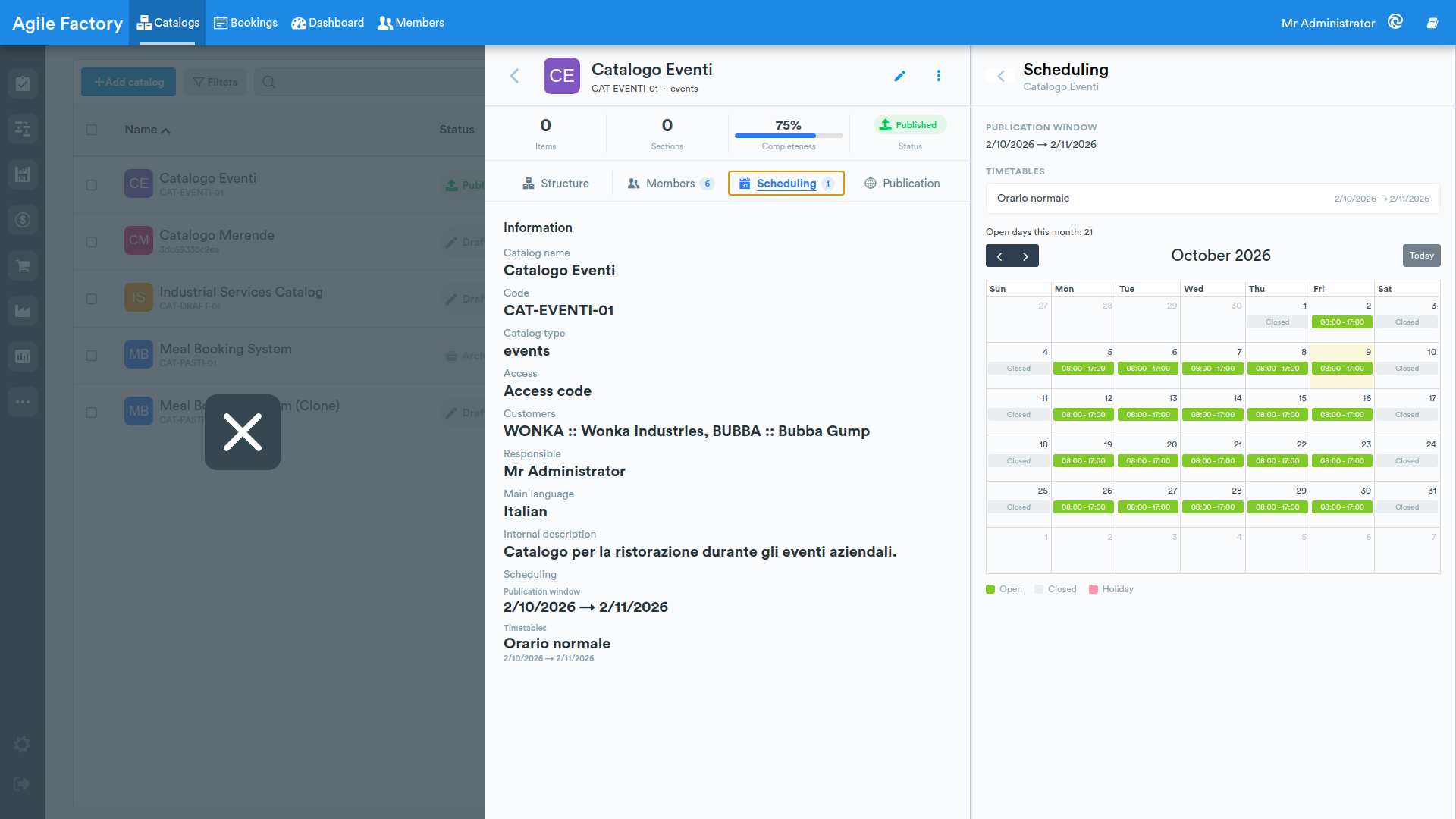
Scheduling can also be reached directly from the catalog list via the quick-access icon (shown only when timetables are assigned to the catalog) and from the catalog edit form via the preview button in the Scheduling section.
Public storefront
Beyond the embedded preview available on the Publication tab, the published catalog is genuinely live on the public storefront that customers actually use, a separate external service distinct from the Manager interface. Here the storefront is captured in a mobile device view — customers usually reach it from their smartphone, via a QR code or a direct link — and it shows the avatar tinted with the theme color, the catalog name, the public description and a panel to start browsing.
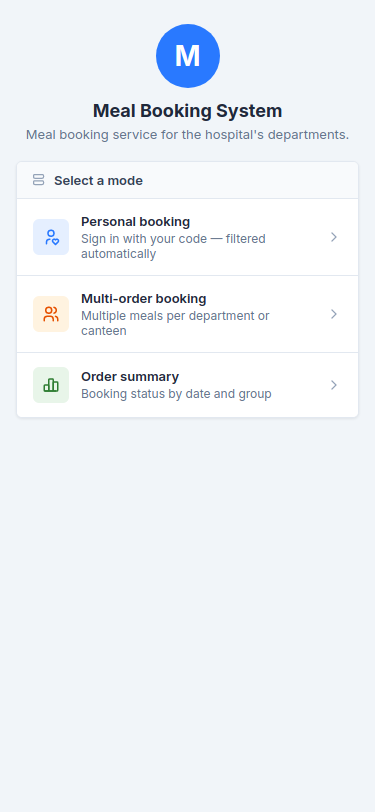
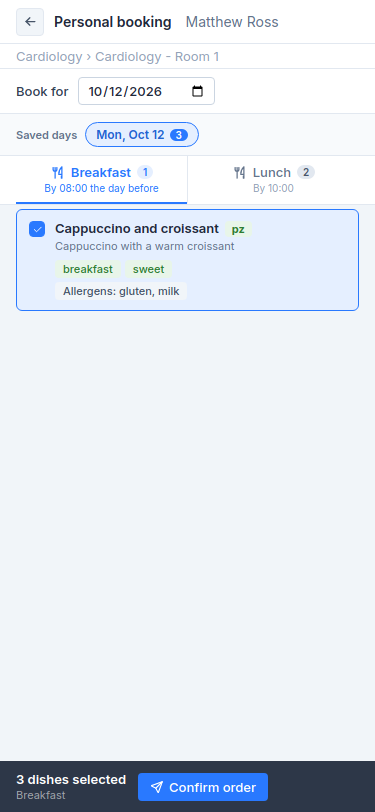
For catalogs configured as Meal booking, the storefront home offers the customer three paths: Personalized booking (sign in with your member code), Multi-order booking (for a department or canteen) and Order summary (a recap view for staff).
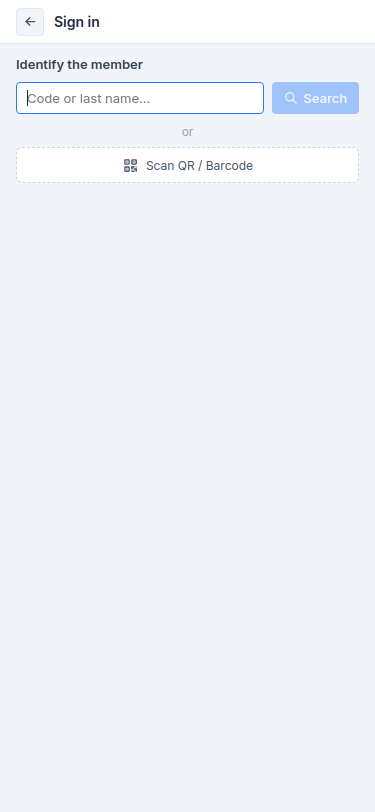
In Personalized booking, the member identifies themselves by entering their code (or surname) or by scanning their QR/barcode with the device's camera; an unrecognized code shows an error message without leaving the page.
Once identified, the personalized menu pre-fills and locks whatever the kitchen has already confirmed for the section and date being browsed — to avoid duplicate orders — while still allowing new selections in other sections: only the genuinely new items are sent on confirm.
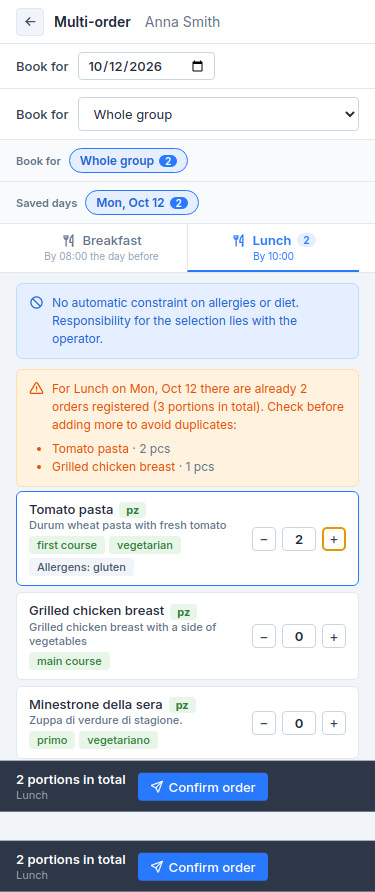
In Multi-order booking, meant for a department/canteen's responsible, selection happens by quantity rather than by single dish, and a warning flags any orders already registered for the same section and date before adding more.
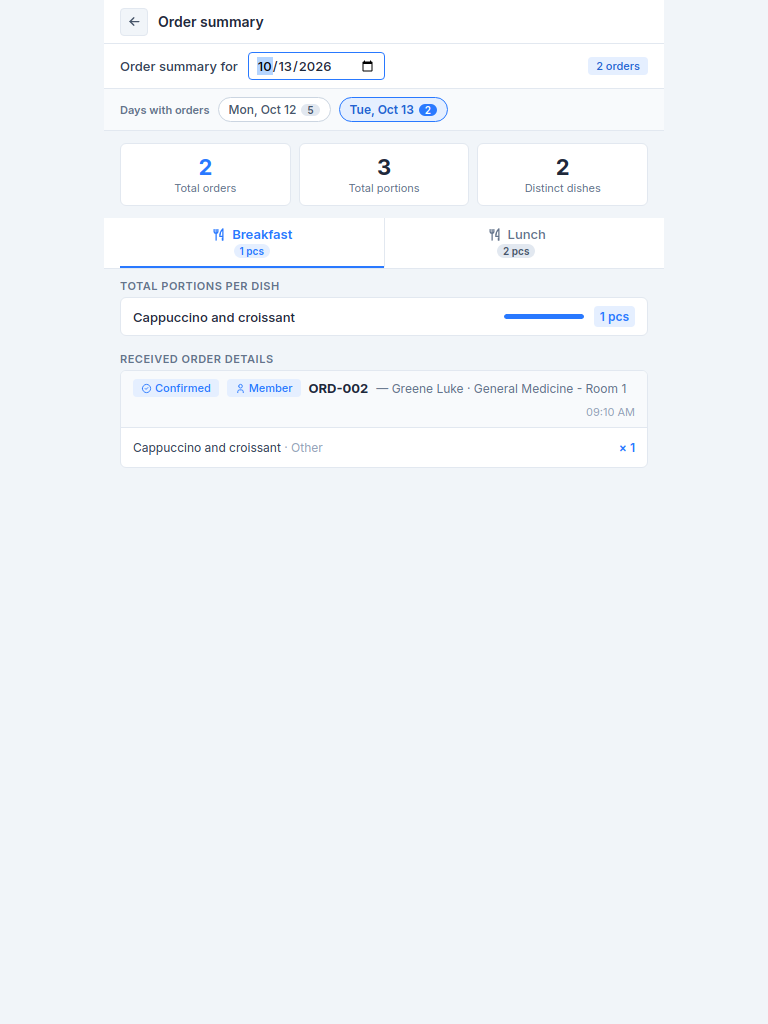
Order summary, meant for staff, shows the totals of orders, portions and distinct dishes for the selected date, the breakdown per section and the list of individual orders received — the same underlying per-section, per-dish booking data used by af-manager's own Dashboard tab, though that view aggregates over a date range rather than a single day.
Publication
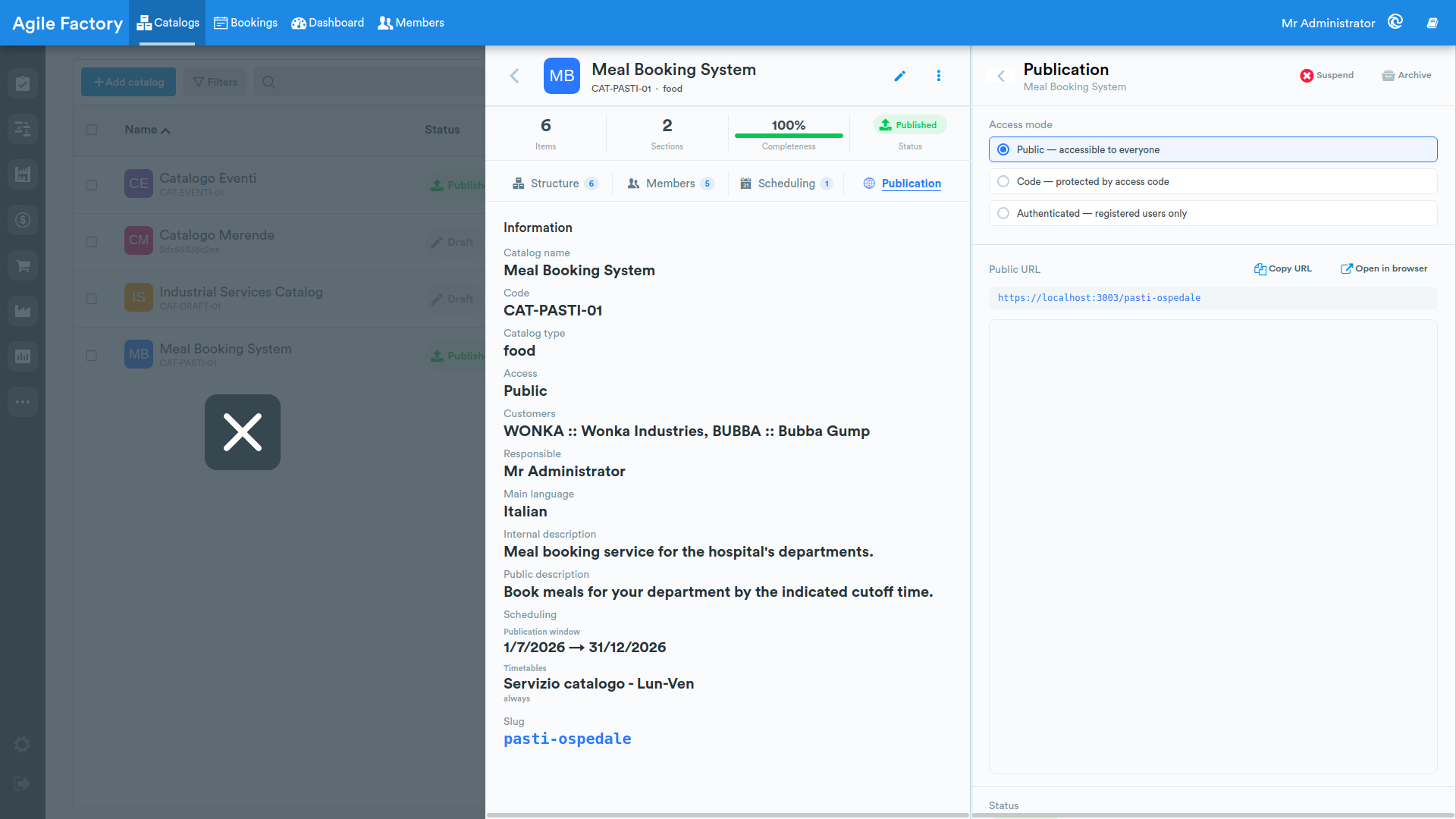
The Publication tab lets you manage the Access mode (Public, Access code, Authenticated), review and copy the Public URL, and view the Status with the last-modified date. The Publish, Suspend and Archive actions are also available from this tab, with immediate status update.
Below the Public URL an embedded preview of the catalog's public page is shown, together with the Open in browser button. If the catalog has no slug, the empty state No slug defined. is shown with an invitation to add one, in place of the preview.
Cloning
The Clone action in the ⋯ menu creates a copy of the catalog: the copy gets a new code, is reset to Draft status and keeps the section/product tree intact.
Members
The Members navigation entry (path /catalog/settings) presents a single expandable tree view that unifies groups and booking members into one hierarchy: parent group → child groups → members at the leaf level. It requires selecting a catalog from the picker at the top.
Groups & members tree
Each group node is a band that reports the name, code, Group type, and the count of subgroups and assigned members, together with the Add subgroup, Add member, Edit and Delete actions; a chevron icon expands or collapses the branch, and the expansion state survives a page reload. A group's members load only once the group is expanded, and are shown as child rows with the columns Name, Code, Customer, Position, Booking privilege, Status and Updated at.
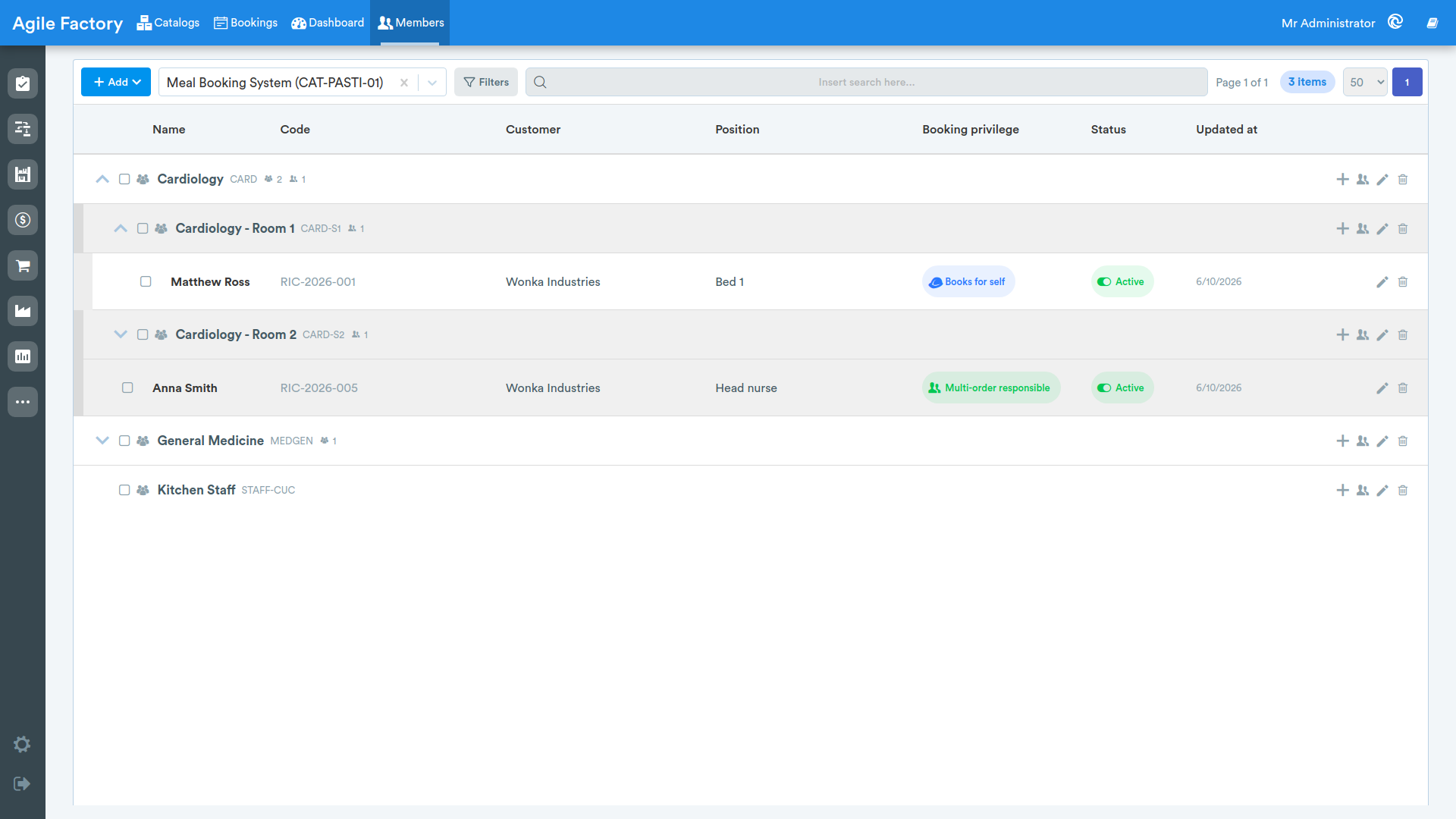
The Add button at the top is a dropdown offering Add group and Add member; starting "add member" from a group row pre-fills that group in the form. A search bar (by code, first name or last name) — which temporarily replaces the tree with a flat, paginated list — and a member Status filter, applicable to both the tree and the search results, are also available.
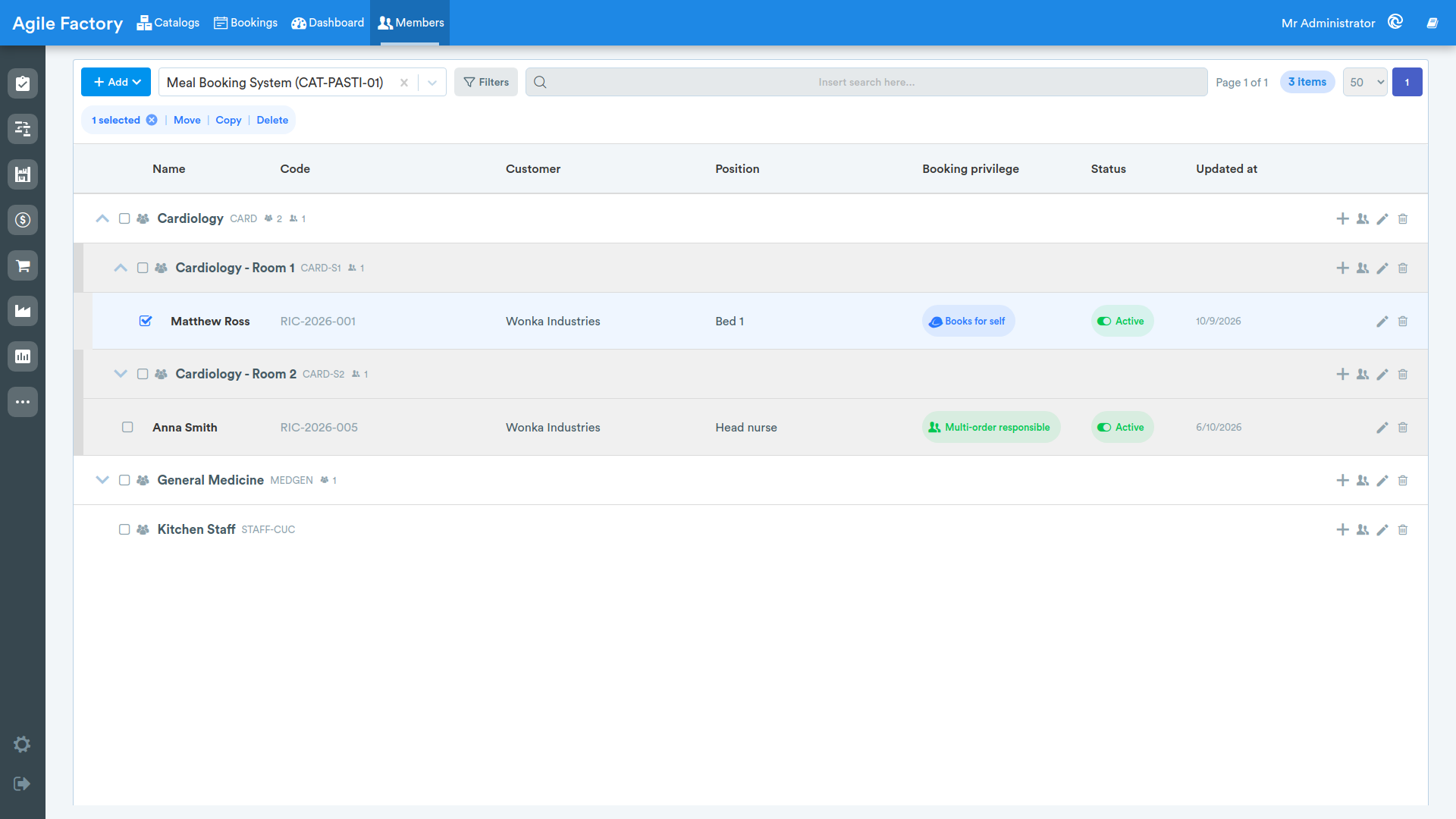
Selecting one or more rows (groups and/or members) via the checkboxes shows a selection bar with the bulk actions Move, Copy and Delete:
- Move re-parents the selected groups to the chosen destination group and moves the selected members not already carried by a moved group into that same group.
- Copy deep-copies the selected groups together with their subgroups and members (the code of copied members is cleared, since it must stay unique), and copies the individually selected members into the destination on their own.
- Delete removes, with a single confirmation, the whole subtree of the selected groups (subgroups and their members included) and the individually selected members.
A group cannot be moved or copied into itself or into one of its own descendants.
Adding and editing a group
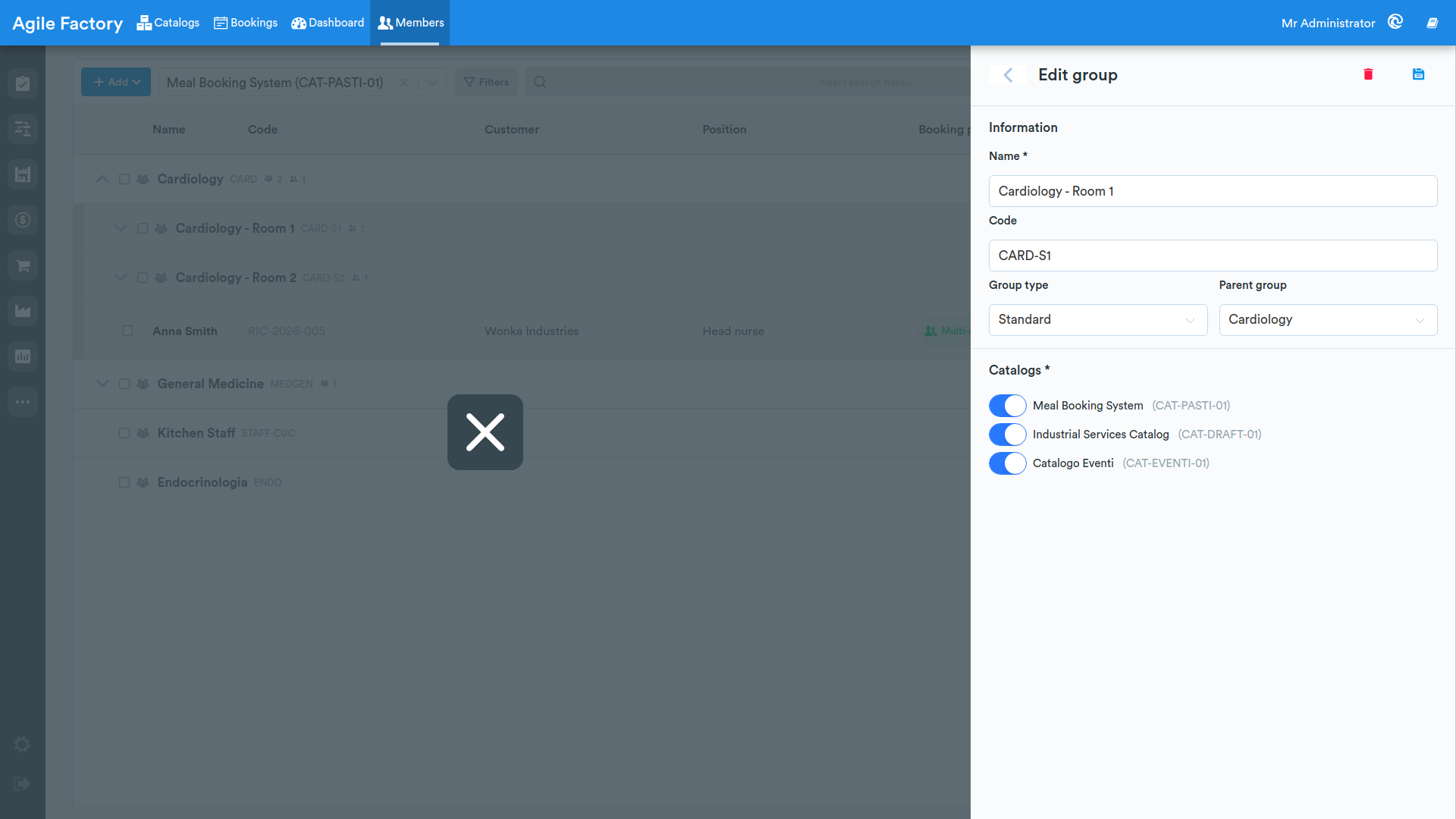
The group edit form contains the fields Name (required), Code — auto-suggested with the catalog's next free code for a new group and validated for uniqueness (a code already used in this catalog shows the message "This code is already used in this catalog." and blocks saving) —, Group type (Standard, Staff or VIP), Parent group (to build the hierarchy, pre-filled when adding a subgroup from a row) and the Catalogs section: a multi-select, with at least one catalog required, of the catalogs the group belongs to — the same group can therefore appear in the tree of more than one catalog. For an existing group, the Remove group action is also available, which cascades the delete to the whole subtree and all of its assigned members (with confirmation).
Member detail and edit
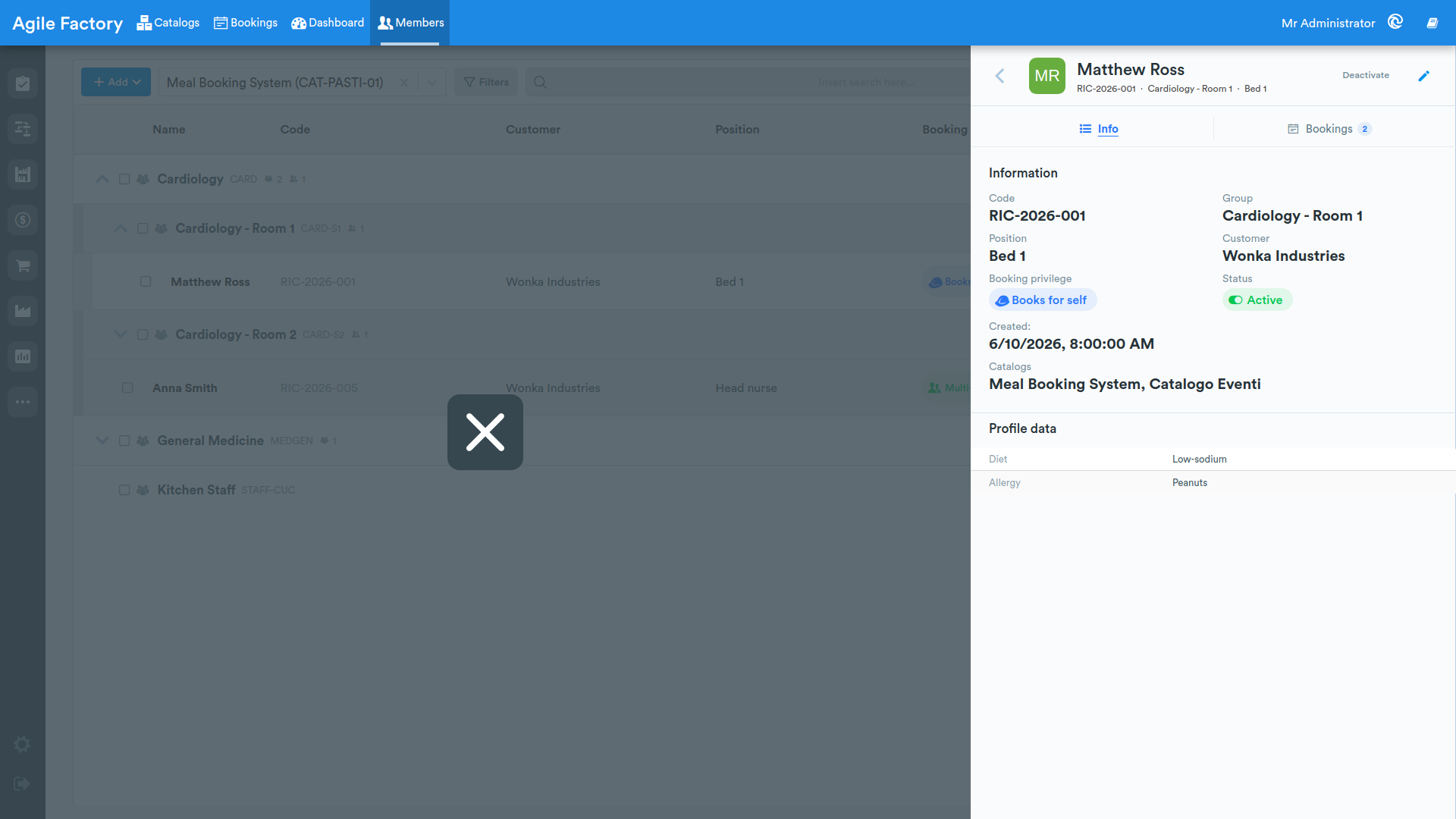
Clicking a member in the tree (or in the search results) opens its detail: a header with name, avatar, code, group and position, the Activate/Deactivate buttons to change its status, and the edit button; below it, the Info tab (code, group, position, customer, Booking privilege, status, creation date, associated catalogs, notes and the Profile data table) and the Bookings tab (the member's booking history, with a badge on the tab showing its count).
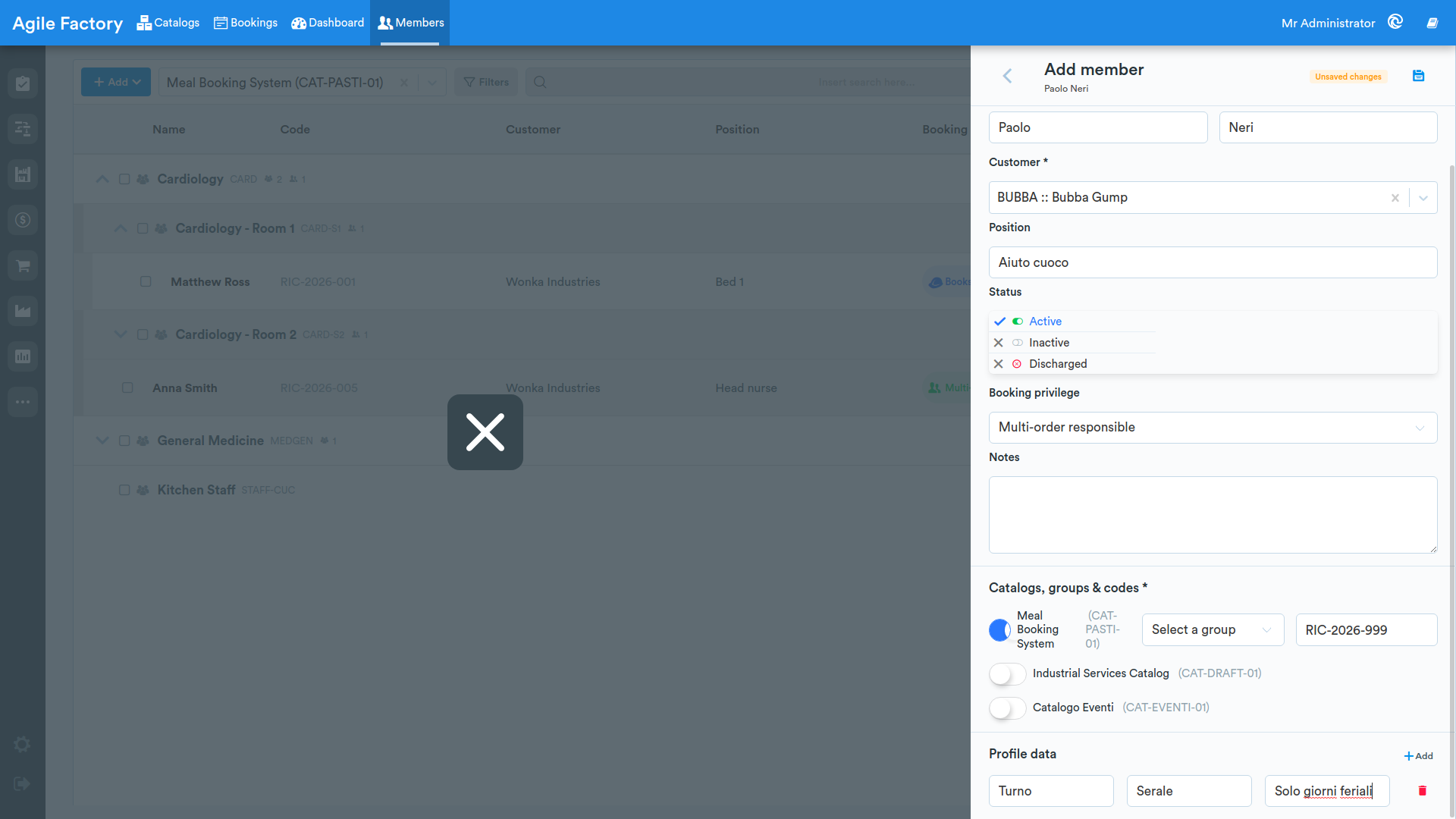
The member edit form contains the fields First name and Last name (required), Customer (required), Code — pre-filled with the system-generated next free code but editable, with live uniqueness validation (a code already used in this catalog shows the message "This code is already used in this catalog." and blocks saving) —, Group (required: a member cannot be saved without a group), Position, Status and Booking privilege, a dropdown with four options — Books for self, Multi-order responsible (books on behalf of several people, e.g. a whole department, without identifying them individually), Booked by responsible and Not bookable. Then come the Notes, the Catalogs section (multi-select, at least one catalog required) and the Profile data section, a generic repeatable list of key/value/notes rows for recording any domain-specific attributes (e.g. diet and allergies). For an existing member, the Remove member action is also available, which requires confirmation before the member is deleted.
Bookings
The Bookings tab lists the bookings of the selected catalog. At the top there are the catalog picker, a date-range filter, a category filter, a Status and Customer filter, the search bar, the reset button and pagination. The catalog picker only shows catalogs consistent with the active customer filter, if any.
The columns are: Date, Category, Member, Customer, Group, Status, Items (item count with the sub-label Qty: N for the sum of quantities), Booked at and Cutoff applied.
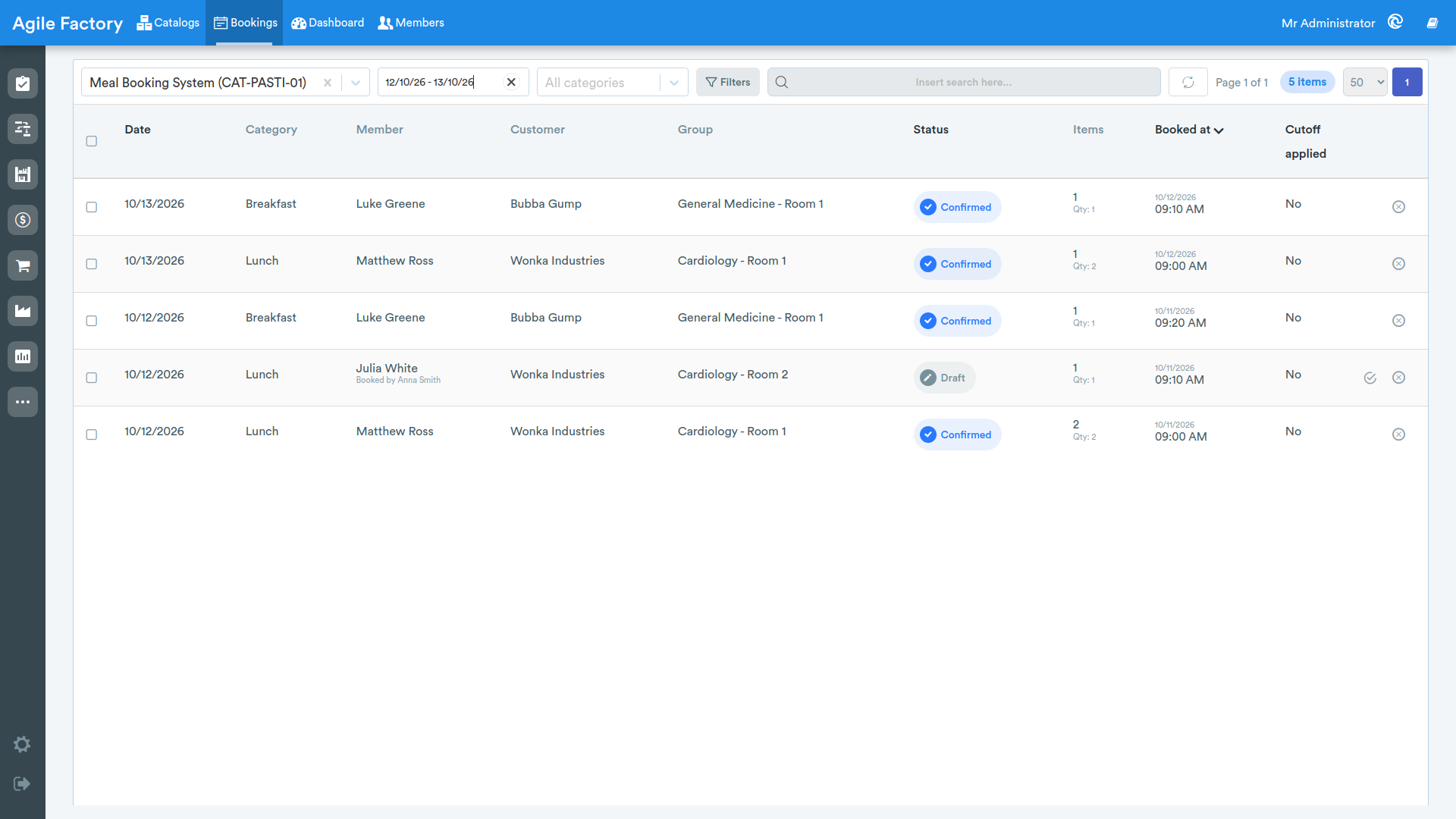
Each booking can take one of the following statuses: Draft, Confirmed, Modified, Invoiced, Delivered, Canceled or Archived. On individual rows, the confirm action is available for Draft and Modified bookings, while the cancel action is available for Draft, Confirmed and Modified bookings.
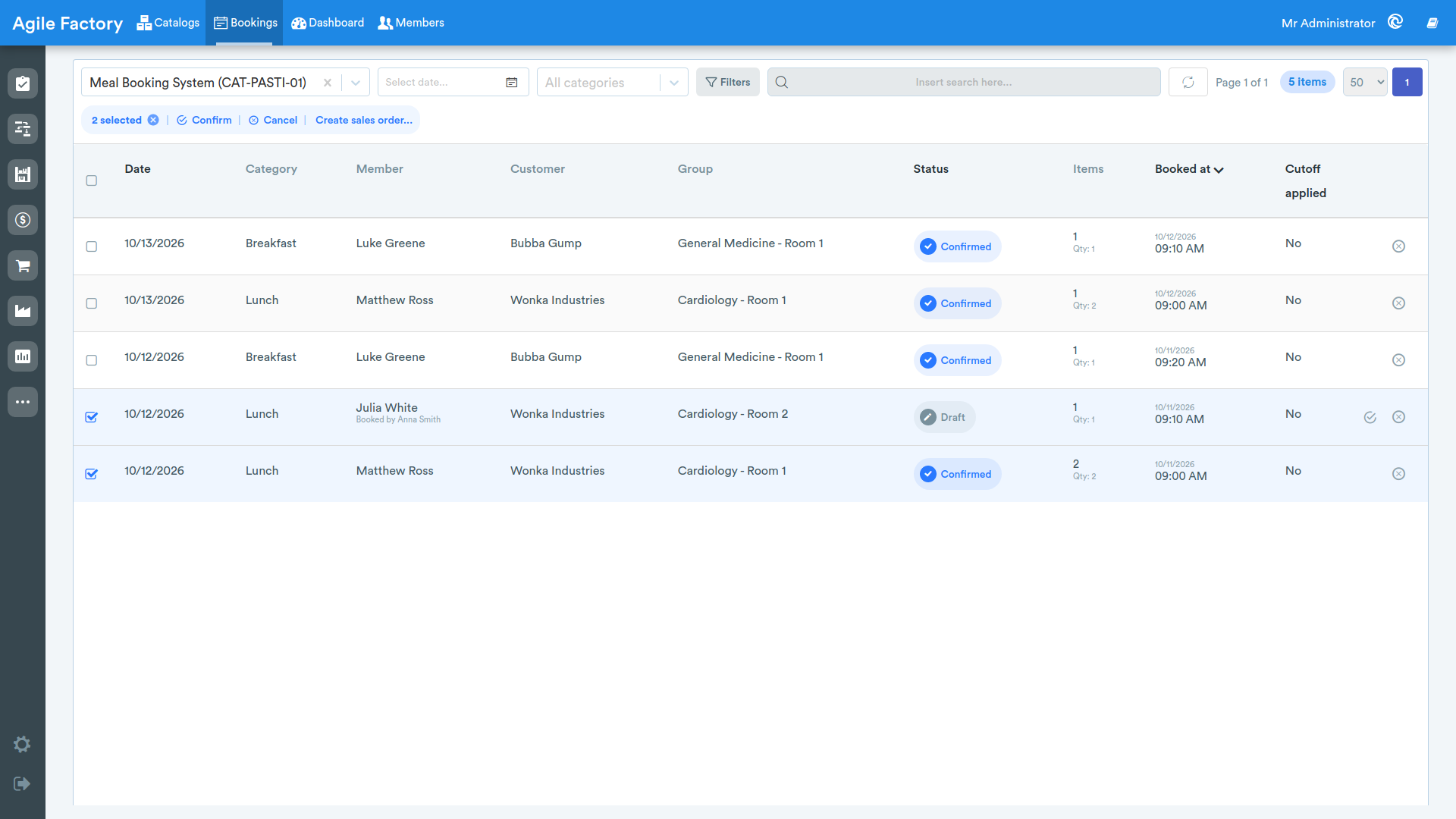
Selecting multiple rows shows a bar with the bulk actions Confirm, Cancel and Create sales order...; each action is offered only when eligible bookings are present in the selection.
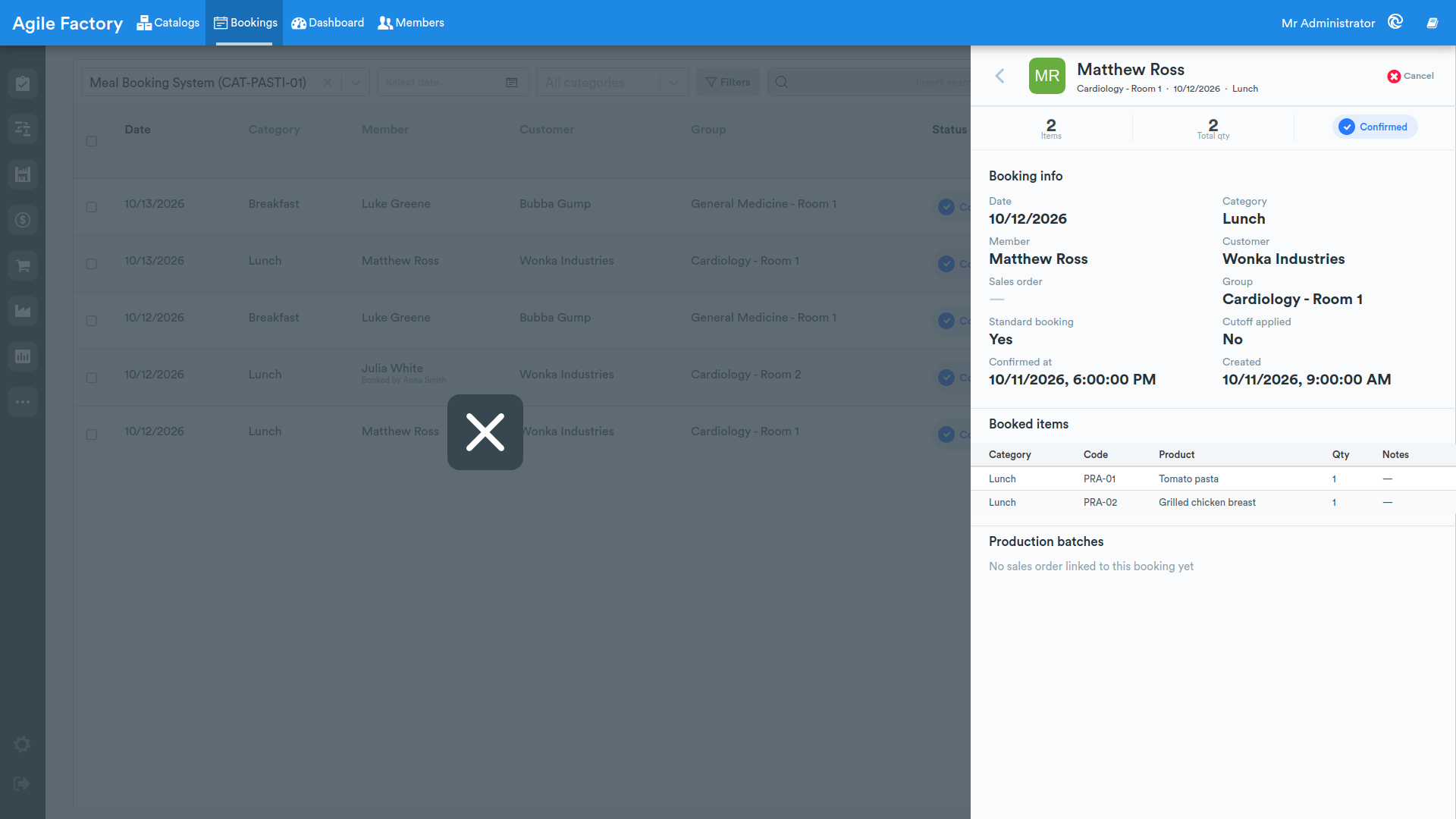
Clicking a row opens the read-only detail panel, with the stats strip (Items, Total qty, Status), the Booking info section (date, category, member, customer, linked sales order, group, standard booking, cutoff applied, dates) and the Booked items table. The Confirm and Cancel actions are available here too.
Once the booking has been turned into a sales order, the Production batches section lists the batches assigned to this booking, with batch (linked), expiration, quantity, product, production job (linked) and job status. When several bookings are merged into the same sales order, produced batches are shared out among them in booking-date order, so each booking only shows its own quantities.
The Manager interface provides no form to create or edit bookings: bookings are created through the public app and in the backoffice they can only be viewed, confirmed or canceled.
Sales-order synchronization
Confirmed bookings can be turned into sales orders. Selecting one or more Confirmed bookings and using Create sales order... opens a dialog that groups the selection by customer, shows a preview of the items with quantities for each customer, and offers the Order date and Deadline fields.
The One order per booking date option (enabled by default) also groups the selection by booking date: each customer gets one sales order per day, and each order's deadline is its booking date, so the Deadline field is disabled. Turn it off to merge all of a customer's bookings into a single order with the deadline you choose.
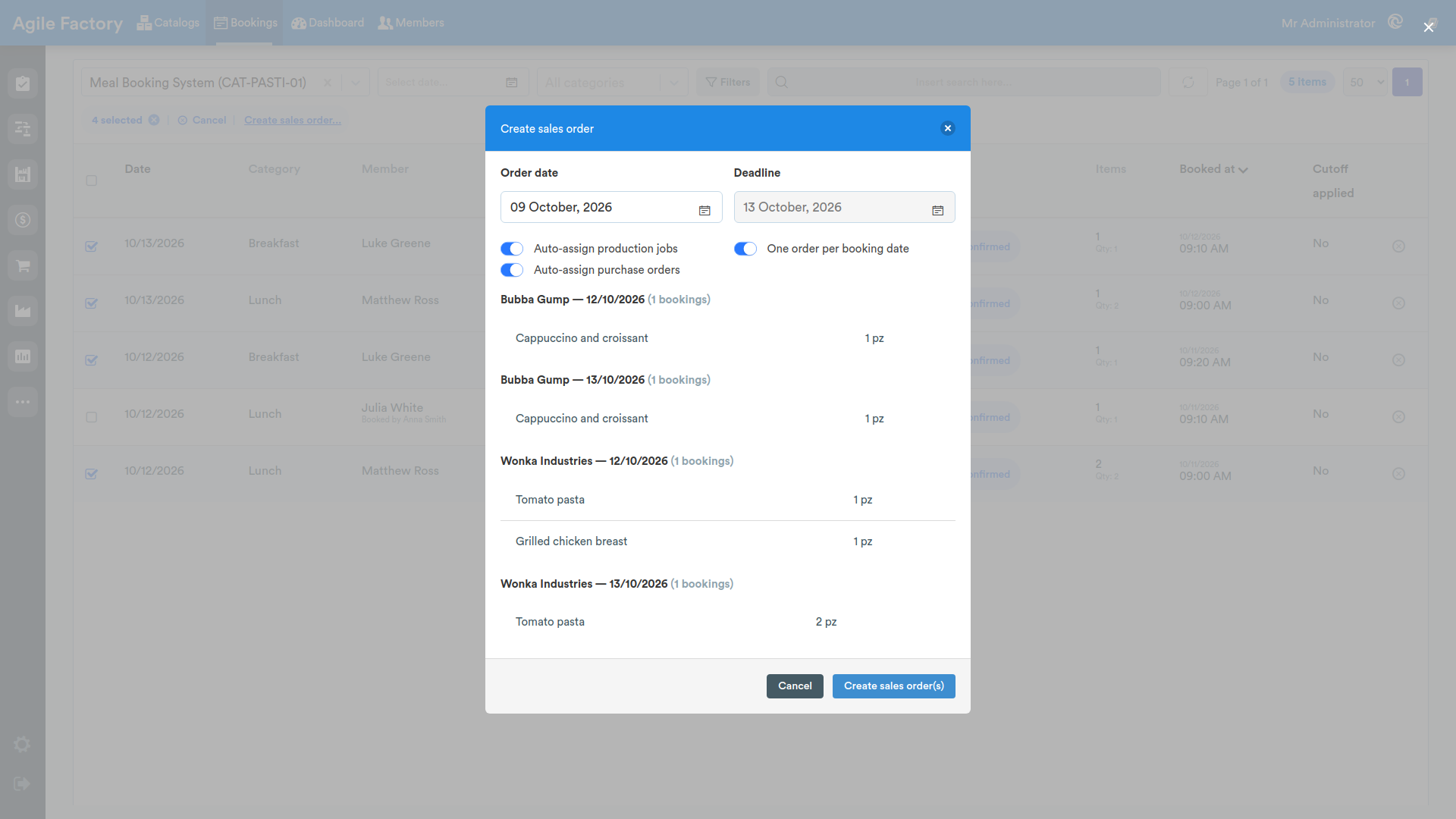
The Create sales order(s) button generates one sales order per customer, with one line per distinct item; each created order can be reached via the View sales order link. The processed bookings move to the Invoiced status and, in the detail panel, show the link to the generated Sales order. Already-invoiced bookings are automatically excluded from subsequent processing, avoiding duplicate orders.
Dashboard
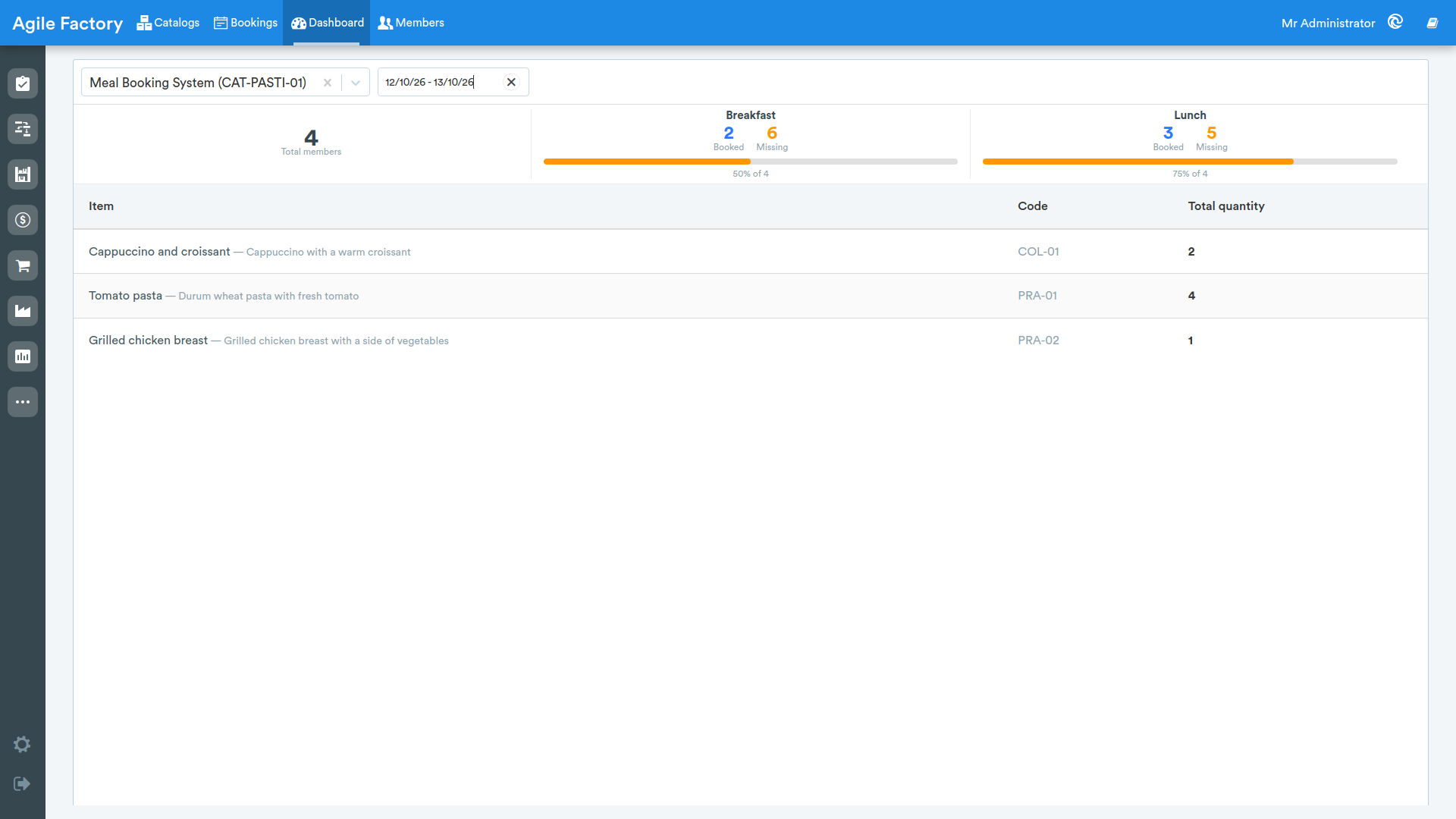
The Dashboard tab offers a summary view of the bookings for the selected catalog and date range (by default from today to tomorrow).
The top strip shows the Total members and one card per category with the Booked and Missing values, a progress bar and the percentage in the form {pct}% of {total} (the color of the Missing value changes when the share of missing bookings is high).
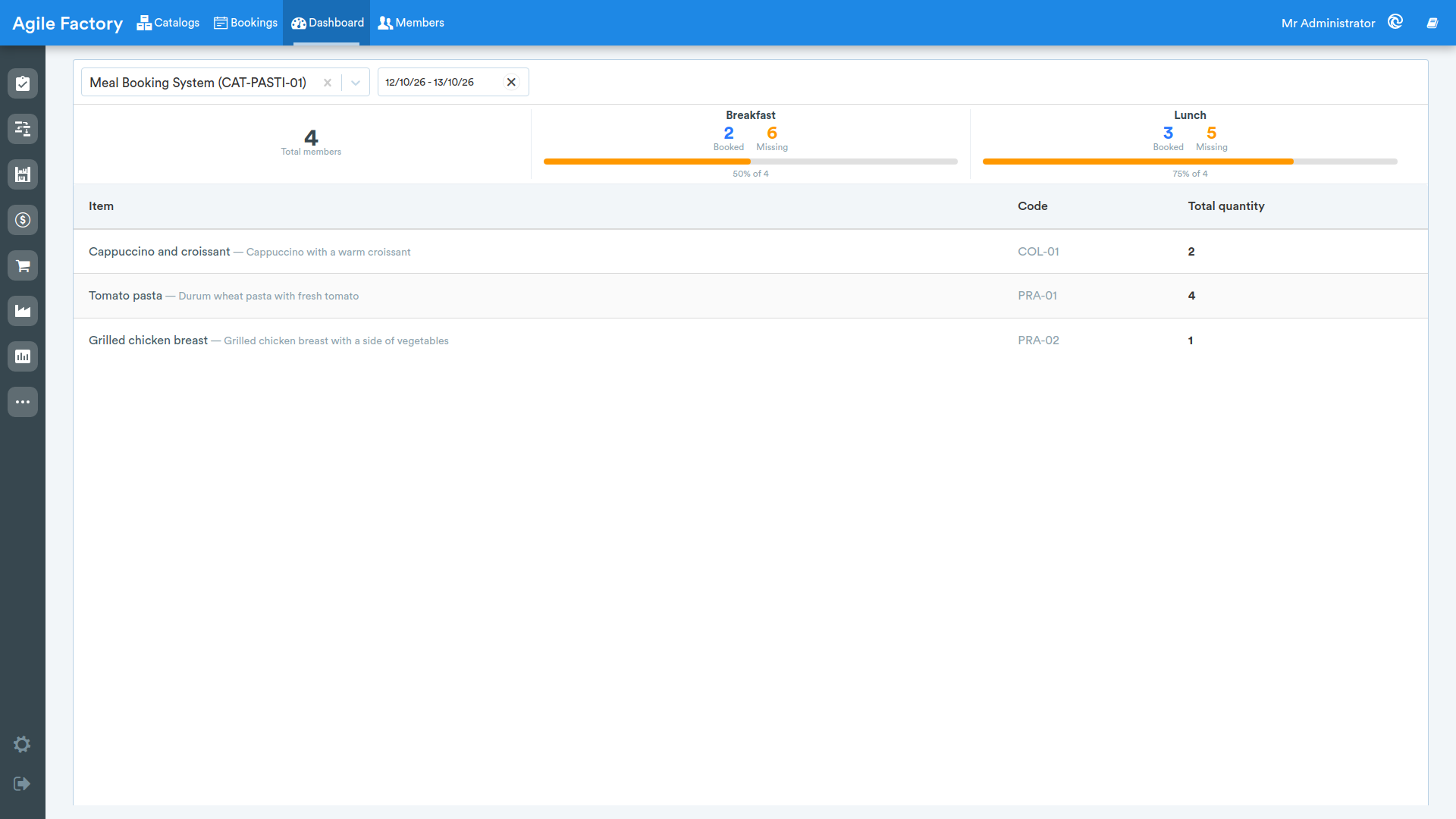
Below the cards, the Totals per item table aggregates the booked quantities for each product over the selected range, with the columns Item, Code and Total quantity.