Purchase
This section is dedicated to managing purchase orders towards suppliers.
It allows you to:
- create and edit purchase orders and their items;
- track the order progress through its statuses and the Purchased and Received percentages;
- link purchased items to the sales orders that require them;
- save and apply order templates to speed up data entry.
Orders list
The main page shows the list of purchase orders in a table.
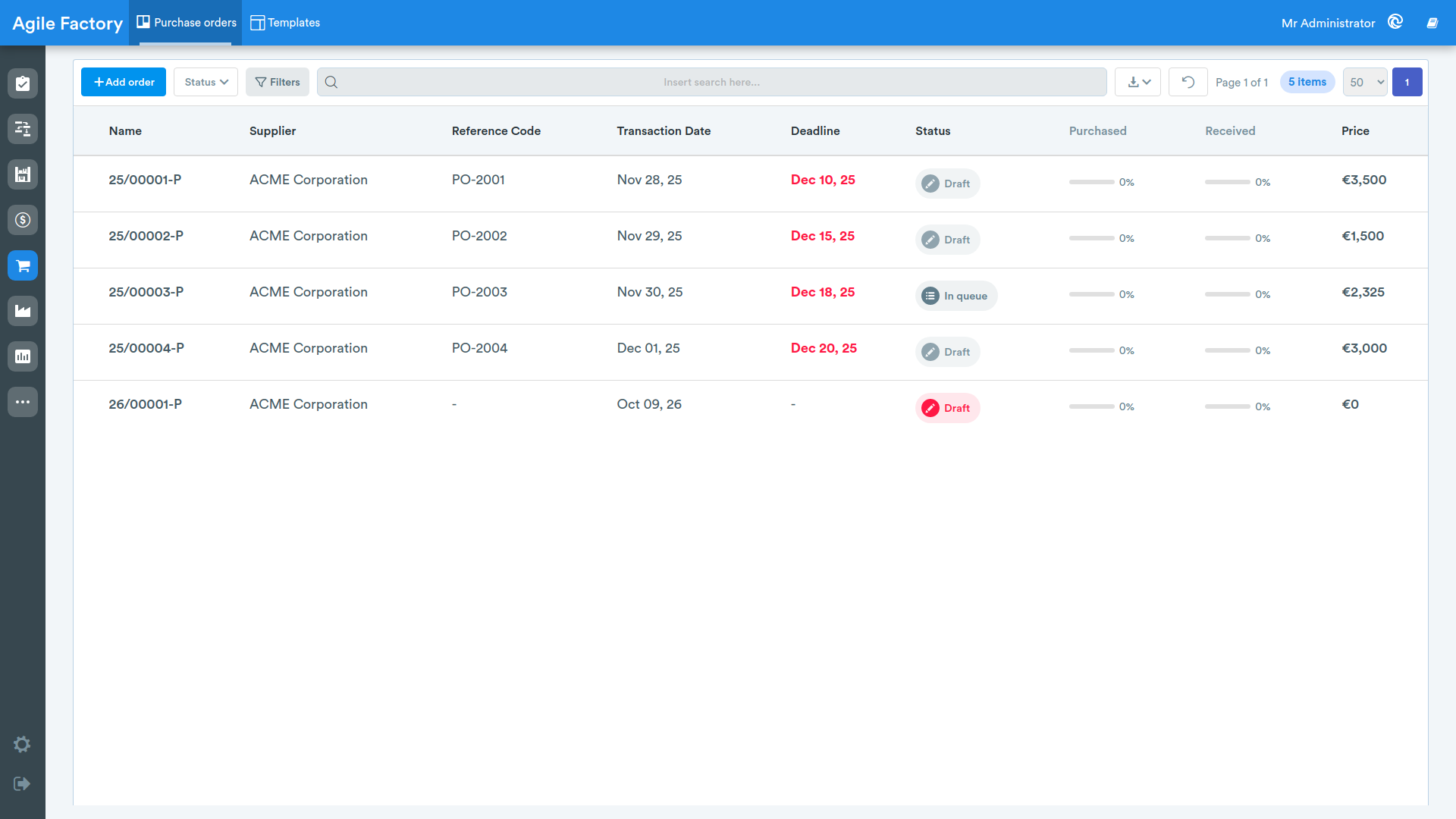
The available columns are:
- Name of the order
- Supplier
- Reference Code (the supplier's own reference code for the order)
- Transaction Date
- Deadline (highlighted when the order is late)
- Status
- Purchased — progress bar with the percentage of ordered items
- Received — progress bar with the percentage of received items
- Price
At the top you have the tools to manage the list:
- the Add order button to create a new purchase order;
- the order status filter (Draft, In queue, In progress, Ready, Done, Canceled);
- the Supplier filter;
- the search bar;
- the table data export.
Clicking a row opens the order: orders in draft status open directly in edit mode, the others open in the details page.
Creating and editing an order
Clicking Add order, or opening an order in draft status, takes you to the edit page.
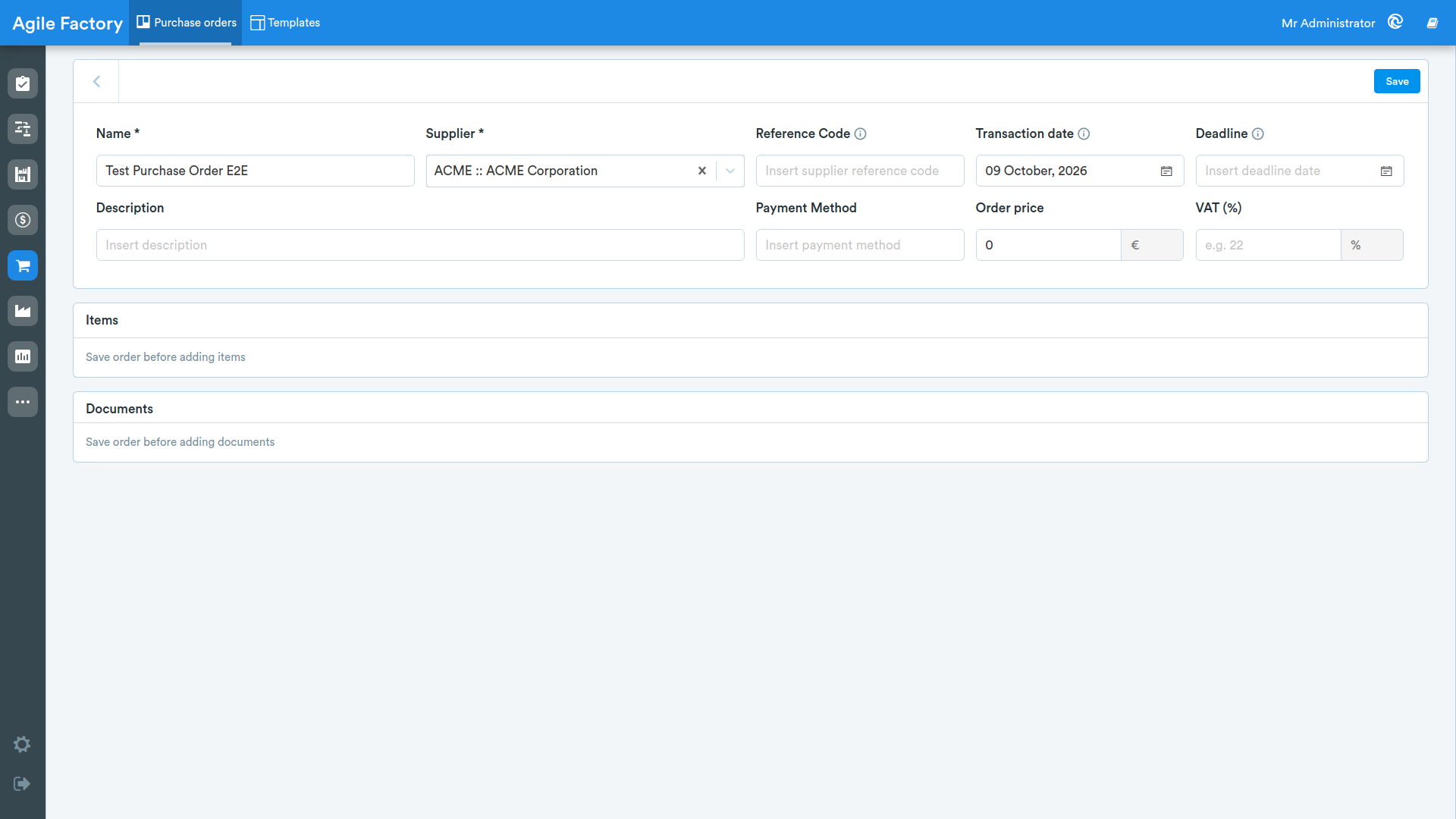
The order header includes the following fields:
- Name of the order (required)
- Supplier (required)
- Reference Code
- Transaction date
- Deadline
- Description
- Payment Method
- Order price
- VAT (%)
To save the entered information click the Save button.
Below the header is the order items section. Once the order is saved, you can add items with the New order item button.
To reuse previously defined configurations, the Apply template button is available (on an order that still has no items), while when the order is valid and contains items a button appears to save the current configuration as a template.
When the order is valid you can, from the buttons at the top right:
- Put in queue — moves the order into processing status (an order in queue can no longer be modified);
- Set Canceled — sets the order as canceled.
Order items
Each order item is shown in a table with the following columns:
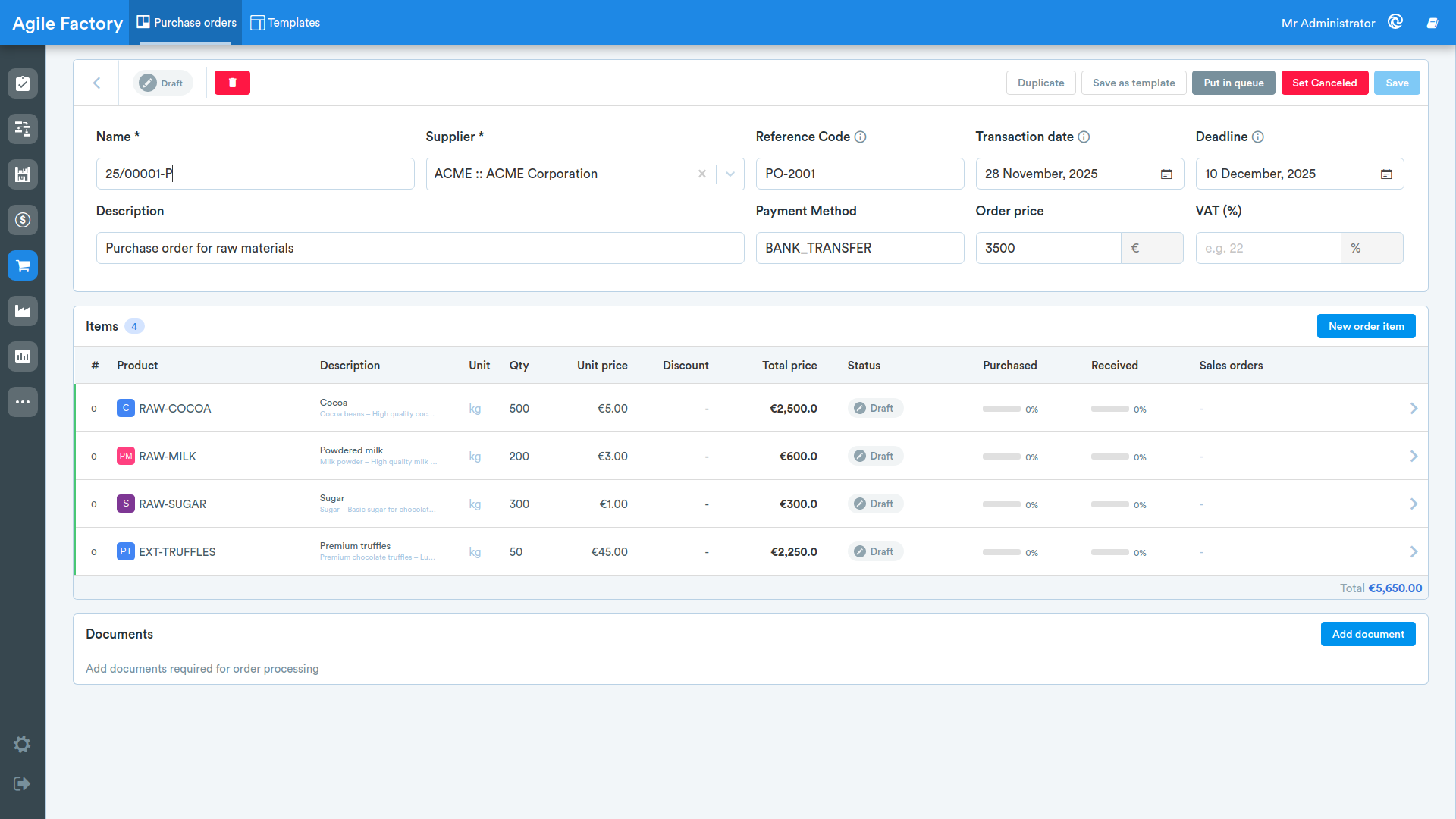
- # (progressive number)
- Product
- Description
- Unit
- Qty
- Unit price
- Discount
- Total price
- Status
- Purchased — progress bar with the purchased percentage of the item
- Received — progress bar with the received percentage of the item
- Sales orders — links to the sales orders associated with the item
At the bottom of the table the order Subtotal, VAT and Total are shown.
Adding and editing an item
Clicking New order item, or an existing item, opens the side edit panel.
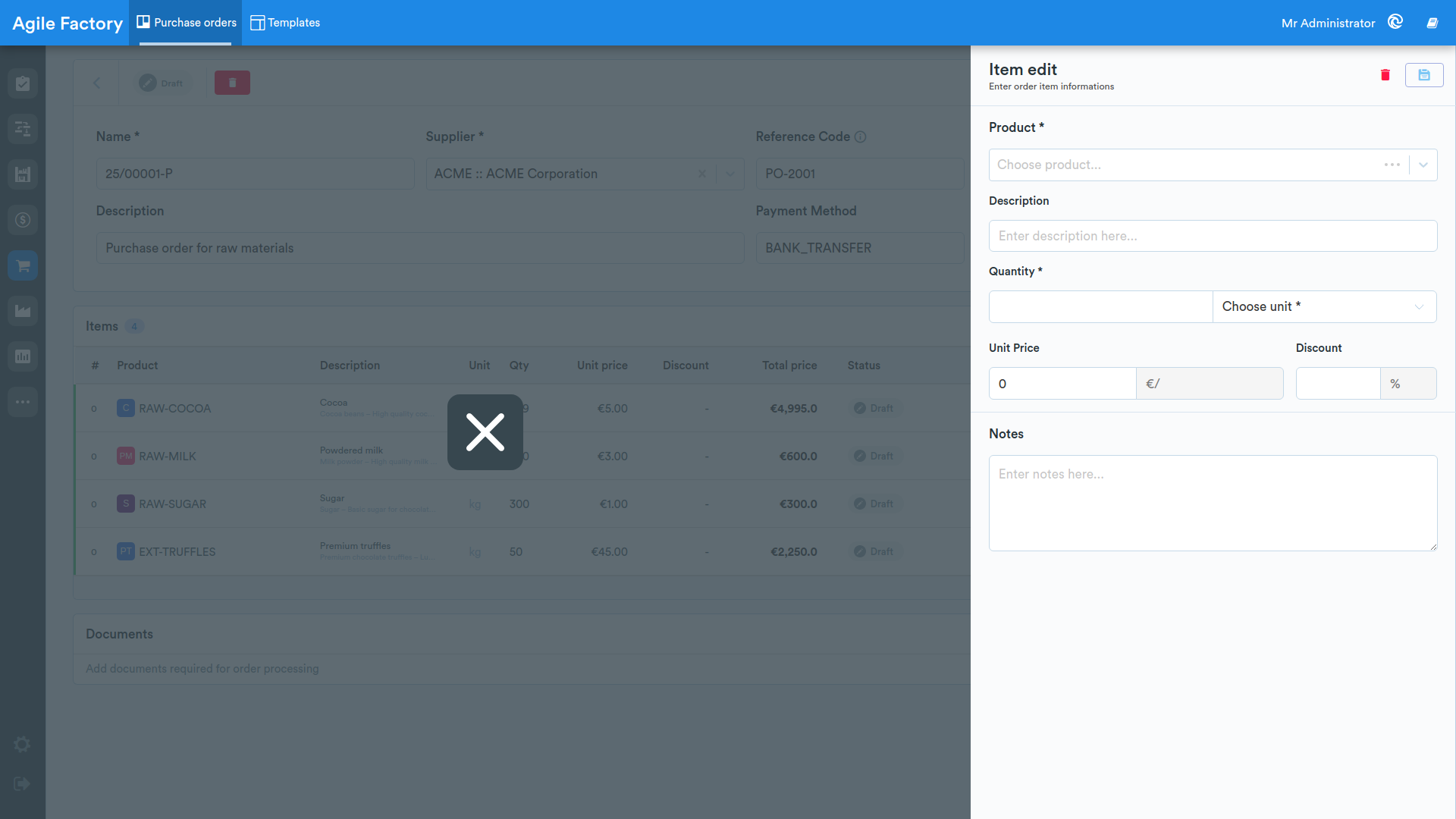
The available fields are:
- Product (required)
- Description
- Quantity and the related Unit (required)
- Unit Price
- Discount
- Notes
When a product is selected, the unit of measure and the price can be proposed automatically based on the product's registry data.
If the item is linked to one or more sales orders, the panel shows the list of linked Sales orders, the Purchased percentage, the Total cost and the list of received batches.
To save the item click the save button; you can also remove the item from the order.
Order details
For orders that are not in draft status, clicking the row opens the details page.
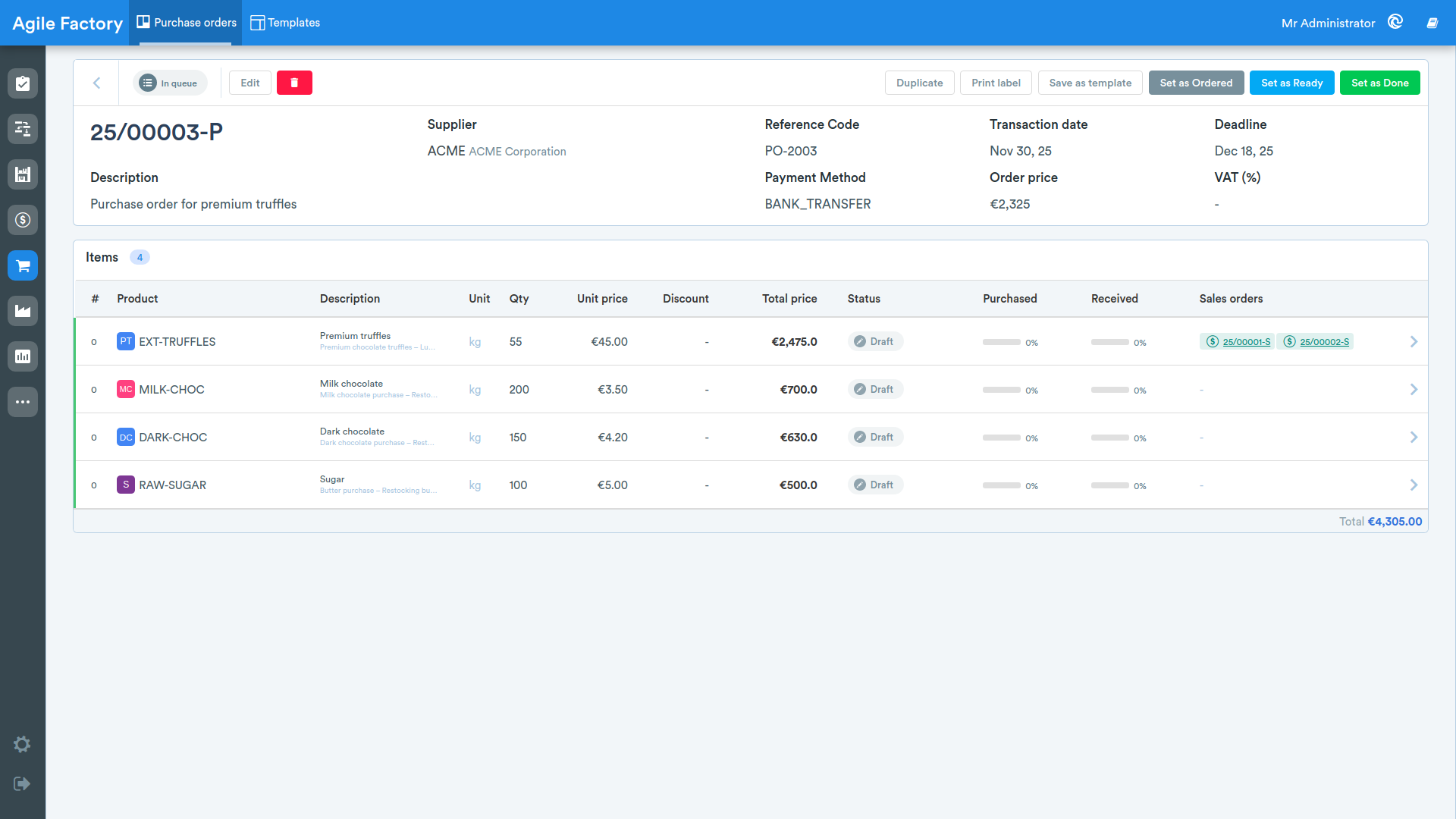
The page shows, in read-only mode, the header data (Name, Supplier, Reference Code, Transaction date, Deadline, Description, Payment Method, Price and VAT (%)), the items table and any attached Documents.
At the top you have the actions that depend on the order status:
- Edit and remove the order (for orders that can still be modified);
- duplicate and print the order;
- save as template;
- Set as Ordered — confirms that the order has been sent to the supplier;
- Set as Ready and Set as Done to advance the status;
- Put in queue to bring the order back into processing.
Status of individual items
From the details page, clicking an item opens the panel with the item summary, its costs and documents.
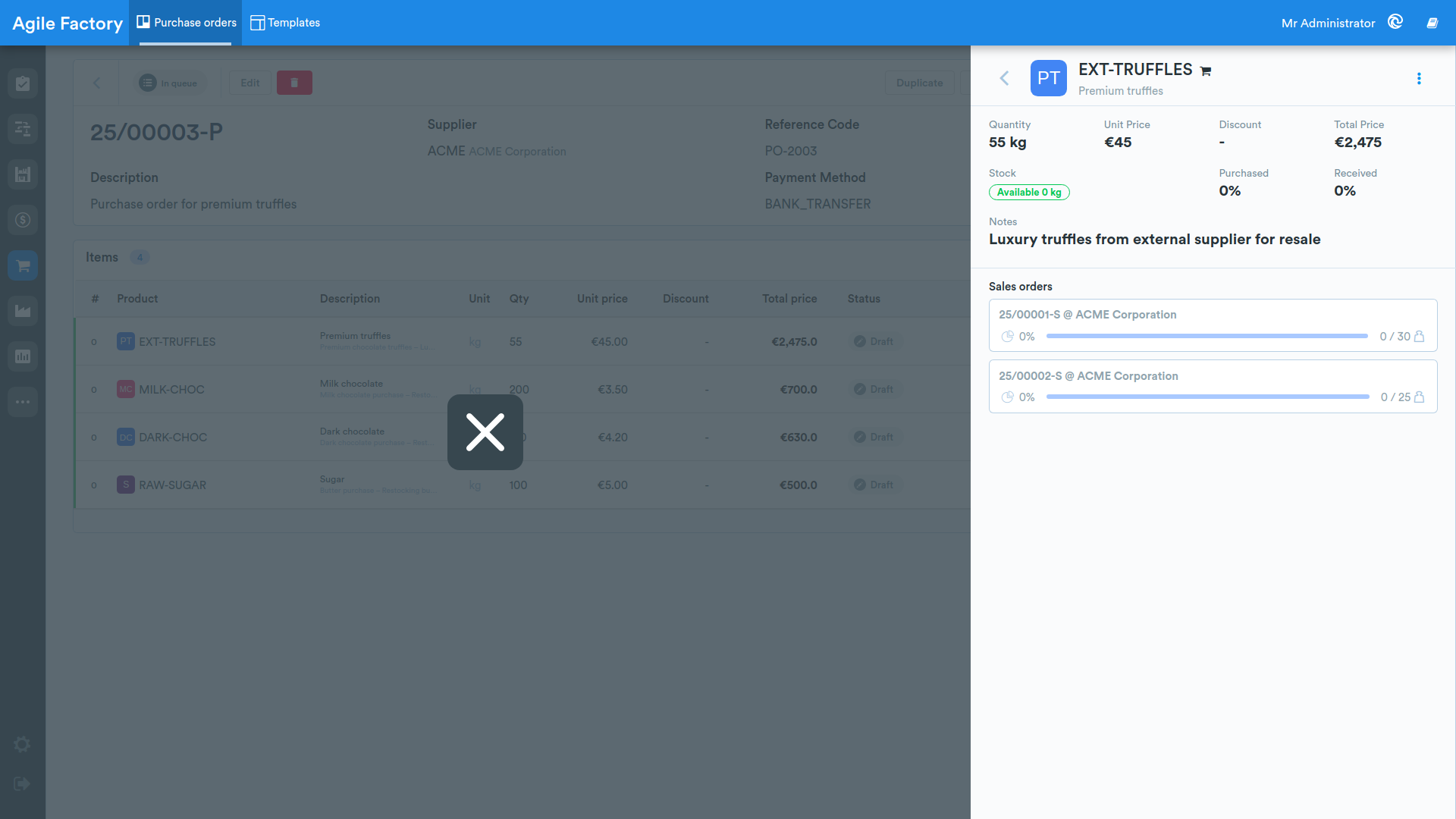
From the actions menu you can update the status of the individual item:
- Set as ready
- Mark as done
- Back in queue