Factory Performance
In this section it is possible to view historical information related to orders and items produced.
Production Orders
This section displays the history of production orders processed.
Above the tabular data, various filters are available that allow the user to find the necessary information.
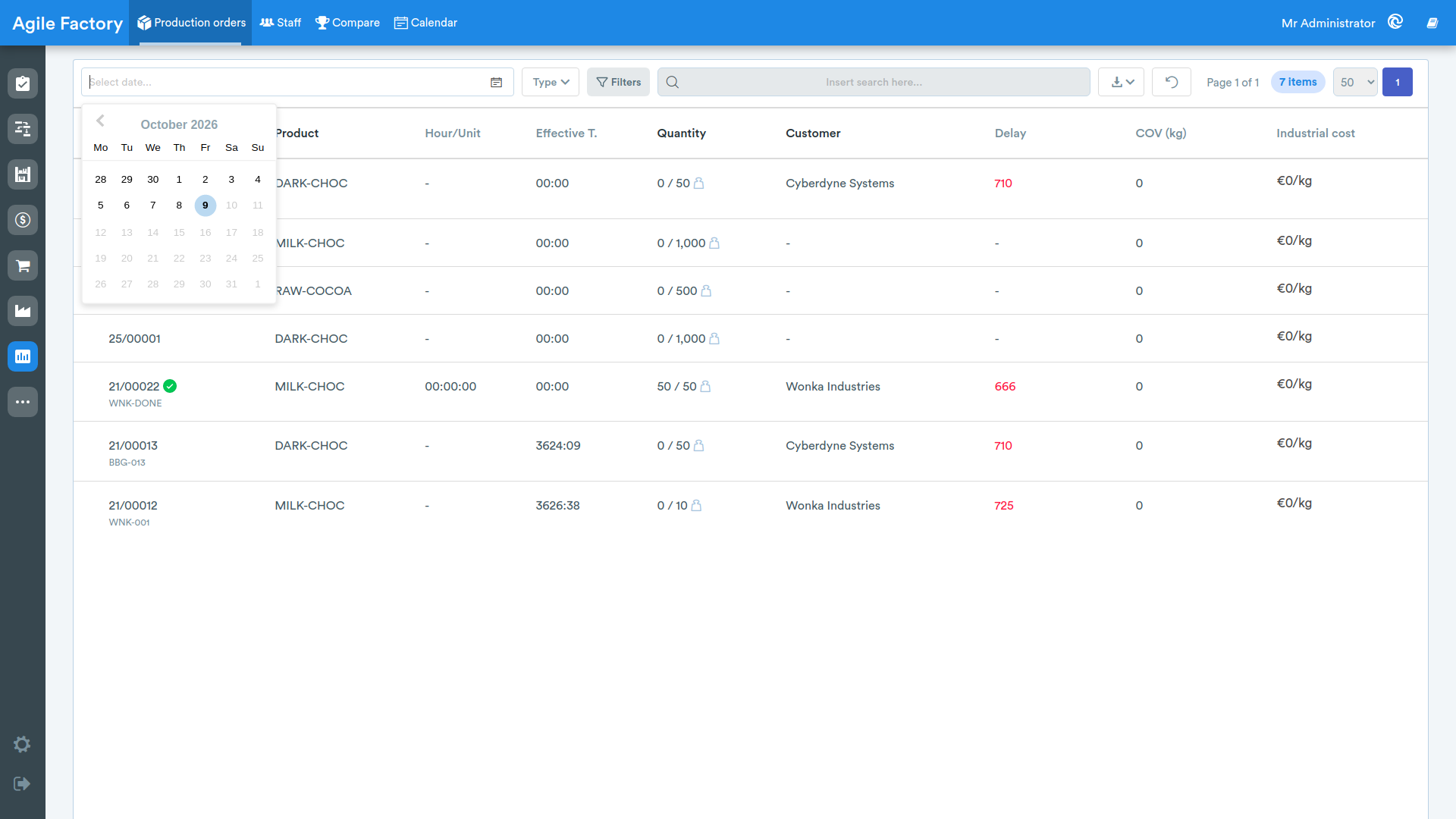
- by dates: it is possible to select both a range and a specific date.
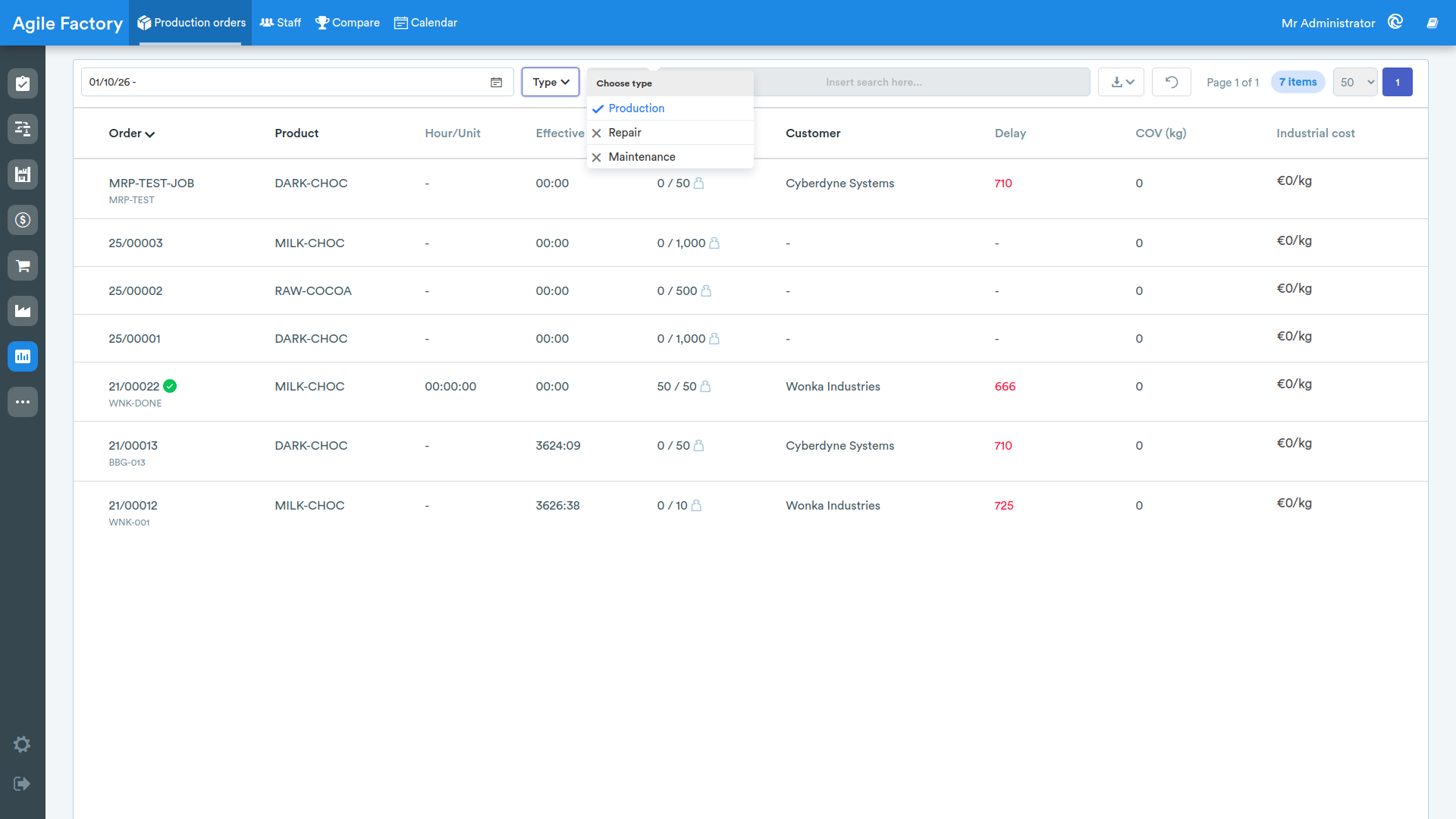
- by type: Production - production orders from the Order Management module, Repair and Maintenance - repair and maintenance orders from the Maintenance module

- by customer and product: these filters are grouped in the Filters panel. Clicking the Filters button opens a panel where one or more values can be selected; selections take effect after pressing the Apply button.
- through the dedicated search bar, located next to the Filters button.
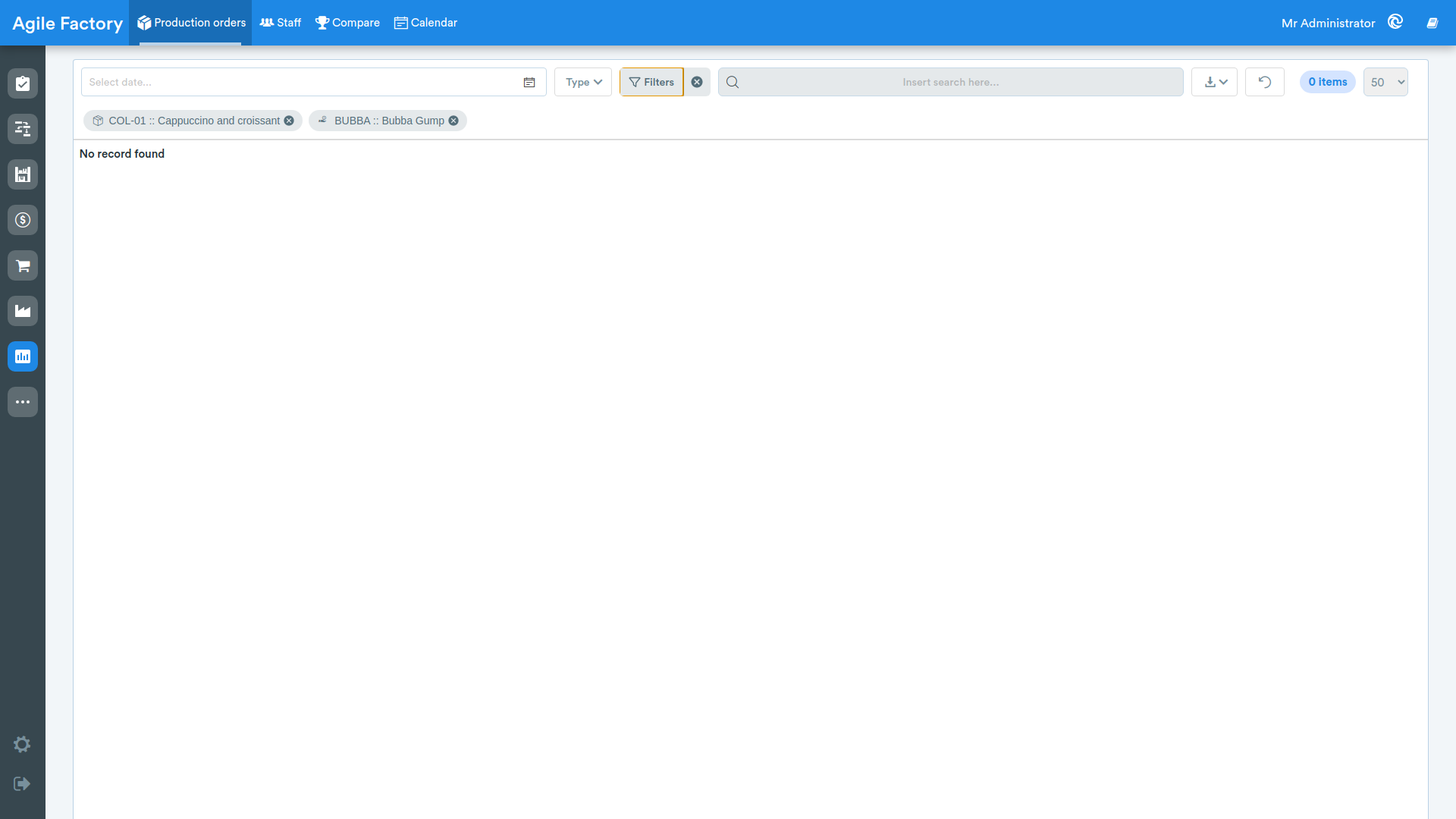
Active filters (customer, product) are shown as removable chips below the filter bar: clicking the X on a chip removes that single value without resetting the other filters.
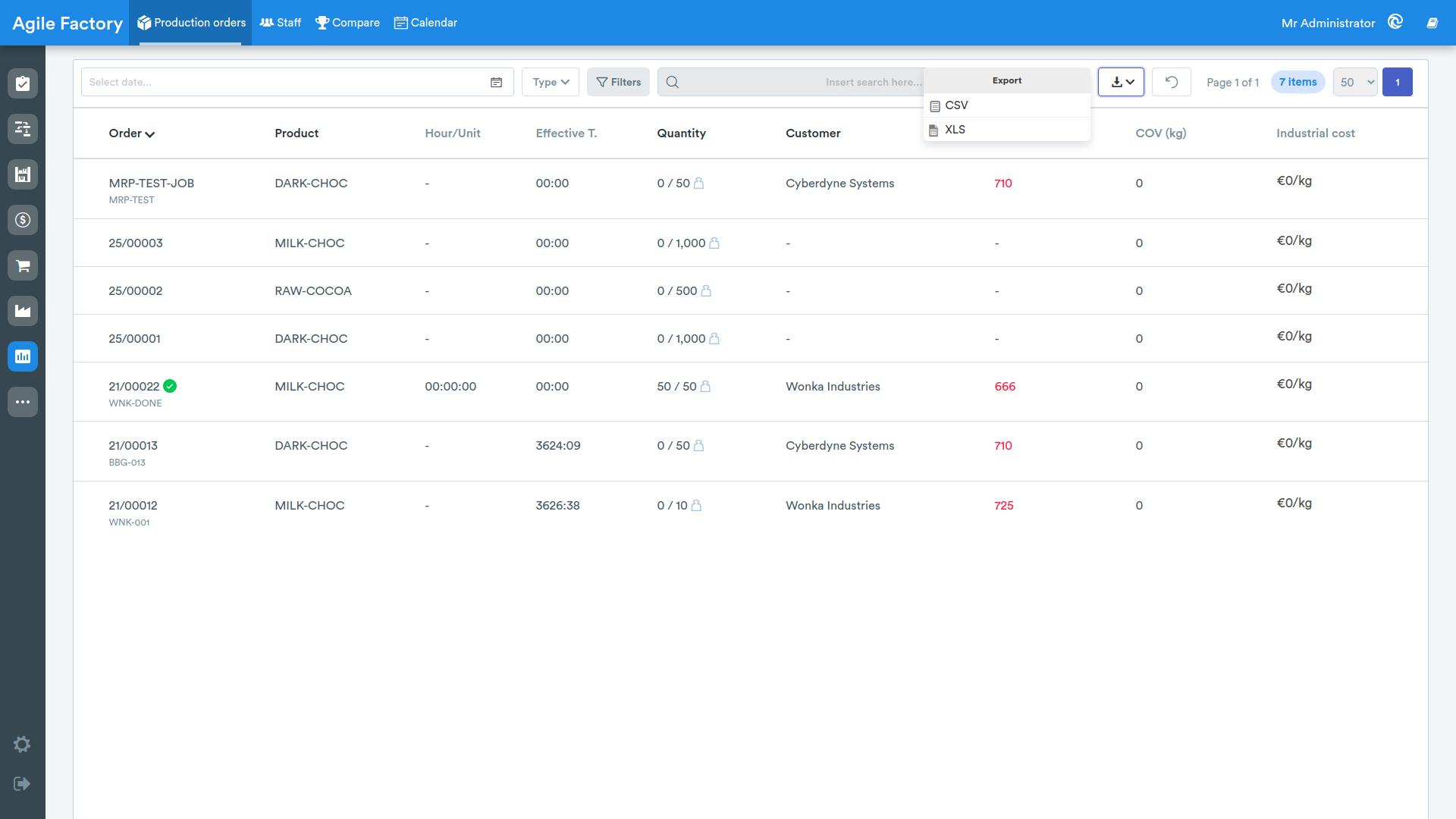
It is possible to download the data in *.csv and *.xls formats using the button with the arrow in the upper right corner.
The 🔄️ button is used to reset all search filters.
For each production order, the following information is available:
- production order
- requested product
- unit time
- actual time
- quantity produced/requested
- customer
- delay (if it's green - early)
- industrial cost (visible if using Industrial Accounting✨)
By clicking on an order, you will be able to see the following information in detail:
- item
- customer
- sales order price (visible if using Industrial Accounting✨)
- processing start date
- expected delivery date
- actual delivery date
- days early/late compared to expected date
- quantity delivered
- operation details
- cycle and activity times
- costs (visible if using Industrial Accounting✨)
- resource consumption (visible if the Connect4i module is active)
- material consumption
- OEE details (Availability/Performance/Quality)
- production details
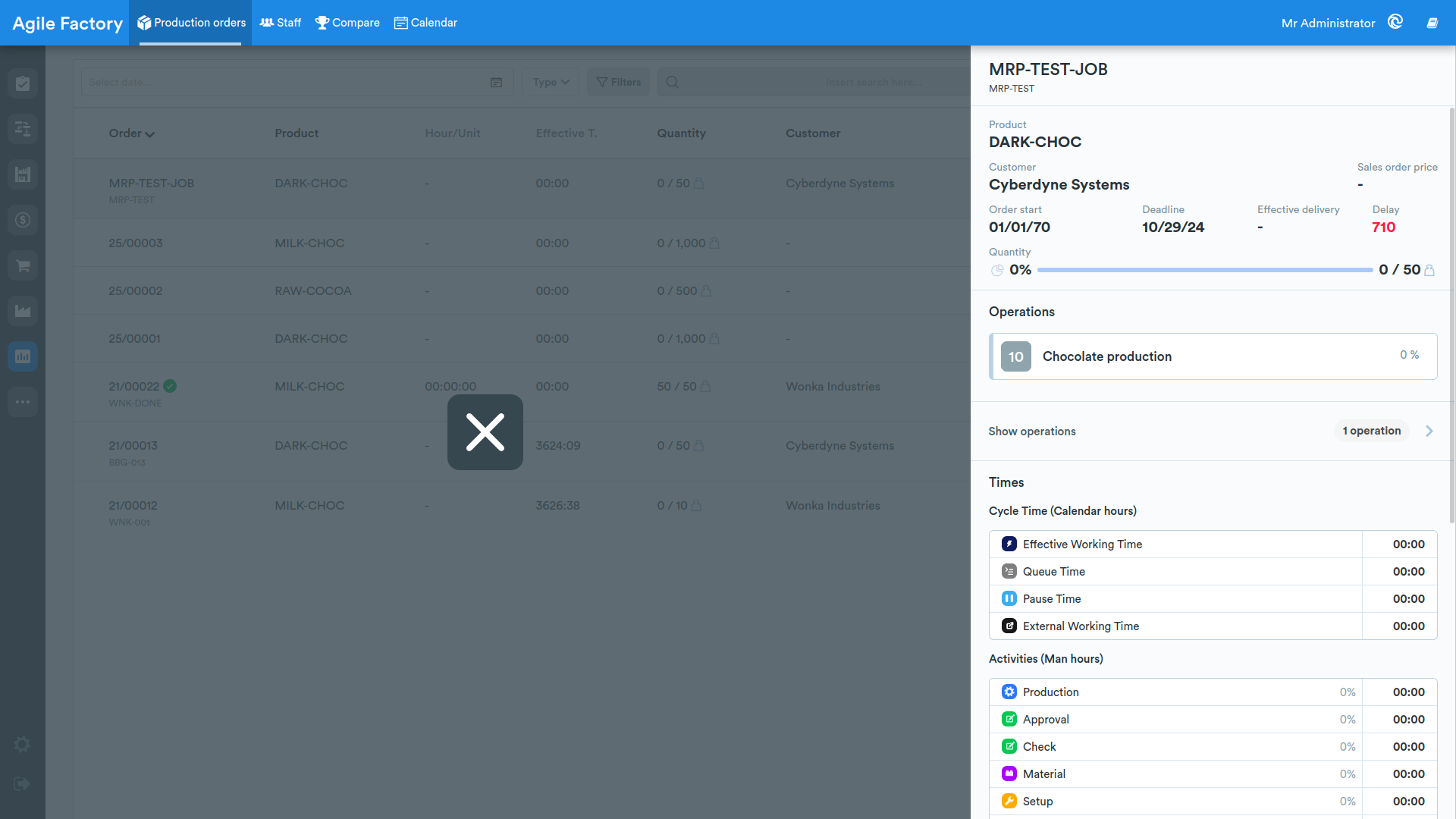
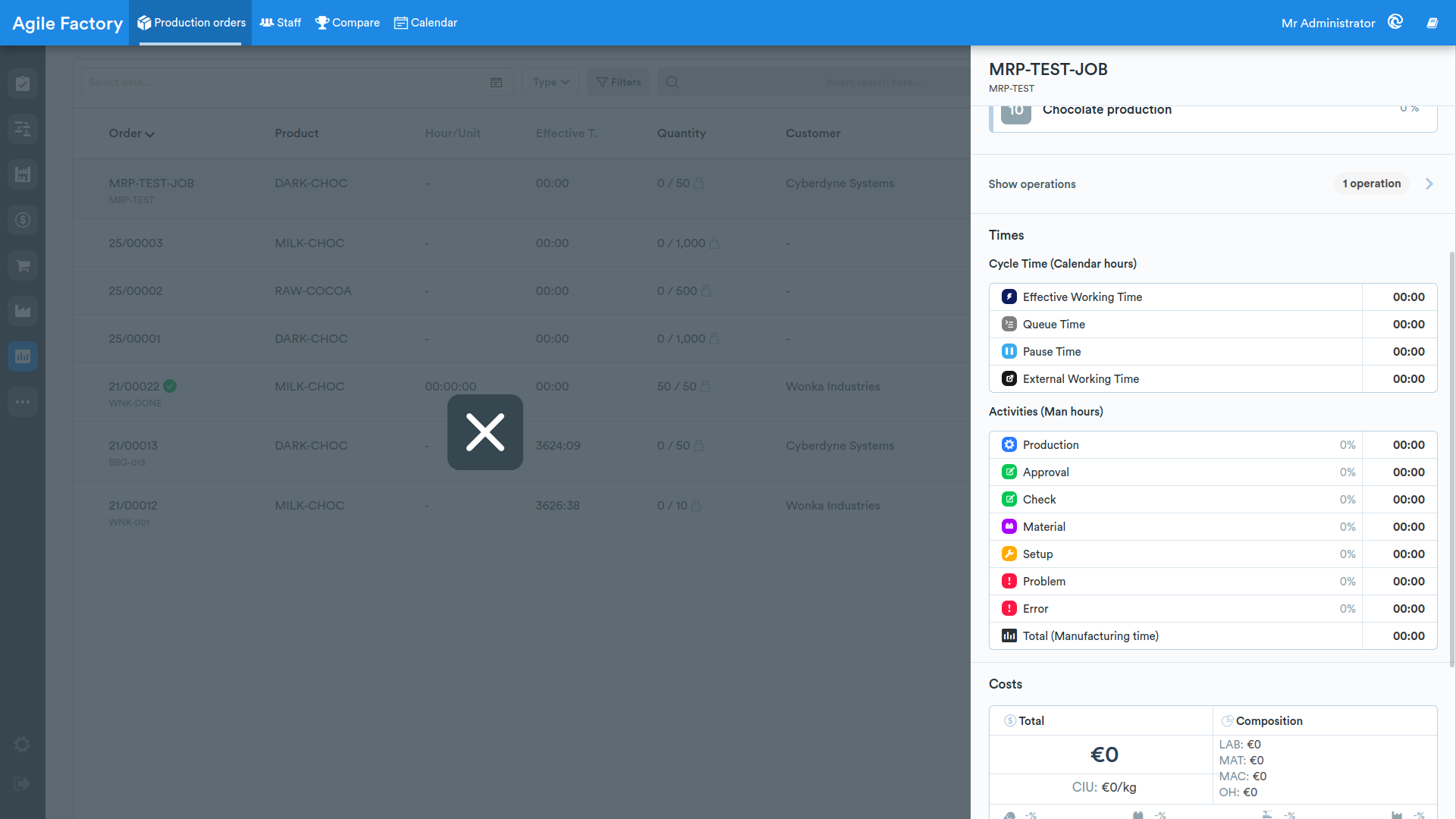
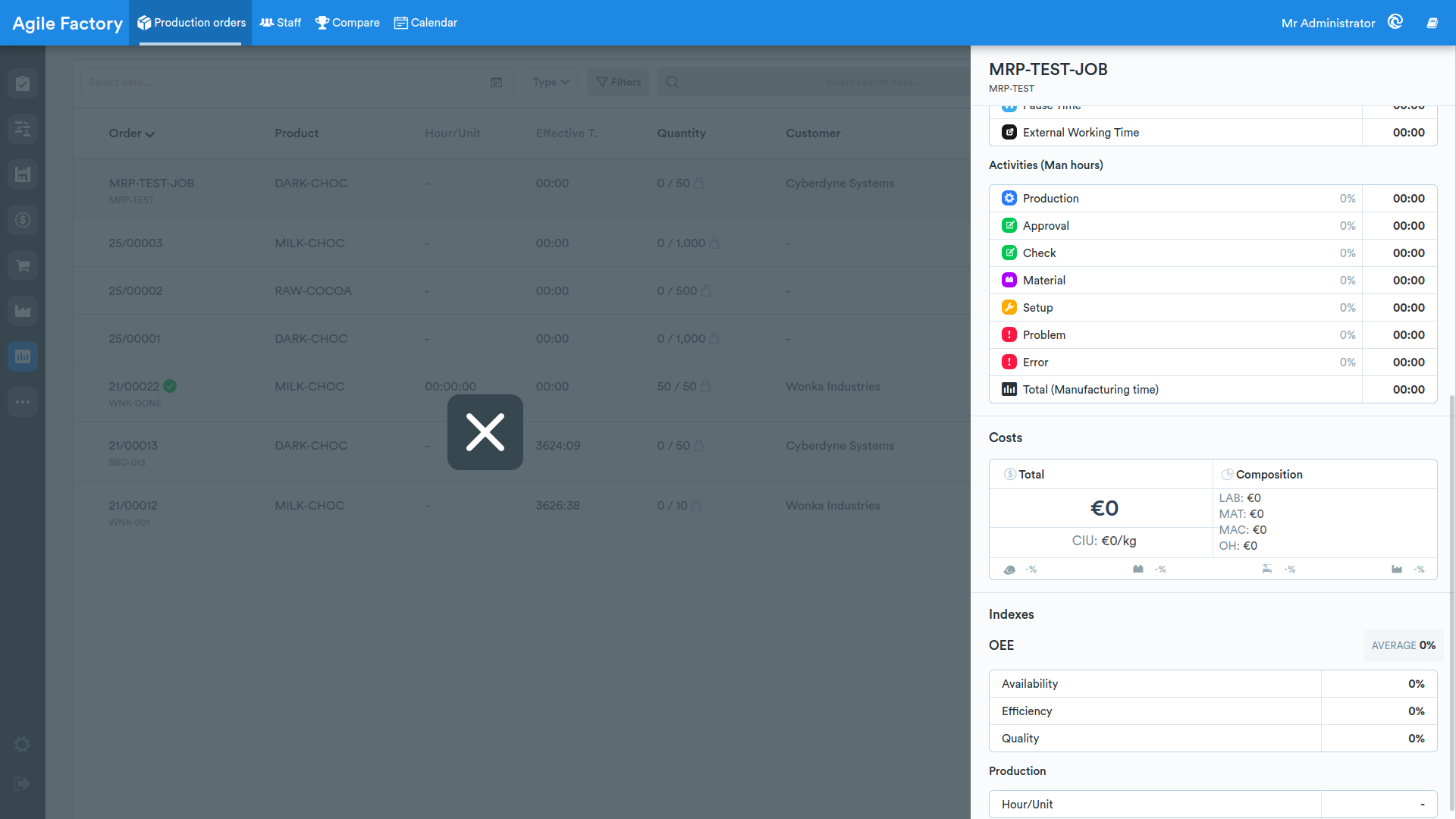
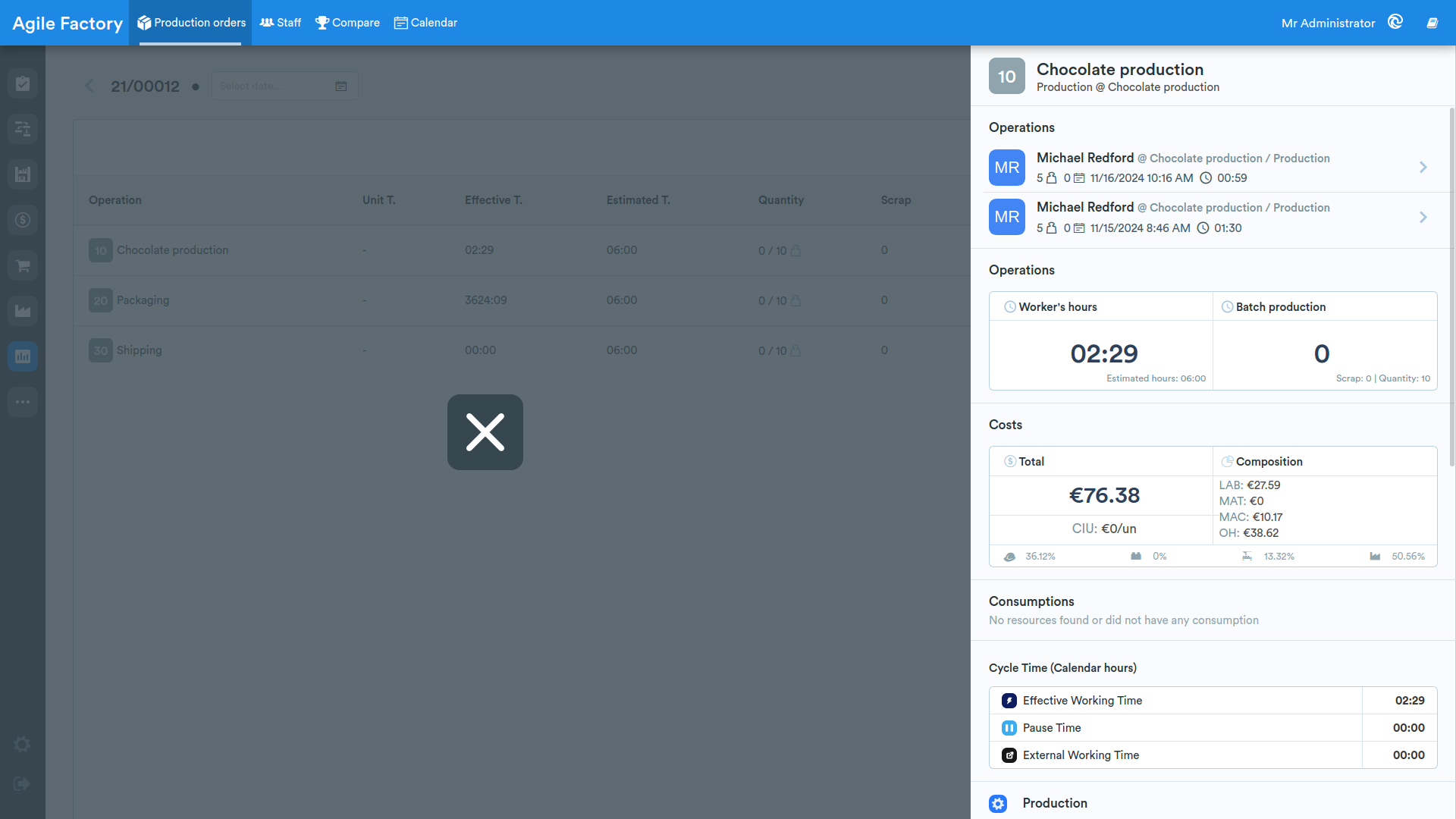
By selecting one of the operations, it is possible to view the indicators related to that specific operation.
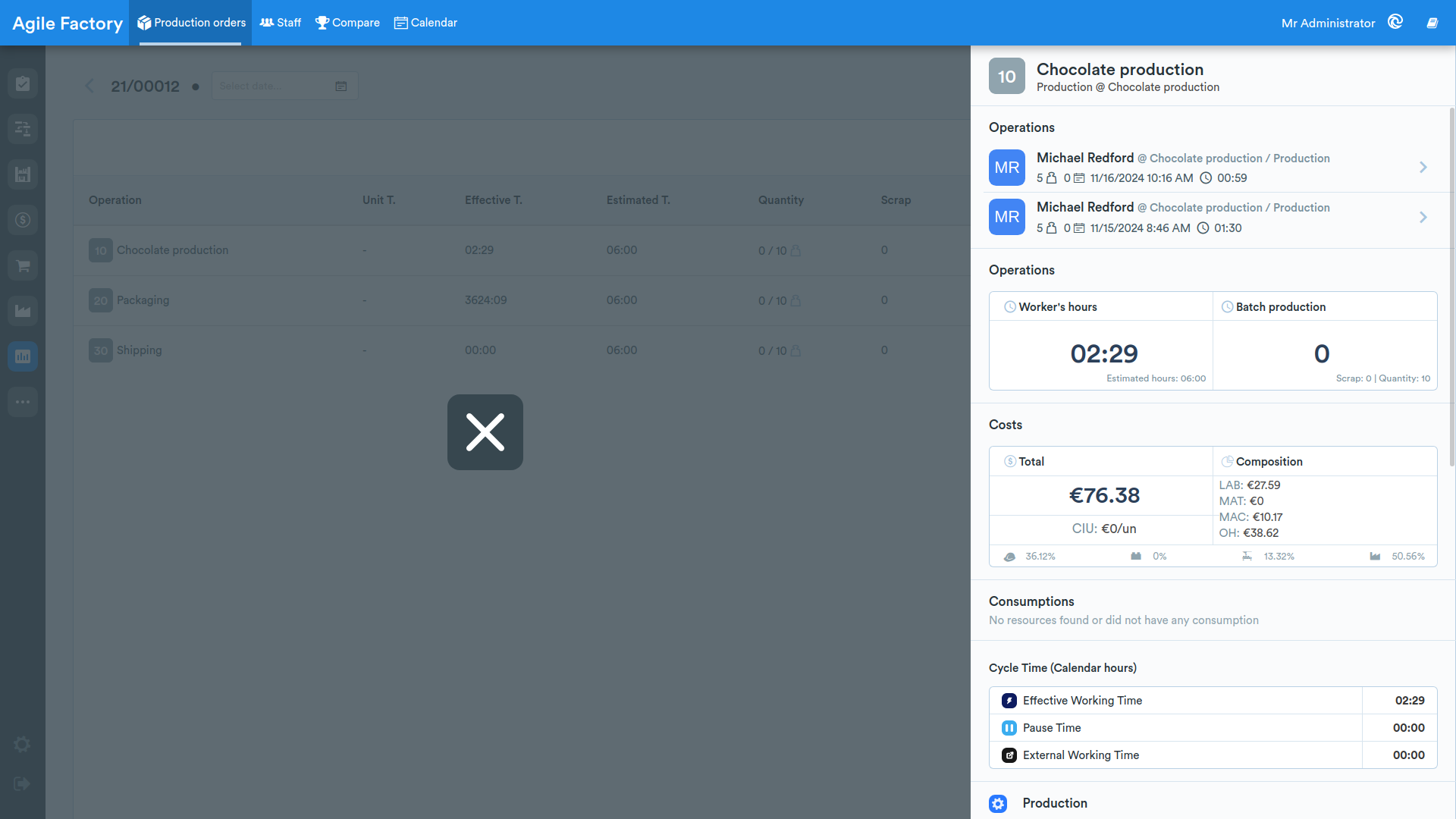
It is also possible to analyze the details of the work sessions.
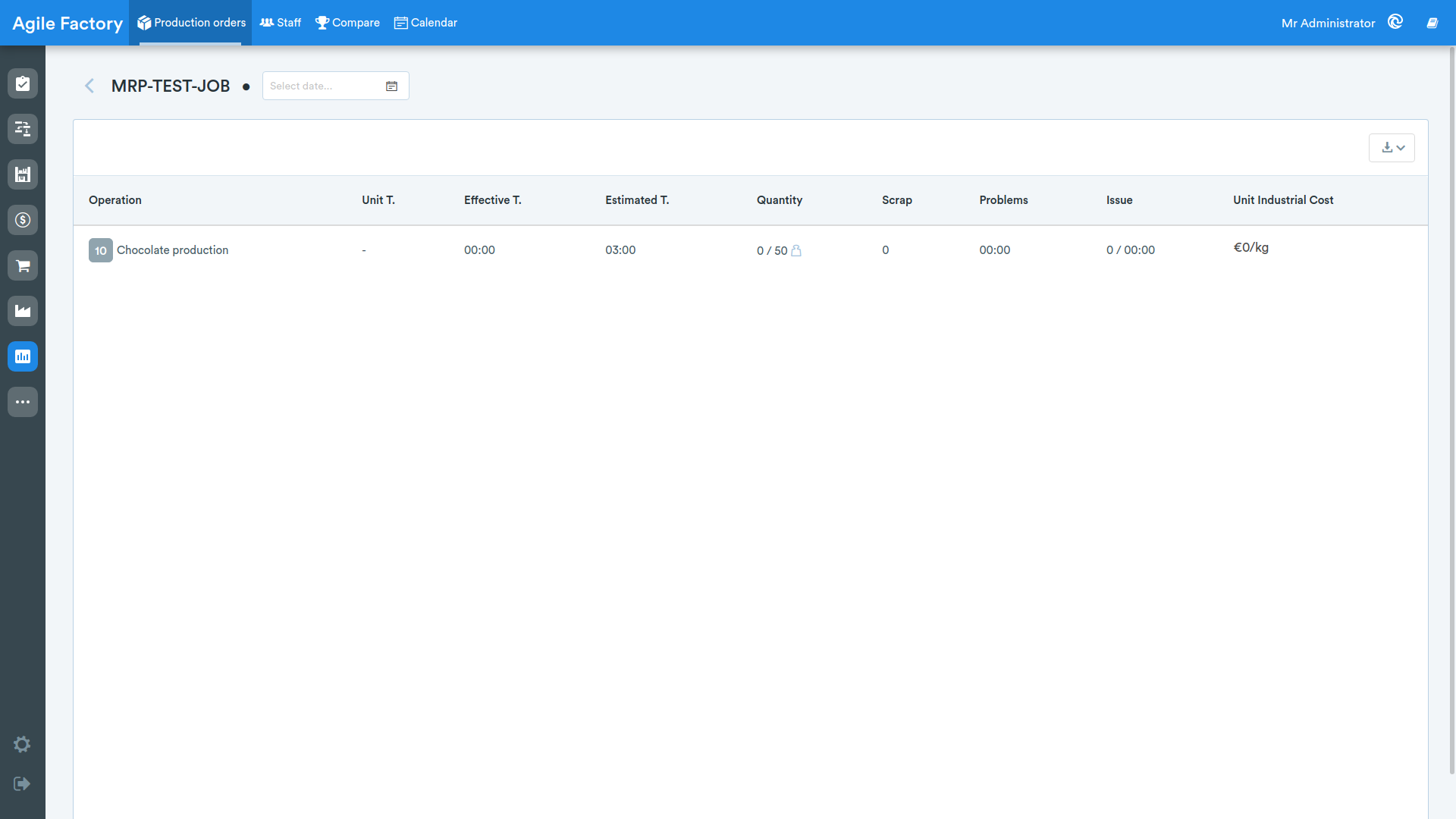
By clicking on the link at the top View operation details, the following information related to individual operations will be shown:
- operation
- unit time
- actual time
- requested/produced quantity
- scrap
- non-blocking problems (time)
- failures / blocking problems (number of failures and time)
- FIC: full industrial cost (visible if using Industrial Accounting✨)
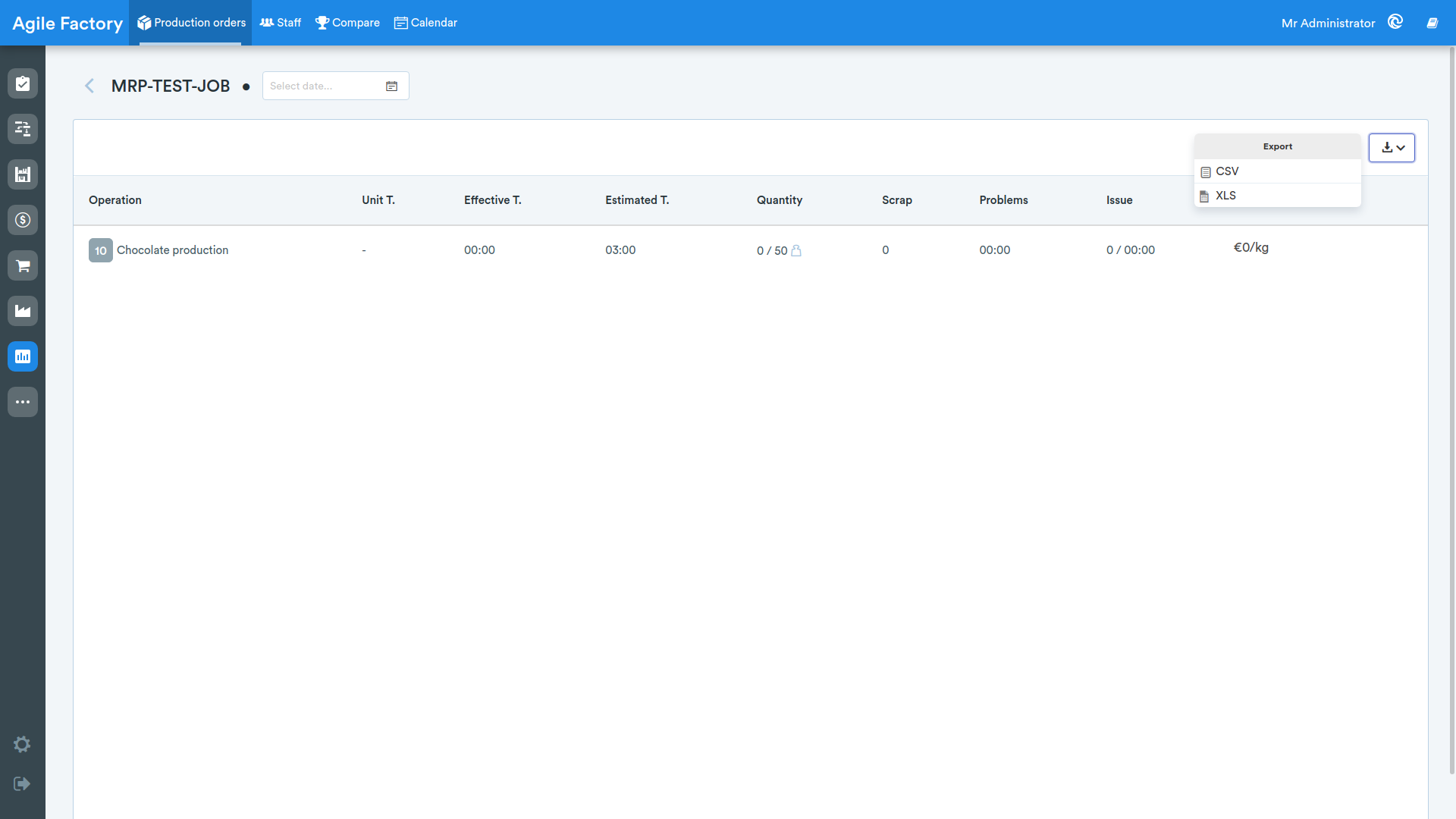
It is possible to export the tabular data in *.xls and *.csv format
Personnel
This section reports the KPIs related to production employees.
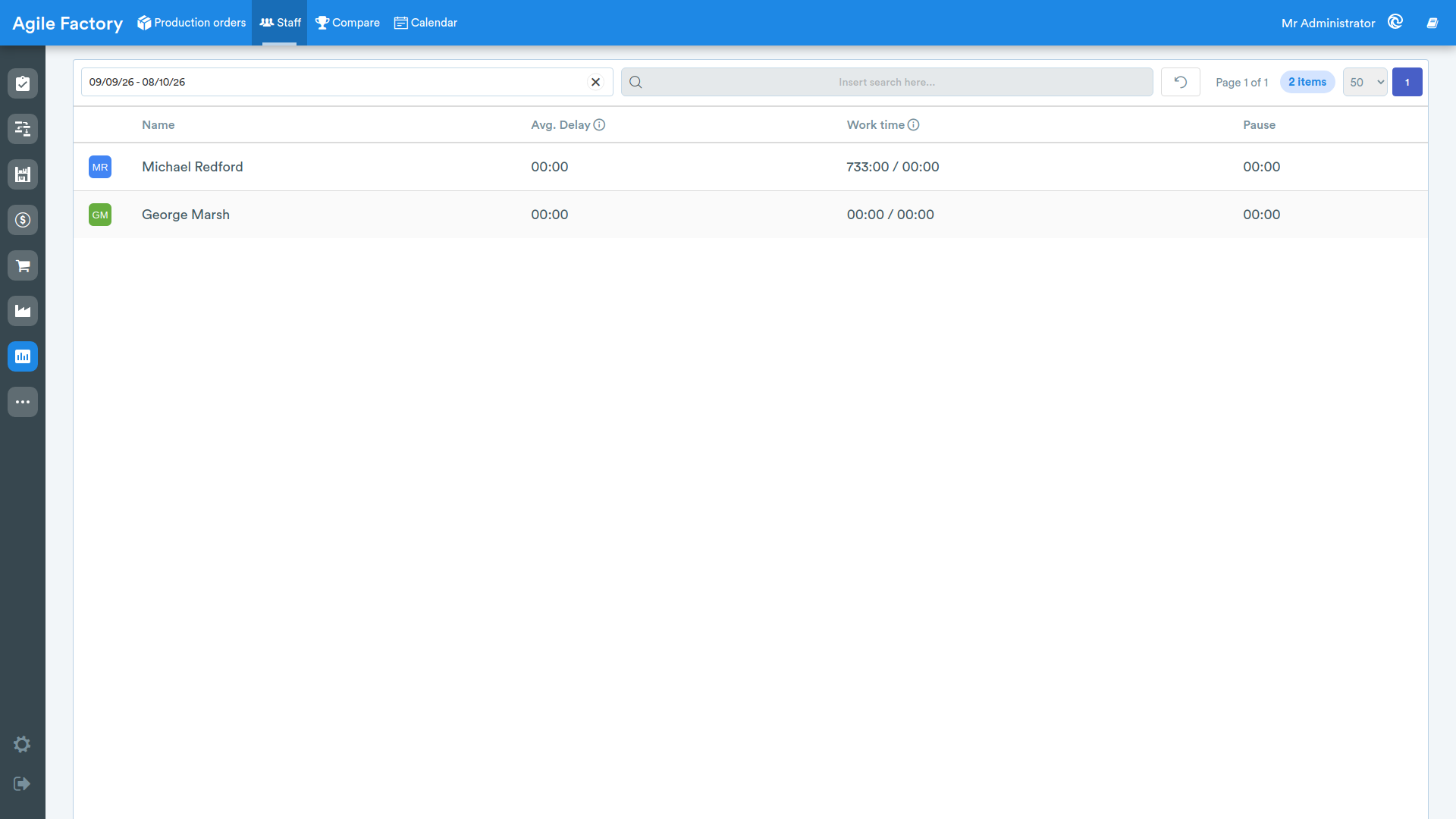
The main page presents a series of indicators:
- operator name
- average time before first station (average time taken by the operator to start activity on the MES from entry time. If negative, it indicates being early)
- hours worked / theoretical hours
- break time
By selecting one of the employees, the user has the ability to view the efficiency indicators of a single employee.
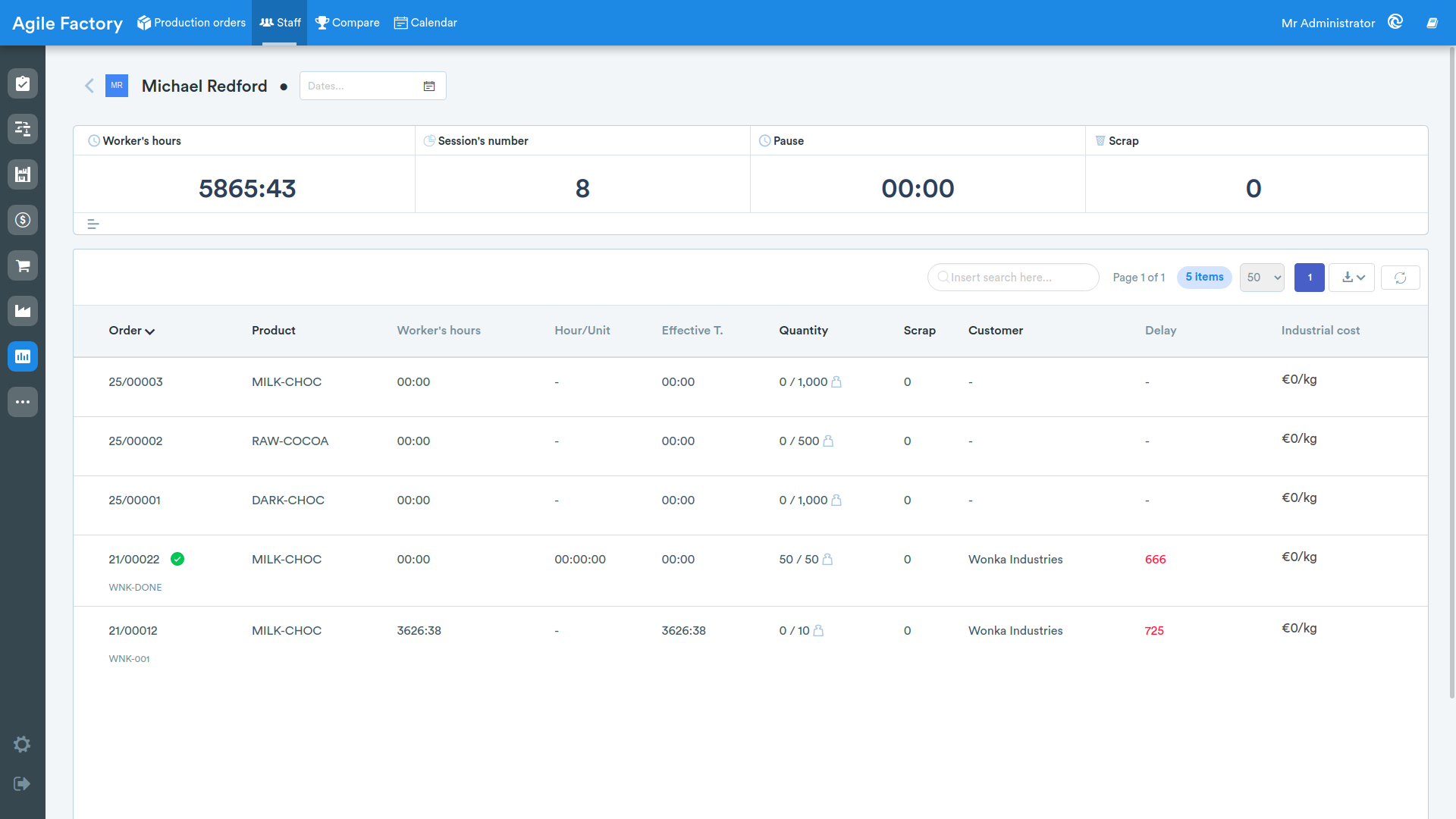
At the top, aggregated data is reported.
- man hours
- number of sessions
- breaks
- scrap
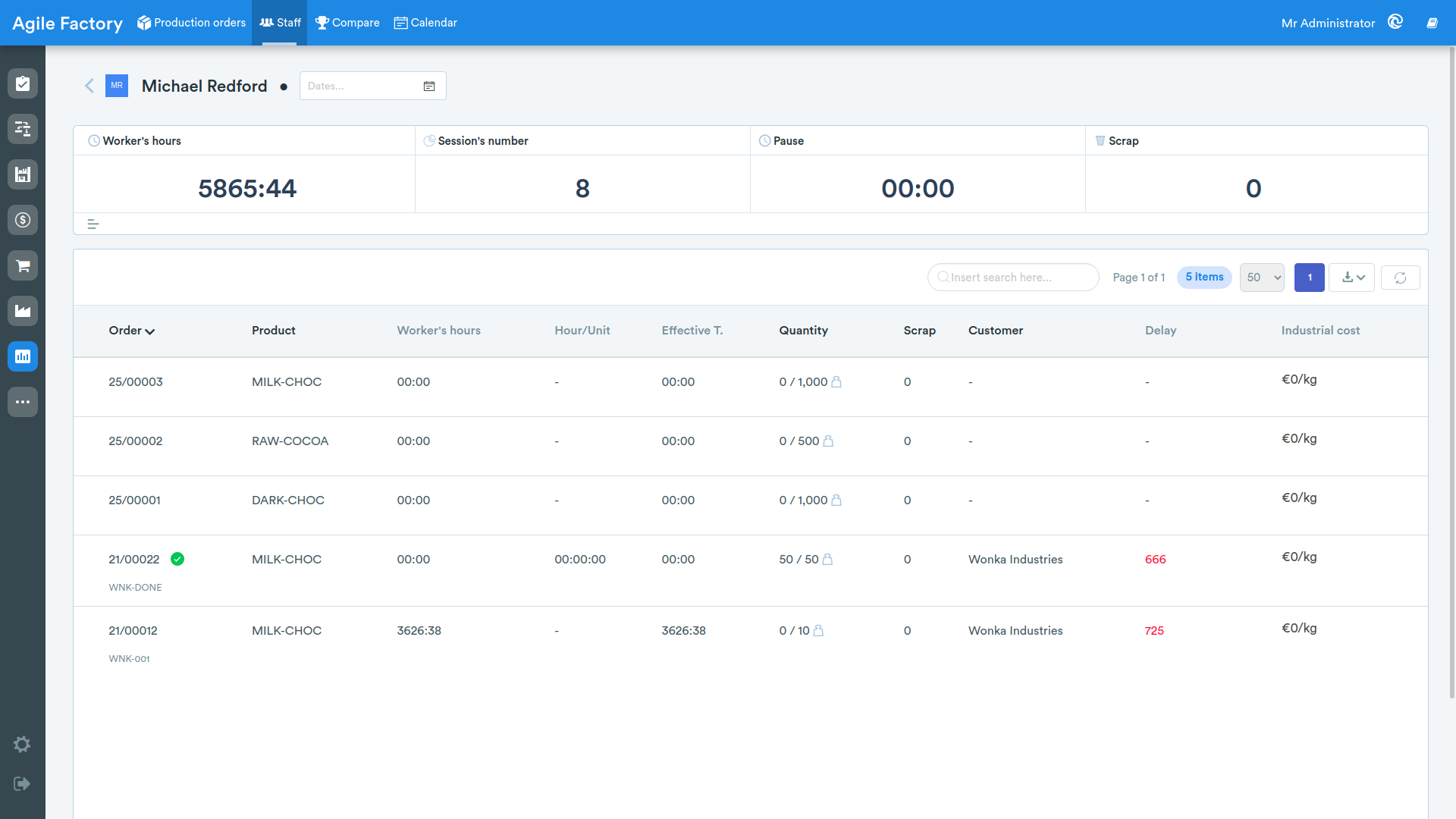
At the bottom, tabular data is reported divided by production orders:
- order
- product
- man hours
- unit time
- actual time
- requested/produced quantity
- scrap
- customer
- delay
- industrial cost (visible if using Industrial Accounting✨)
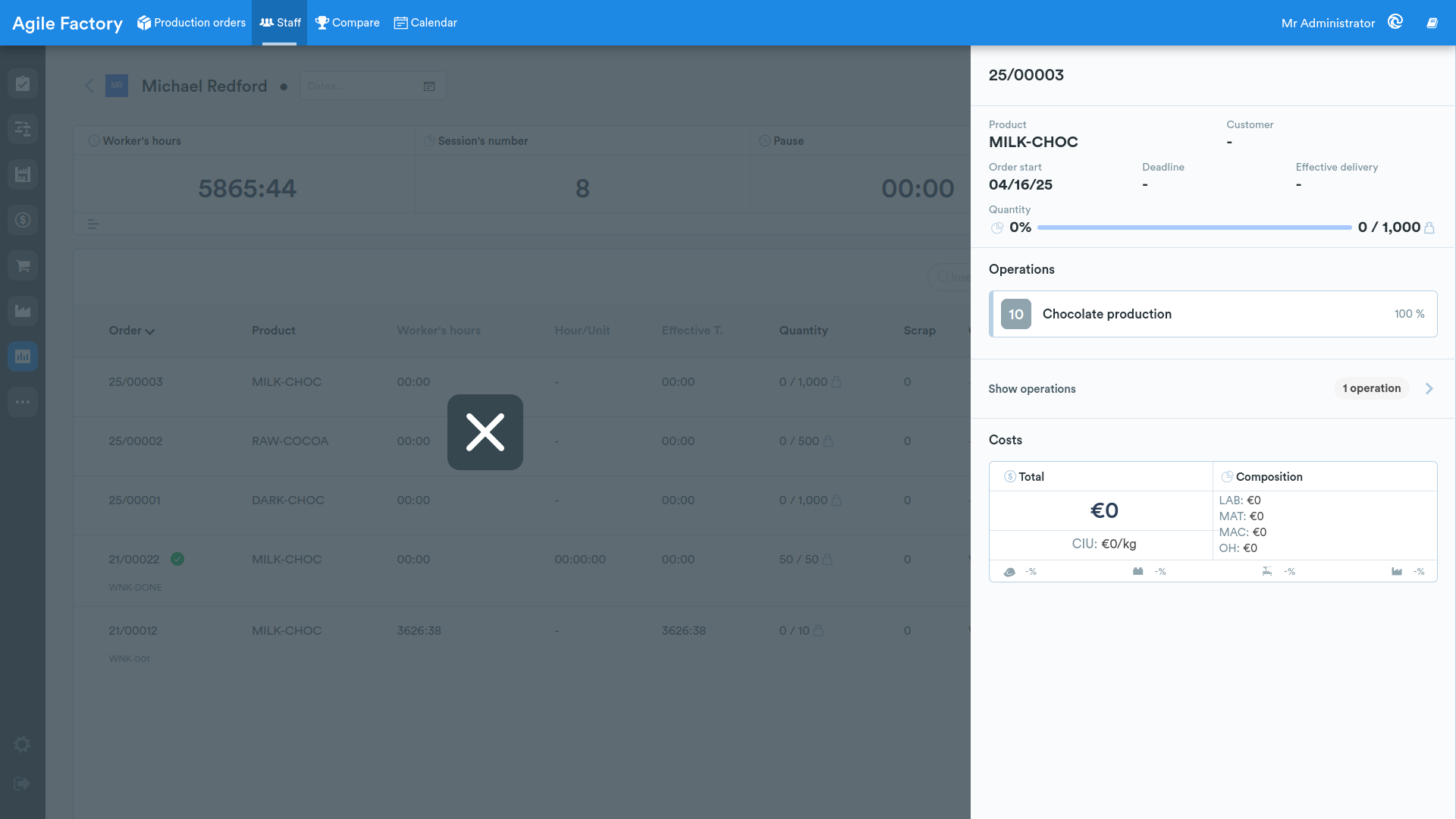
By clicking on one of the orders, it is possible to view the details of the production order execution, as well as each production operation. The information provided is analogous to that available in the "Production Orders" section, but related to the specifically selected worker.
Comparison ✨
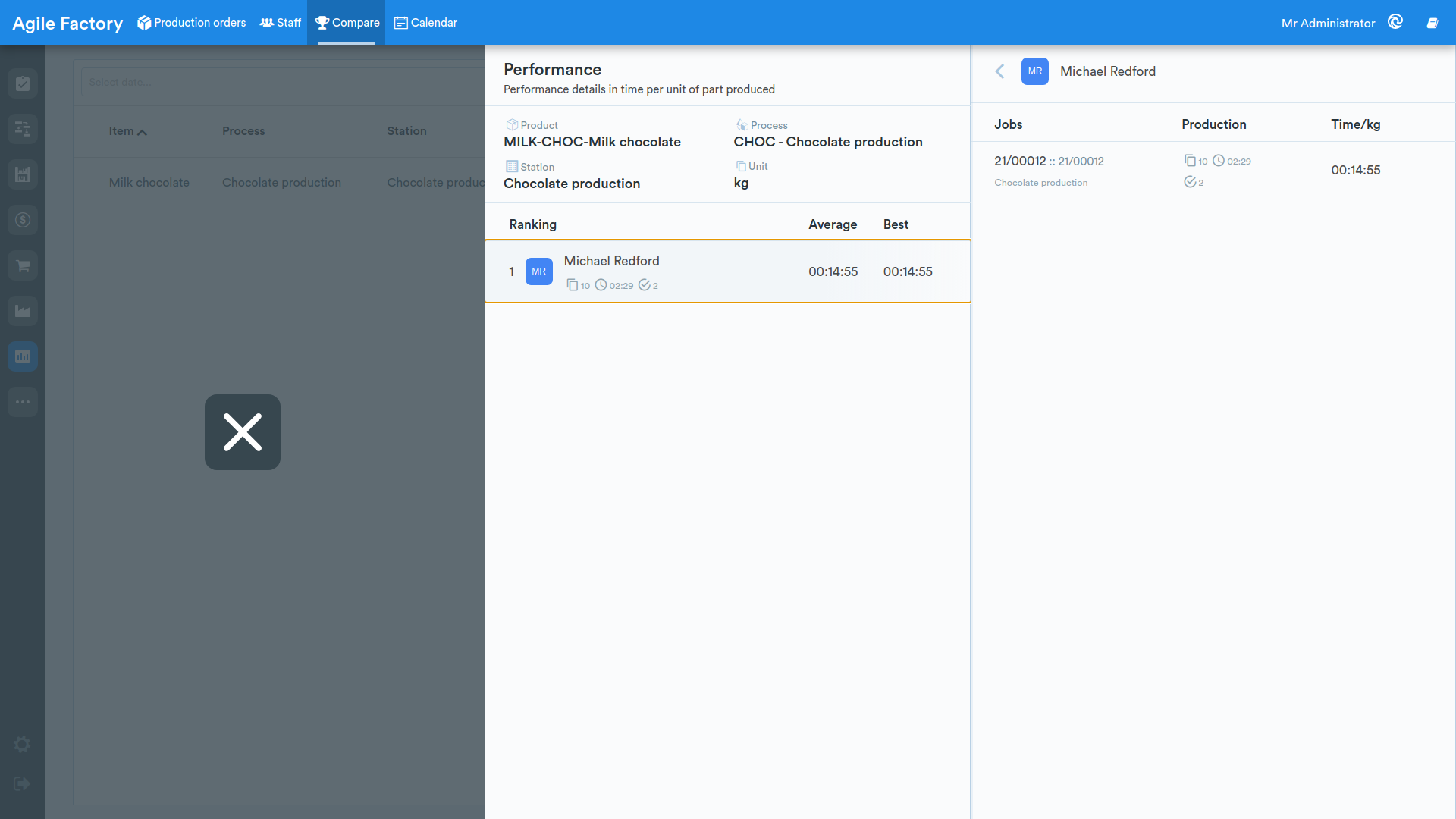
In this section there is a tool that allows you to compare company employees based on the execution speed of different operations, expressed in terms of time taken per production unit.
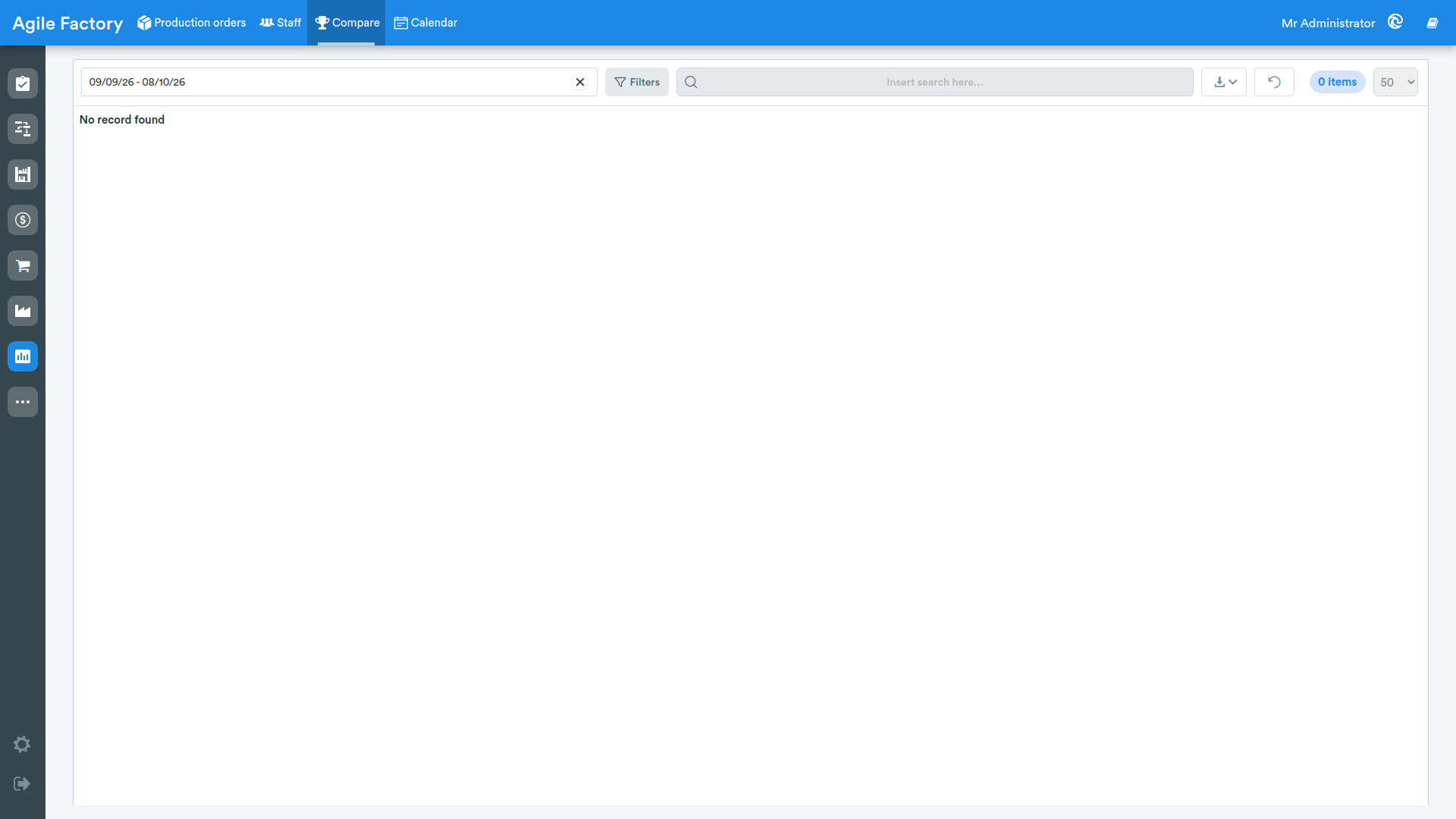
At the top there are the dates filter, the Filters button (which groups the product, process and station filters) and a dedicated search bar. Inside the Filters panel one or more values can be selected and confirmed with the Apply button. The selected filters are shown as removable chips below the filter bar. A button for downloading data in different formats and a button to reset all search filters 🔄️ are also available.
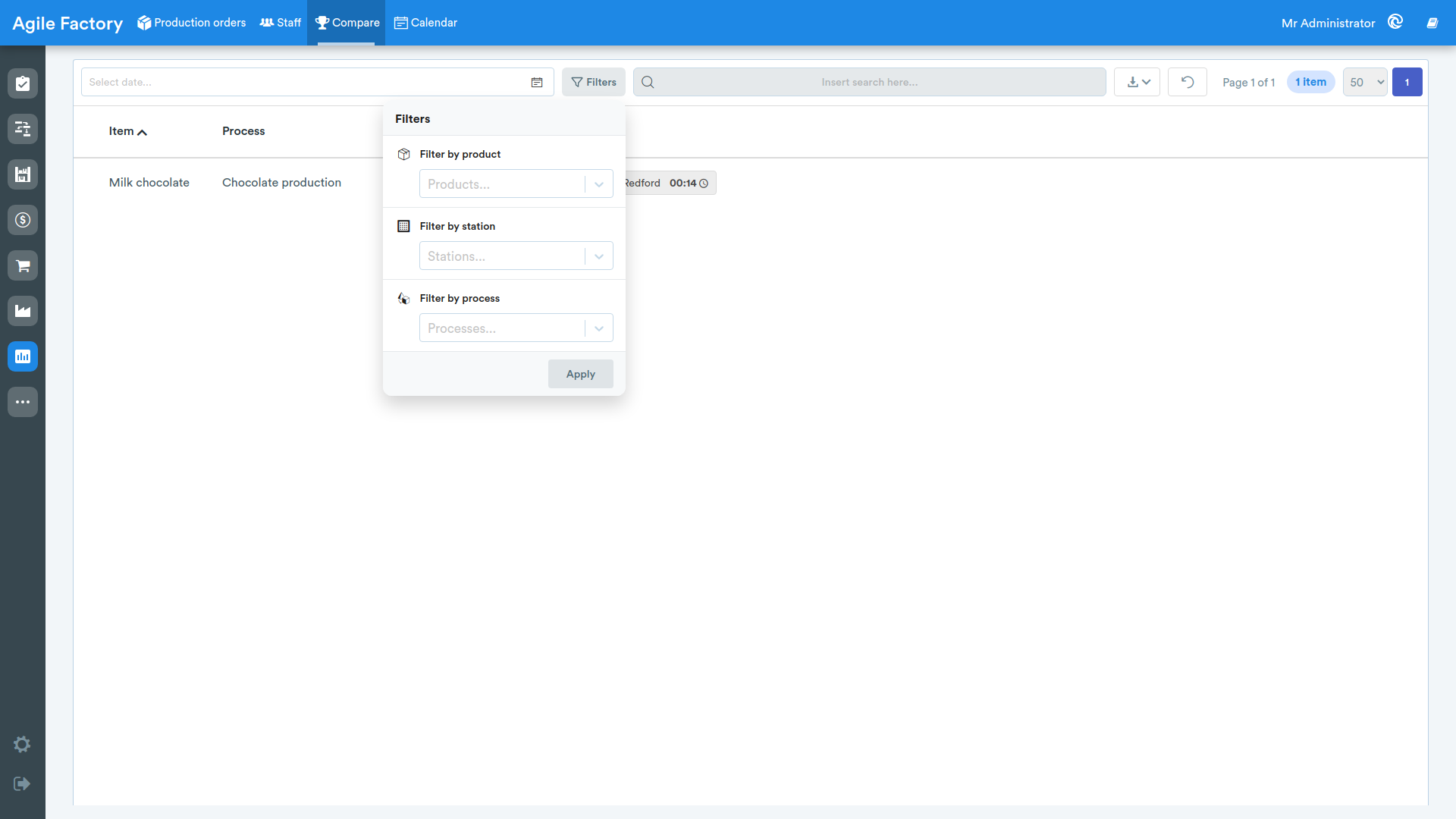
By selecting the row of interest, the user can view detailed information on the process of interest and compare operation execution times between employees.
Calendar ✨
The "Calendar" section offers the user tools to manage employee attendance in production.
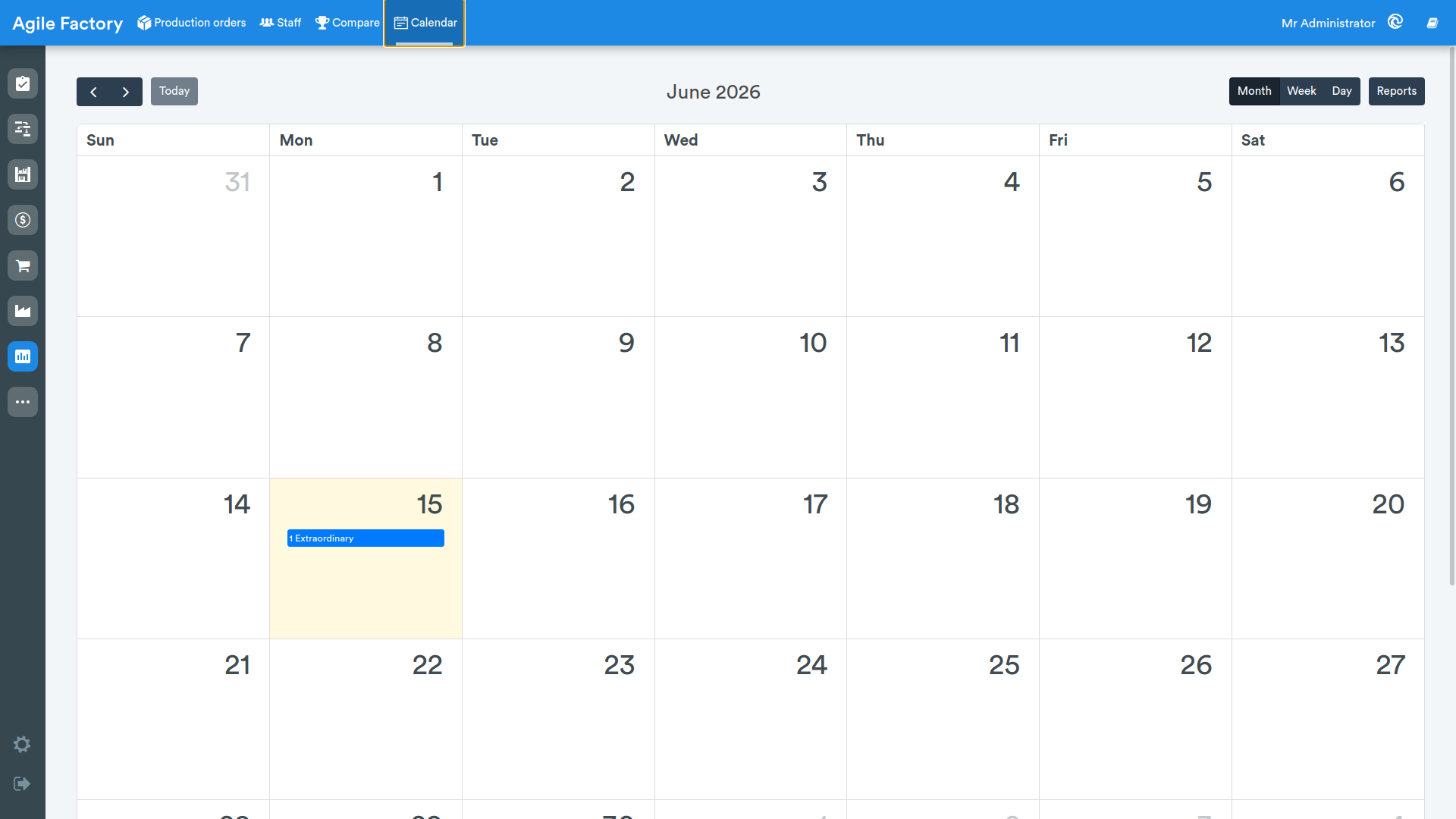
By default, the user is shown the monthly calendar view, but it is possible to switch to the weekly or daily view using the Week/Day buttons
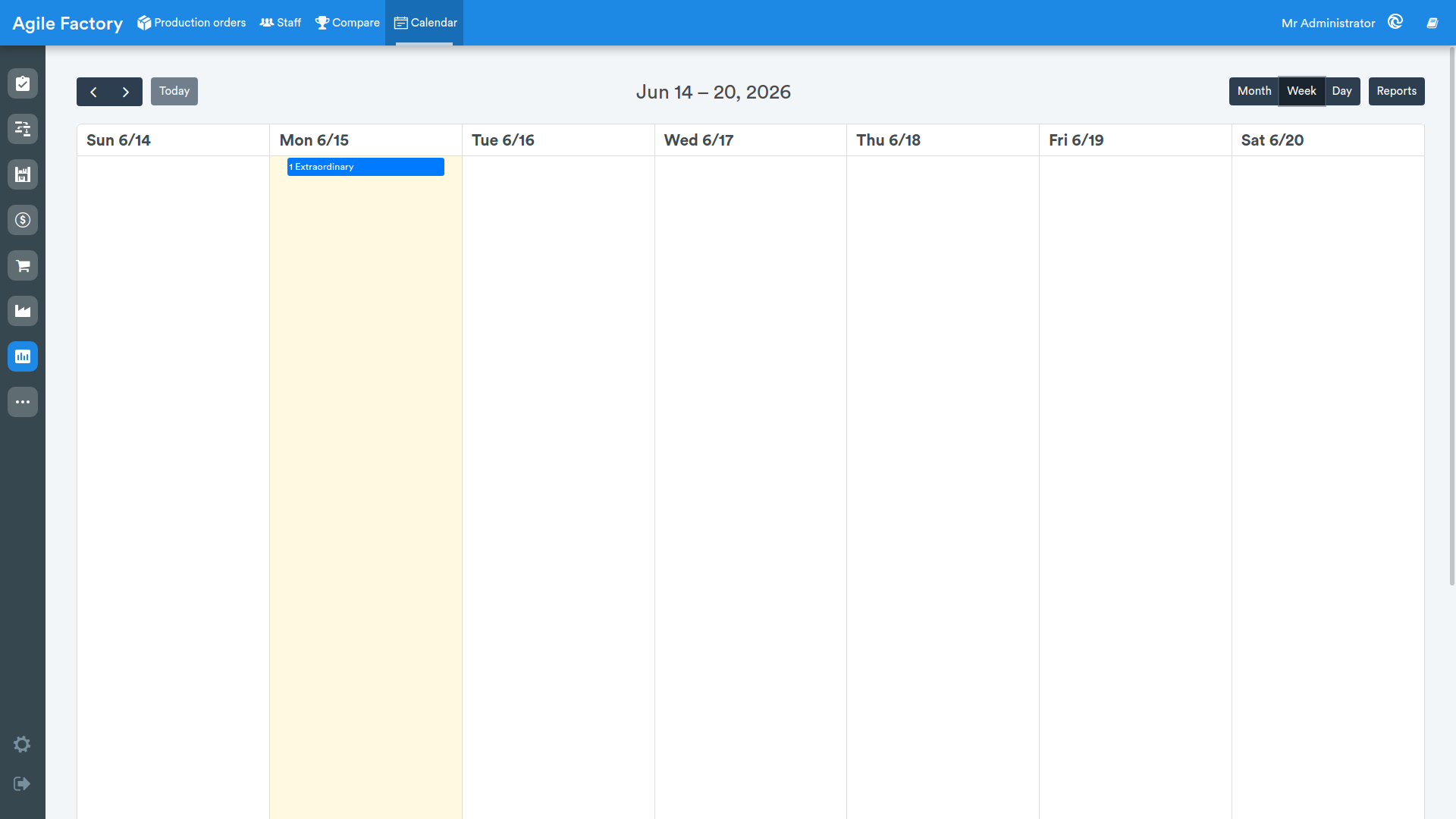
The Report button allows you to download data related to the attendance of all or individual employees in the selected time period in *.xls format
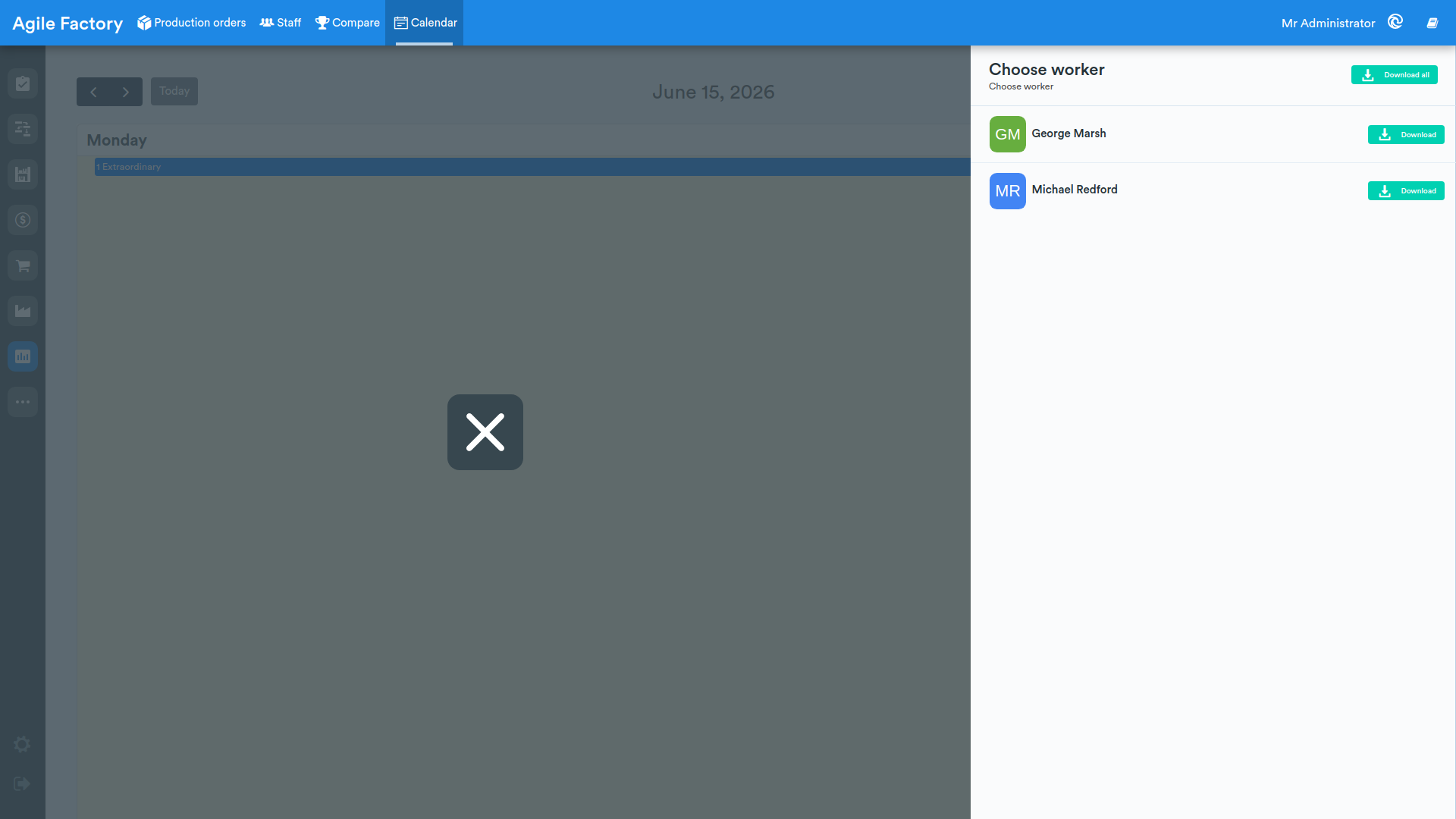
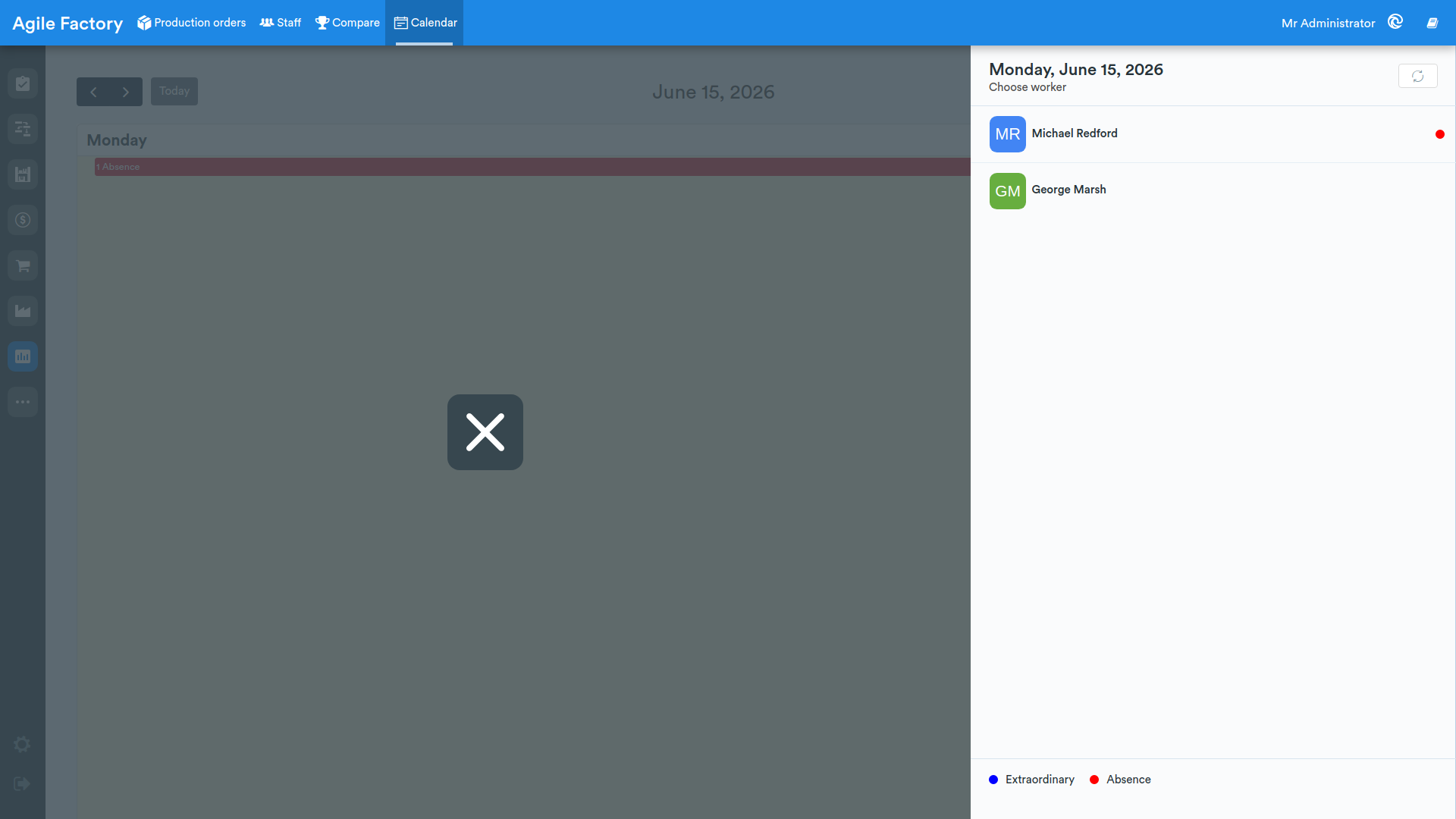
By selecting a specific day of the calendar and pressing the button, the user gets a list of all registered employees for whom schedules have been set and configured for the specified day (Working Hours).
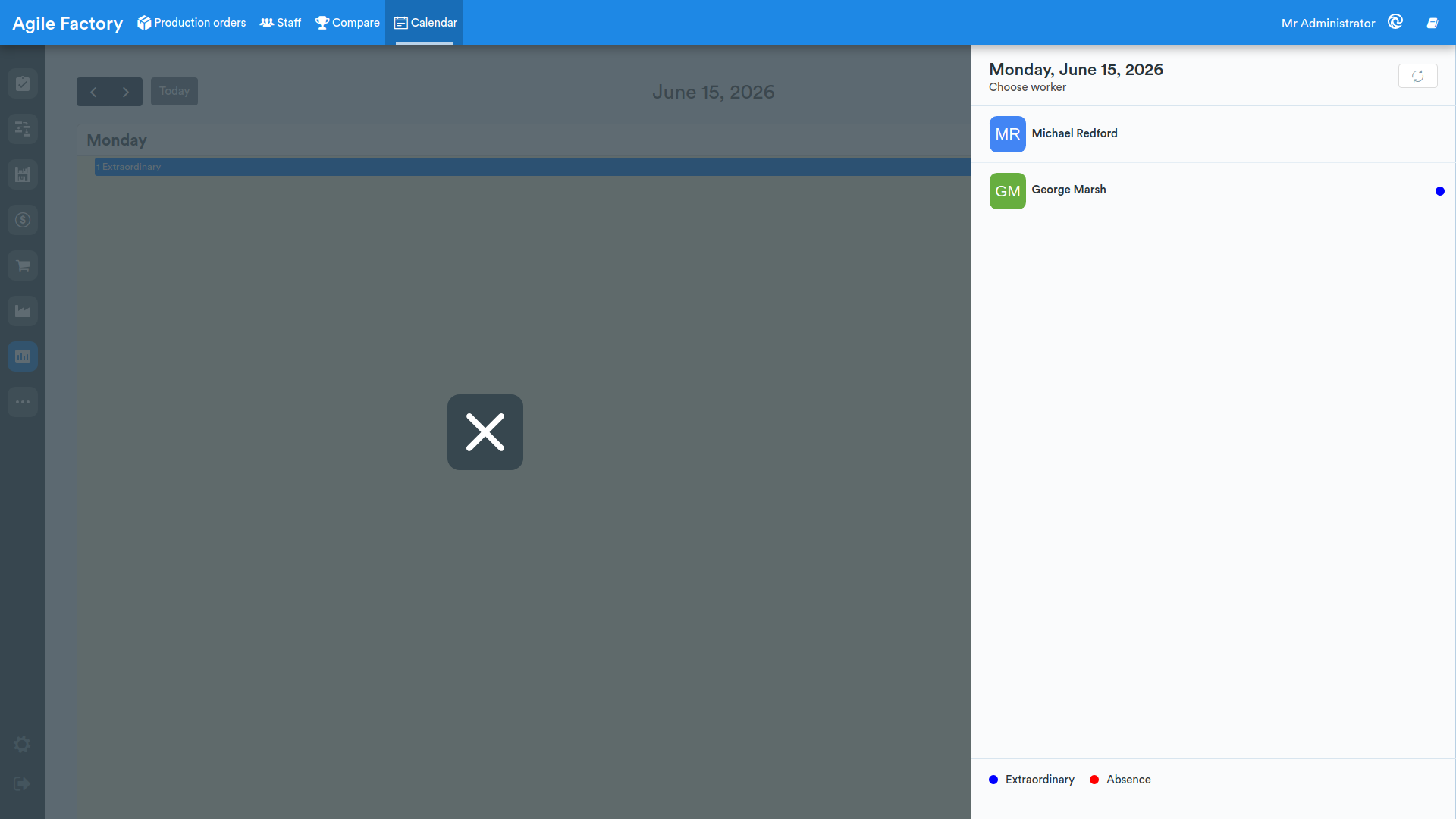
The employee list update can be automatic if one of the operator terminals is used in work time recording mode (for more information on this mode of operation, see the HMI section).
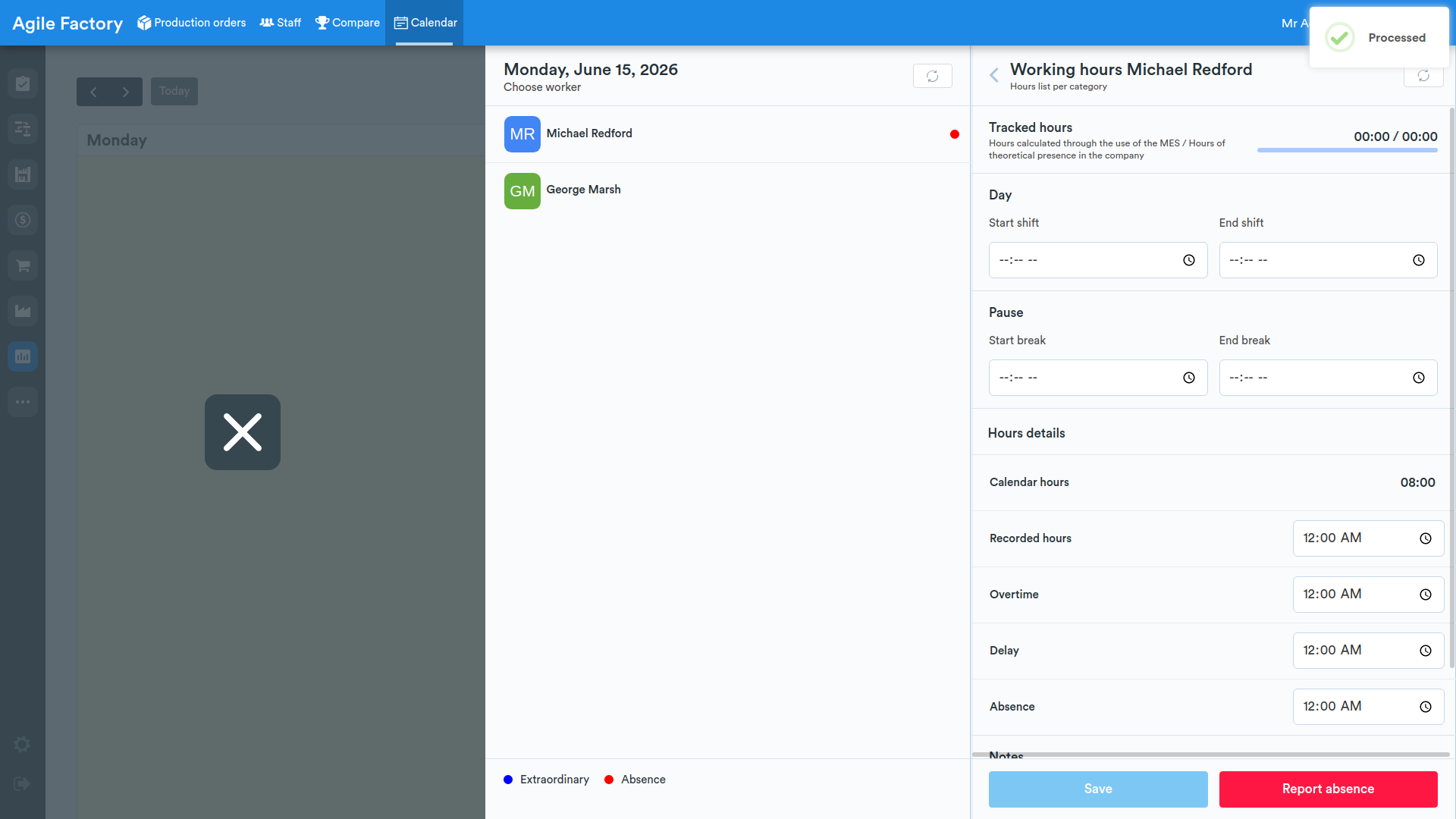
By selecting an employee from the list, a separate panel opens on the right for the user, where the details of an individual employee's working hours are reported.
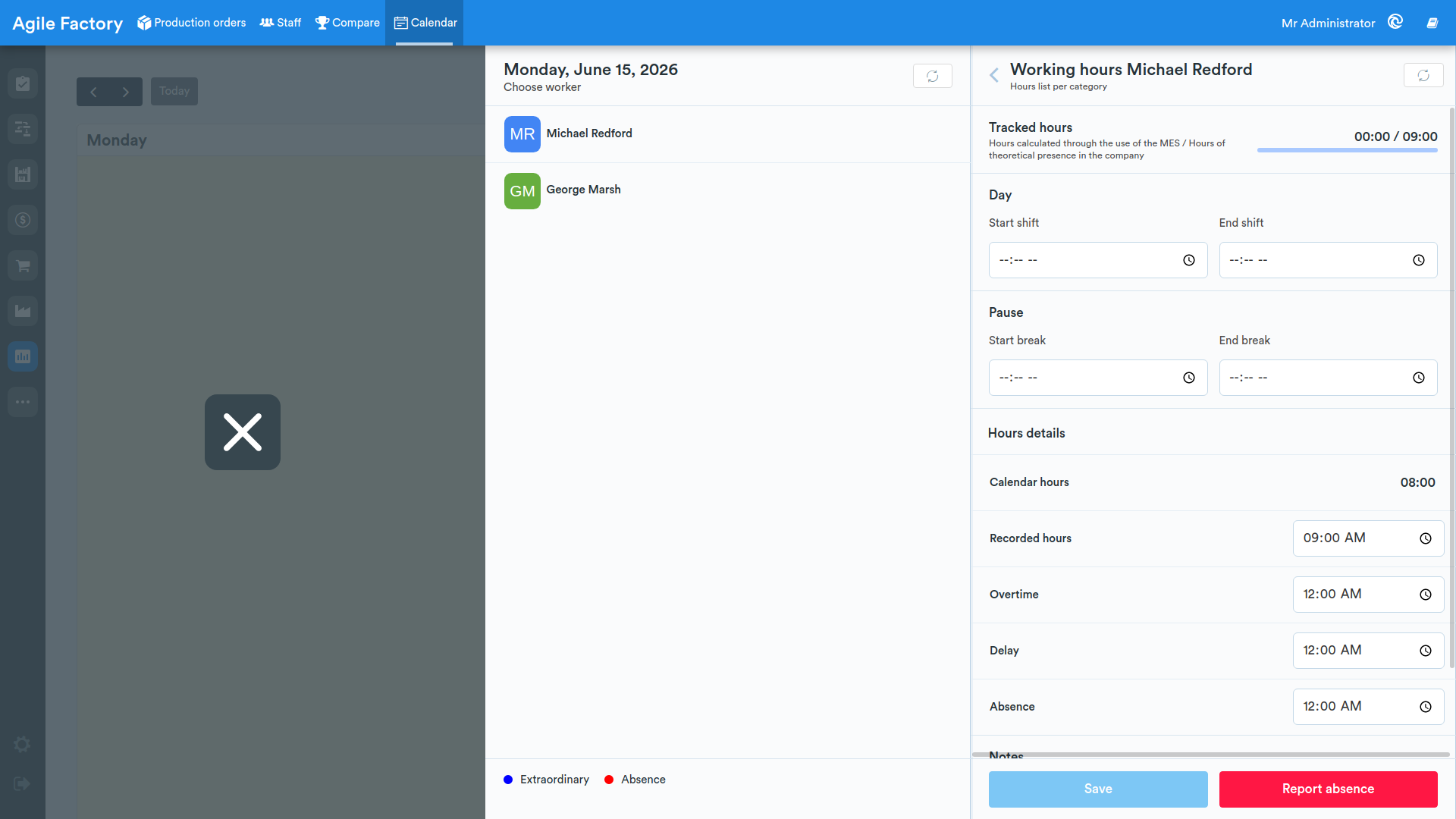
- Tracked hours: hours calculated through MES usage (work sessions) / Theoretical attendance hours at the company (from configured schedule)
- Start/end of day
- start/end of break
- hour details: can be customized based on needs (for configuration, contact us in your preferred way)
The 🔄️ button allows you to get the latest data entered into the system.
The Report absence button allows the user to report an employee's absence from the workplace, for example in case of illness.
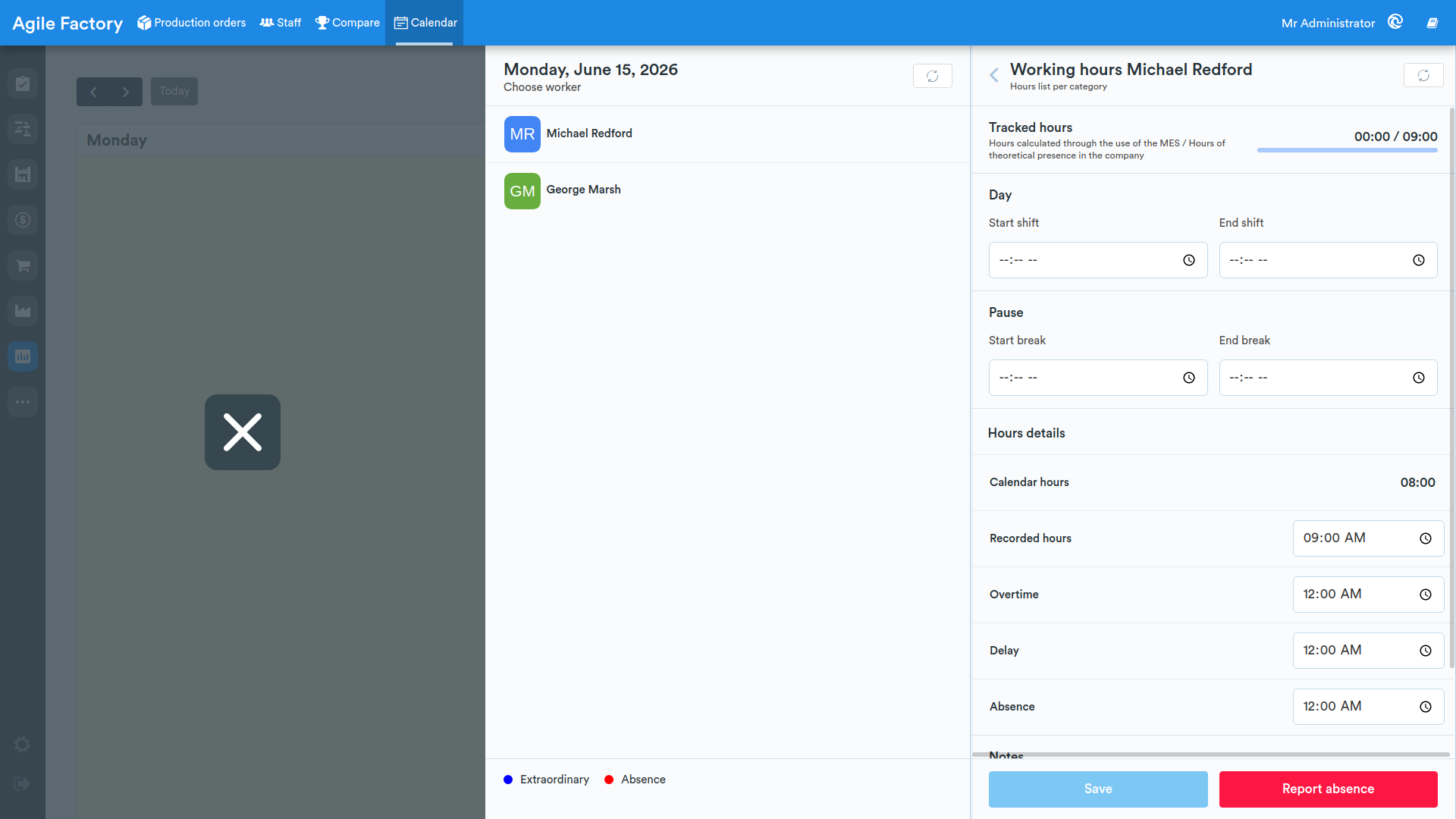
After marking an employee's absence, a red mark appears next to their name on the right.
If the employee has worked more hours than scheduled, the system displays a blue mark next to the employee's name.
Recording work entry and exit times and rest times can be done both using this interface and through a separately configured operator interface (for details, see here - HMI).